Accounts
Logging in to Microsoft 365, SONIS, Moodle.
- What is my username and password?
- Logging in to SONIS
- Logging in with Microsoft 365
- Resetting your password
- Setting up Microsoft Authenticator
- Setting up your Microsoft account
- Setting up your Moodle account
What is my username and password?
Your network account at Bryn Athyn College is synced across multiple systems. This document explains what your credentials are and how to format them when logging in with different systems.
Username
- Most people's usernames will have the following structure:
<firstname>.<lastname>(e.g.john.smith) - Some faculty and staff who have had accounts since 2022 or earlier have legacy usernames:
<firstinitial><lastname>(e.g.jsmith)
If your name is too long to fit within the 20-character limit, it may have been shortened. Refer to the account creation email sent to you by the Helpdesk.
Password
Your Bryn Athyn College network account's password is synced from your Microsoft 365 account to other systems:
- CollegeWiFi
- College-owned Windows Devices
- Work laptops / PCs, Public PCs (Library / Design Labs)
- OCLC
Your password does NOT sync with the following:
- apply.brynathyn.edu
- SONIS
To change your Microsoft 365 account password, see Resetting your Password.
After changing your password with Microsoft 365, it can take up to 15 minutes to sync to other systems.
- All emails have the following structure:
<username>@<domain>(e.g.john.smith@brynathyn.edu) - All students use the
@brynathyn.eduemail domain. - Some Faculty & Staff may have another email domain, such as
@anc-gc.org,@newchurch.org- Additionally, some Faculty & Staff may have an email alias, which should only be used to receive emails.
When to use email vs username
Use your email to log in to Microsoft 365 products such as Outlook, Microsoft Authenticator, or when authenticating with Moodle.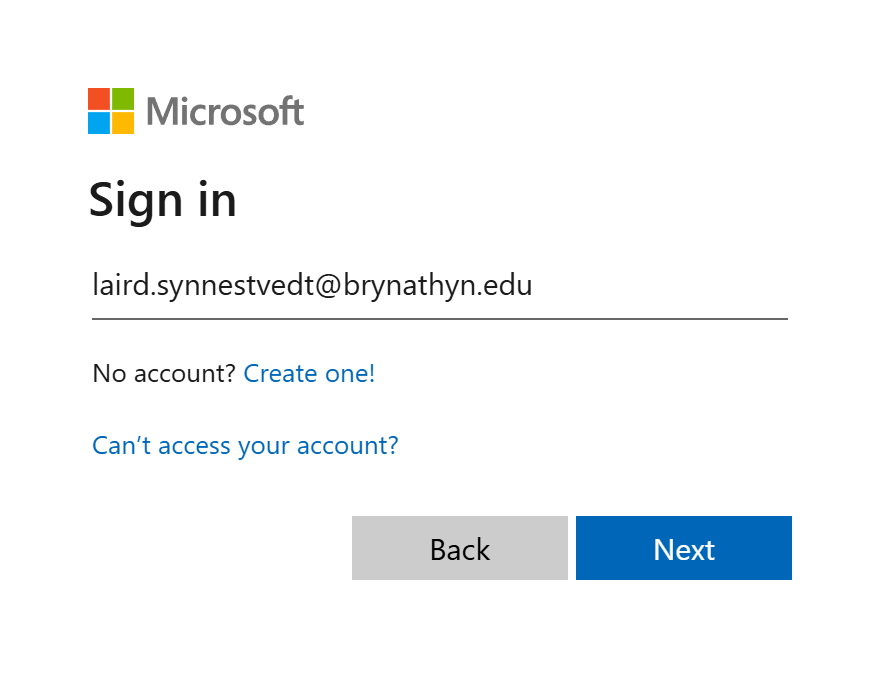
Username
Use just your username when:
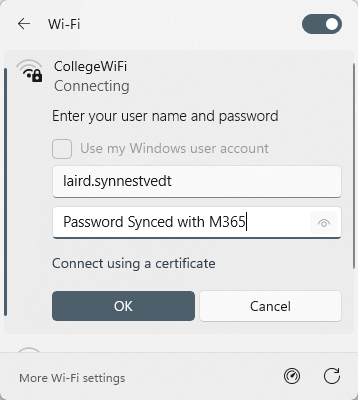
- Connecting to CollegeWiFi

- Signing into college-owned Windows devices
- Work laptops
- College Public Computers
- Library / College Center public computers
- Library / Doering Center design lab computers
- Accessing the Library's Electronic Resources via OCLC
Logging in to SONIS
SONIS is the College's student information system.
- Students can access their financial and academic information via SONIS.
- E.g. midterm & final grades, GPA, course schedule, billing etc.
- Faculty use Sonis to view course rosters and submit midterm and final grades.
The SONIS system is handled by the Registrar's Office.
For questions about SONIS, please contact the registrar: brynathyn.edu/academics/registrar.
Accessing SONIS
SONIS at Bryn Athyn College can be accessed via brynathyn.jenzabarcloud.com
Hover over the Login drop-down menu and select the relevant option.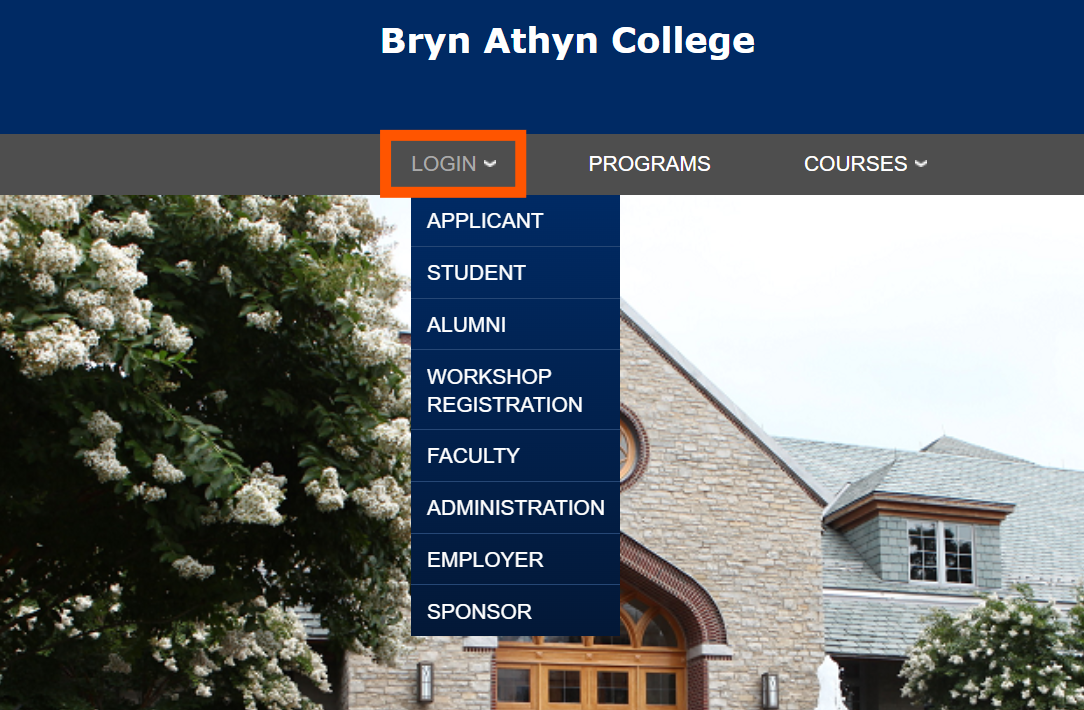
Credentials
The ID and PIN used to access SONIS are only used for SONIS and are not connected to any other systems on campus. The Helpdesk recommends storing your ID and PIN in a secure password manager.
If you need help resetting your SONIS PIN, please contact registrar@brynathyn.edu.
Logging in with Microsoft 365
Your Microsoft 365 account is used to log in to various services provided by the college. This includes the Microsoft 365 suite of apps (Word, PowerPoint, Excel, Outlook, Teams, etc.), as well as other places like Moodle. All of these will ask you to sign in occasionally. If you come across a sign in window and encounter any errors or other difficulties, follow the instructions below:
If you want to log into a specific app like Outlook or Word, go to https://m365.cloud.microsoft/apps.
- Ensure that you're in the correct place.
The proper window should look like this:
- Enter your email address where it says Email, phone, or Skype.
For more information about what to enter, see What is my Username and Password?
- Click Next.
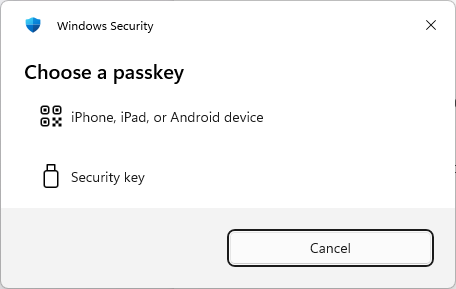
- If you receive a prompt for a passkey, click Cancel.

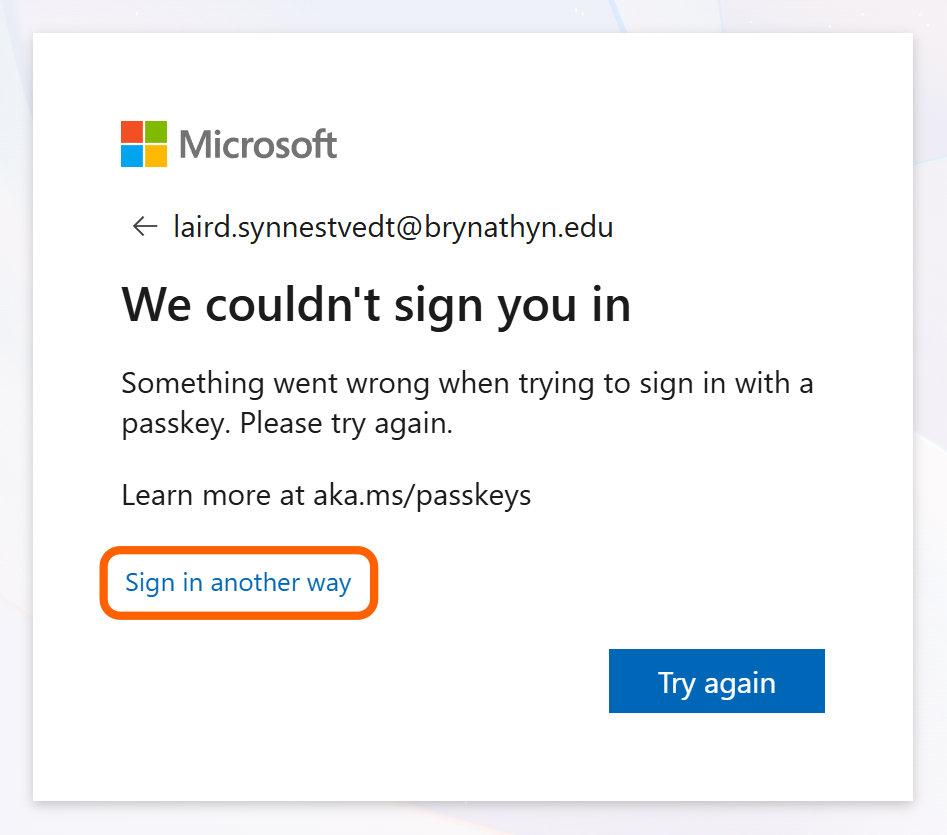
- Select Sign in another way to use your password instead.

- If you receive a prompt for a passkey, click Cancel.
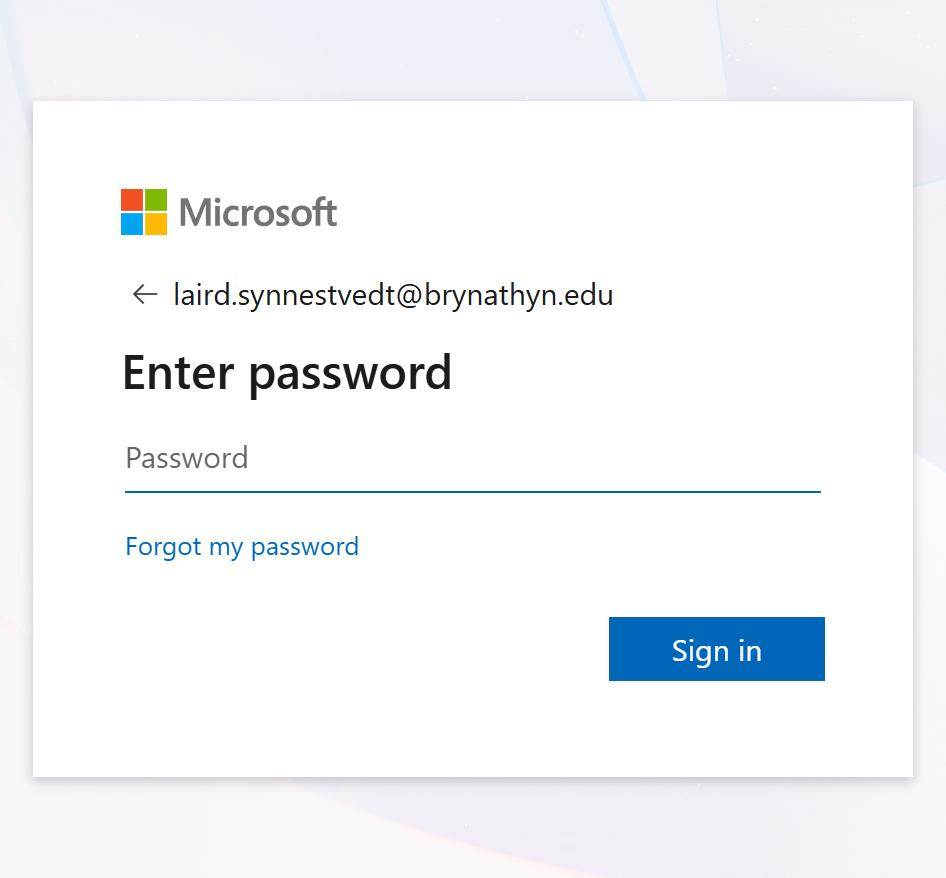
- Enter your Microsoft account password in the Password field that appears.

- Click Sign In.
- You may receive a prompt to Approve sign in request. Follow the provided instructions to complete your sign in.

Congratulations, you've signed in with Microsoft 365!
Resetting your password
The instructions below will reset the password for your Bryn Athyn College Microsoft 365 account. This also syncs to other campus systems such as CollegeWiFi, Public PCs, OCLC etc.
Instructions
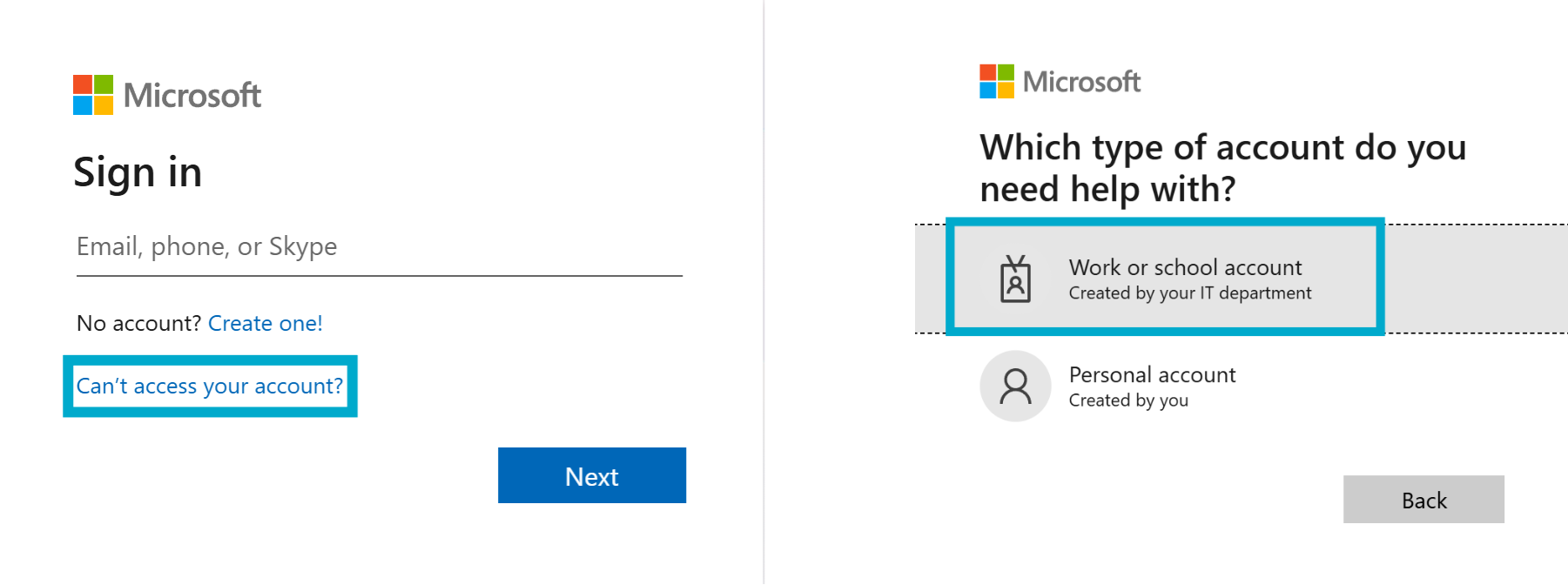
- From the Microsoft 365 sign-in page, select Can't access your account? > Work or school account.

- Enter your Bryn Athyn College Microsoft 365 email address and then enter the characters in the generated image.

- Select I forgot my password then Next.

- Select the first contact method you will use for verification, then the action button under the explanation on the left (Email, text, send notification, etc).

- Enter the verification code received at the selected contact method and click Next.
- Select the second contact method you prefer, then the action button.

- Enter the second verification code and click Next.
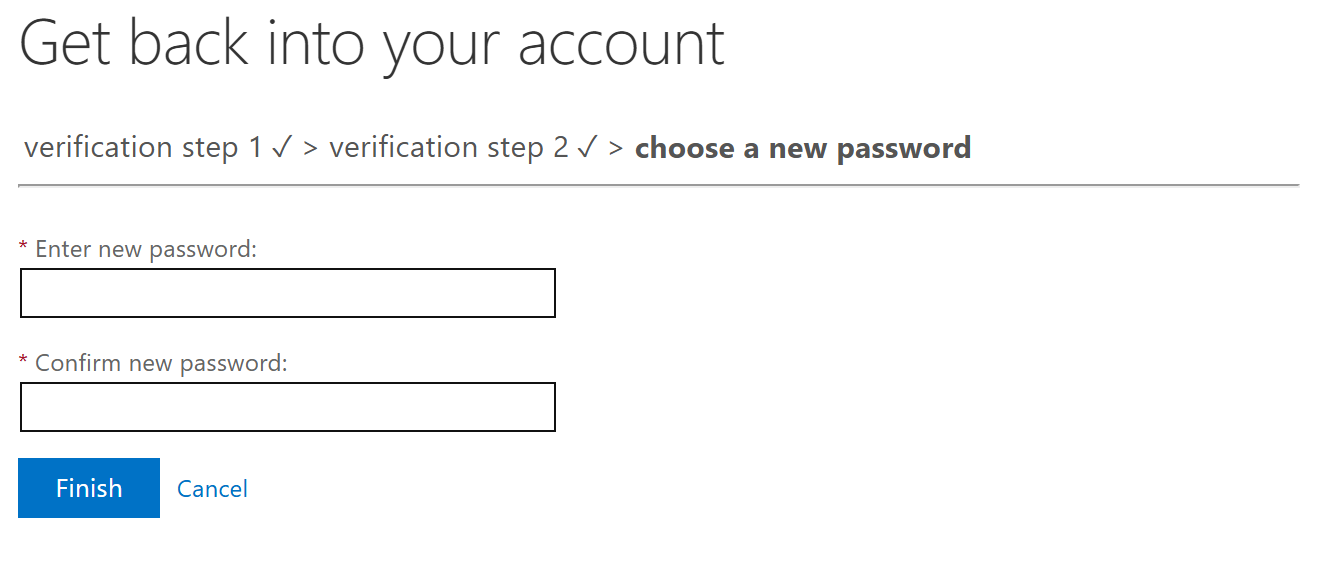
- Enter your new password and click Finish.

- Our password policy requires that you choose a password that's at least 8 characters long, includes uppercase and lowercase characters, a number, and a special character.
- We suggest the use of a password management program to keep track of unique and secure passwords.
- You can generate easy-to-type passphrases for free with the Bitwarden Passphrase Generator or test the strength of your own passwords with the Bitwarden Password Tester.
- You should see a congratulations screen once your password has met the requirements and is changed.
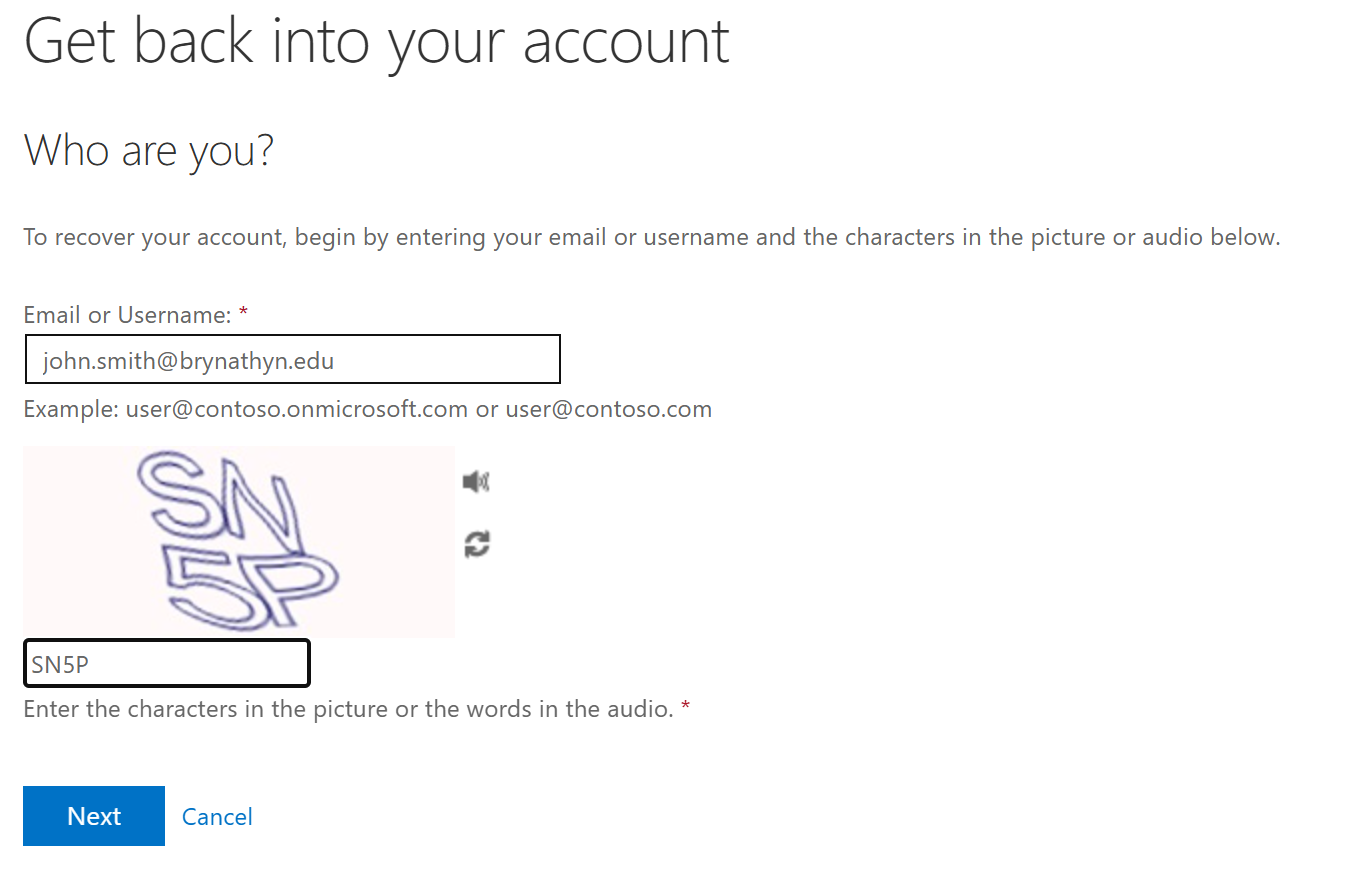
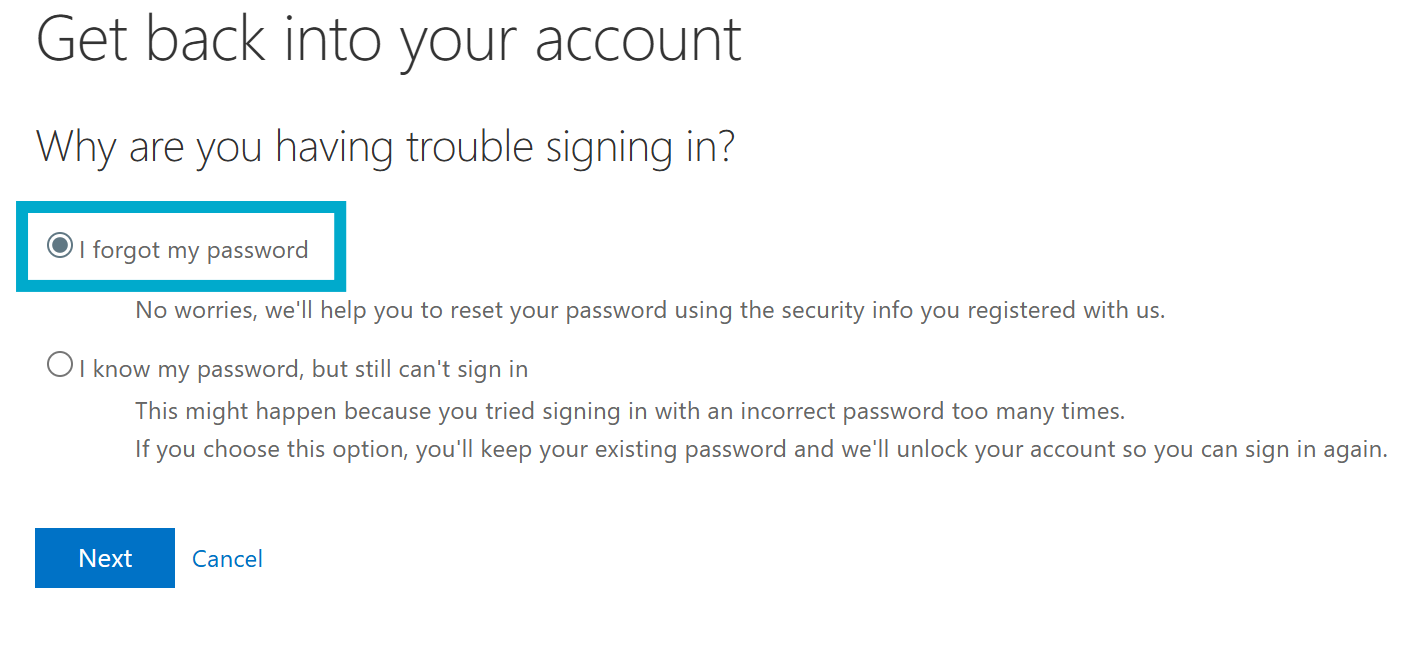
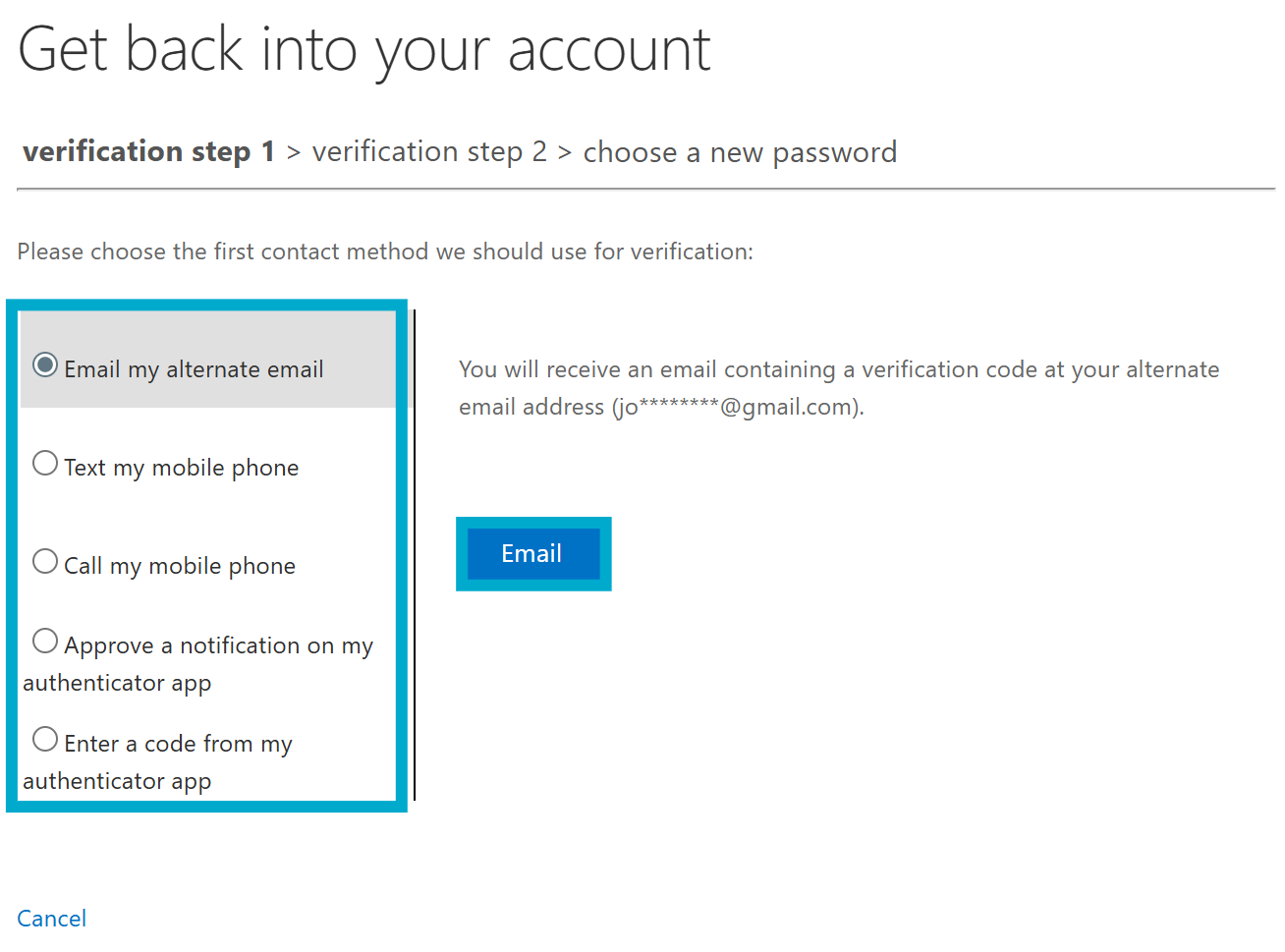
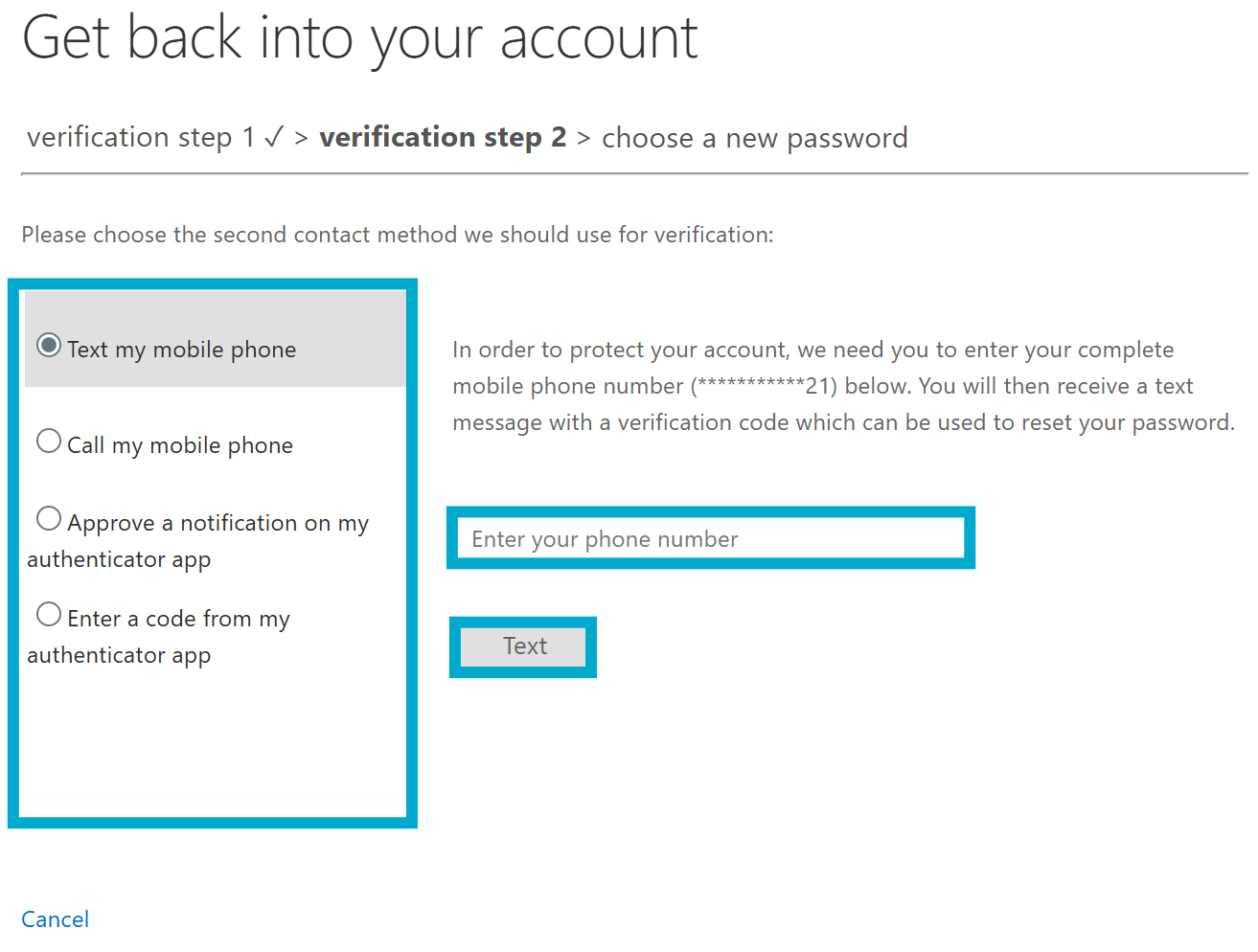
You should now be able to access your account with the new password. Note that it can take up to 15 minutes for the change to sync across all systems (e.g. CollegeWiFi)
If you receive a confirmation email from msonlineservicesteam@microsoftonline.com and you did not initiate a password reset, contact the helpdesk immediately.
Setting up Microsoft Authenticator
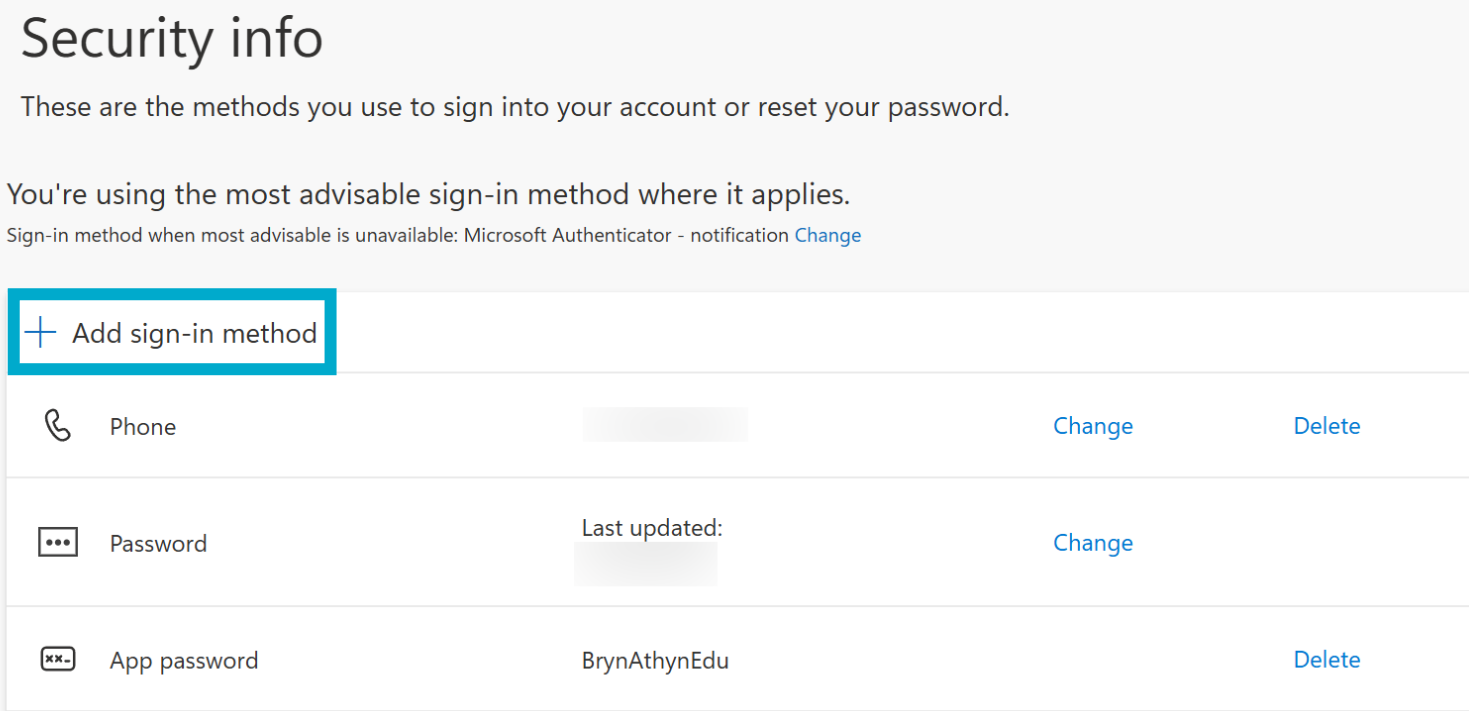
- Head to https://mysignins.microsoft.com/security-info and sign in using your Bryn Athyn College Microsoft 365 account.
- Select Add sign-in method.

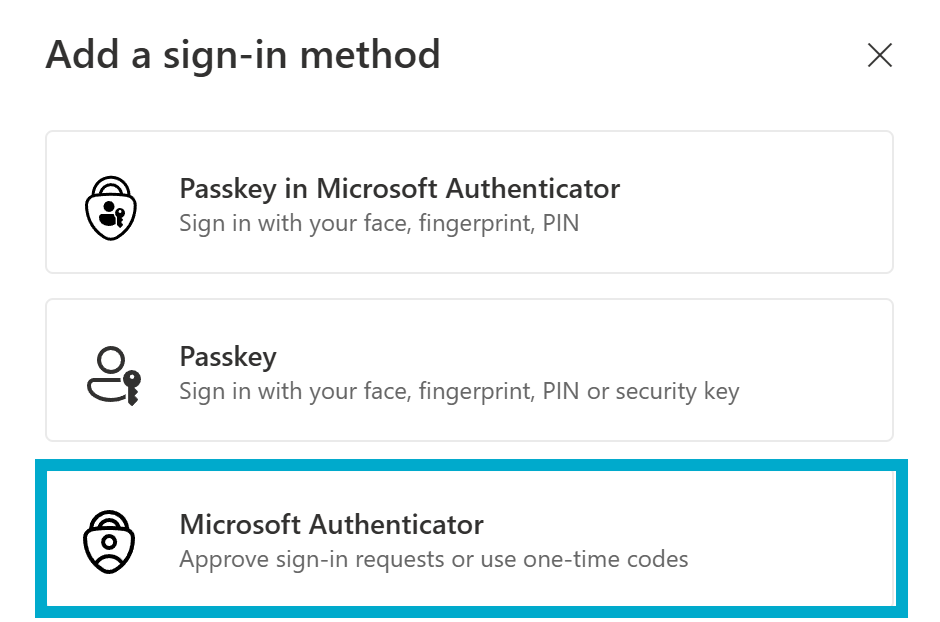
- Select Microsoft Authenticator.

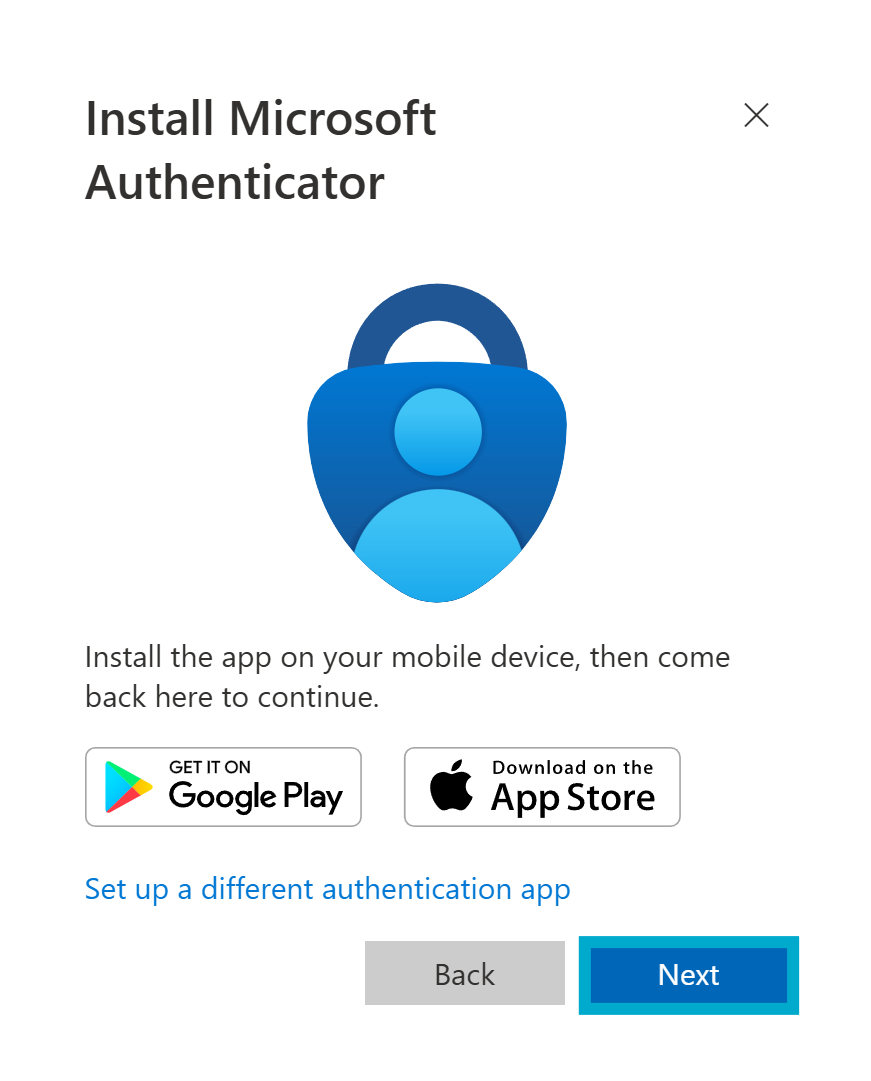
- Download the Microsoft Authenticator app on your phone. It is available via the Apple App Store or the Google Play Store. Scan the QR code with your phone to get to the app store listing for your device.

- Back on the Microsoft 365 account page, select Next on the prompt for the Microsoft Authenticator app.

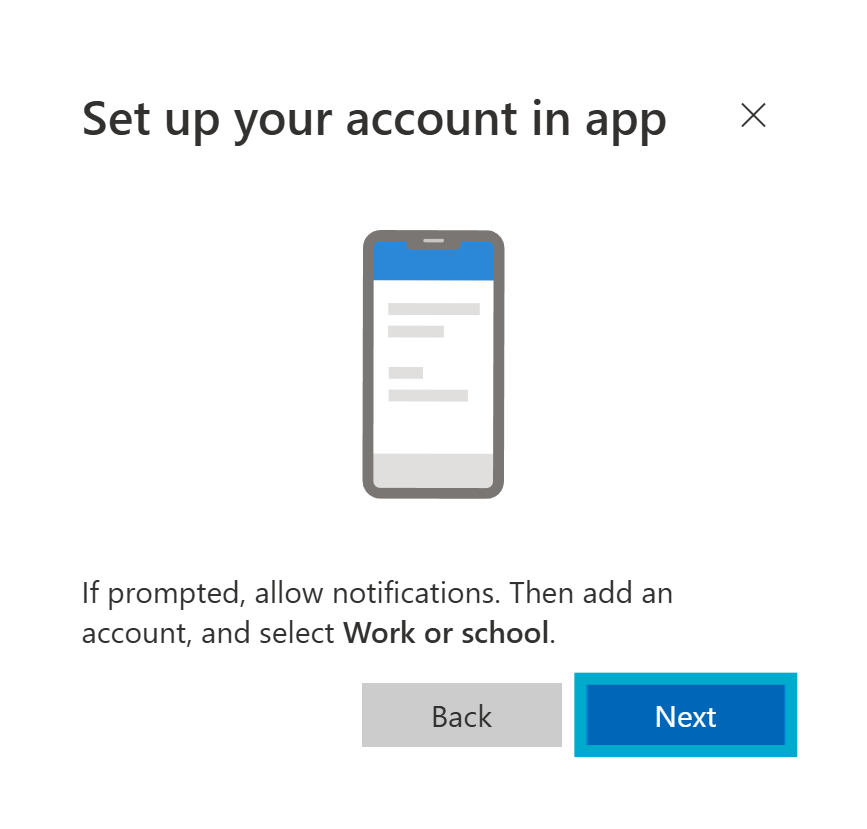
- Remain on the Set up your account page while you set up the Microsoft Authenticator app on your phone.
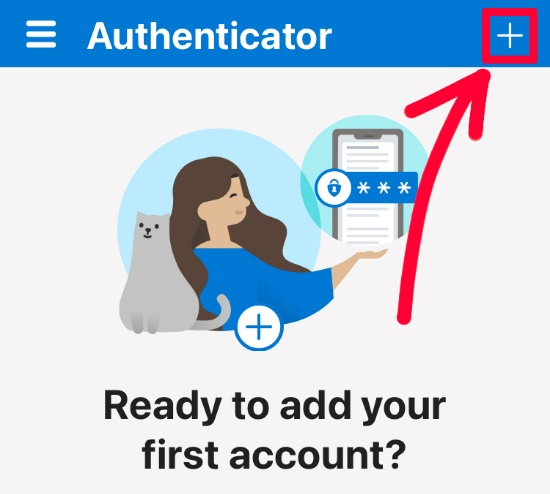
- Open the Microsoft Authenticator app. If prompted, select to allow notifications. Click the + in the top right.

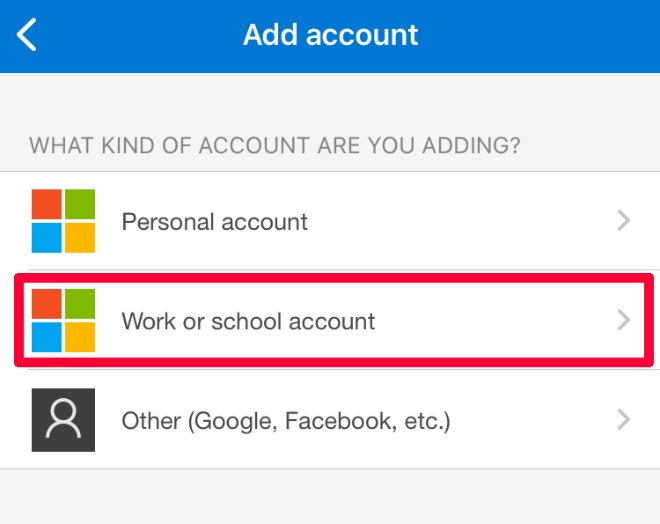
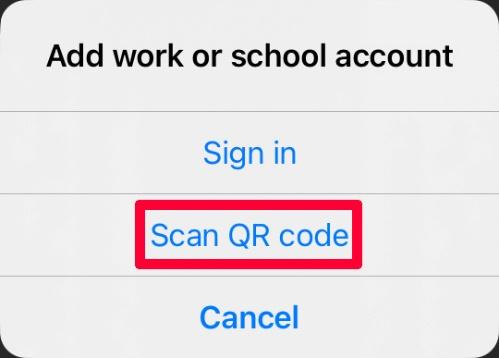
- Select Work or school account.

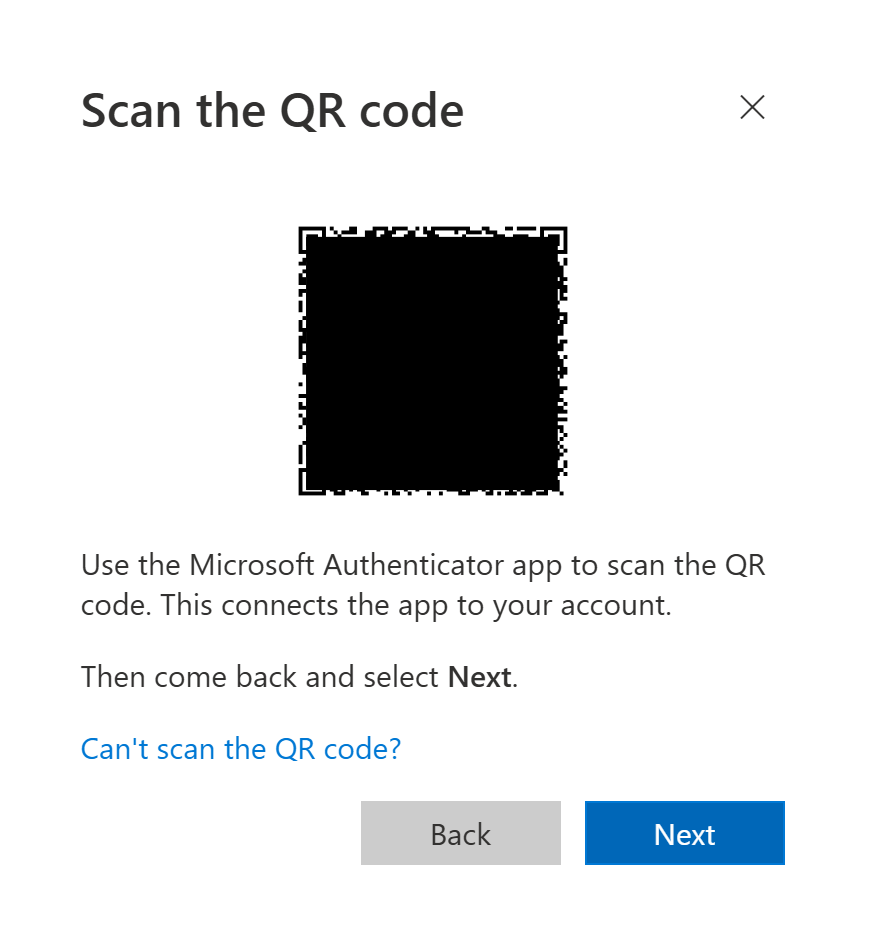
- Go back to your browser page where you are signed into your account and select Next on the current prompt.

- In Microsoft Authenticator, select Scan QR code, then scan the code on your computer.


- Your account should now be added to your authenticator app. To make sure everything is working, select Next in the panel with the QR code. This will send out a test MFA notification to confirm you are able to approve alerts for your account. After approving the MFA prompt select Next again to complete the process.
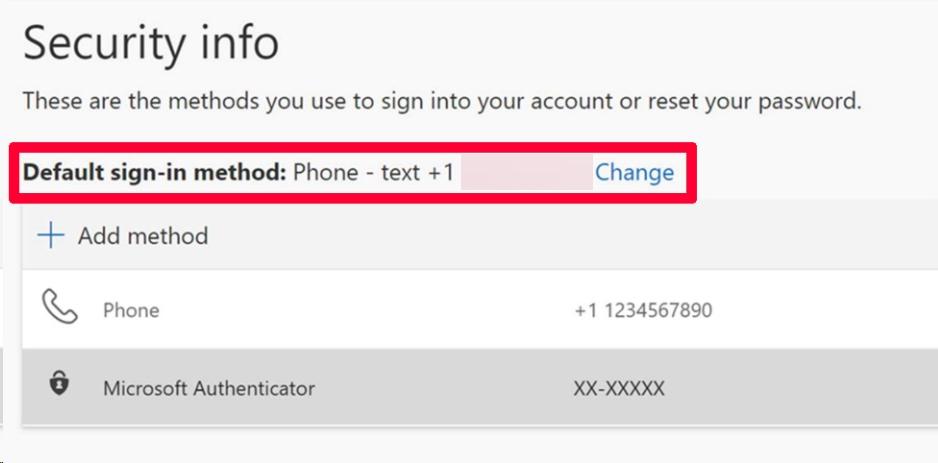
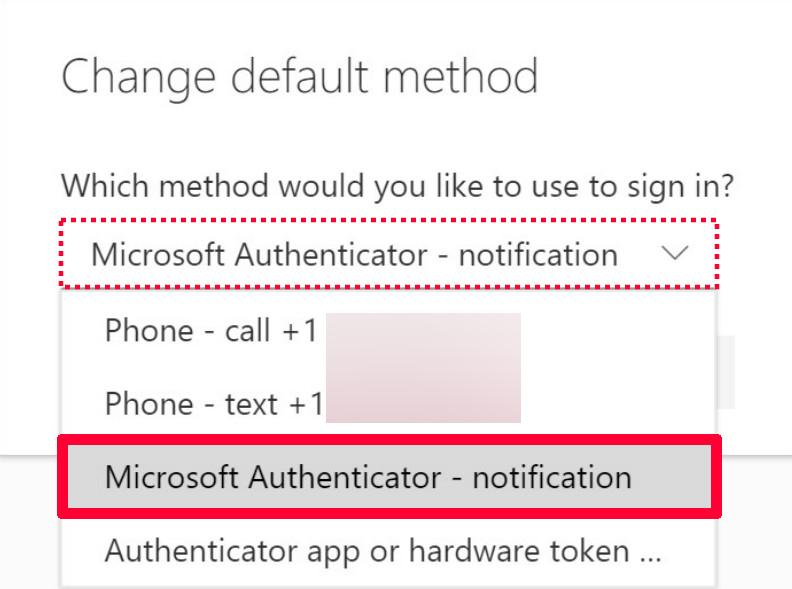
- Set the Authenticator app as your default sign-in method. To do this, select the blue change option next to your current Default sign-in method near the top of the screen. From the drop-down list select Microsoft Authenticator - Notification, and then select confirm.


Setting up your Microsoft account
The first time you log in to your College Microsoft account, you will have to go through a few additional setup steps. This page will walk you through the process of getting your account ready to use.
- Go to login.microsoftonline.com.
- Enter your email and password, as received in your New Account email.
This process is explained slightly more in-depth in Logging in with Microsoft 365, just disregard step 6 in that page for now.
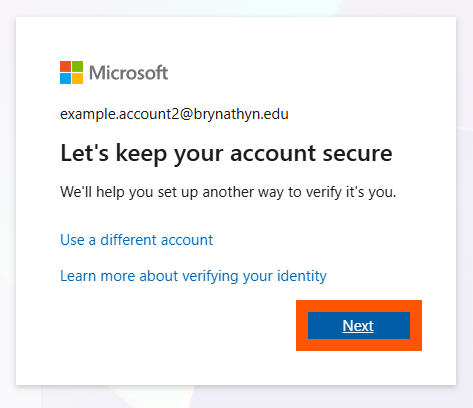
- Click Next on the prompt that appears.

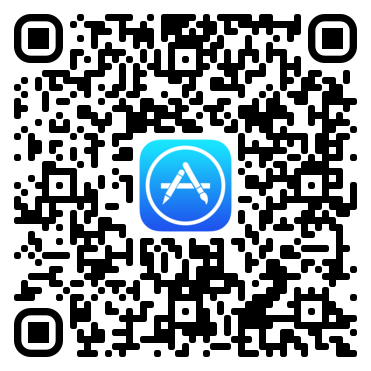
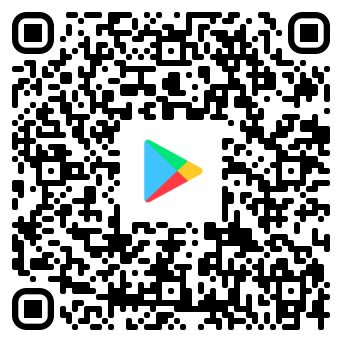
- Install the Microsoft Authenticator app by searching the mobile app store the QR codes below.


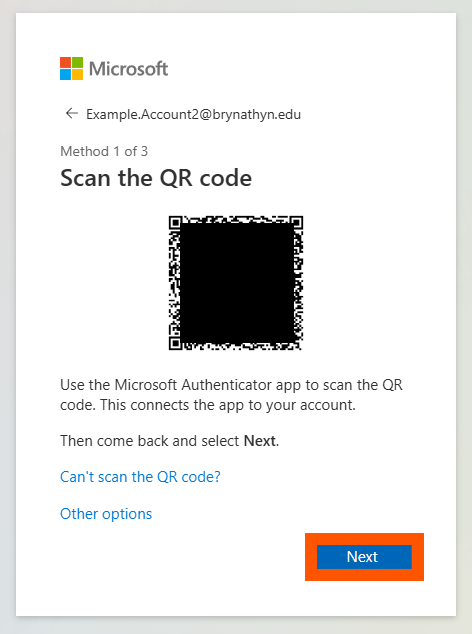
- Follow the instructions provided on your computer, which will guide you through adding your account in the Authenticator app.
- Once you have scanned a QR code to add your account, click Next.

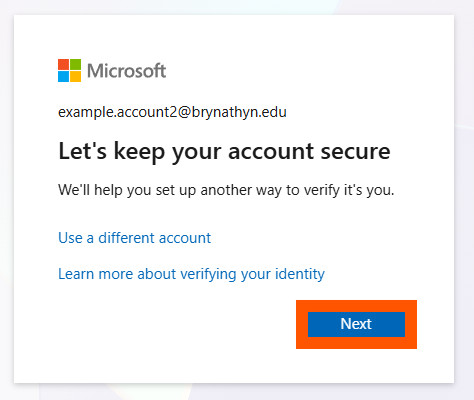
- Begin setting up a second method of verification by clicking Next.

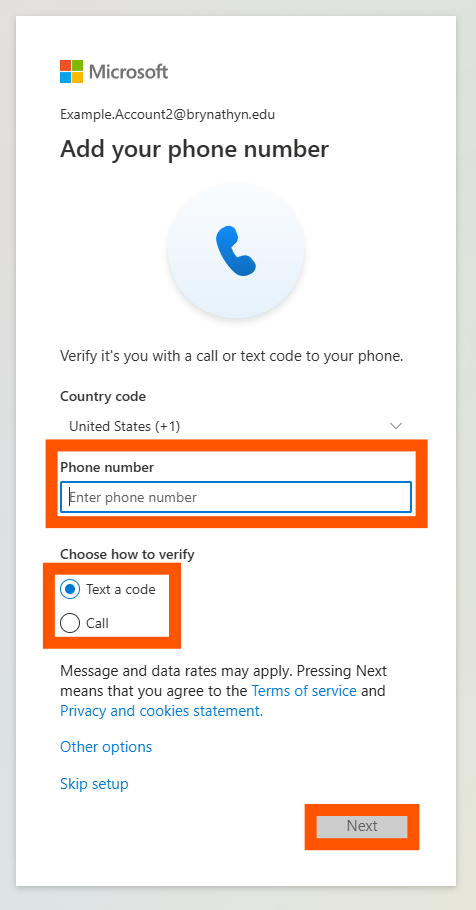
- Enter your phone number and change the Country code if necessary. You can choose either call or text to receive a verification code. Click Next.

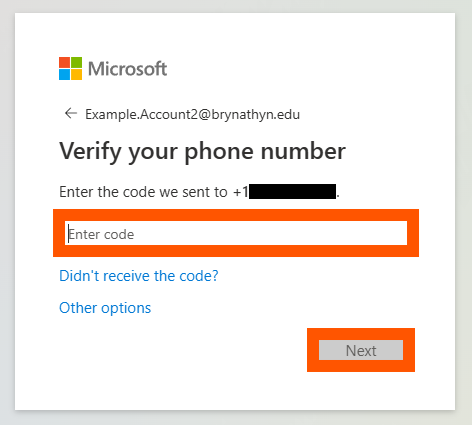
- Enter the code you received, then click Next.

- Click Done, then click Done.
- Change your password from the temporary one to a permanent one of your choice.
- Go to https://mysignins.microsoft.com/security-info/password/change
- Log in with your account using your temporary password.
- Enter your new password, confirm it, and click Submit.
This is absolutely required, as Helpdesk technicians permenantly have access to the temporary password you were sent.
- Optional but helpful: install Microsoft 365 desktop apps such as Outlook, PowerPoint, and Word by following the instructions in Installing Microsoft 365.
Please respond to the New Account email from the Helpdesk to confirm that you have completed this process. After doing so, you're done setting up your Microsoft account!
Setting up your Moodle account
This page covers first time setup for your Moodle account.
Log in
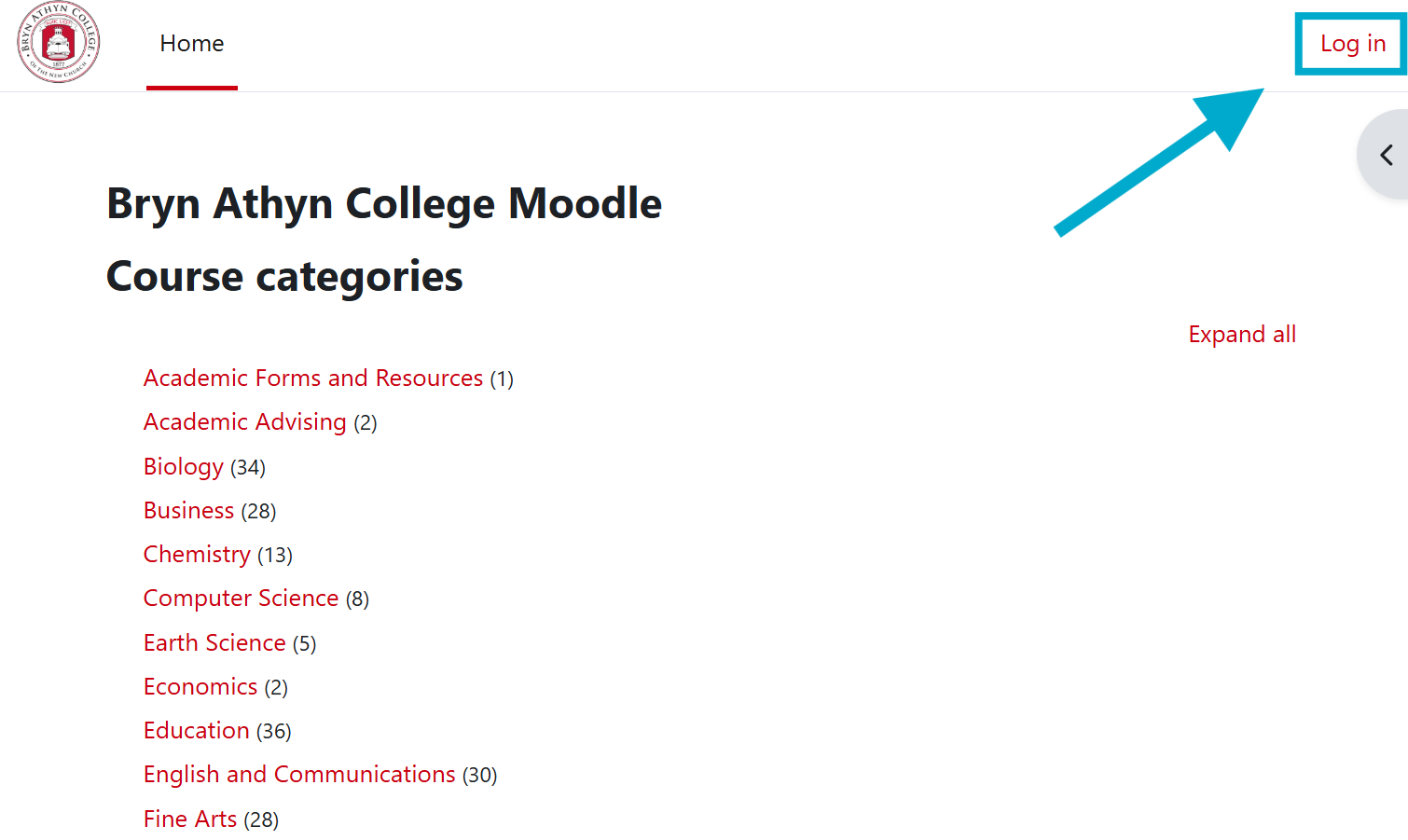
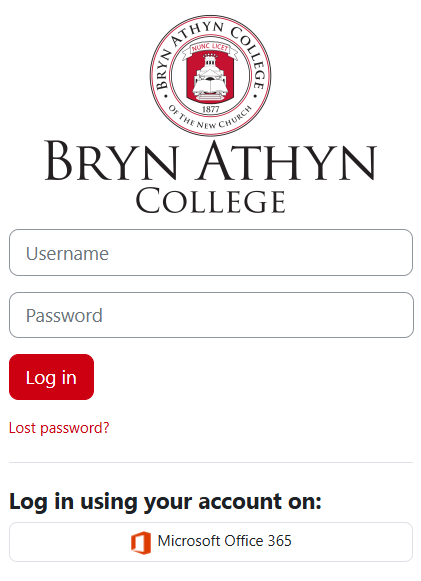
- Navigate to https://moodle.brynathyn.edu. This is the homepage for BAC's Moodle site, which is what you should see when you first enter the page.

- Click Log In.
- Click Microsoft Office 365.

DO NOT enter a username or password in the above window. It will not work.
- Follow the instructions in Logging in to Microsoft 365 to sign in with your Microsoft account using Single Sign On.
Enter your information
For first time logins, you will be prompted to fill in some information.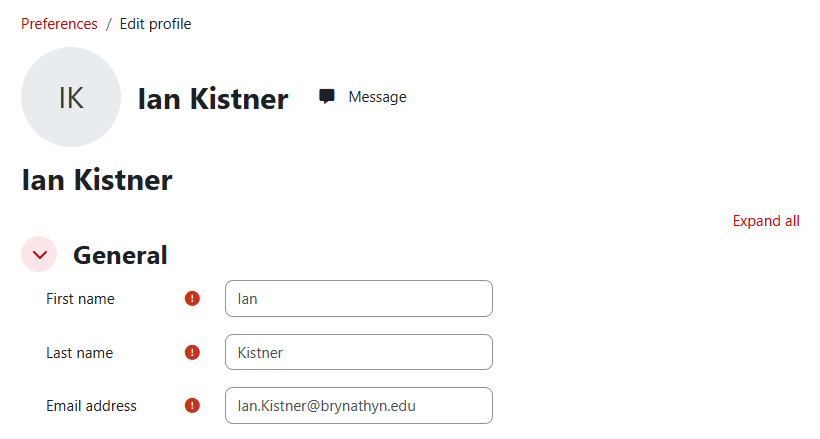
- Enter your first name, last name, and email address.
- There are more information fields, but the only three required are marked with a red exclamation mark.
- Scroll to the bottom of the page and select Update Profile to confirm the changes.