This process is explained slightly more in-depth in [Logging in with Microsoft 365](https://helpdesk.brynathyn.edu/books/accounts/page/logging-in-with-microsoft-365 "Logging in with Microsoft 365"), just disregard step 6 in that page for now.
3. Click **Next** on the prompt that appears. [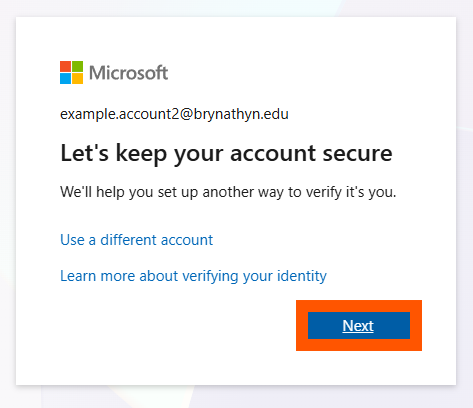](https://helpdesk.brynathyn.edu/uploads/images/gallery/2026-06/PFqimage.png) 4. Install the Microsoft Authenticator app by searching the mobile app store the QR codes below. [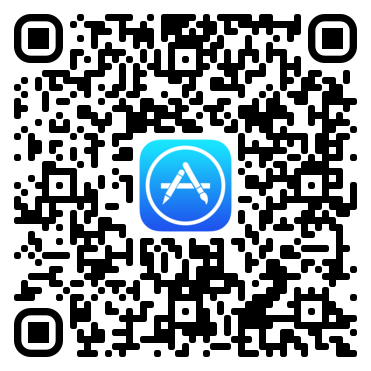](https://helpdesk.brynathyn.edu/uploads/images/gallery/2026-06/scaled-1680-/qr-code-3.png)[](https://helpdesk.brynathyn.edu/uploads/images/gallery/2026-06/Rpsqr-code-2.png) 5. Follow the instructions provided on your computer, which will guide you through adding your account in the Authenticator app. 6. Once you have scanned a QR code to add your account, click **Next**. [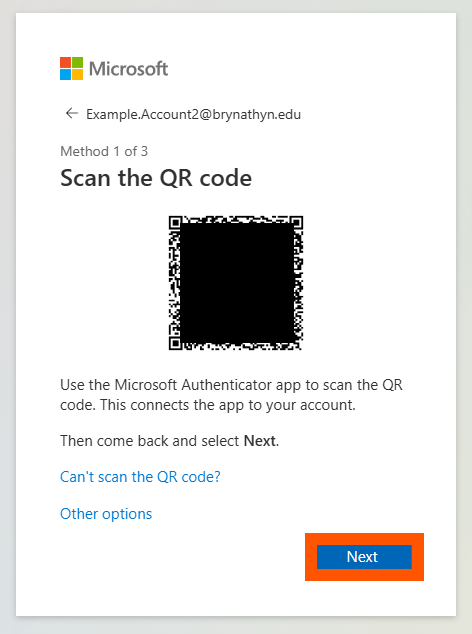](https://helpdesk.brynathyn.edu/uploads/images/gallery/2026-06/cXHimage.png) 7. Begin setting up a second method of verification by clicking **Next**. [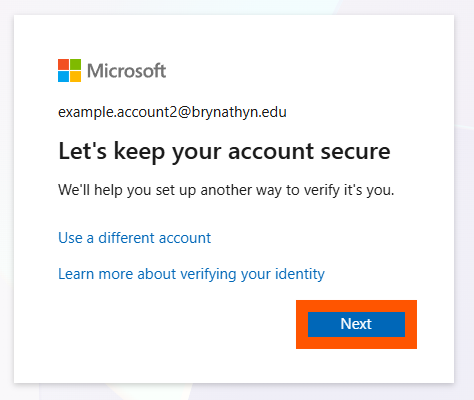](https://helpdesk.brynathyn.edu/uploads/images/gallery/2026-06/6XBimage.png) 8. Enter your **phone number** and change the **Country code** if necessary. You can choose either call or text to receive a verification code. Click **Next**. [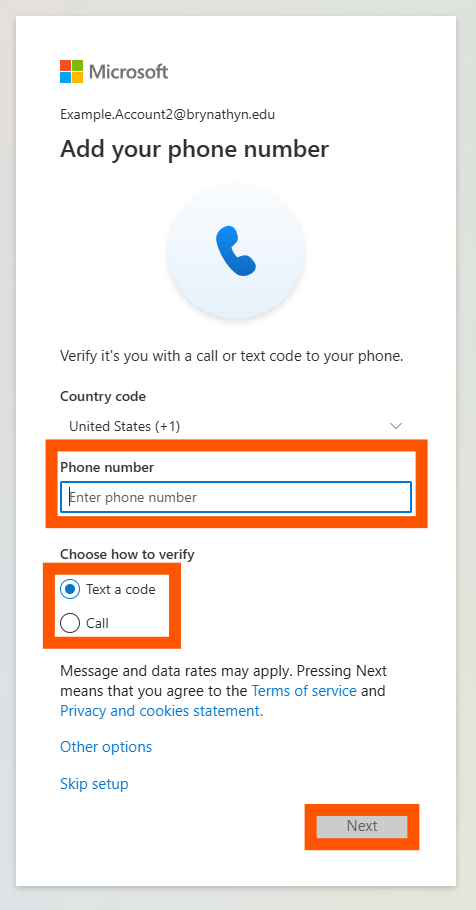](https://helpdesk.brynathyn.edu/uploads/images/gallery/2026-06/kJlimage.png) 9. Enter the code you received, then click **Next**. [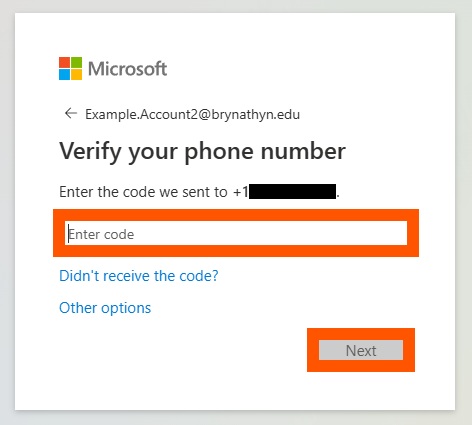](https://helpdesk.brynathyn.edu/uploads/images/gallery/2026-06/ybAimage.png) 10. Click **Done**, then click **Done**. 11. Change your password from the temporary one to a permanent one of your choice. 1. Go to [https://mysignins.microsoft.com/security-info/password/change](https://mysignins.microsoft.com/security-info/password/change) 2. Log in with your account using your temporary password. 3. Enter your new password, confirm it, and click **Submit**.**This is absolutely required**, as Helpdesk technicians permenantly have access to the temporary password you were sent.
12. **Optional but helpful**: install Microsoft 365 desktop apps such as Outlook, PowerPoint, and Word by following the instructions in [Installing Microsoft 365](https://helpdesk.brynathyn.edu/books/software/page/installing-microsoft-365 "Installing Microsoft 365").Please respond to the **New Account** email from the Helpdesk to confirm that you have completed this process. After doing so, you're done setting up your Microsoft account!