# Internet access
Connecting to the internet on campus via Wi-Fi and Ethernet
# Which Wi-Fi network do I connect to?
There are three wireless networks available at the College, with different use cases.
- **CollegeWiFi**
- Students, Faculty & Staff can connect their personal and work devices to CollegeWiFi.
- See [CollegeWiFi](https://helpdesk.brynathyn.edu/books/internet-access/page/collegewifi "CollegeWiFi") for connection instructions.
- **BACDevicesWiFi**
- Devices that can't authenticate with a username / password can connect to BACDevicesWiFi with authorization from the Helpdesk.
(e.g. gaming console, Fire TV / Roku TV, etc.)
- See [BACDevicesWiFi](https://helpdesk.brynathyn.edu/books/internet-access/page/bacdeviceswifi "BACDevicesWiFi").
- **BACGuestWiFi**
- Guests on campus can connect to BACDevicesWiFi with the password `RedLions2026`
- This devices on BACGuestWiFi cannot communicate with devices on the network for security.
(e.g. printers, computers, etc.)
- See [BACGuestWiFi](https://helpdesk.brynathyn.edu/books/internet-access/page/bacguestwifi "BACGuestWiFi").
# Wi-Fi networks
Connecting devices to CollegeWiFi, BACDevicesWiFi, and BACGuestWiFi
# CollegeWiFi
CollegeWiFi is the default for connecting your personal and work devices to Wi-Fi. Make sure you know your username and password before starting. [What is my Username and Password?](https://helpdesk.brynathyn.edu/books/accounts/page/what-is-my-username-and-password "What is my Username and Password?")
Windows
1. Open [Quick Settings](ms-availablenetworks:) by clicking on the taskbar area shown below.[](https://helpdesk.brynathyn.edu/uploads/images/gallery/2026-06/scaled-1680-/WSxcollegwifi-windows11-0.png)
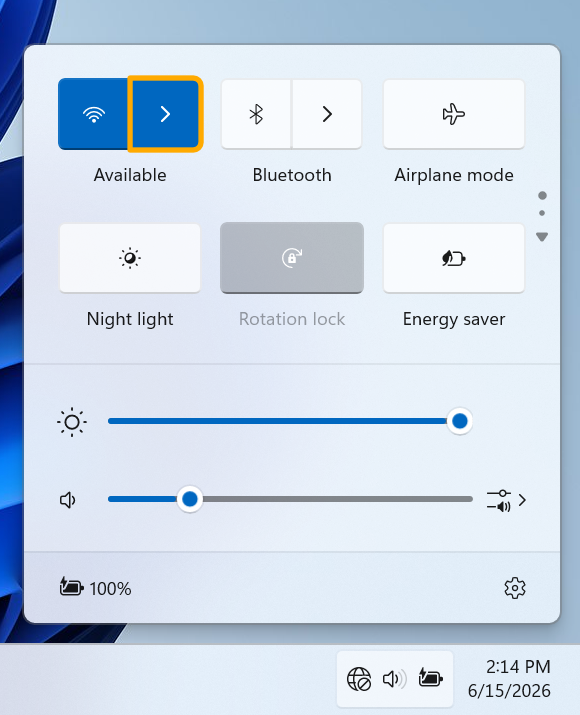
2. Click the arrow next to the Wi-Fi symbol.
[](https://helpdesk.brynathyn.edu/uploads/images/gallery/2026-06/scaled-1680-/collegwifi-windows11-1.png)
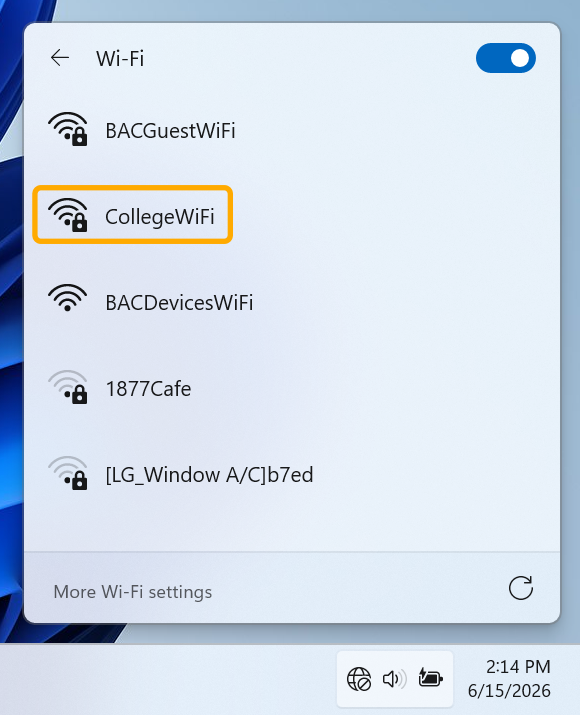
3. Select **CollegeWiFi**.
[](https://helpdesk.brynathyn.edu/uploads/images/gallery/2026-06/scaled-1680-/collegwifi-windows11-2.png)
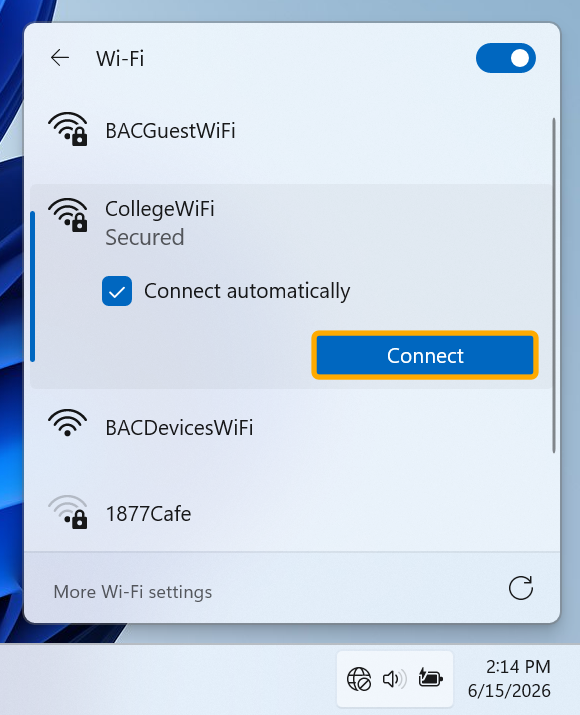
4. Check **Connect automatically** then click **Connect**.
[](https://helpdesk.brynathyn.edu/uploads/images/gallery/2026-06/scaled-1680-/collegwifi-windows11-3.png)
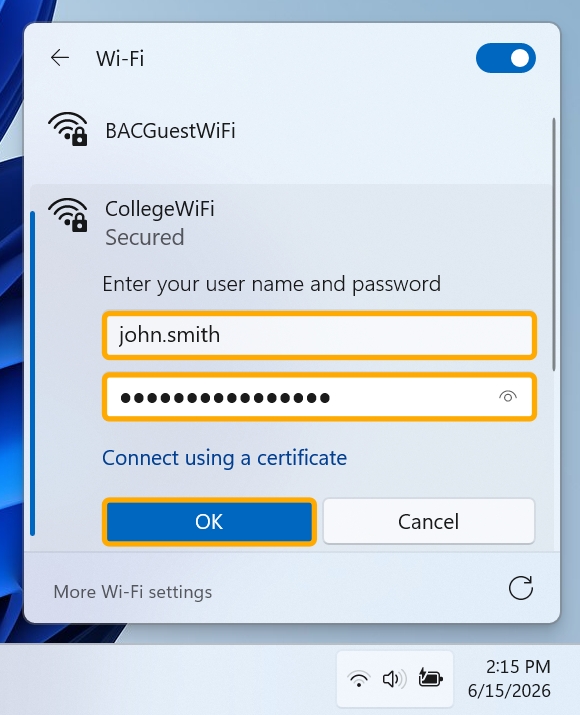
5. Enter your campus [username and password](https://helpdesk.brynathyn.edu/books/accounts/page/what-is-my-username-and-password), then click **Connect**.
[](https://helpdesk.brynathyn.edu/uploads/images/gallery/2026-06/scaled-1680-/collegwifi-windows11-4.png)
6. Click **Connect** again on the **Continue connecting?** prompt.
[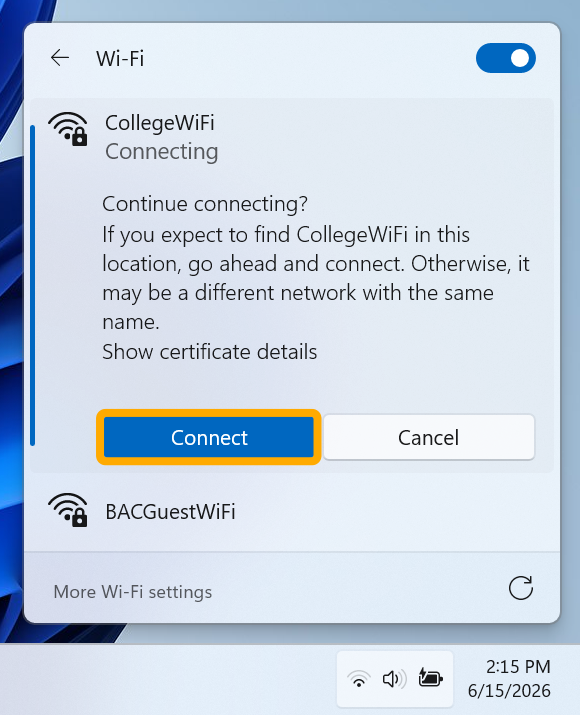](https://helpdesk.brynathyn.edu/uploads/images/gallery/2026-06/scaled-1680-/collegwifi-windows11-5.png)
If you see a **Windows Security** prompt, use the same credentials as before to authenticate. If you see ANC\\<username> as the selected user, select the option for using a different account.
You should now be connected. If not, [contact the Helpdesk](https://helpdesk.brynathyn.edu/books/help/page/helpdesk-contacts-office-hours).
[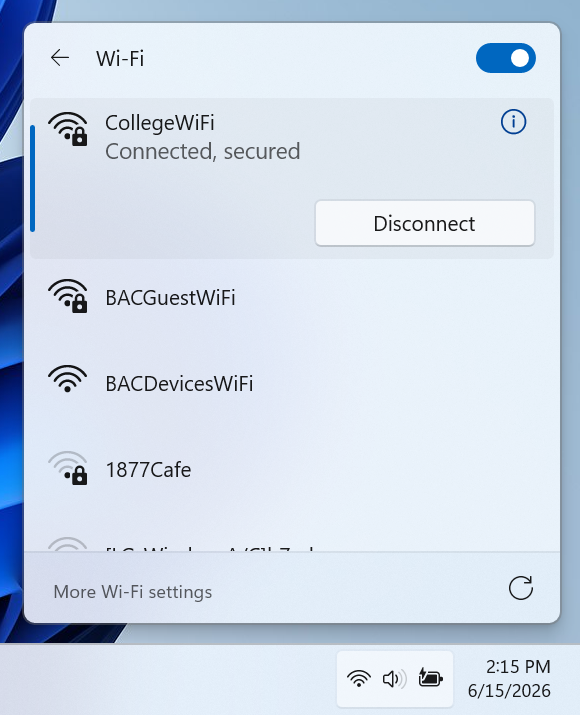](https://helpdesk.brynathyn.edu/uploads/images/gallery/2026-06/scaled-1680-/collegwifi-windows11-6.png)
## Manual Connection
Occasionally, Windows will encounter trouble with Wi-Fi certificates and will stop connecting to CollegeWiFi, even after forgetting and re-authenticating. In this case, setting up a connection manually can work.
1. Open the **Start Menu** and search for **Control Panel**, then open it.
2. Navigate to **Network and Internet** > **Network and Sharing Center** > **Set up a new connection or network**.
3. Select **Manually connect to a wireless network** and click **Next**.
4. Set up the wireless network information as shown below, then click **Next**.
1. **Network name:** `CollegeWiFi`
2. **Security type:** `WPA2-Enterprise`
3. Check **Start this connection automatically**
5. Click **Change connection settings**.
6. Select the **Security** tab and set it up as shown.
1. **Security type:** `WPA2-Enterprise`
2. **Encryption type:** `AES`
3. **Choose a network authentication method:** `Microsoft: Protected EAP (PEAP)`
4. Check **Remember my credentials for this connection each time I'm logged on**.
7. Select **Settings** to the right of the authentication method.
8. *Uncheck* the box for **Verify the server's identity by validating the certificate**.
9. Click **OK** to go back to **Wireless Network Properties**.
10. Click **Advanced settings**.
11. In the **802.1X settings** tab, check **Specify authentication mode**.
12. Select **User authentication** in the drop-down.
13. Click **Save credentials**.
14. In the Save credentials popup, enter your campus [username and password](https://helpdesk.brynathyn.edu/books/accounts/page/what-is-my-username-and-password) then click **OK**.
15. Click **OK** in the **Advanced settings** window.
16. Click **OK** in the **Wireless Network Properties Window**.
You should now be able to connect to CollegeWiFi from the [Quick Settings](ms-availablenetworks:) panel.
Android
Connecting to CollegeWiFi is slightly different between smartphone brands. If you cannot find analogous options to the steps below on your phone, please [reach out to the Helpdesk](https://helpdesk.brynathyn.edu/books/help/page/helpdesk-contacts-office-hours).
1. Navigate to your Wi-Fi settings and select **CollegeWiFi**
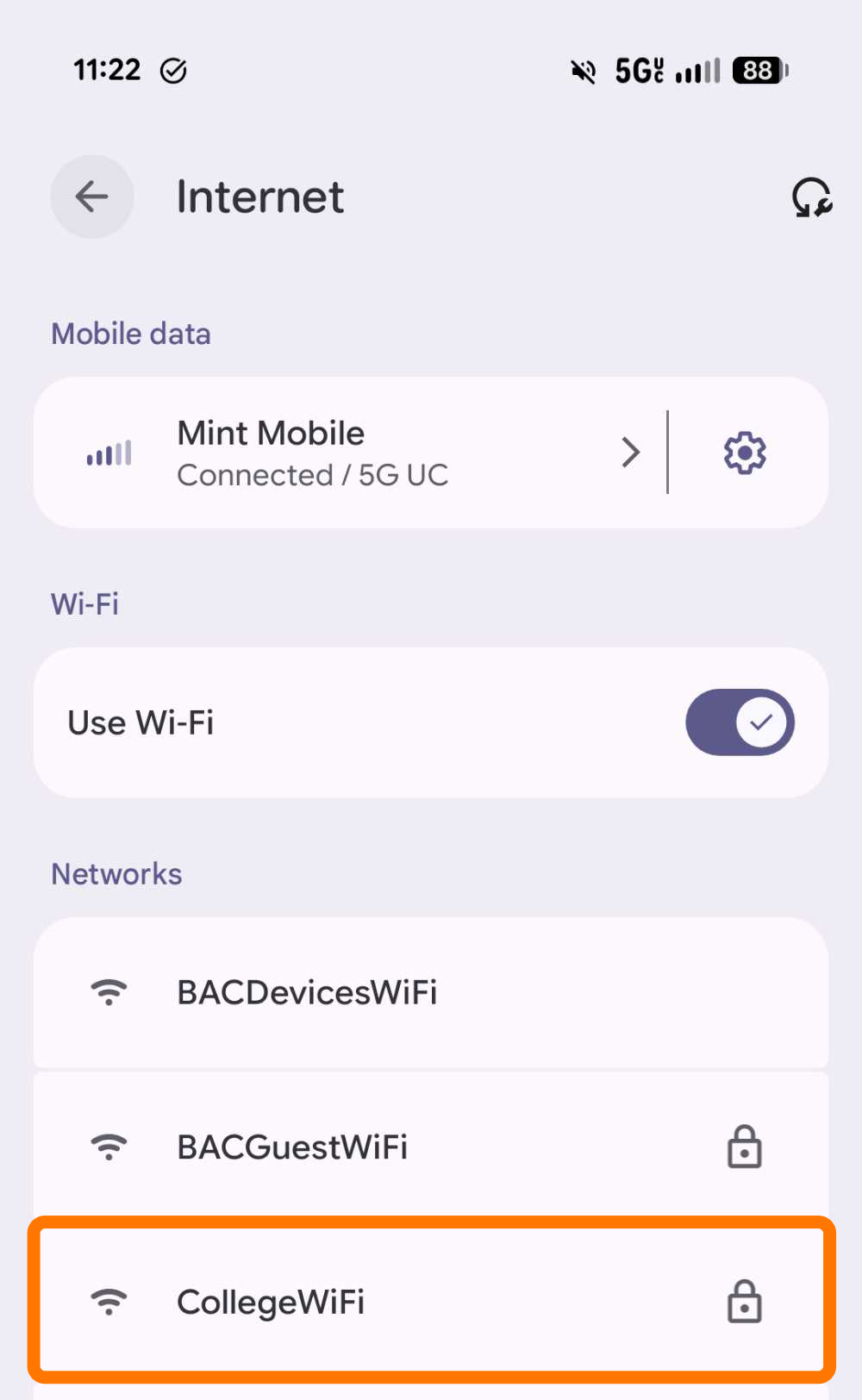
2. Configure the credentials like in the screenshot below.
[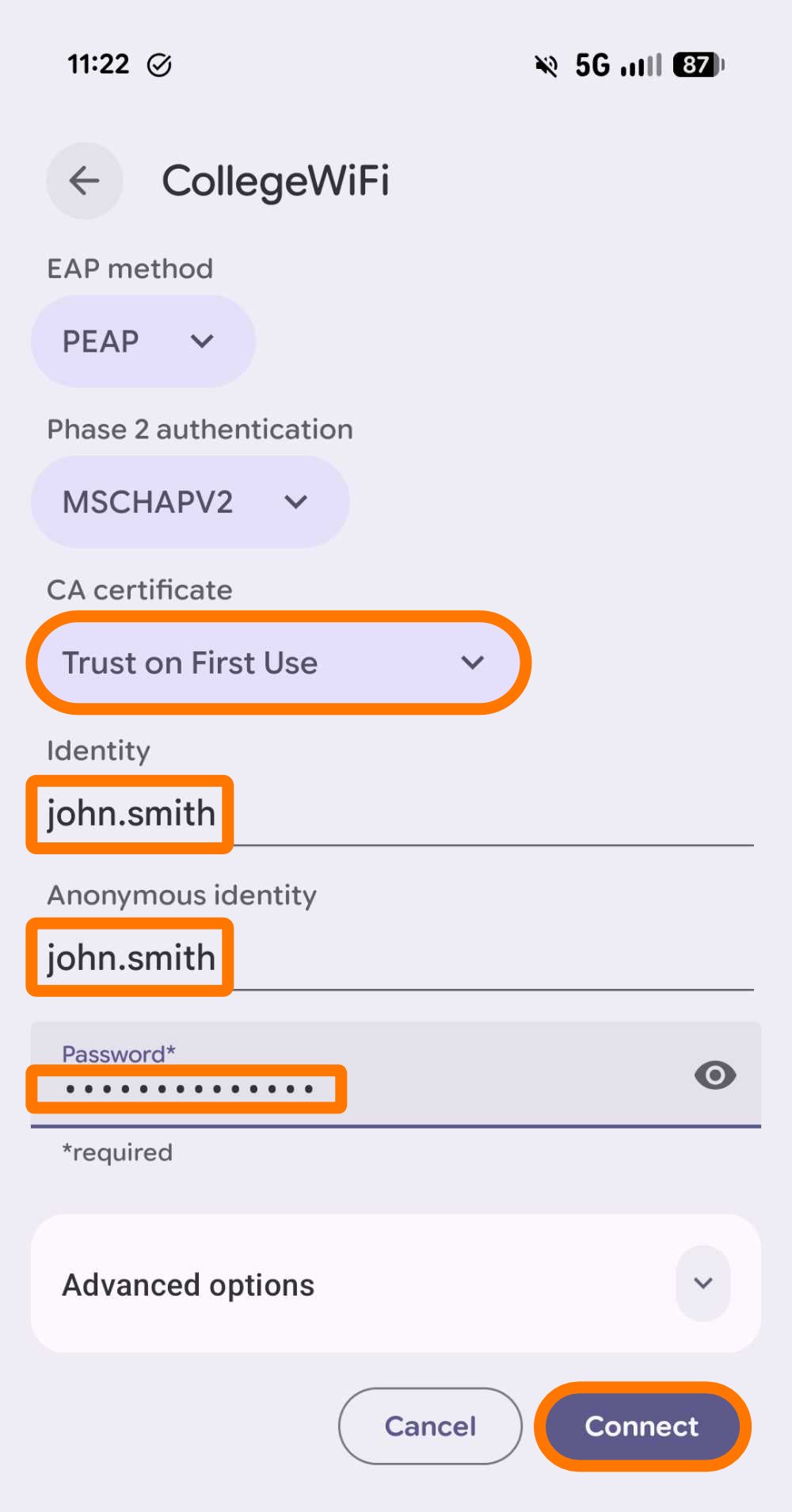](https://helpdesk.brynathyn.edu/uploads/images/gallery/2026-06/Xzbcollegewifi-credentials.png)
1. Under the **CA certificate** drop-down, select **Trust on First Use**
2. Enter your campus username in the **Identity** and **Anonymous identity** fields.
3. Use your campus password in the **Password** field.
4. Click **Connect**.
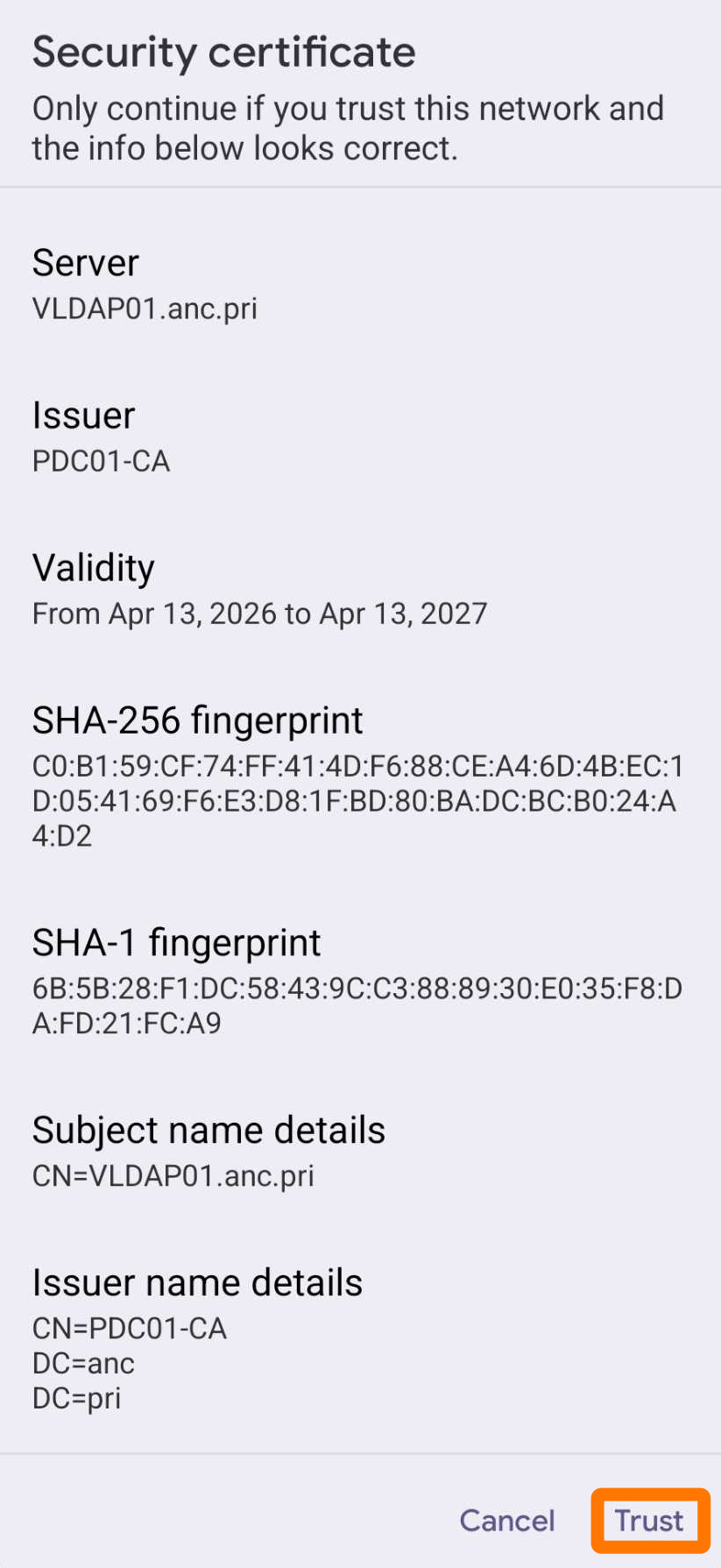
3. If you see a **Security certificate** prompt, select **Trust**.
[](https://helpdesk.brynathyn.edu/uploads/images/gallery/2026-06/collegewifi-trust-cert.png)
You should now be connected. If not, [contact the Helpdesk](https://helpdesk.brynathyn.edu/books/help/page/helpdesk-contacts-office-hours).[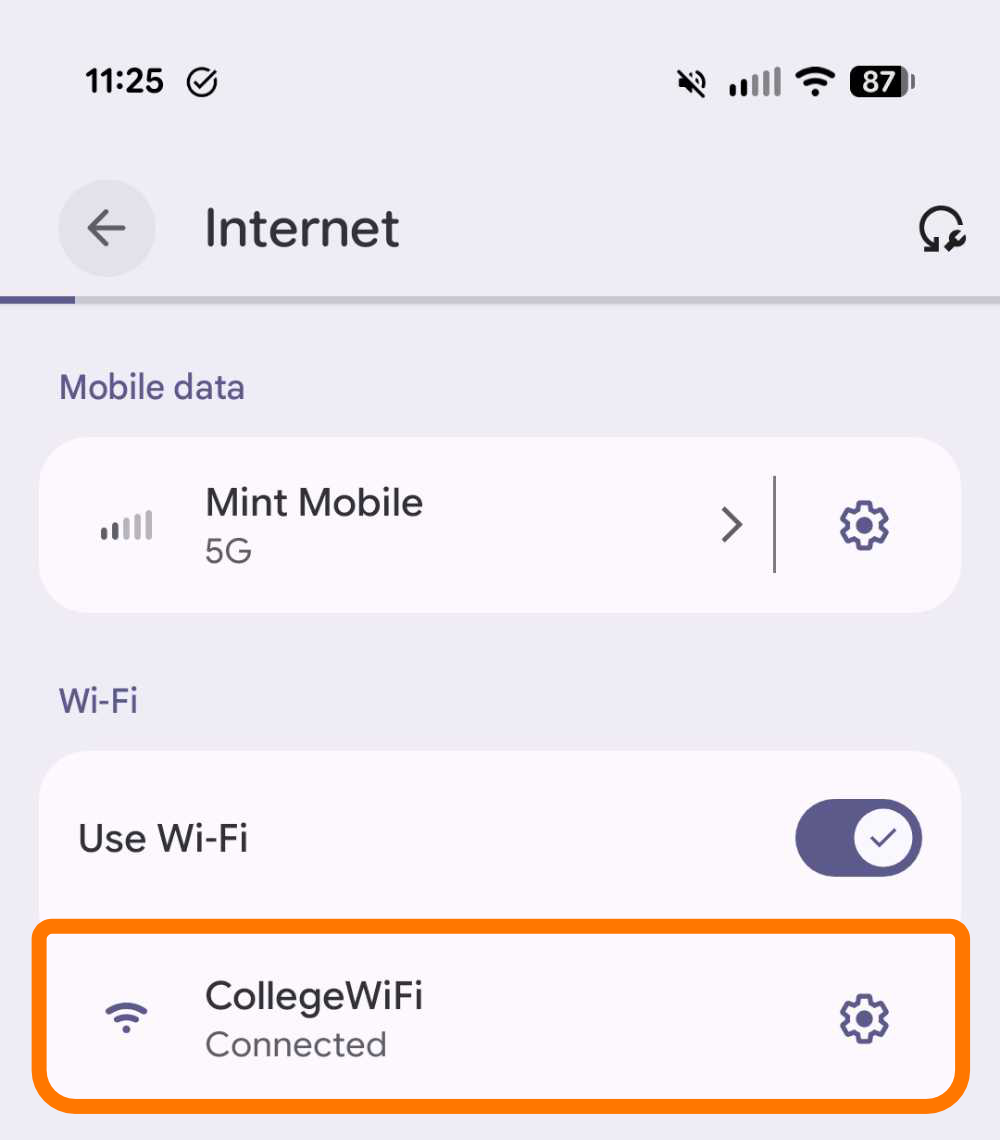](https://helpdesk.brynathyn.edu/uploads/images/gallery/2026-06/collegewifi-connected.png)
iOS
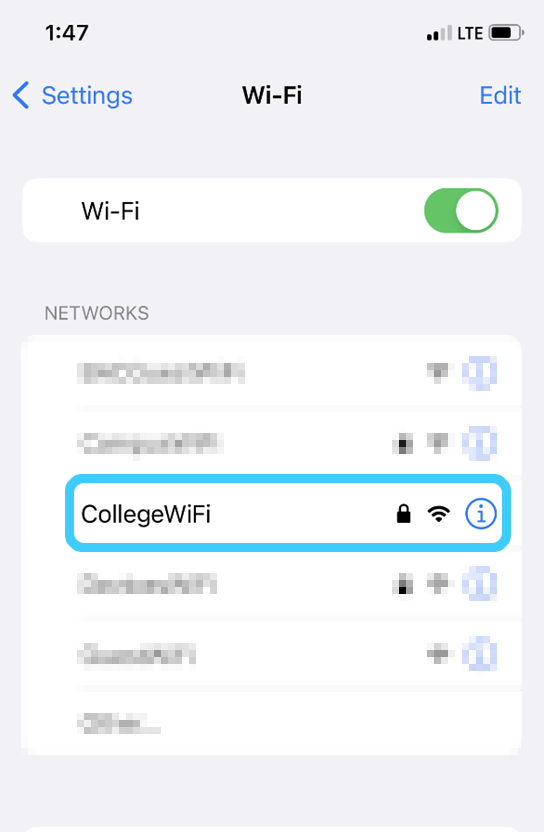
1. Navigate to the Wi-Fi page in the Settings app.
2. Select **CollegeWiFi**.
[](https://helpdesk.brynathyn.edu/uploads/images/gallery/2026-06/image11.png)
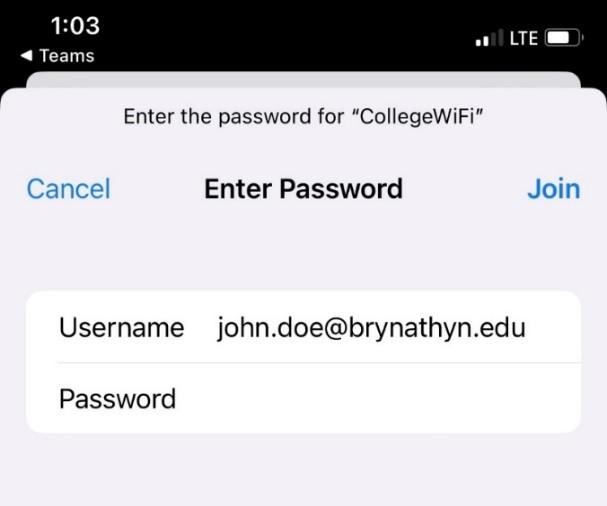
3. Enter your campus [username and password](https://helpdesk.brynathyn.edu/books/accounts/page/what-is-my-username-and-password), then click **Join**.
[](https://helpdesk.brynathyn.edu/uploads/images/gallery/2026-06/AYlimage12.jpeg)
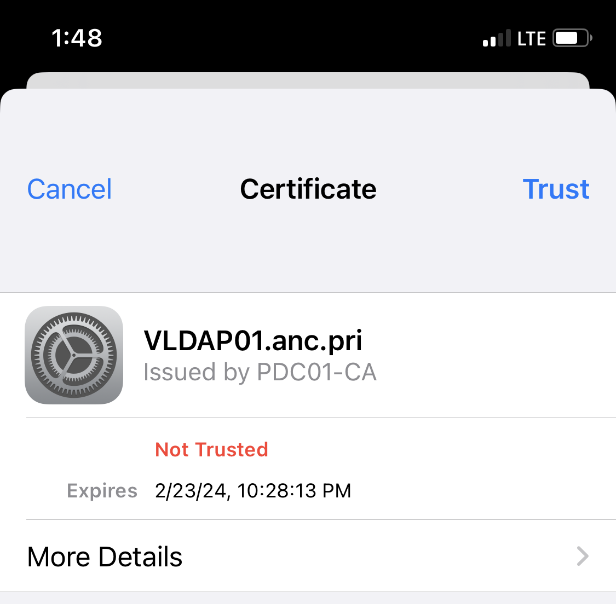
4. Select **Trust** in the Certificate popup.
[](https://helpdesk.brynathyn.edu/uploads/images/gallery/2026-06/image13.png)
You should now be connected. If not, [contact the Helpdesk](https://helpdesk.brynathyn.edu/books/help/page/helpdesk-contacts-office-hours).
macOS
1. Click the Wi-Fi symbol at the top right of the screen.[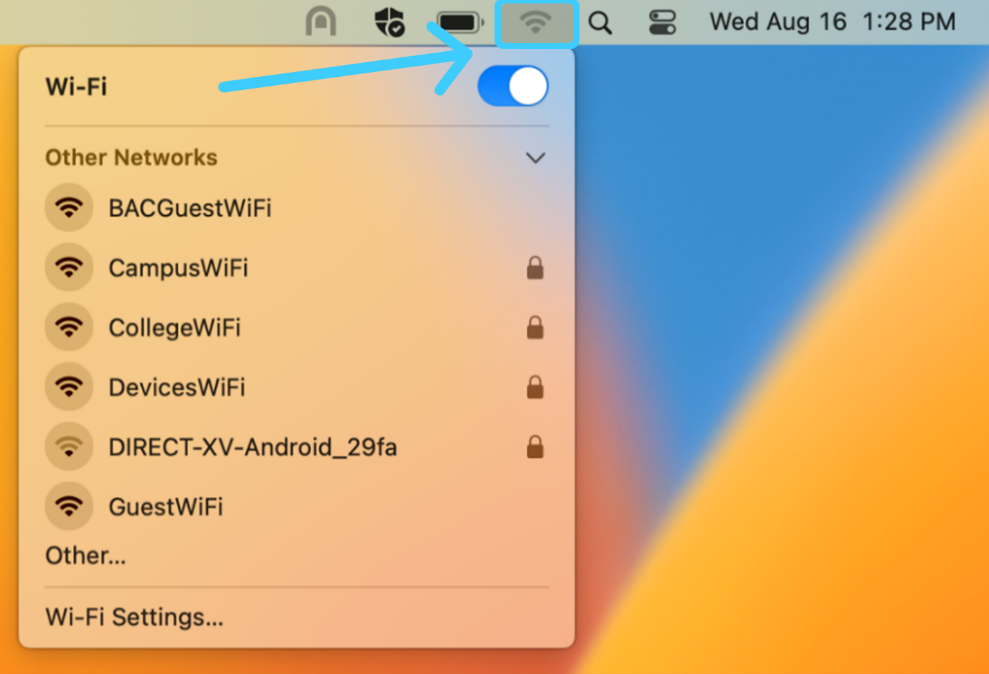](https://helpdesk.brynathyn.edu/uploads/images/gallery/2026-06/image6.png)
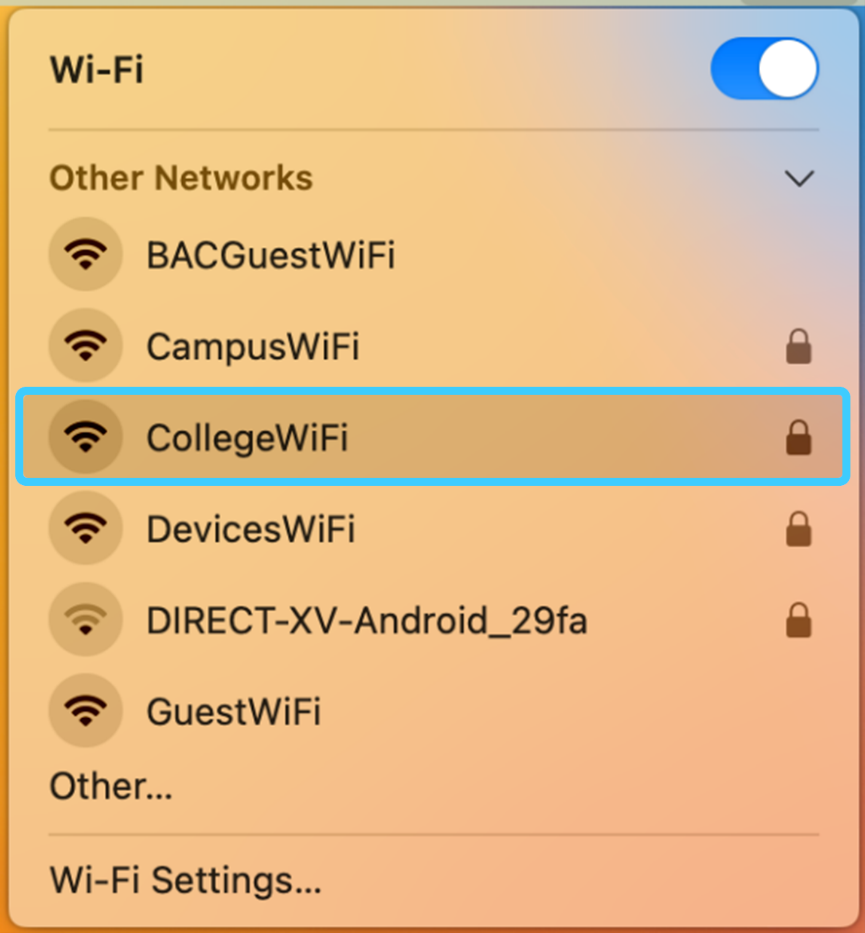
2. Select **CollegeWiFi**
[](https://helpdesk.brynathyn.edu/uploads/images/gallery/2026-06/image7.png)
3. Enter your campus [username and password](https://helpdesk.brynathyn.edu/books/accounts/page/what-is-my-username-and-password), then click **OK**.[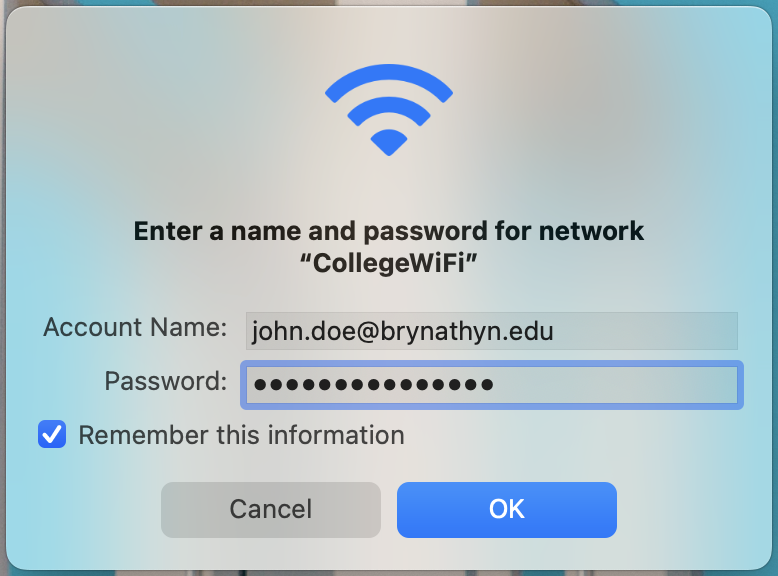](https://helpdesk.brynathyn.edu/uploads/images/gallery/2026-06/image8.png)
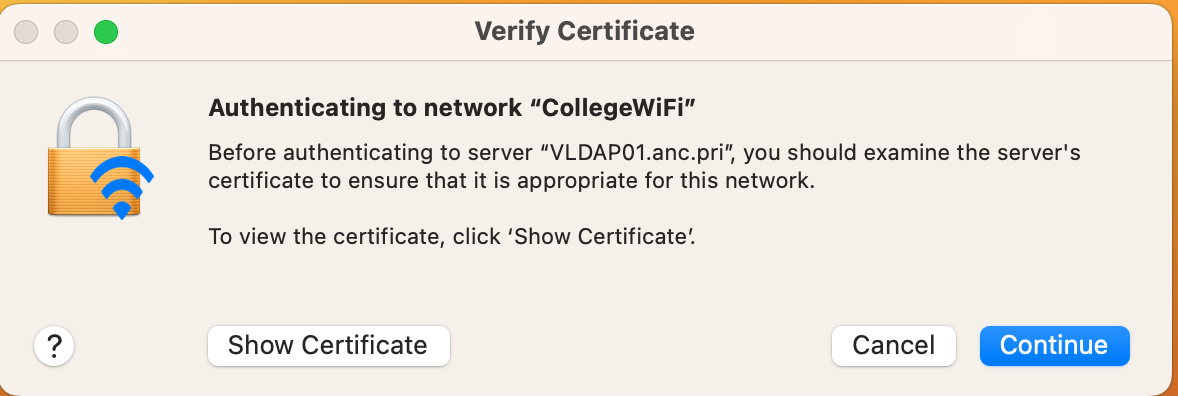
4. Press **Continue** on the Verify Certificate popup and enter your computer's logon password or use Touch ID if necessary.
[](https://helpdesk.brynathyn.edu/uploads/images/gallery/2026-06/image9.png)
You should now be connected.
Some devices use a randomized or "private" MAC address system that needs to be disabled when connecting to BACDevicesWiFi.
# BACGuestWiFi
Guests on campus can connect to BACGuestWiFi by selecting the network and using the password:
`RedLions2026`
Windows
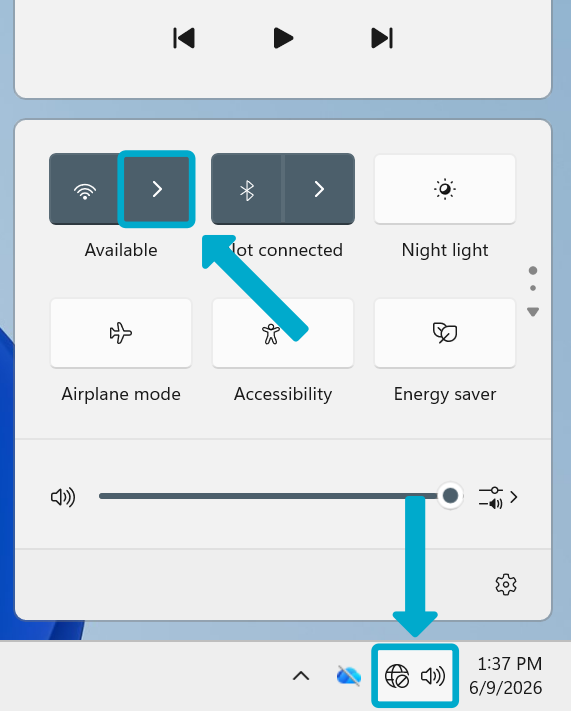
1. Open the **Quick Access** panel in the taskbar.
2. Click the arrow by the Wi-Fi symbol.
[](https://helpdesk.brynathyn.edu/uploads/images/gallery/2026-06/scaled-1680-/background.png)
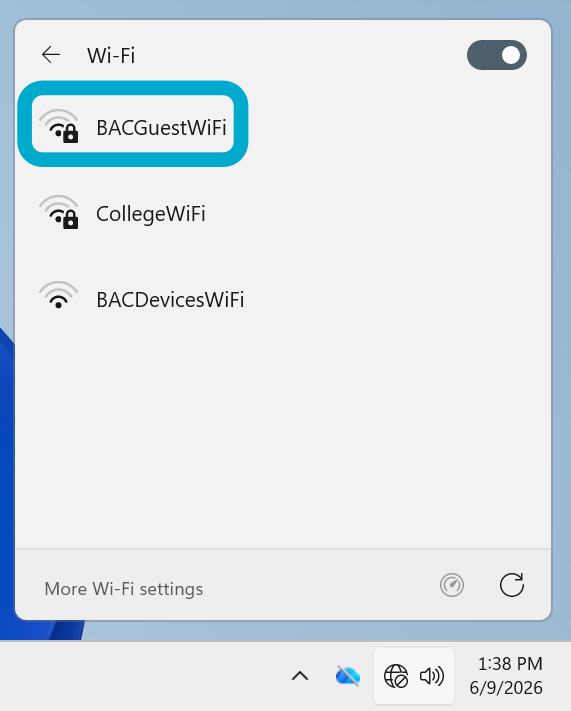
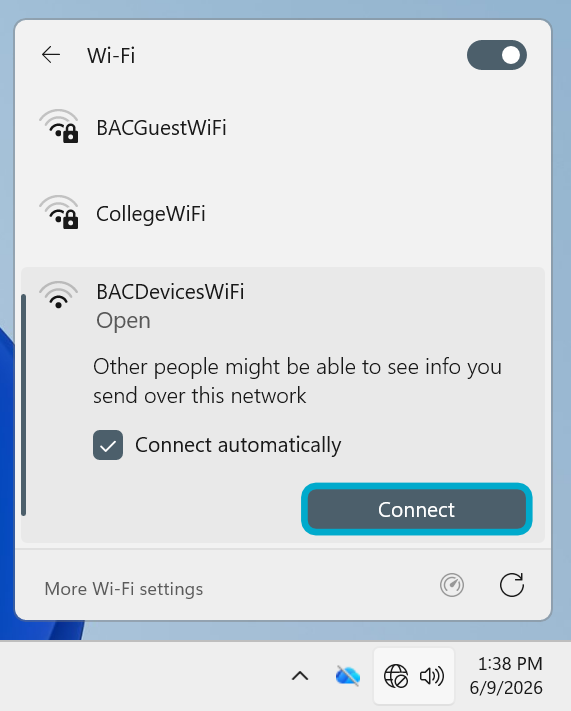
3. Select **BACGuestWiFi** then **Connect**.
[](https://helpdesk.brynathyn.edu/uploads/images/gallery/2026-06/9LXscreenshot-2026-06-09-133813-png.png)
[](https://helpdesk.brynathyn.edu/uploads/images/gallery/2026-06/Bk1screenshot-2026-06-09-133825-png.png)
4. Enter the password {{@69#bkmrk-bacguestwifi-pw}}.
[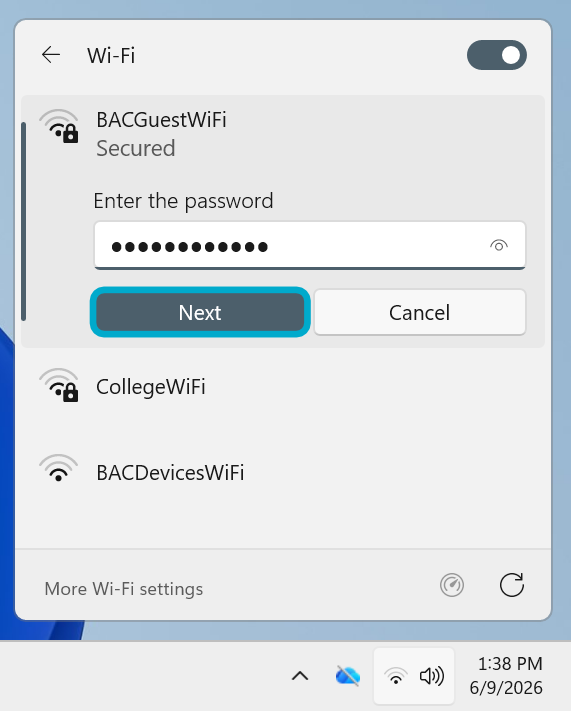](https://helpdesk.brynathyn.edu/uploads/images/gallery/2026-06/screenshot-2026-06-09-133843-png.png)
You should now be connected. If not, [contact the Helpdesk](https://helpdesk.brynathyn.edu/books/help/page/helpdesk-contacts-office-hours).
macOS
1. Open your Wi-Fi menu in the top right of your screen by clicking on the Wi-Fi symbol.[](https://helpdesk.brynathyn.edu/uploads/images/gallery/2026-06/eGiimage8.jpeg)
2. Click on **BACGuestWiFi** from the dropdown menu of options that appears. This should open a
pop-up window.
[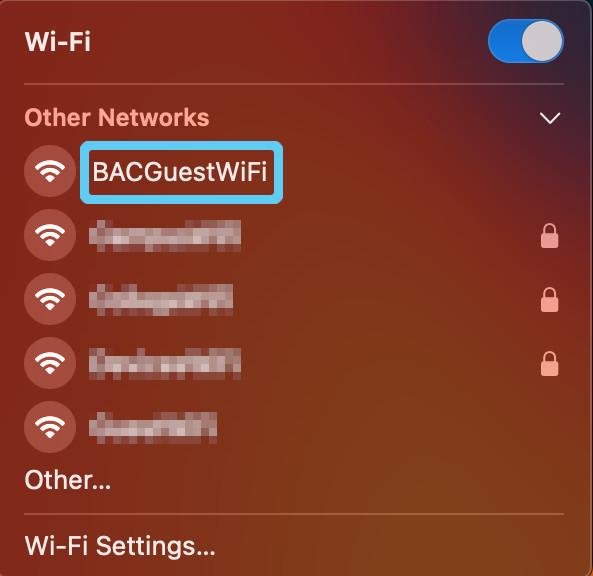](https://helpdesk.brynathyn.edu/uploads/images/gallery/2026-06/image9.jpeg)
3. Enter the password {{@69#bkmrk-bacguestwifi-pw}} and click **Join**.
You should now be connected. If not, [contact the Helpdesk](https://helpdesk.brynathyn.edu/books/help/page/helpdesk-contacts-office-hours).
iOS
1. Open **Settings**. **[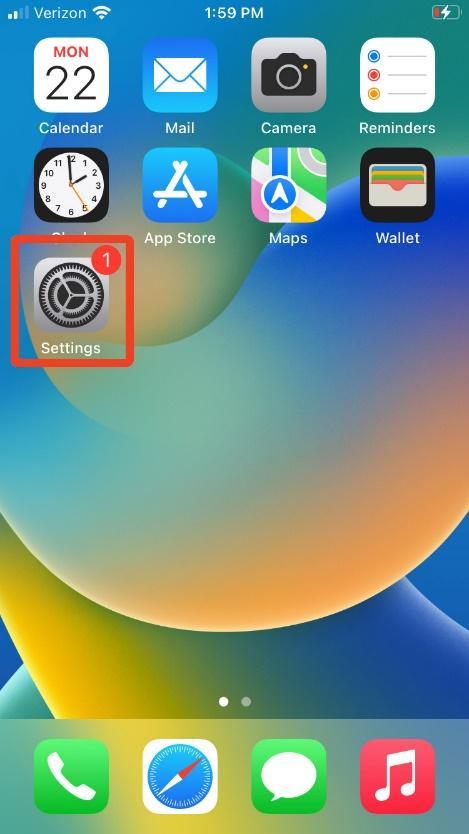](https://helpdesk.brynathyn.edu/uploads/images/gallery/2026-06/zoXimage10.jpg)**
2. Select **Wi-Fi**. **[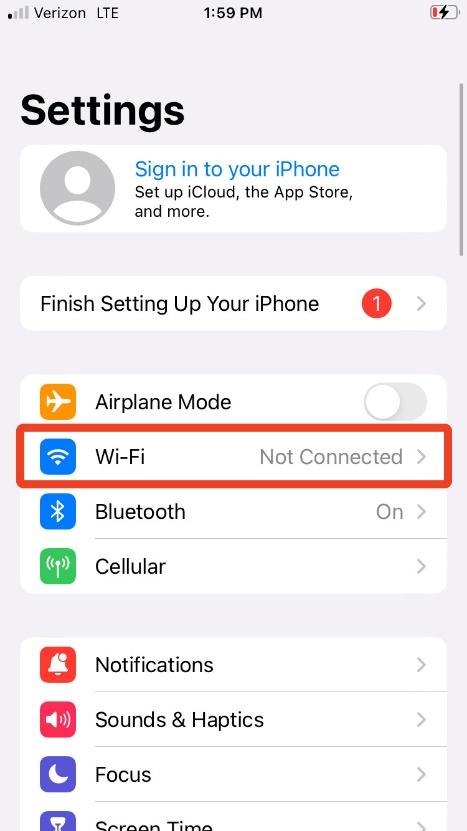](https://helpdesk.brynathyn.edu/uploads/images/gallery/2026-06/image11.jpeg)**
3. Wait for your iPhone to scan for networks, then select **BACGuestWiFi**. [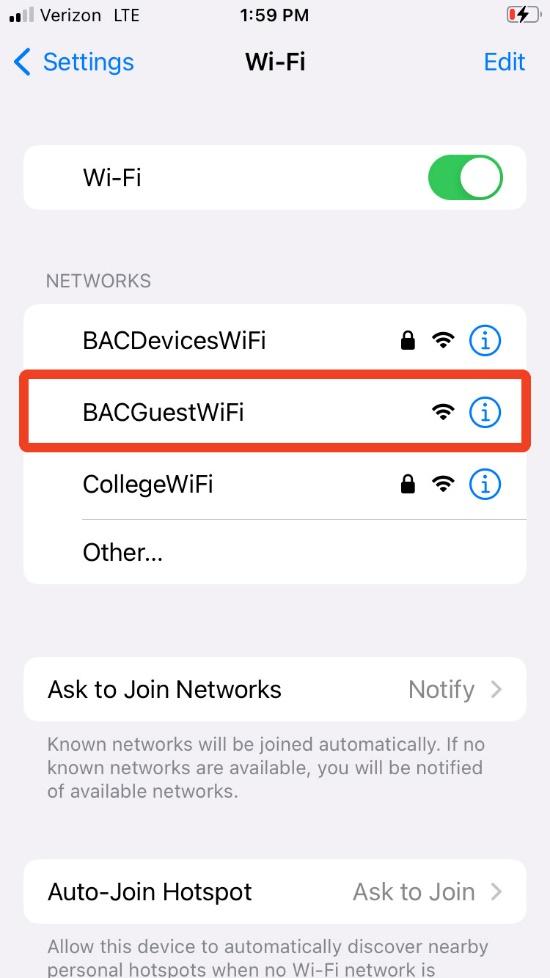](https://helpdesk.brynathyn.edu/uploads/images/gallery/2026-06/image12.jpeg)
4. Enter the password {{@69#bkmrk-bacguestwifi-pw}}.
5. Click Join.
You should now be connected. If not, [contact the Helpdesk](https://helpdesk.brynathyn.edu/books/help/page/helpdesk-contacts-office-hours).
Android
1. Open **Settings**
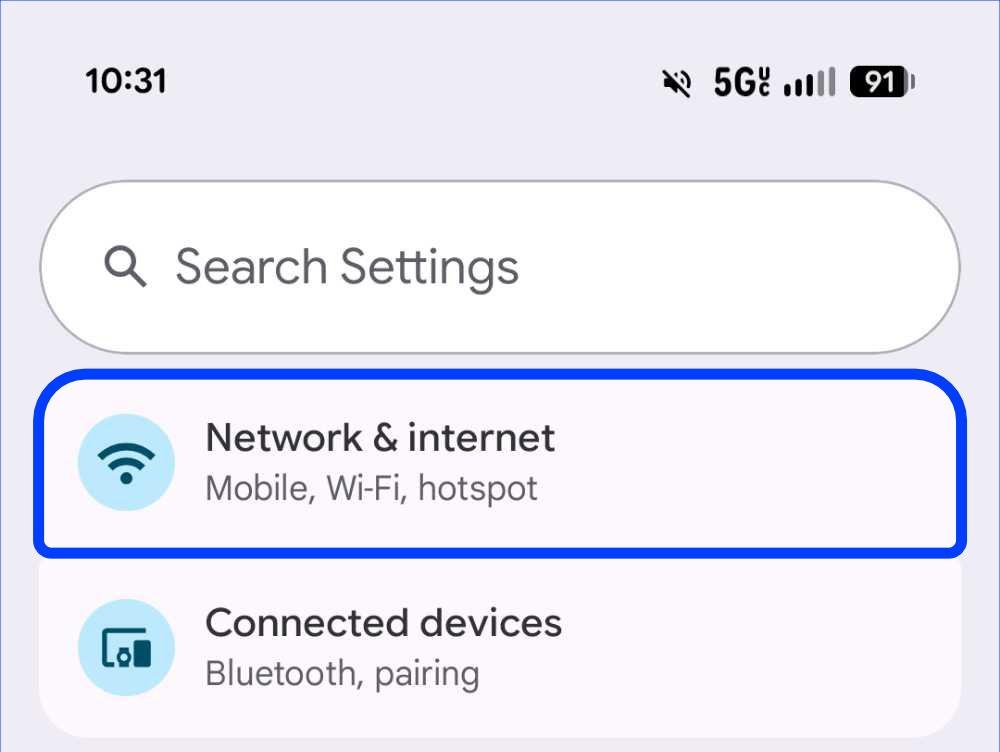
2. Tap **Network & internet
[](https://helpdesk.brynathyn.edu/uploads/images/gallery/2026-06/57xbacguest-android-3.jpg)**
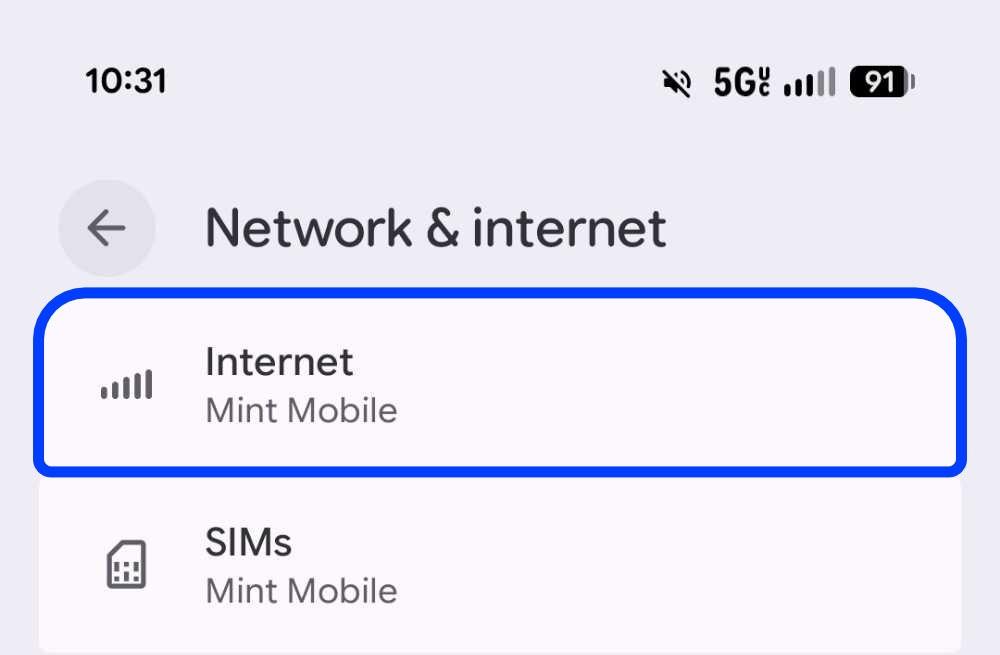
3. Tap **Internet
[](https://helpdesk.brynathyn.edu/uploads/images/gallery/2026-06/bacguest-android-1.jpg)**
4. Select **BACGuestWiFi**[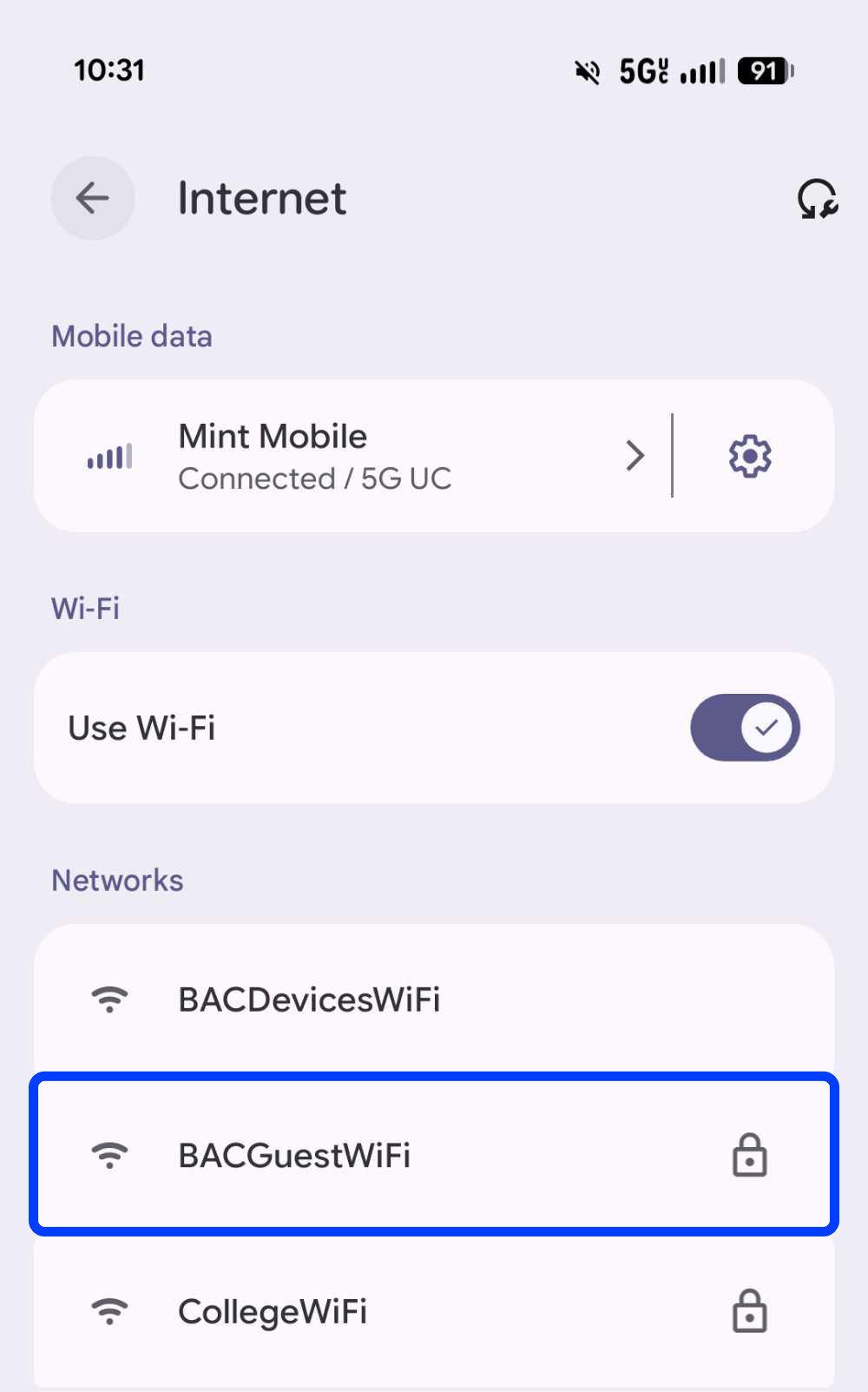](https://helpdesk.brynathyn.edu/uploads/images/gallery/2026-06/bacguest-android-2.jpg)
5. Enter the password {{@69#bkmrk-bacguestwifi-pw}}
And tap **Connect**[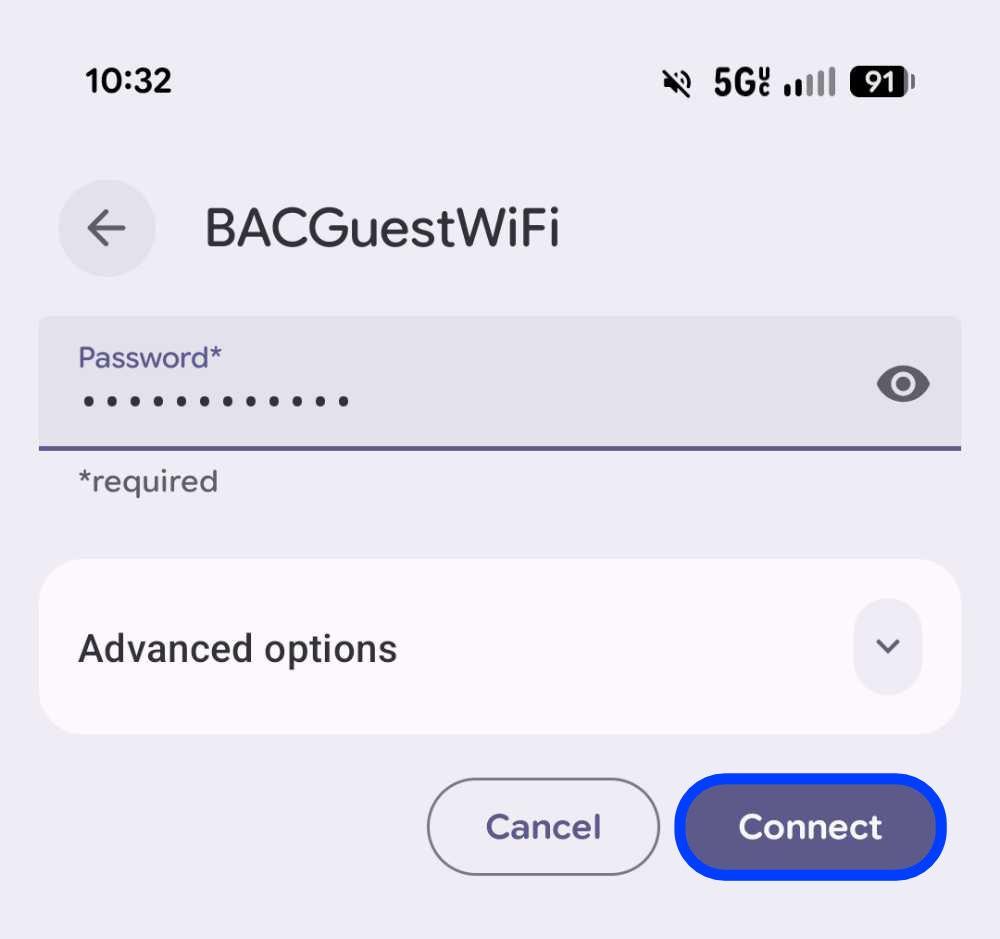](https://helpdesk.brynathyn.edu/uploads/images/gallery/2026-06/bacguest-android-4.jpg)
You should now be connected. If not, [contact the Helpdesk](https://helpdesk.brynathyn.edu/books/help/page/helpdesk-contacts-office-hours).[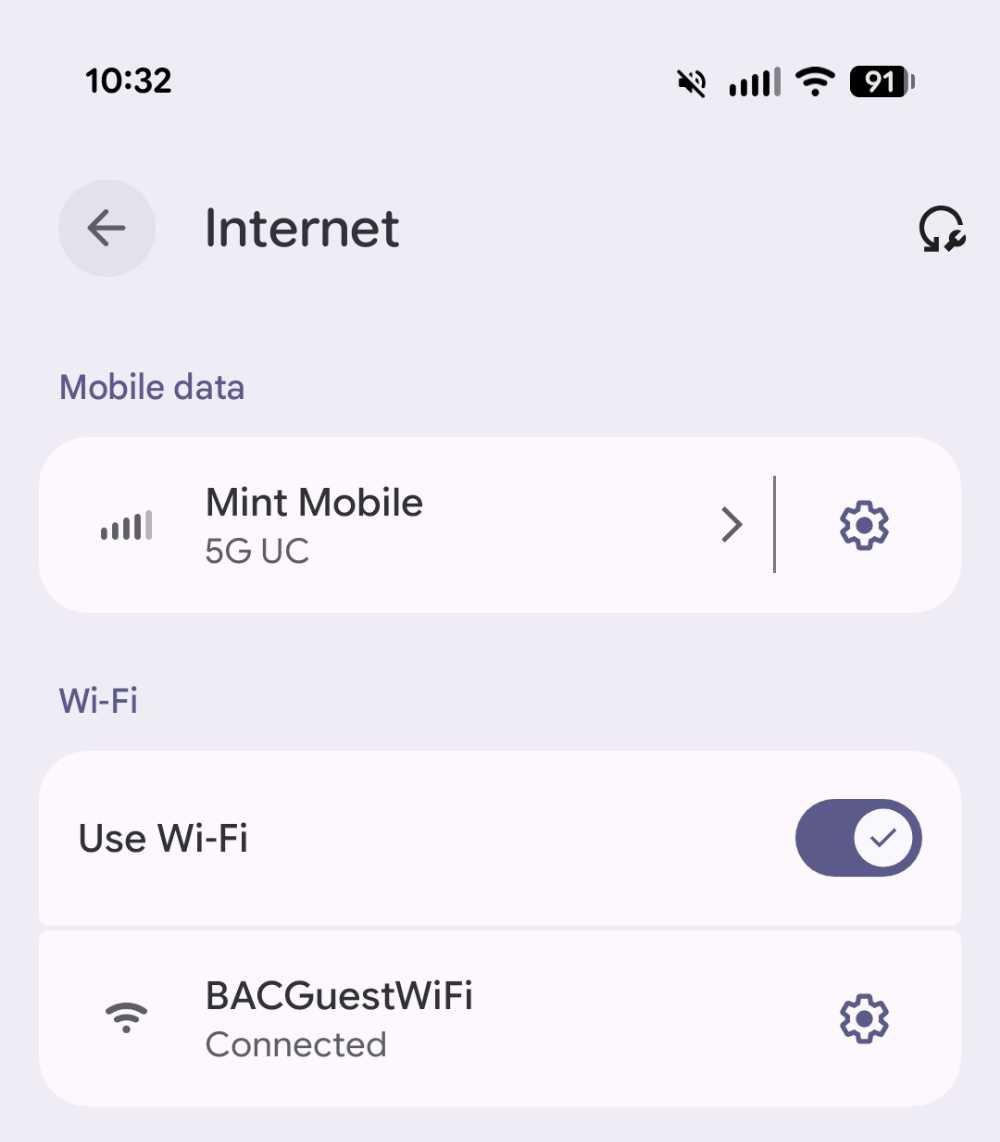](https://helpdesk.brynathyn.edu/uploads/images/gallery/2026-06/bacguest-android-0.jpg)
The Helpdesk does not give out ethernet cables to students.
1. Locate the ethernet port you want to connect to.
2. Reach out to helpdesk@brynathyn.edu. Include the following information in your email:
- **Building** and **room number**
- **Plate number** and/or a **picture of the port**
- The plate number should be on a printed label above the ports.
- If you don't see one, let us know, and we can come look at it with you to get you connected.
3. Wait for the Helpdesk to confirm that your port has been activated.
Once confirmed, your port should be ready to connect a device to!