# BACGuestWiFi
Guests on campus can connect to BACGuestWiFi by selecting the network and using the password:
`RedLions2026`
Windows
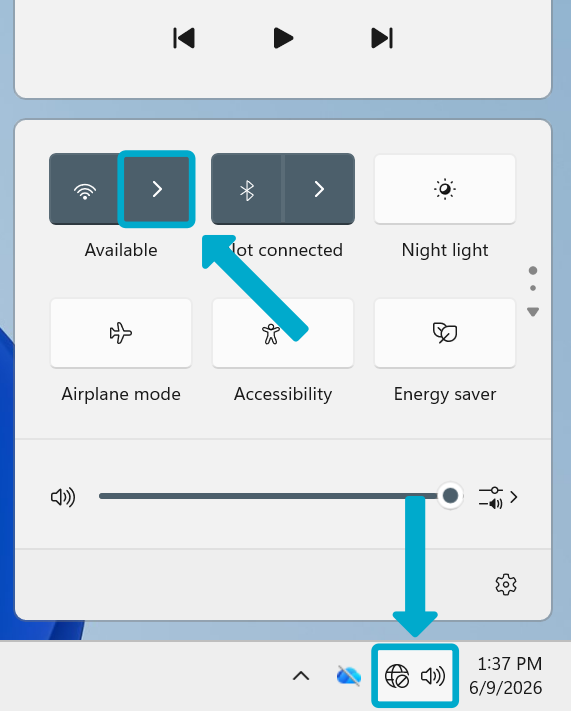
1. Open the **Quick Access** panel in the taskbar.
2. Click the arrow by the Wi-Fi symbol.
[](https://helpdesk.brynathyn.edu/uploads/images/gallery/2026-06/scaled-1680-/background.png)
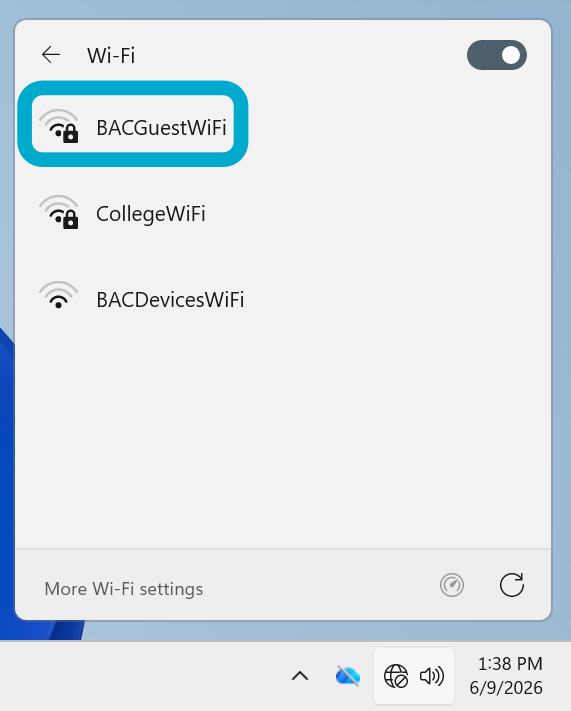
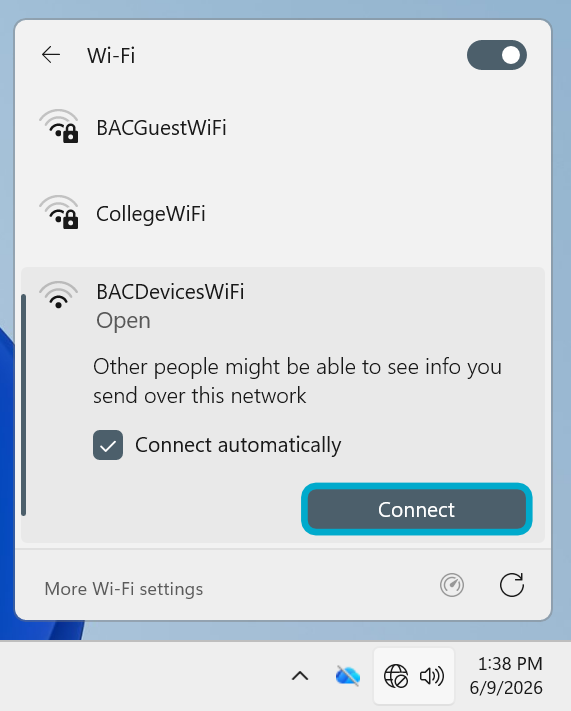
3. Select **BACGuestWiFi** then **Connect**.
[](https://helpdesk.brynathyn.edu/uploads/images/gallery/2026-06/9LXscreenshot-2026-06-09-133813-png.png)
[](https://helpdesk.brynathyn.edu/uploads/images/gallery/2026-06/Bk1screenshot-2026-06-09-133825-png.png)
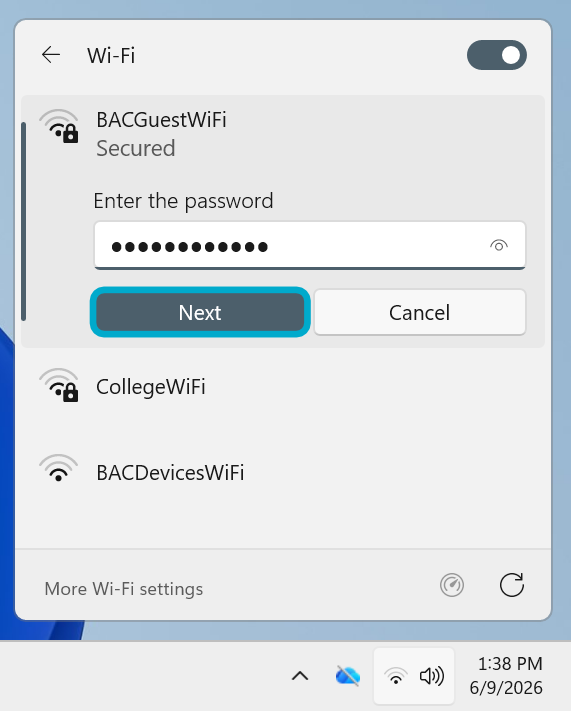
4. Enter the password {{@69#bkmrk-bacguestwifi-pw}}.
[](https://helpdesk.brynathyn.edu/uploads/images/gallery/2026-06/screenshot-2026-06-09-133843-png.png)
You should now be connected. If not, [contact the Helpdesk](https://helpdesk.brynathyn.edu/books/help/page/helpdesk-contacts-office-hours).
macOS
1. Open your Wi-Fi menu in the top right of your screen by clicking on the Wi-Fi symbol.[](https://helpdesk.brynathyn.edu/uploads/images/gallery/2026-06/eGiimage8.jpeg)
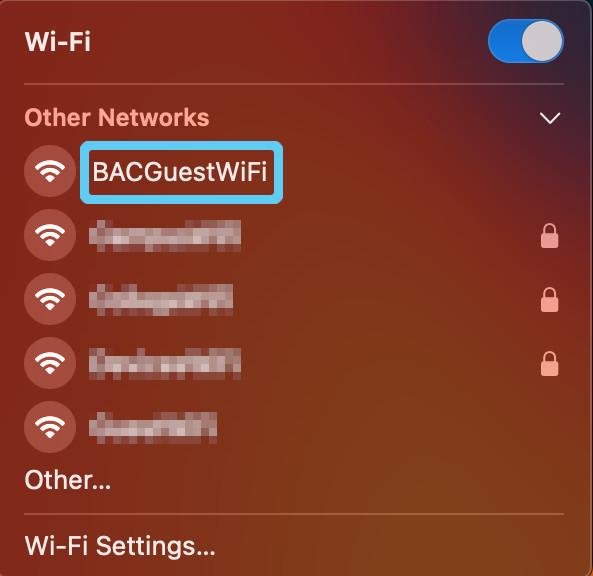
2. Click on **BACGuestWiFi** from the dropdown menu of options that appears. This should open a
pop-up window.
[](https://helpdesk.brynathyn.edu/uploads/images/gallery/2026-06/image9.jpeg)
3. Enter the password {{@69#bkmrk-bacguestwifi-pw}} and click **Join**.
You should now be connected. If not, [contact the Helpdesk](https://helpdesk.brynathyn.edu/books/help/page/helpdesk-contacts-office-hours).
iOS
1. Open **Settings**. **[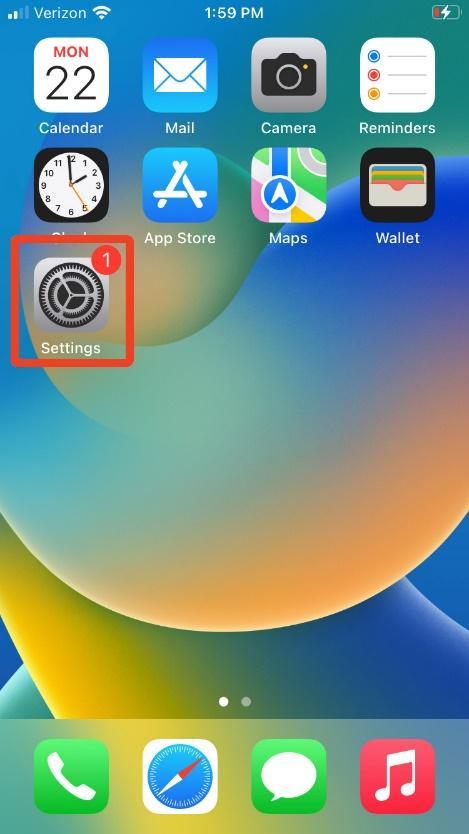](https://helpdesk.brynathyn.edu/uploads/images/gallery/2026-06/zoXimage10.jpg)**
2. Select **Wi-Fi**. **[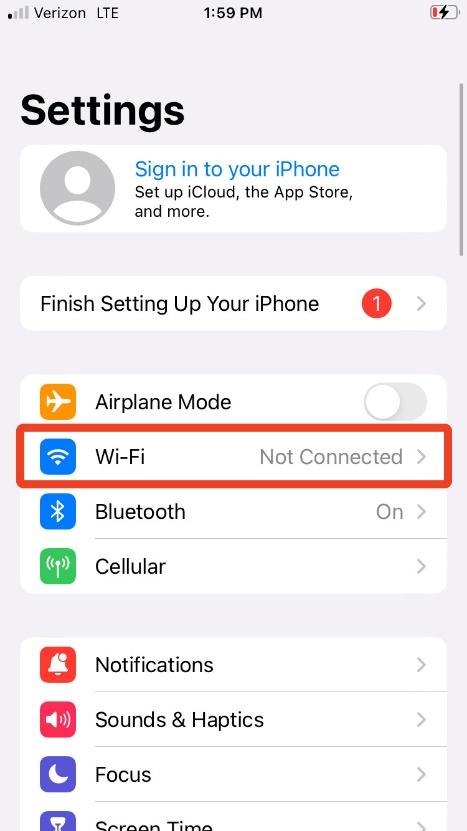](https://helpdesk.brynathyn.edu/uploads/images/gallery/2026-06/image11.jpeg)**
3. Wait for your iPhone to scan for networks, then select **BACGuestWiFi**. [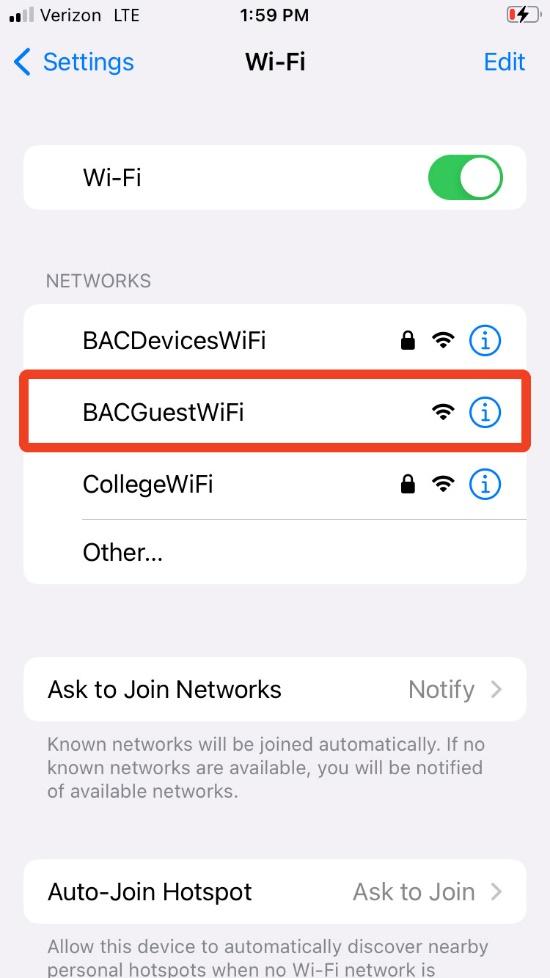](https://helpdesk.brynathyn.edu/uploads/images/gallery/2026-06/image12.jpeg)
4. Enter the password {{@69#bkmrk-bacguestwifi-pw}}.
5. Click Join.
You should now be connected. If not, [contact the Helpdesk](https://helpdesk.brynathyn.edu/books/help/page/helpdesk-contacts-office-hours).
Android
1. Open **Settings**
2. Tap **Network & internet
[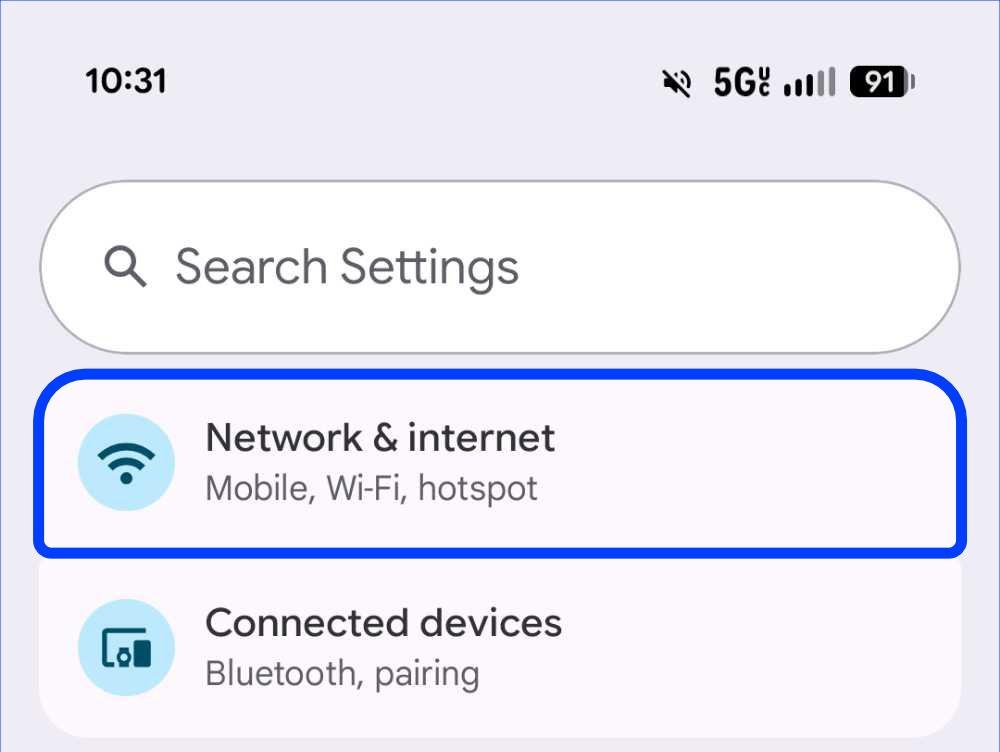](https://helpdesk.brynathyn.edu/uploads/images/gallery/2026-06/57xbacguest-android-3.jpg)**
3. Tap **Internet
[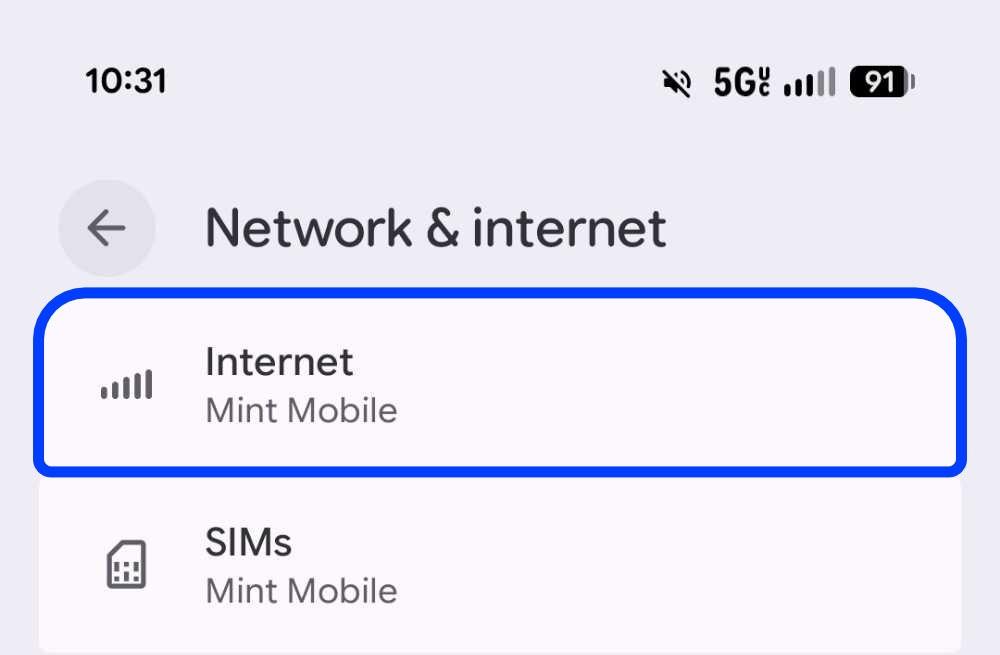](https://helpdesk.brynathyn.edu/uploads/images/gallery/2026-06/bacguest-android-1.jpg)**
4. Select **BACGuestWiFi**[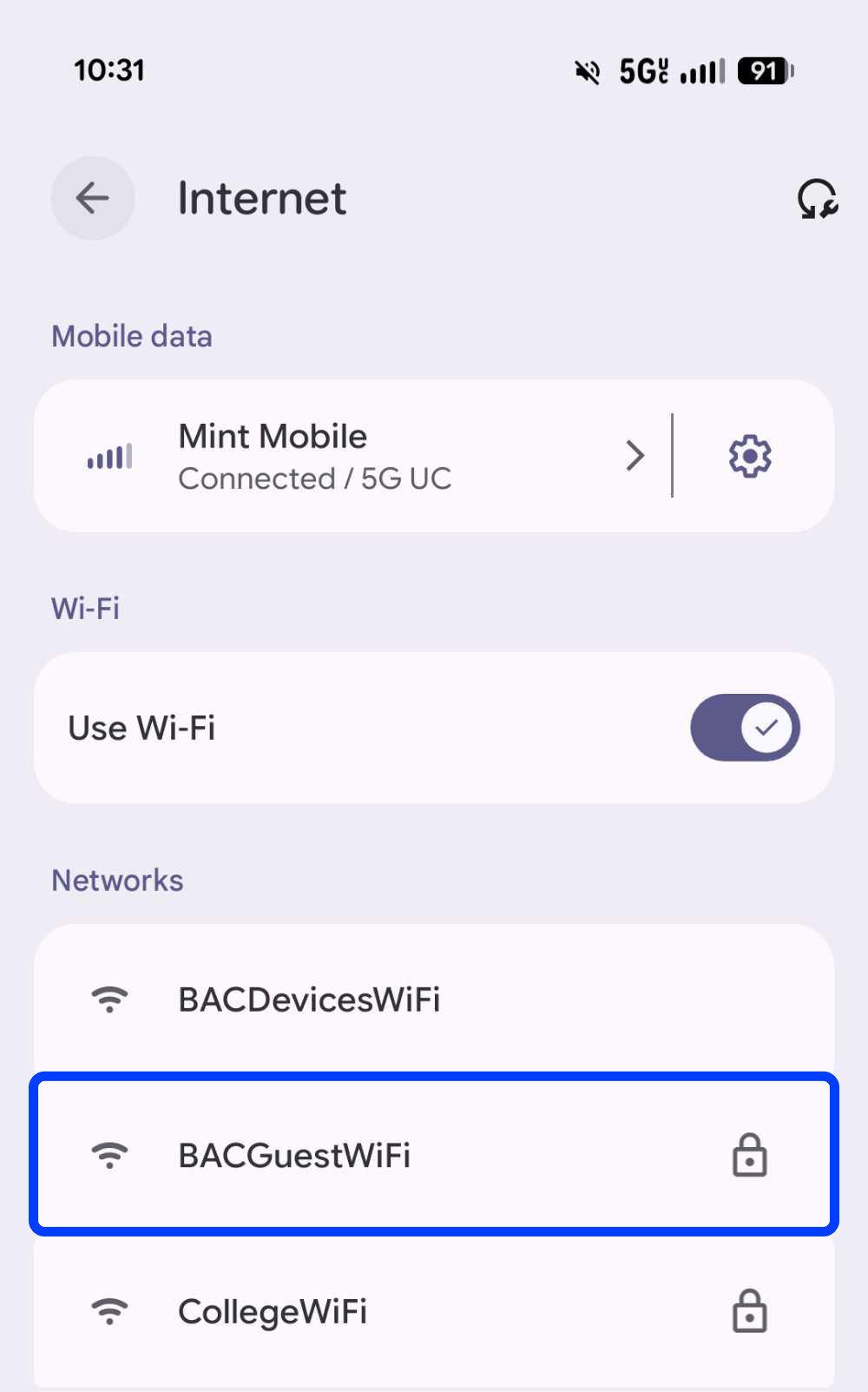](https://helpdesk.brynathyn.edu/uploads/images/gallery/2026-06/bacguest-android-2.jpg)
5. Enter the password {{@69#bkmrk-bacguestwifi-pw}}
And tap **Connect**[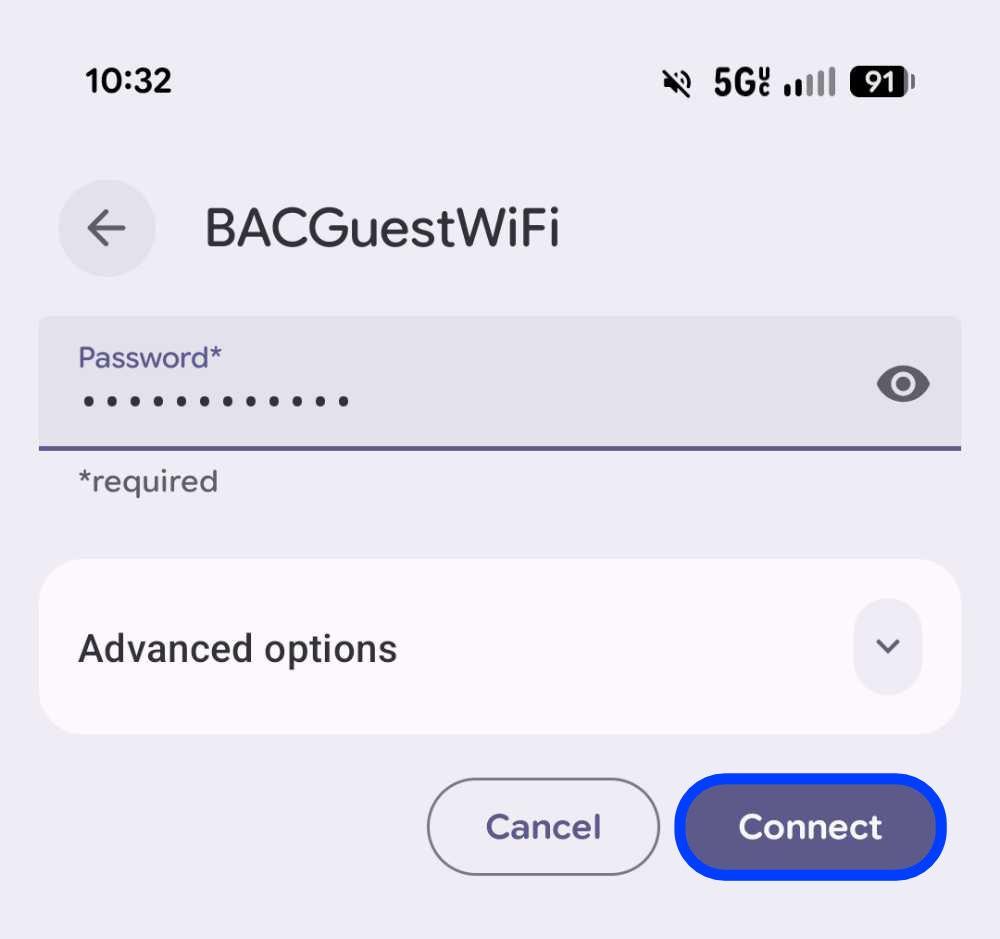](https://helpdesk.brynathyn.edu/uploads/images/gallery/2026-06/bacguest-android-4.jpg)
You should now be connected. If not, [contact the Helpdesk](https://helpdesk.brynathyn.edu/books/help/page/helpdesk-contacts-office-hours).[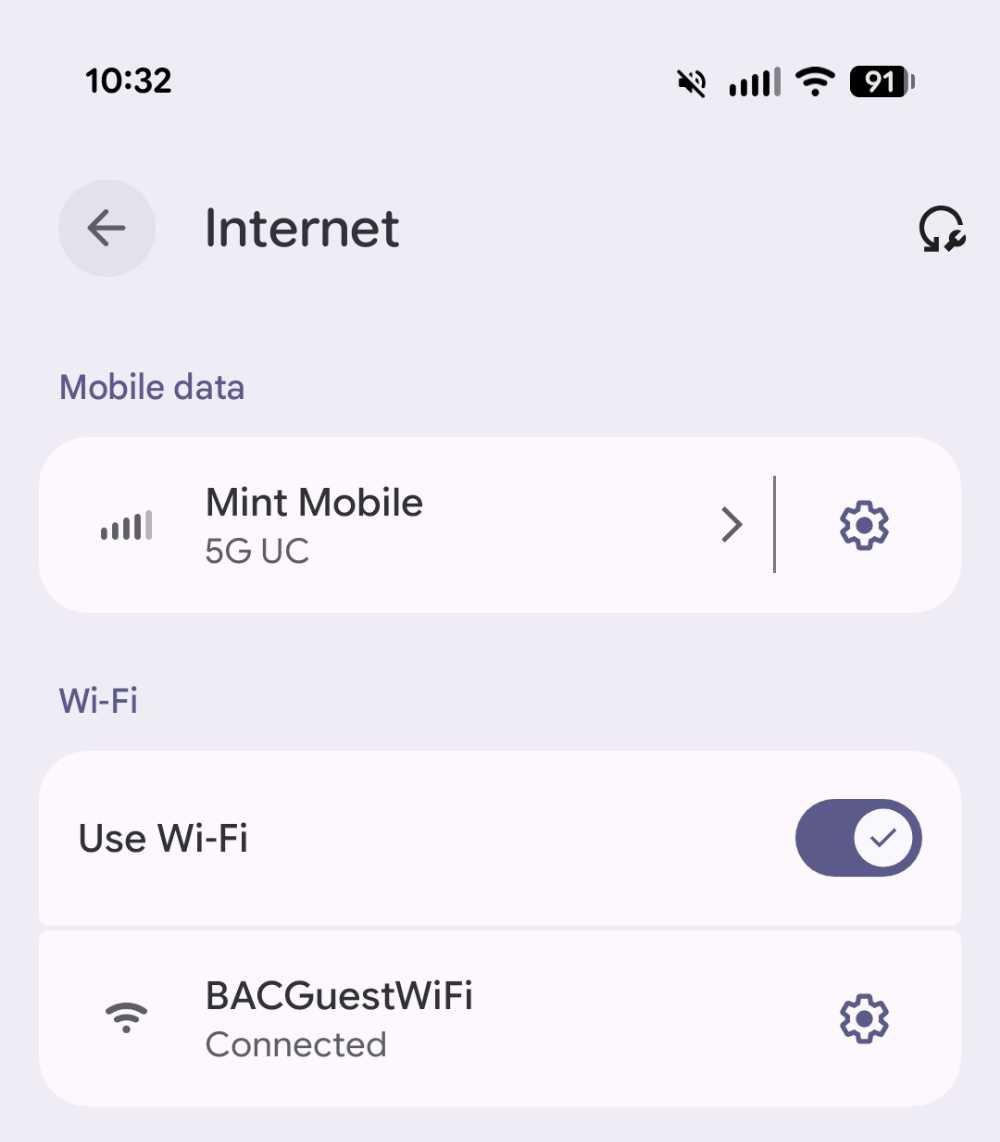](https://helpdesk.brynathyn.edu/uploads/images/gallery/2026-06/bacguest-android-0.jpg)