# CollegeWiFi
CollegeWiFi is the default for connecting your personal and work devices to Wi-Fi. Make sure you know your username and password before starting. [What is my Username and Password?](https://helpdesk.brynathyn.edu/books/accounts/page/what-is-my-username-and-password "What is my Username and Password?")
Windows
1. Open [Quick Settings](ms-availablenetworks:) by clicking on the taskbar area shown below.[](https://helpdesk.brynathyn.edu/uploads/images/gallery/2026-06/scaled-1680-/WSxcollegwifi-windows11-0.png)
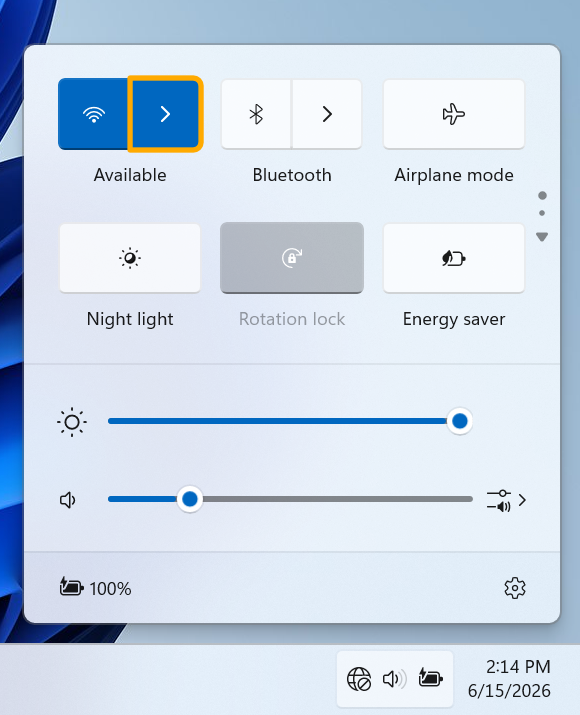
2. Click the arrow next to the Wi-Fi symbol.
[](https://helpdesk.brynathyn.edu/uploads/images/gallery/2026-06/scaled-1680-/collegwifi-windows11-1.png)
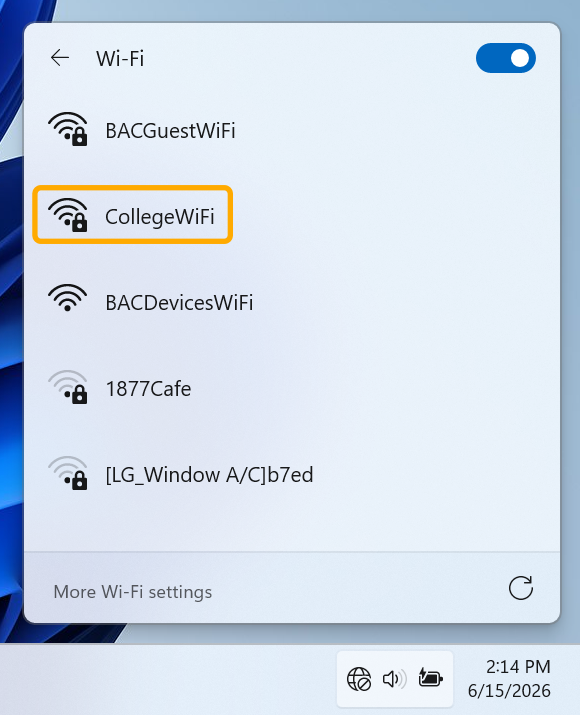
3. Select **CollegeWiFi**.
[](https://helpdesk.brynathyn.edu/uploads/images/gallery/2026-06/scaled-1680-/collegwifi-windows11-2.png)
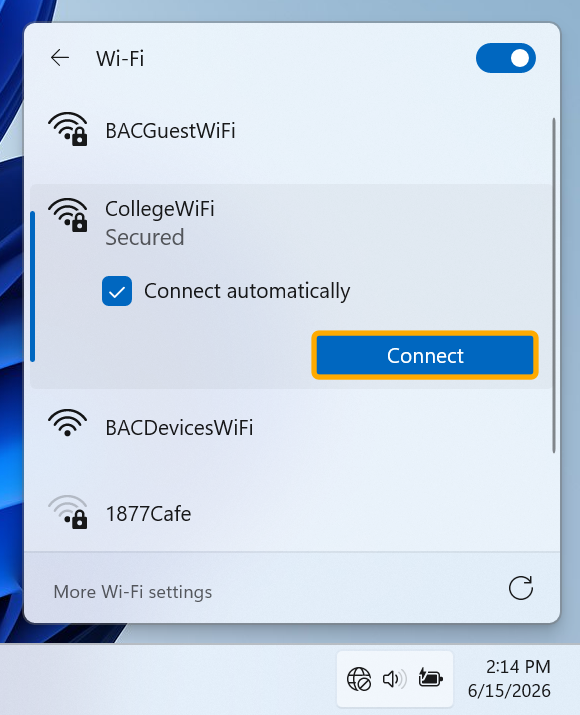
4. Check **Connect automatically** then click **Connect**.
[](https://helpdesk.brynathyn.edu/uploads/images/gallery/2026-06/scaled-1680-/collegwifi-windows11-3.png)
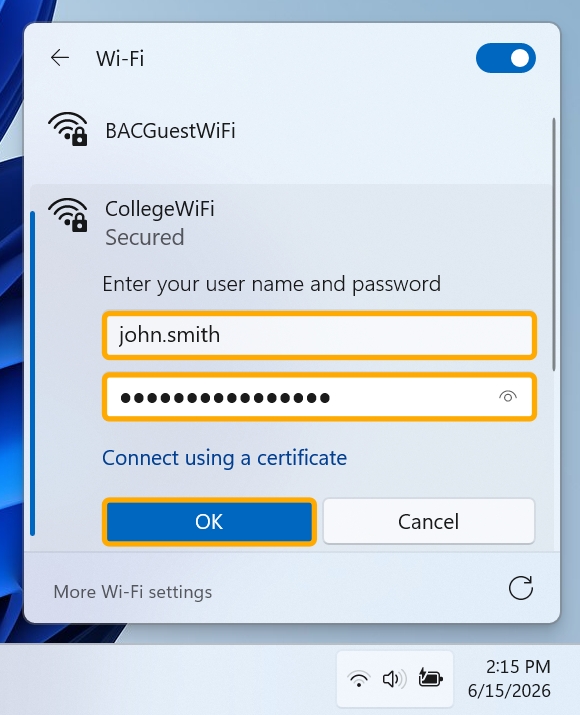
5. Enter your campus [username and password](https://helpdesk.brynathyn.edu/books/accounts/page/what-is-my-username-and-password), then click **Connect**.
[](https://helpdesk.brynathyn.edu/uploads/images/gallery/2026-06/scaled-1680-/collegwifi-windows11-4.png)
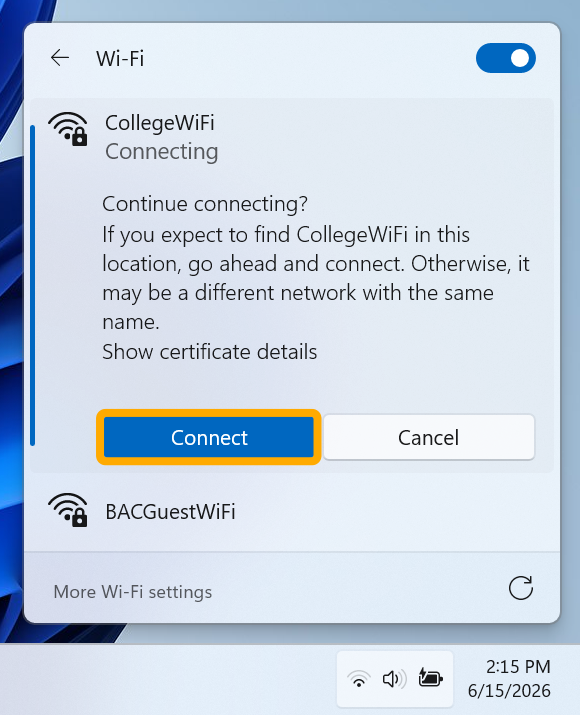
6. Click **Connect** again on the **Continue connecting?** prompt.
[](https://helpdesk.brynathyn.edu/uploads/images/gallery/2026-06/scaled-1680-/collegwifi-windows11-5.png)
If you see a **Windows Security** prompt, use the same credentials as before to authenticate. If you see ANC\\<username> as the selected user, select the option for using a different account.
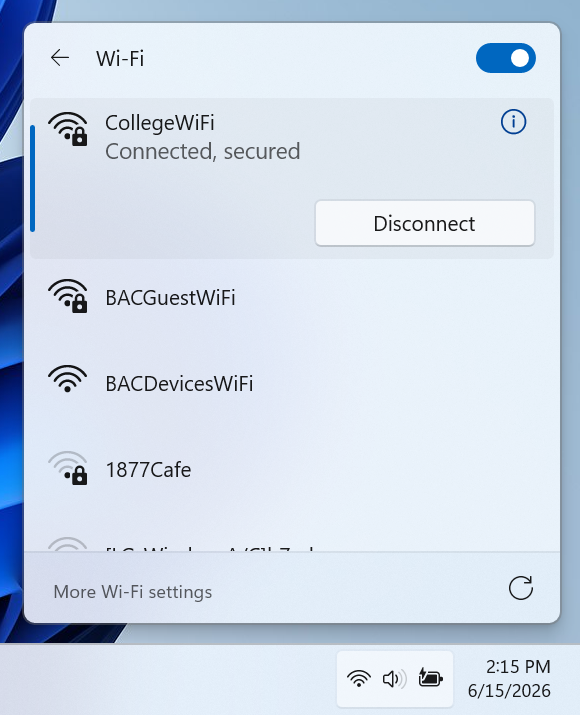
You should now be connected. If not, [contact the Helpdesk](https://helpdesk.brynathyn.edu/books/help/page/helpdesk-contacts-office-hours).
[](https://helpdesk.brynathyn.edu/uploads/images/gallery/2026-06/scaled-1680-/collegwifi-windows11-6.png)
## Manual Connection
Occasionally, Windows will encounter trouble with Wi-Fi certificates and will stop connecting to CollegeWiFi, even after forgetting and re-authenticating. In this case, setting up a connection manually can work.
1. Open the **Start Menu** and search for **Control Panel**, then open it.
2. Navigate to **Network and Internet** > **Network and Sharing Center** > **Set up a new connection or network**.
3. Select **Manually connect to a wireless network** and click **Next**.
4. Set up the wireless network information as shown below, then click **Next**.
1. **Network name:** `CollegeWiFi`
2. **Security type:** `WPA2-Enterprise`
3. Check **Start this connection automatically**
5. Click **Change connection settings**.
6. Select the **Security** tab and set it up as shown.
1. **Security type:** `WPA2-Enterprise`
2. **Encryption type:** `AES`
3. **Choose a network authentication method:** `Microsoft: Protected EAP (PEAP)`
4. Check **Remember my credentials for this connection each time I'm logged on**.
7. Select **Settings** to the right of the authentication method.
8. *Uncheck* the box for **Verify the server's identity by validating the certificate**.
9. Click **OK** to go back to **Wireless Network Properties**.
10. Click **Advanced settings**.
11. In the **802.1X settings** tab, check **Specify authentication mode**.
12. Select **User authentication** in the drop-down.
13. Click **Save credentials**.
14. In the Save credentials popup, enter your campus [username and password](https://helpdesk.brynathyn.edu/books/accounts/page/what-is-my-username-and-password) then click **OK**.
15. Click **OK** in the **Advanced settings** window.
16. Click **OK** in the **Wireless Network Properties Window**.
You should now be able to connect to CollegeWiFi from the [Quick Settings](ms-availablenetworks:) panel.
Android
Connecting to CollegeWiFi is slightly different between smartphone brands. If you cannot find analogous options to the steps below on your phone, please [reach out to the Helpdesk](https://helpdesk.brynathyn.edu/books/help/page/helpdesk-contacts-office-hours).
1. Navigate to your Wi-Fi settings and select **CollegeWiFi**
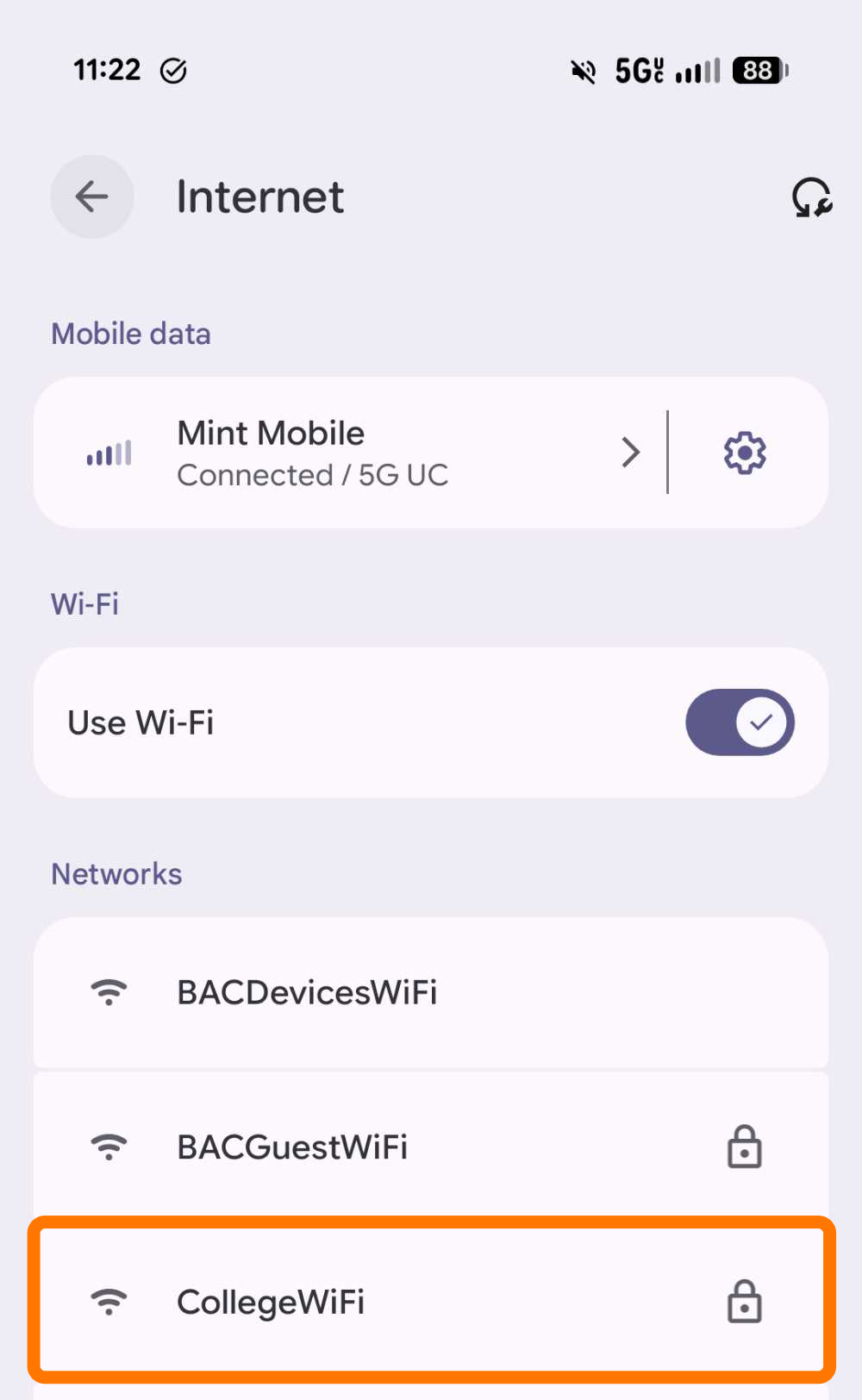
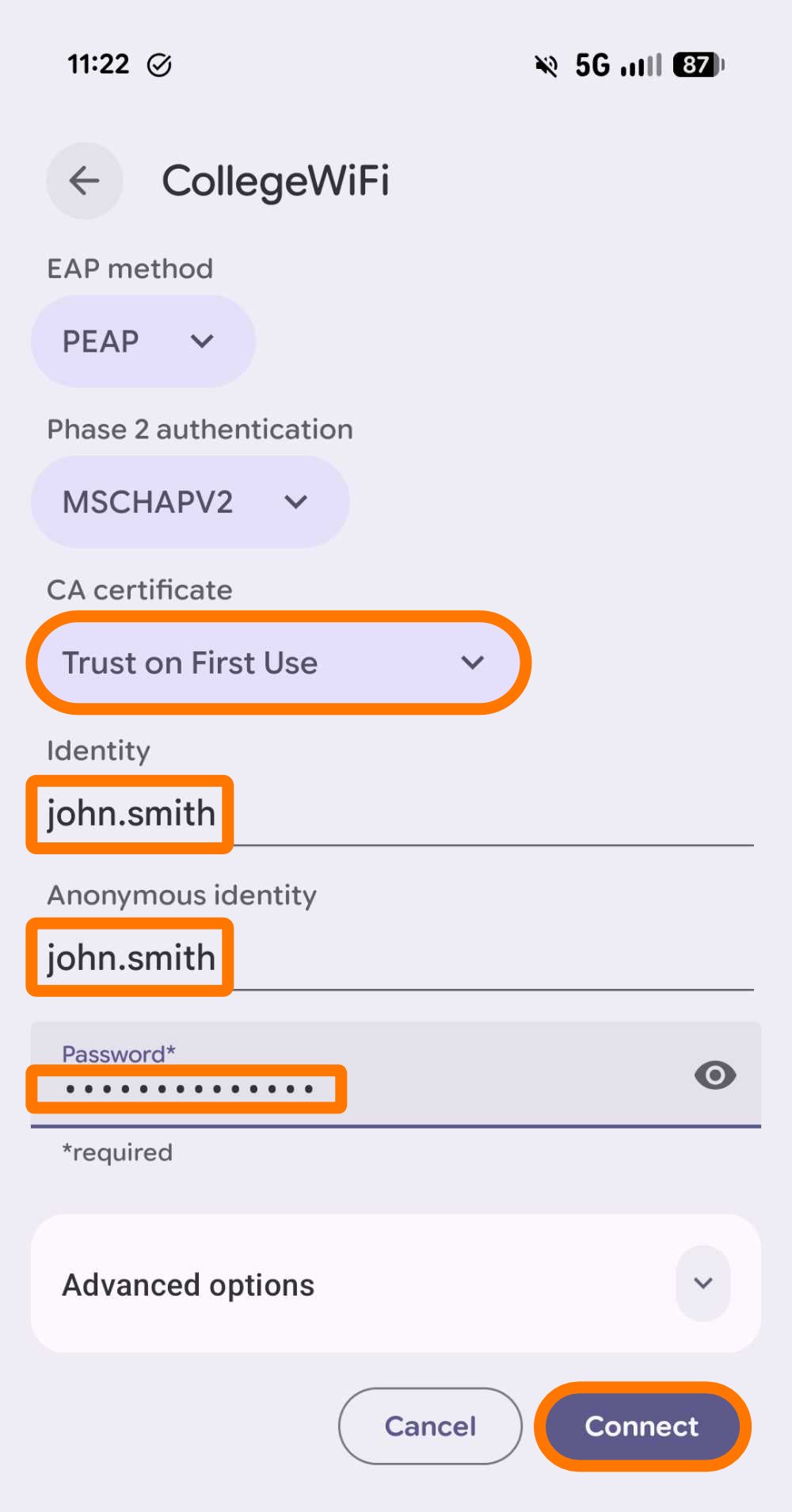
2. Configure the credentials like in the screenshot below.
[](https://helpdesk.brynathyn.edu/uploads/images/gallery/2026-06/Xzbcollegewifi-credentials.png)
1. Under the **CA certificate** drop-down, select **Trust on First Use**
2. Enter your campus username in the **Identity** and **Anonymous identity** fields.
3. Use your campus password in the **Password** field.
4. Click **Connect**.
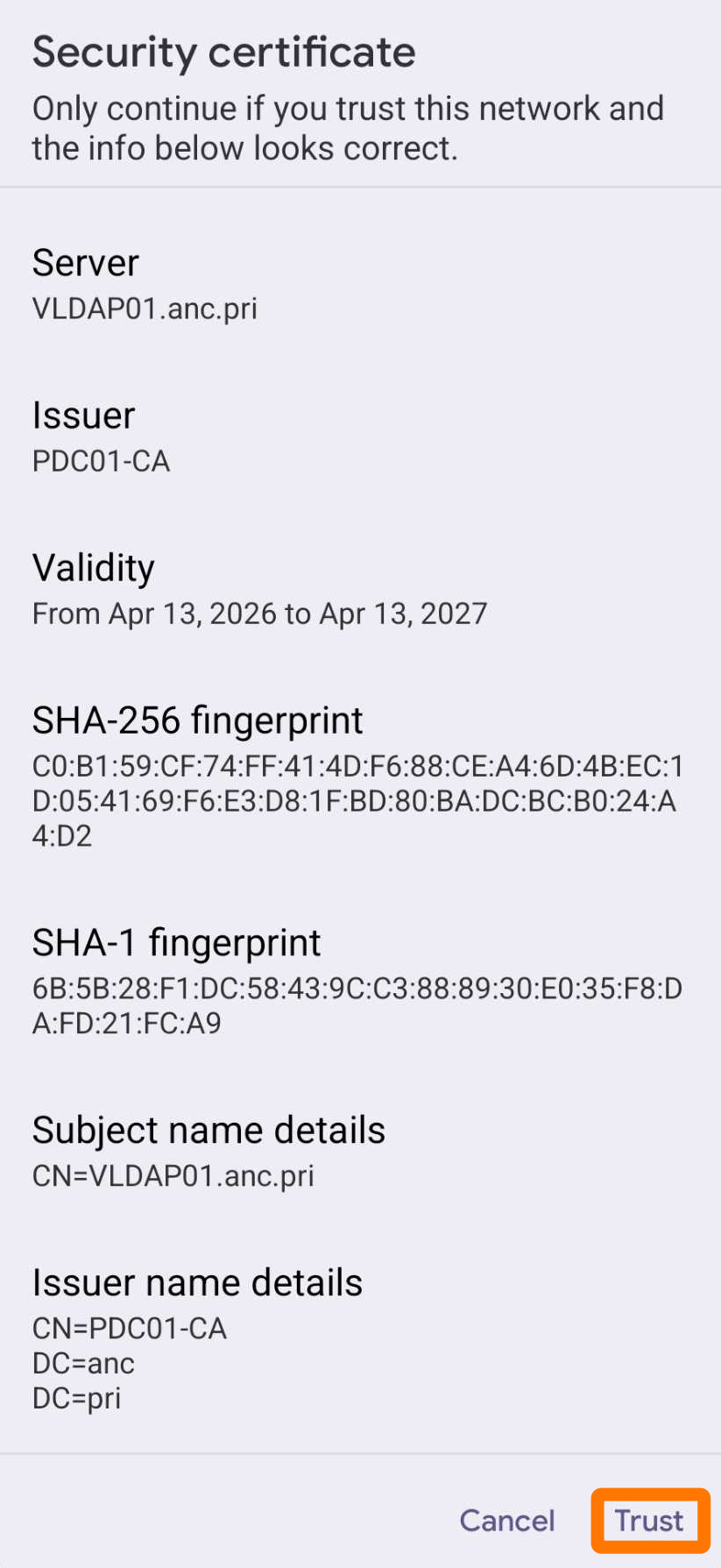
3. If you see a **Security certificate** prompt, select **Trust**.
[](https://helpdesk.brynathyn.edu/uploads/images/gallery/2026-06/collegewifi-trust-cert.png)
You should now be connected. If not, [contact the Helpdesk](https://helpdesk.brynathyn.edu/books/help/page/helpdesk-contacts-office-hours).[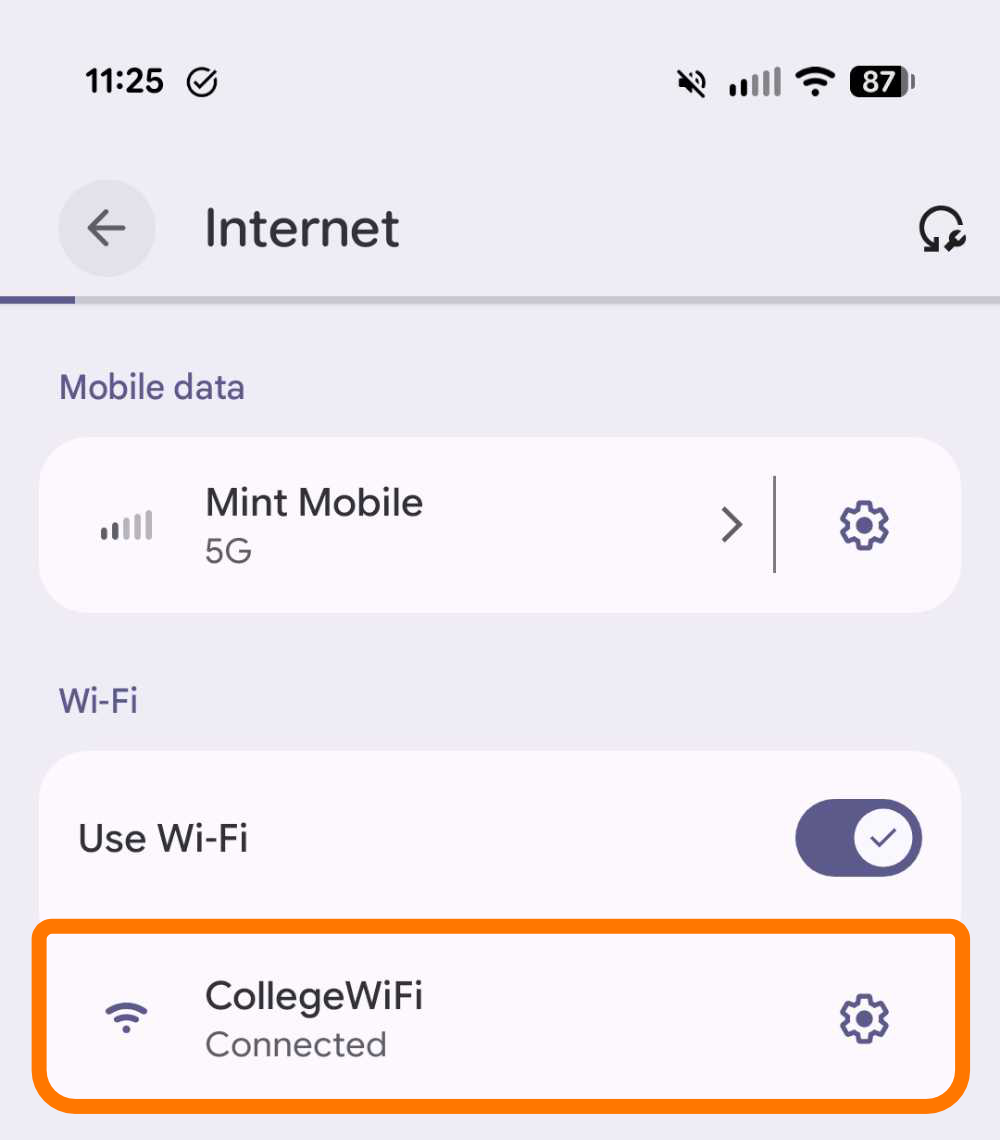](https://helpdesk.brynathyn.edu/uploads/images/gallery/2026-06/collegewifi-connected.png)
iOS
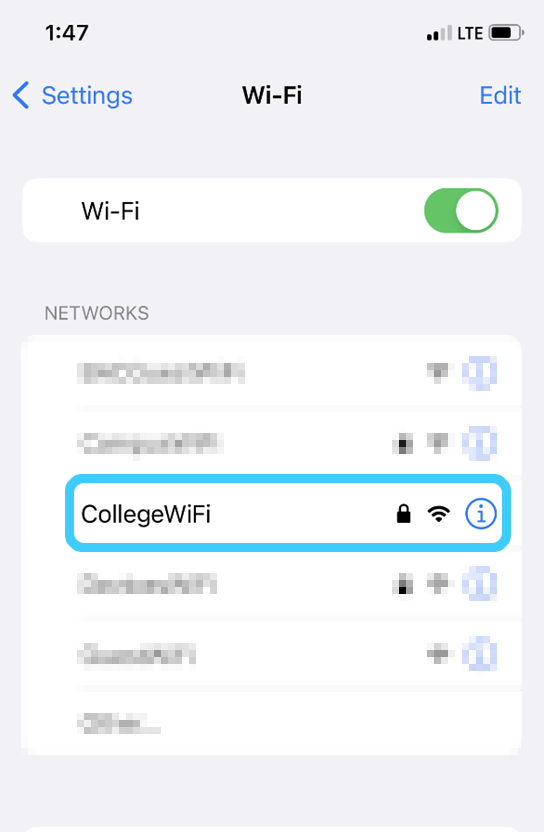
1. Navigate to the Wi-Fi page in the Settings app.
2. Select **CollegeWiFi**.
[](https://helpdesk.brynathyn.edu/uploads/images/gallery/2026-06/image11.png)
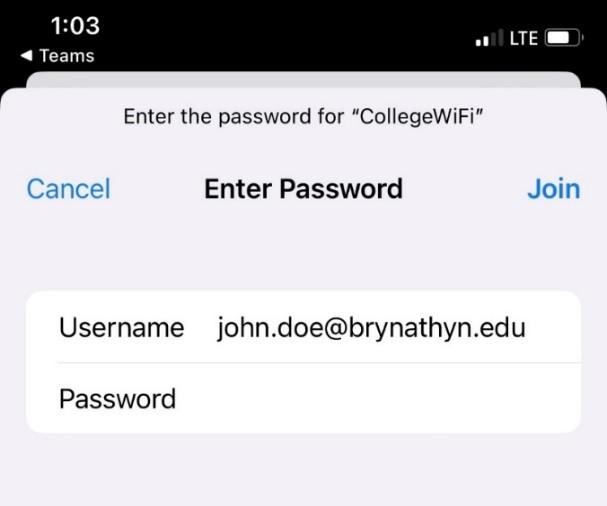
3. Enter your campus [username and password](https://helpdesk.brynathyn.edu/books/accounts/page/what-is-my-username-and-password), then click **Join**.
[](https://helpdesk.brynathyn.edu/uploads/images/gallery/2026-06/AYlimage12.jpeg)
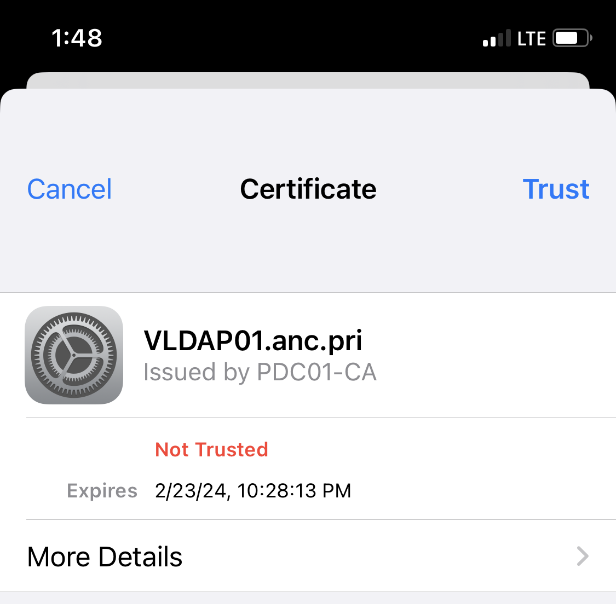
4. Select **Trust** in the Certificate popup.
[](https://helpdesk.brynathyn.edu/uploads/images/gallery/2026-06/image13.png)
You should now be connected. If not, [contact the Helpdesk](https://helpdesk.brynathyn.edu/books/help/page/helpdesk-contacts-office-hours).
macOS
1. Click the Wi-Fi symbol at the top right of the screen.[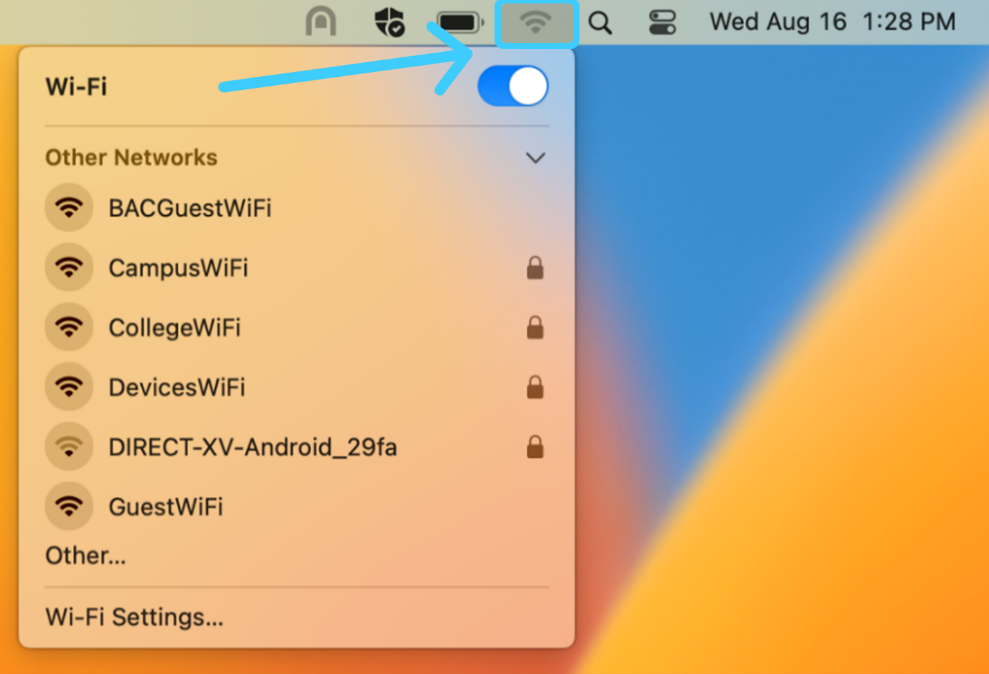](https://helpdesk.brynathyn.edu/uploads/images/gallery/2026-06/image6.png)
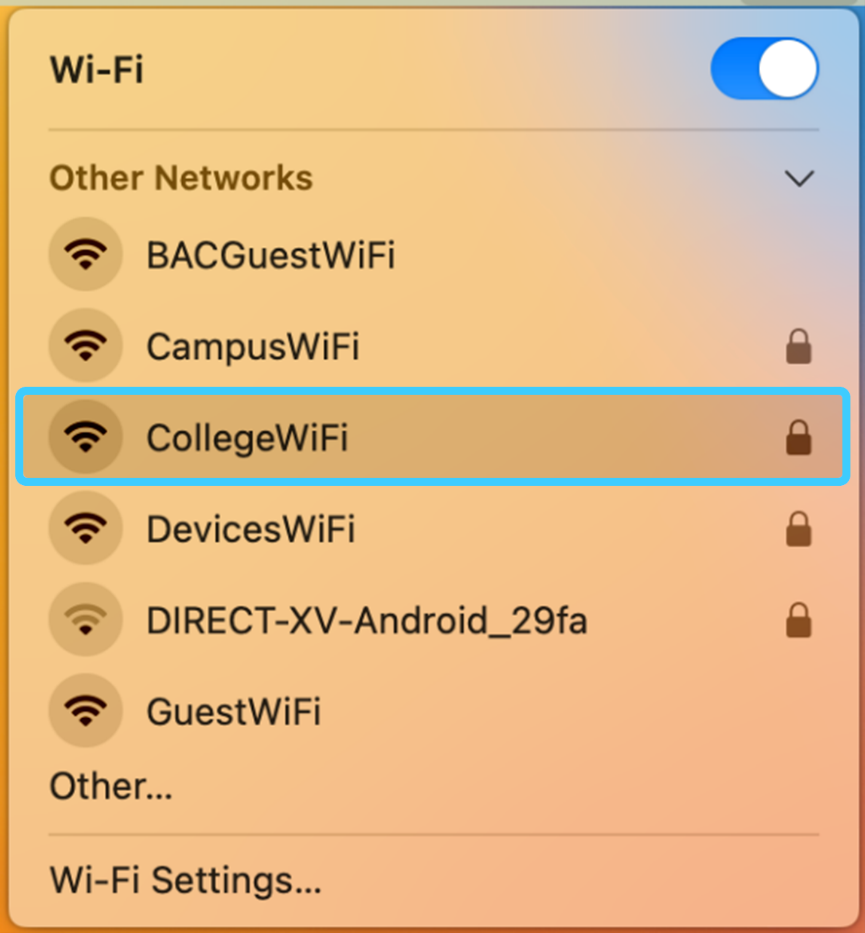
2. Select **CollegeWiFi**
[](https://helpdesk.brynathyn.edu/uploads/images/gallery/2026-06/image7.png)
3. Enter your campus [username and password](https://helpdesk.brynathyn.edu/books/accounts/page/what-is-my-username-and-password), then click **OK**.[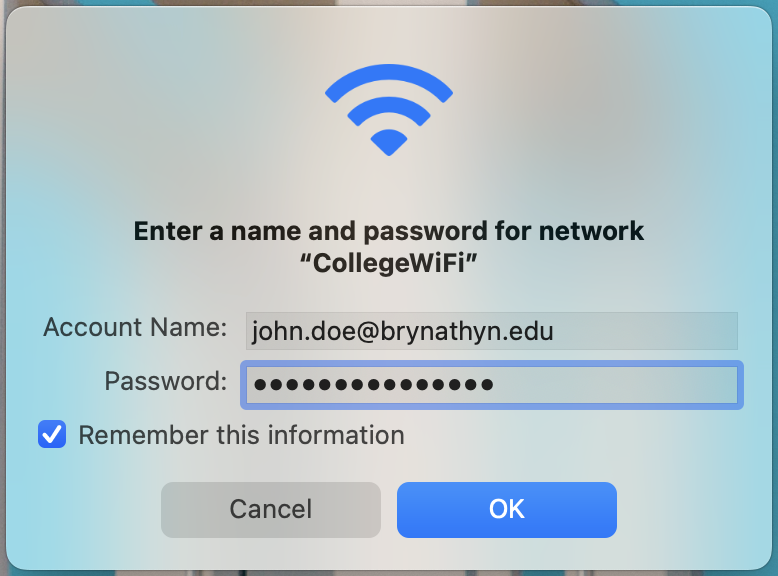](https://helpdesk.brynathyn.edu/uploads/images/gallery/2026-06/image8.png)
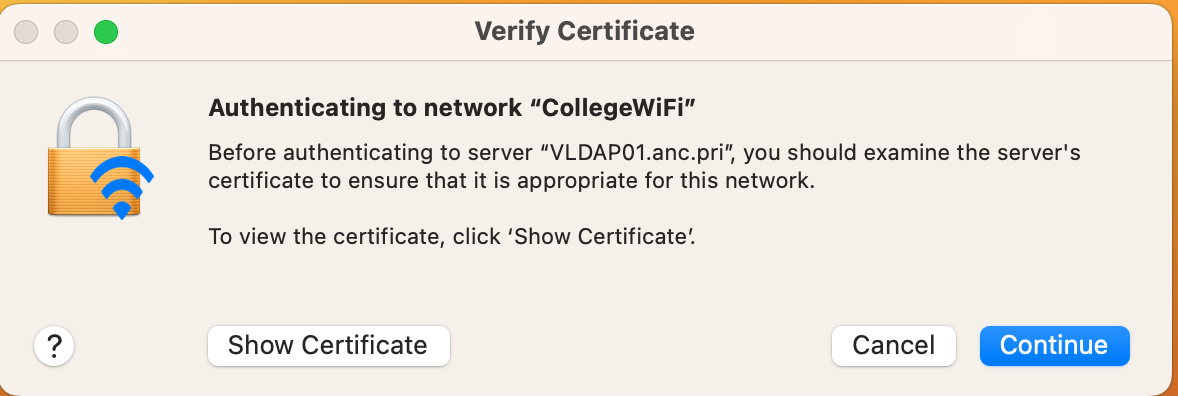
4. Press **Continue** on the Verify Certificate popup and enter your computer's logon password or use Touch ID if necessary.
[](https://helpdesk.brynathyn.edu/uploads/images/gallery/2026-06/image9.png)
You should now be connected.