# Associating your ID with copiers
To access the copiers on campus, you must associate your ID card once. After associating, you can scan your ID to release prints, scan, and make copies.
1. Scan your ID on the copier's card scanner.
1. This should prompt the following menu to appear on the screen:
[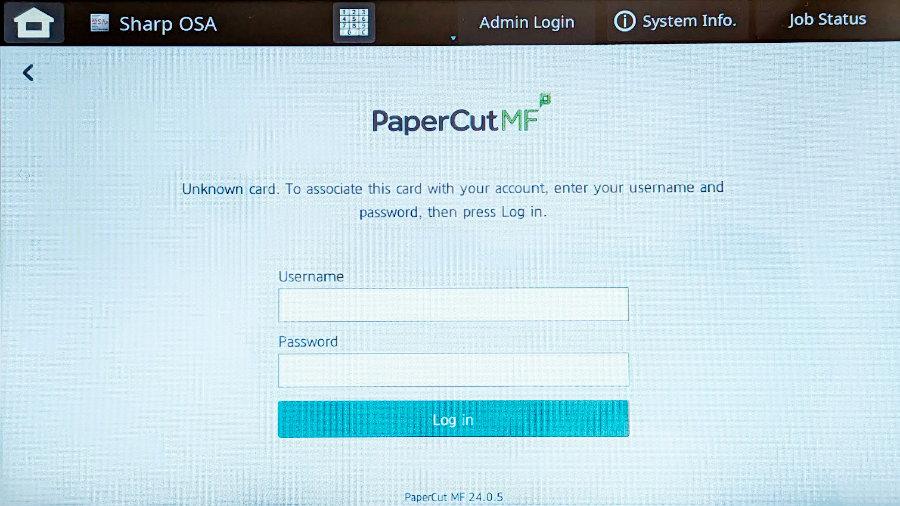](https://helpdesk.brynathyn.edu/uploads/images/gallery/2026-06/scaled-1680-/papercut-mf-unkown-card.jpg)
2. Enter the following credentials:
- **Username**: ``
- **Password**: ``
- For help, see [What is my Username and Password?](https://helpdesk.brynathyn.edu/books/accounts/page/what-is-my-username-and-password "What is my Username and Password?")
Most copiers have a pull-out keyboard behind the display.
- After entering your credentials, you should see the following notification:
[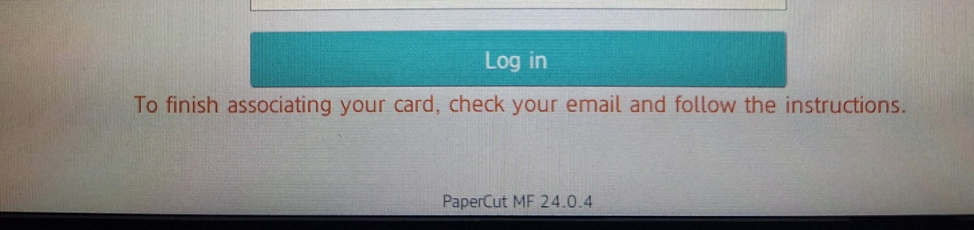](https://helpdesk.brynathyn.edu/uploads/images/gallery/2026-06/BBJimage.png)
3. Follow the instructions emailed to you by **bac.noreply@brynathyn.edu**.
If you don’t see the email, make sure you check your Junk Email folder.
Now that you have associated your card, you can scan or copy using the campus copiers.