PaperCut
PaperCut Print Deploy allows you to use the FindMe virtual printer. This is the default print method for faculty and staff.
After printing to FindMe, you can scan your ID on any of the campus copiers to release the print there.
Before setting up PaperCut, ensure your ID is associated with the copiers.
Windows
- While on campus, go to bit.ly/bacwinprint in your browser.
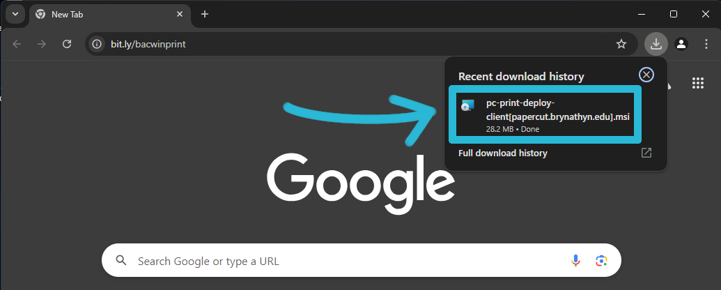
- This will automatically begin downloading the installer.
- Click on the installer from your download history to open it.

- Once it opens, follow the prompts to install Print Deploy.
Make sure to authenticate with any prompts that appear during installation and allow the program to make changes to your PC when prompted.
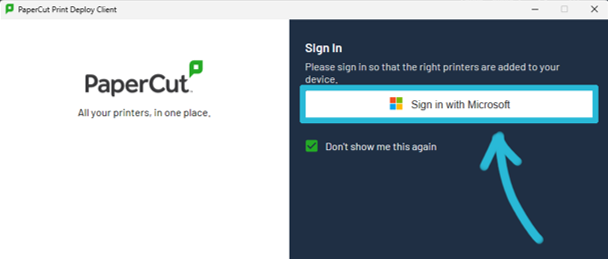
- After it finishes installing, a click Sign in with Microsoft in the pop-up box.

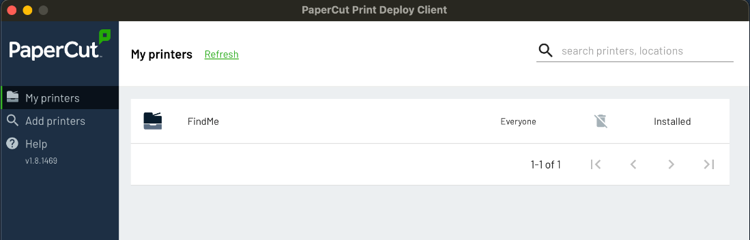
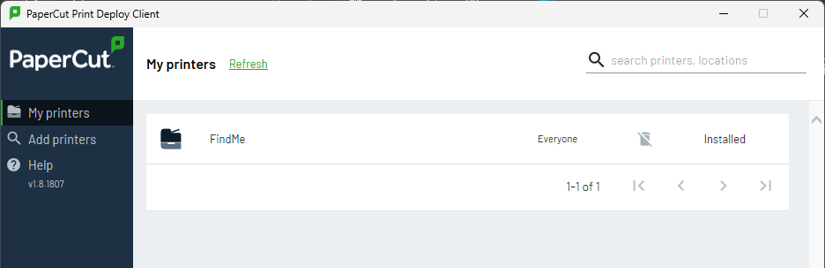
- After you’ve signed in with your Microsoft 365 account, Print Deploy should look like this.

- Ensure that FindMe says Installed on the righthand side.
You can now close the window and Print Deploy will run in the background.
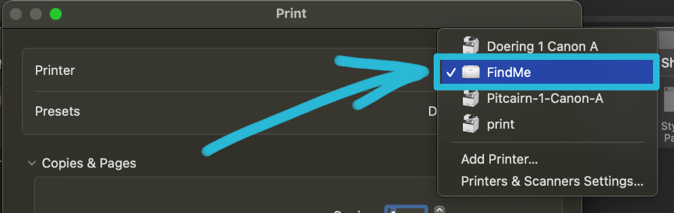
- When printing a document, select FindMe and print to it. You can then go to one of the campus copiers and release the print there.
- If you have your Bryn Athyn College ID card, scan it to release the print.
- If you don’t have your ID card, you can use the pin found on the PaperCut dashboard and enter that manually at the printer.
macOS
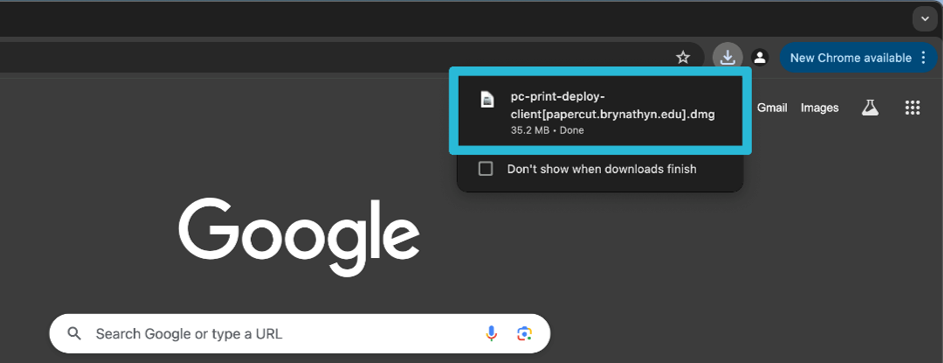
- Go to bit.ly/bacmacprint in your browser.
- This will automatically begin downloading the installer.
- Click the installer from your downloads history to open it.

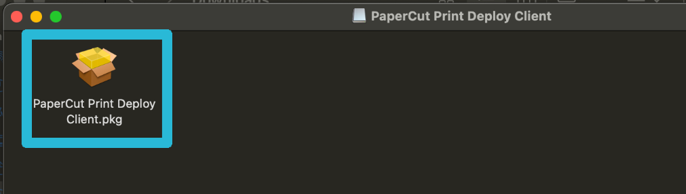
- Double-click the .pkg file in the pop-up window to start the installation.

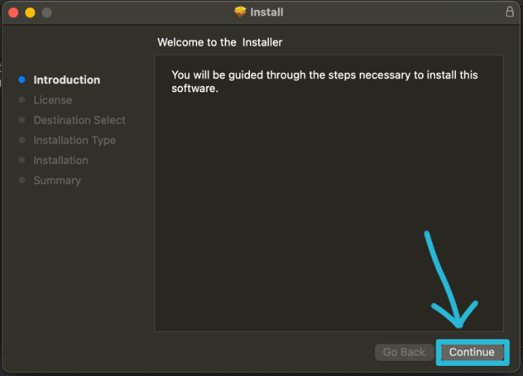
- Click Continue and follow the prompts to install Print Deploy.

Make sure to allow any permissions requests and to authenticate when prompted.
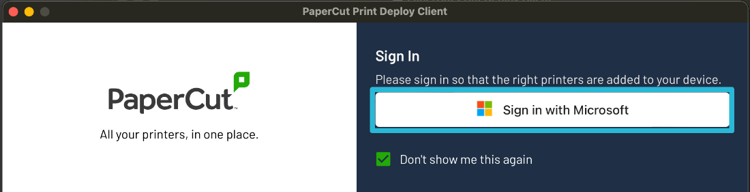
- Once the installation is complete, click Sign in with Microsoft in the pop-up box.

- After the installation is finished, Print Deploy should look like this.

- Ensure that FindMe says Installed on the righthand side.
You can now close Print Deploy, and it will run in the background.
- When printing from the software of your choice, select FindMe and print to it. You can then go to any of the campus copiers and release the print there with your ID card or PaperCut ID.