# Scanning & Copying

## Setting up your ID

<p class="callout info">This part of the process is only relevant if this is your first time scanning on the campus copiers. If you have already done this, jump to [Scanning](#header-0f70 "Scanning") or [Copying](#header-5531 "Copying").</p>

1. Scan your ID on the copier's card scanner. 
    1. This should prompt the following menu to appear on the screen:  
        [![papercut_mf_unkown_card.jpg](https://helpdesk.brynathyn.edu/uploads/images/gallery/2026-06/scaled-1680-/papercut-mf-unkown-card.jpg)](https://helpdesk.brynathyn.edu/uploads/images/gallery/2026-06/scaled-1680-/papercut-mf-unkown-card.jpg)
2. Enter the following credentials:
    - **Username**: `<span class="editor-theme-code"><College email address></span>`
    - **Password**: `<span class="editor-theme-code"><College Microsoft account password></span>`
        - For help, see [What is my Username and Password?](https://helpdesk.brynathyn.edu/books/accounts/page/what-is-my-username-and-password "What is my Username and Password?")
    
    <p class="callout info">Most copiers have a pull-out physical keyboard behind the display, which can be useful for this step.</p>
    
    
    - Once you have entered your login information a red notification will pop up under the log in button, which means you have entered your login information correctly.   
        [![image.png](https://helpdesk.brynathyn.edu/uploads/images/gallery/2026-06/scaled-1680-/BBJimage.png)](https://helpdesk.brynathyn.edu/uploads/images/gallery/2026-06/BBJimage.png)
3. Look for an email from **bac.noreply@brynathyn.edu** to your BAC address containing instructions on how to finish associating your card with the copiers. Follow the steps provided.<p class="callout danger">If you don’t see the email, make sure you check your junk/trash folder.</p>

<p class="callout success">Now that you have associated your card, you can scan or copy using the campus copiers.</p>

## Scanning

1. Place the pages you wish to scan in the top tray of the copier, **face up**.
2. Scan your ID card on the copier's card scanner.<p class="callout warning">If you have already associated your ID and it says **Unknown card**, try scanning again slowly.</p>
3. Press **Scan** on the menu that appears on the screen.  
    [![image.png](https://helpdesk.brynathyn.edu/uploads/images/gallery/2026-06/scaled-1680-/N9simage.png)](https://helpdesk.brynathyn.edu/uploads/images/gallery/2026-06/N9simage.png)
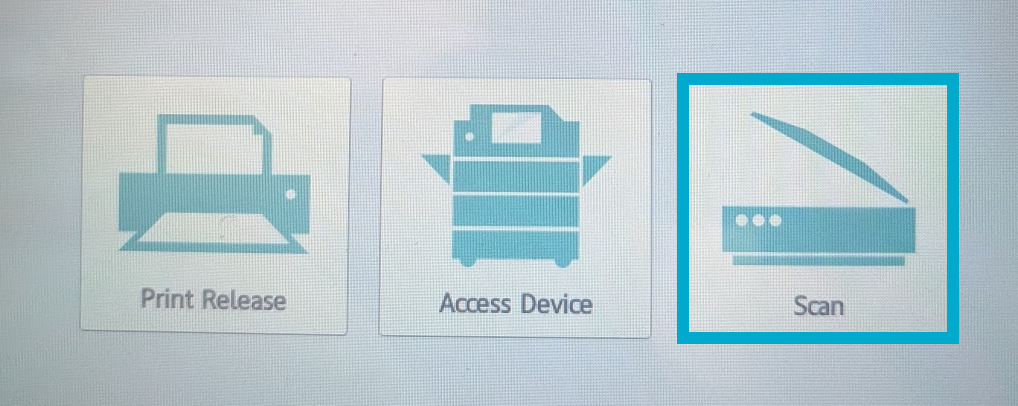
4. Chose an option to scan to:
    1. **Scan to My Email** will automatically fill in your BAC Email address.
    2. **Scan to Email** will allow you to enter any email address to send the scanned document to.

<p class="callout success">Press **Start** to begin. You will be sent a PDF of your scan from bac.noreply@brynathyn.edu.</p>

## Copying

1. Place the pages you wish to copy in the top tray of the copier, **face up**.
2. Scan your ID card on the copier's card scanner.
3. Press **Access Device**.  
    [![image.png](https://helpdesk.brynathyn.edu/uploads/images/gallery/2026-06/scaled-1680-/2uzimage.png)](https://helpdesk.brynathyn.edu/uploads/images/gallery/2026-06/2uzimage.png)
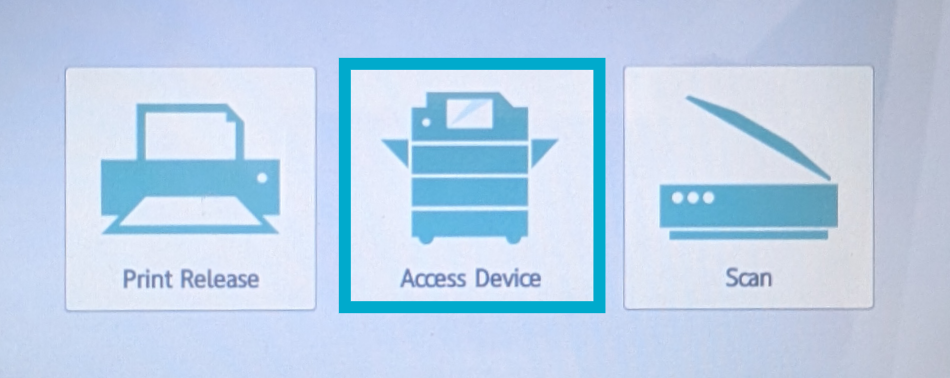
4. Press **Copy**.  
    [![image.png](https://helpdesk.brynathyn.edu/uploads/images/gallery/2026-06/scaled-1680-/vyCimage.png)](https://helpdesk.brynathyn.edu/uploads/images/gallery/2026-06/vyCimage.png)
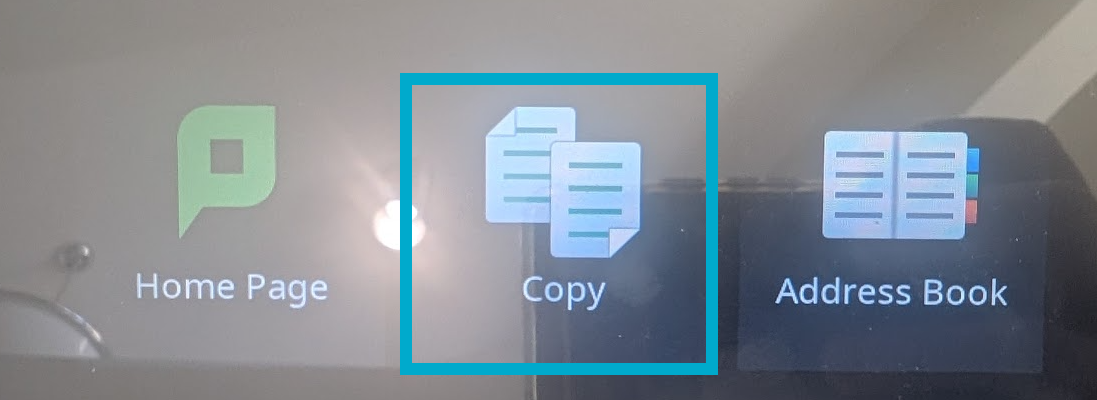
5. Select the number of copies you want and adjust the settings for copying as desired in the menu that appears.   
    [![image.png](https://helpdesk.brynathyn.edu/uploads/images/gallery/2026-06/scaled-1680-/2GAimage.png)](https://helpdesk.brynathyn.edu/uploads/images/gallery/2026-06/2GAimage.png)
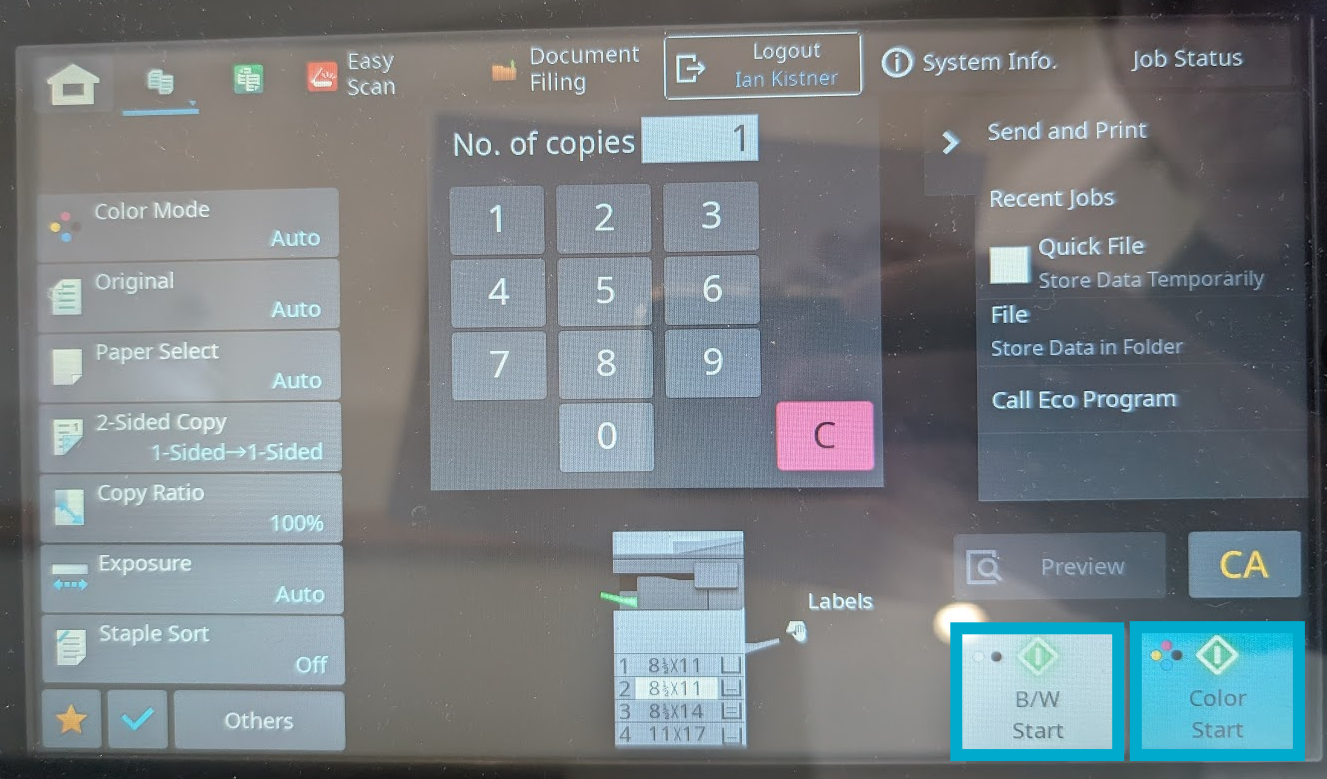
6. Press either **Black/White Start** or **Color Start** to begin the copying job.

<p class="callout success">The copier will spit out the original pages it is processing immediately, then will begin printing the copies after a brief delay.</p>