# Cybersecurity

# Encrypting your Computer

Users with personal devices have a responsibility to ensure that their devices connected to the BAC Network are encrypted. College owned devices set up by Helpdesk will be encrypted during setup. This page has instructions for encrypting personal devices.

<details id="bkmrk-windowspro-%2F-educati"><summary>Windows</summary>

### Pro / Education / Enterprise Edition

<p class="callout danger">**PRIOR TO ENCRYPTION**: Device encryption requires the creation of a **recovery key**. If you are ever unable to log onto your device or your computer needs replacement, you will NOT be able to recover data from your disk without this recovery key. It is recommended you save it in multiple secure locations for future use. Helpdesk is not responsible for the storage of your recovery keys. </p>

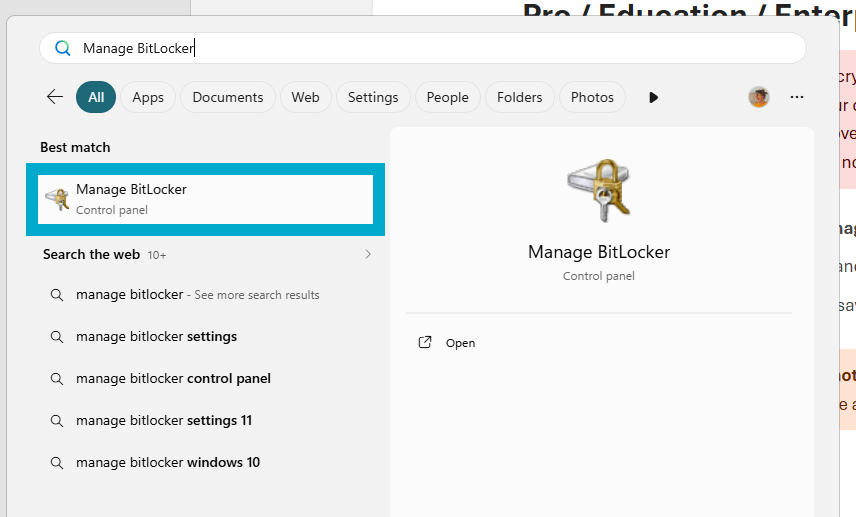
1. Open the Start Menu and search **Manage BitLocker**.  
    [![image.png](https://helpdesk.brynathyn.edu/uploads/images/gallery/2026-06/scaled-1680-/LGTimage.png)](https://helpdesk.brynathyn.edu/uploads/images/gallery/2026-06/LGTimage.png)
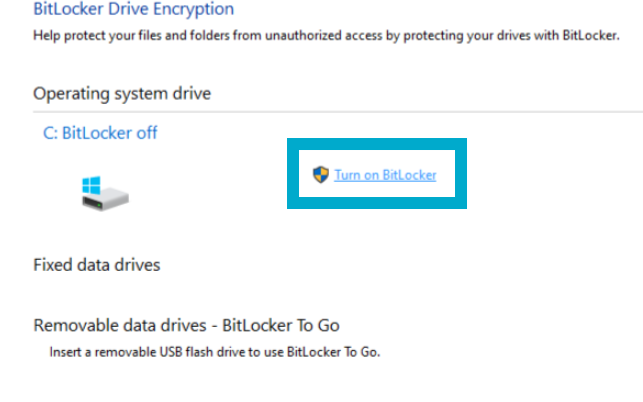
2. Select the drive you want to encrypt and press **Turn on BitLocker**.  
    [![image.png](https://helpdesk.brynathyn.edu/uploads/images/gallery/2026-06/scaled-1680-/k27image.png)](https://helpdesk.brynathyn.edu/uploads/images/gallery/2026-06/k27image.png)
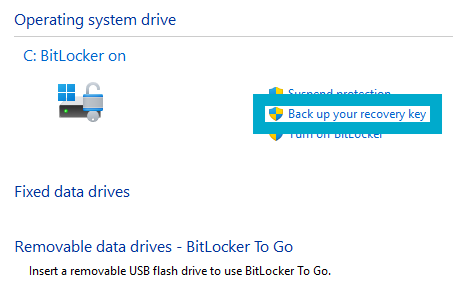
3. Click **Back up your recovery key**.  
    [![image.png](https://helpdesk.brynathyn.edu/uploads/images/gallery/2026-06/scaled-1680-/8V7image.png)](https://helpdesk.brynathyn.edu/uploads/images/gallery/2026-06/8V7image.png)
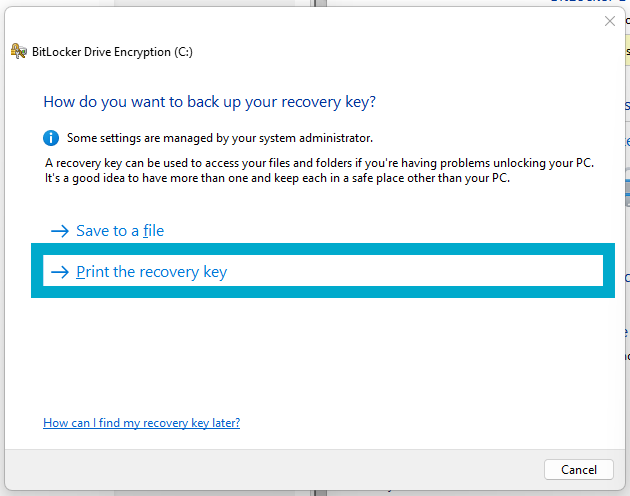
4. Click **Print the recovery key**.  
    [![image.png](https://helpdesk.brynathyn.edu/uploads/images/gallery/2026-06/scaled-1680-/kKSimage.png)](https://helpdesk.brynathyn.edu/uploads/images/gallery/2026-06/kKSimage.png)
5. Click **Microsoft Print to PDF**, then click **Print**.  
    [![image.png](https://helpdesk.brynathyn.edu/uploads/images/gallery/2026-06/scaled-1680-/BqAimage.png)](https://helpdesk.brynathyn.edu/uploads/images/gallery/2026-06/BqAimage.png)<p class="callout warning">It is important that the PDF created is **not saved locally**. If BitLocker triggers and locks your encrypted drives, you will not be able to access any local files.</p>
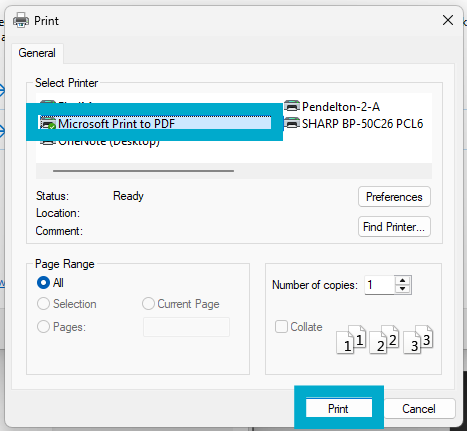
6. Click **Encrypt entire device**.
7. Select **New encryption mode**.
8. Restart your computer.

### Home Edition

Windows Home uses BitLocker, however the user interface is significantly simplified. See [this guide](https://www.tech2geek.net/how-to-enable-encryption-on-windows-11-home-device-encryption-guide/) for instructions on how to encrypt your Windows Home device.

</details><details id="bkmrk-macosgo-to-system-pr"><summary>MacOS</summary>

1. Go to **System Preferences**.
2. Open **Security &amp; Privacy**.
3. Choose the tab **FileVault** and authenticate by clicking on the padlock in the bottom left corner.  
    [![image4.png](https://helpdesk.brynathyn.edu/uploads/images/gallery/2026-06/scaled-1680-/image4.png)](https://helpdesk.brynathyn.edu/uploads/images/gallery/2026-06/image4.png)
4. Click **Turn on FileVault**.
5. Select the user(s).  
    [![image5.png](https://helpdesk.brynathyn.edu/uploads/images/gallery/2026-06/scaled-1680-/image5.png)](https://helpdesk.brynathyn.edu/uploads/images/gallery/2026-06/image5.png)
6. Write down/take picture of the recovery key. <p class="callout danger">If you forget your password, you will need this key to access your files. </p>
7. Apple can also store they key, in case you lose your password and all other backups.
8. Restart your computer.

</details>

# Setting up Antivirus

The college requires that you use an Antivirus on devices you use to access college data. This includes laptops used for work or school, as well as occasionally personal desktops and mobile devices. Our antivirus recommendations are sorted by operating system below.

<details id="bkmrk-windowscollege-owned"><summary>Windows</summary>

- **College Owned**
    - Any Windows machine purchased/owned by the college, should be protected using Microsoft Defender 365.
    - This is a program that must be installed by the Helpdesk, so if you don’t think your device is protected, please contact the Helpdesk immediately.
- **Personal** 
    - **Employee work use**
        - Personal Windows machines that are being used for work should be onboarded to Microsoft Defender 365 by Helpdesk.
        - Please contact the Helpdesk to get this set up on your device.
    - **Non-work use**
        - Personal Windows machines not used for work related purposes can be protected with the built-in Microsoft Defender.

</details><details id="bkmrk-macoscollege-owned%C2%A0a"><summary>MacOS</summary>

- College Owned 
    - Any Mac machine purchased/owned by the college requires Microsoft Defender 365.
    - This is a program that must be installed by the Helpdesk, so if you don’t think your device is protected, please contact the Helpdesk immediately.
- Personal 
    - Employee work use 
        - Personal Mac devices require an antivirus solution to be installed for protection.
        - If this is a personal device used for work, Helpdesk will set up Microsoft Defender 365 on it. Please notify the Helpdesk if you have a personal Mac used for work purposes that doesn’t have Defender on it yet.
    - Non-work use 
        - For a free antivirus solution for Mac, the Helpdesk recommends Malwarebytes [https://www.malwarebytes.com/mwb-download ](https://www.malwarebytes.com/mwb-download%20)It is important to note that the free version of Malwarebytes does not offer automatic antivirus scanning. Scans must be run manually.
        - For a paid antivirus, the Helpdesk’s current recommendation is Bitdefender for Mac. It costs $40 a year and offers: active online protection, adware blocking, ability to add extra protection to important files, and Time Machine protections, which helps secure your backups. [https://www.bitdefender.com/solutions/antivirus-for-mac.html#plans](https://www.bitdefender.com/solutions/antivirus-for-mac.html#plans)

</details><details id="bkmrk-linuxlinux-machines-"><summary>Linux</summary>

Linux machines and their recommendations will depend upon the Linux distribution that is being used. Please contact the Helpdesk for additional information if you use a Linux device.

</details><details id="bkmrk-ios-%26-androidif-you-"><summary>iOS &amp; Android</summary>

If you use a mobile device to access company information, it must have an antivirus solution installed on it.

- Download Microsoft Defender onto your mobile device from the [Apple App Store](https://apps.apple.com/us/app/microsoft-defender-security/id1526737990) or [Google Play Store](https://play.google.com/store/apps/details?id=com.microsoft.scmx&utm_source=na_Med).  
    [![image.png](https://helpdesk.brynathyn.edu/uploads/images/gallery/2026-06/scaled-1680-/QLvimage.png)](https://helpdesk.brynathyn.edu/uploads/images/gallery/2026-06/QLvimage.png)[![image.png](https://helpdesk.brynathyn.edu/uploads/images/gallery/2026-06/scaled-1680-/Jz0image.png)](https://helpdesk.brynathyn.edu/uploads/images/gallery/2026-06/Jz0image.png)
- Once installed, you can log into the app by using your network account credentials.
- If you have any difficulties with accessing/activating protection, please contact the Helpdesk.

</details>

# Using a Password Manager

The Helpdesk recommends you use a password manager to keep track of your account information. The default password managers in your web browser are not actually very secure; not to mention that your browser login is likely the first thing to be compromised in a theoretical data breach. Our recommendation is to use **Bitwarden**, which is free, high quality, and compatible across your devices.

<p class="callout info">Switching from your browser password manager(s) to Bitwarden is quick and simple. Instructions for this are at the bottom of the page. [Take me there!](#bkmrk-transferring-your-pa "Importing your Passwords")</p>

## Setup

1. Go to [https://bitwarden.com/](https://bitwarden.com/)
2. Click on the **Downloads** tab at the top of the page.  
    [![image.png](https://helpdesk.brynathyn.edu/uploads/images/gallery/2026-06/scaled-1680-/Ympimage.png)](https://helpdesk.brynathyn.edu/uploads/images/gallery/2026-06/Ympimage.png)

3. Download and install the desired version of Bitwarden (we recommend you start with the desktop application). The available versions are: 
    1. **Browser extension**—useful for auto-filling usernames and passwords online  
        [![image.png](https://helpdesk.brynathyn.edu/uploads/images/gallery/2026-06/scaled-1680-/SmMimage.png)](https://helpdesk.brynathyn.edu/uploads/images/gallery/2026-06/SmMimage.png)

    2. **Desktop application**—useful for filling in credentials in non-browser applications faster  
        [![image.png](https://helpdesk.brynathyn.edu/uploads/images/gallery/2026-06/scaled-1680-/iyjimage.png)](https://helpdesk.brynathyn.edu/uploads/images/gallery/2026-06/iyjimage.png)
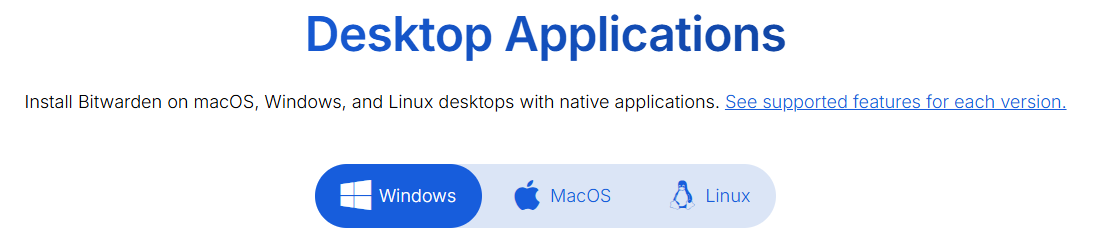
    3. Bitwarden is also available as a mobile app for use on the go, as well as being viewable as a normal website.
4. Find and open the version of Bitwarden downloaded.
5. Click on **Create Account**.  
    [![image.png](https://helpdesk.brynathyn.edu/uploads/images/gallery/2026-06/scaled-1680-/DUKimage.png)](https://helpdesk.brynathyn.edu/uploads/images/gallery/2026-06/DUKimage.png)
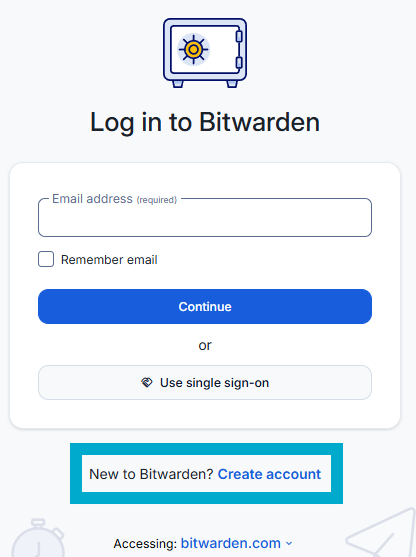
6. Fill out the information on the screen and click **Continue**.  
     [![image.png](https://helpdesk.brynathyn.edu/uploads/images/gallery/2026-06/scaled-1680-/tavimage.png)](https://helpdesk.brynathyn.edu/uploads/images/gallery/2026-06/tavimage.png)<p class="callout danger">If you forget your master password, you will NOT be able to access your vault. Neither the Helpdesk nor Bitwarden support can help you get back into your account. </p>
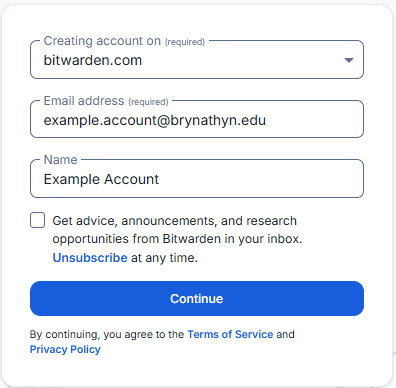
    
    
    1. You will now be able to log in on the main page.
7. Once in, click **+ New** to add a new login (desktop application pictured, however this should be evident on all platforms).  
    [![image.png](https://helpdesk.brynathyn.edu/uploads/images/gallery/2026-06/scaled-1680-/Gf9image.png)](https://helpdesk.brynathyn.edu/uploads/images/gallery/2026-06/Gf9image.png)
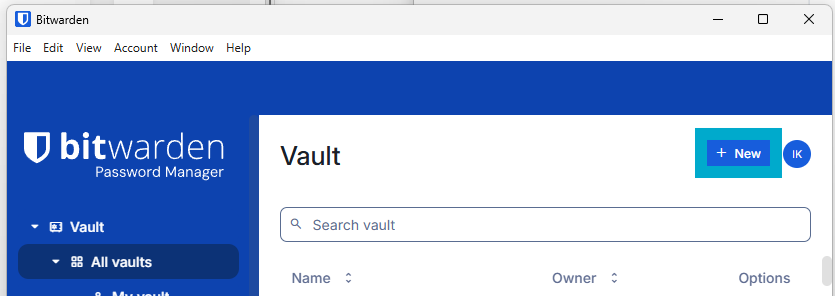
8. Store various passwords by filling out the **Name**, **Username**, and **Password** fields. 
    1. You can include the URL and any notes related to the account/log in.
    2. You will be able to either right click on the entries or select the clipboard icons next to them when you need to copy/paste your password over.
    3. You can also store things like debit or credit cards and use Bitwarden to securely auto-fill them in various websites or apps.
9. Once you have, say, the desktop version installed, we recommend installing the browser extension and mobile app. Once you log in with the account you created, all of your passwords will appear and be accessible just like that.

There are also paid versions of Bitwarden that are available for both individual use and sharing either with one person or family. This can allow you to share passwords and access other premium features like MFA. More details can be found at this link: [https://bitwarden.com/pricing/](https://bitwarden.com/pricing/)

## Transferring your Passwords

Passwords saved in your browser can either be easily exported, then imported into Bitwarden; or even more easily imported straight from Bitwarden (depending on where you want to export them from). To do so:

1. In the Bitwarden desktop application, click the **Import** button on the left side of the main screen.  
    [![image.png](https://helpdesk.brynathyn.edu/uploads/images/gallery/2026-06/scaled-1680-/L9Simage.png)](https://helpdesk.brynathyn.edu/uploads/images/gallery/2026-06/L9Simage.png)
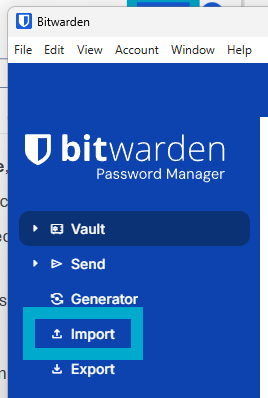
    1. This option should also be available in any version of Bitwarden (browser extension, mobile app, etc.), but instructions provided here are just for the desktop version.
2. Select a folder for passwords to be imported into if you have one prepared.
3. Under **File format**, select the location of the passwords you exported from.  
    [![image.png](https://helpdesk.brynathyn.edu/uploads/images/gallery/2026-06/scaled-1680-/t16image.png)](https://helpdesk.brynathyn.edu/uploads/images/gallery/2026-06/t16image.png)
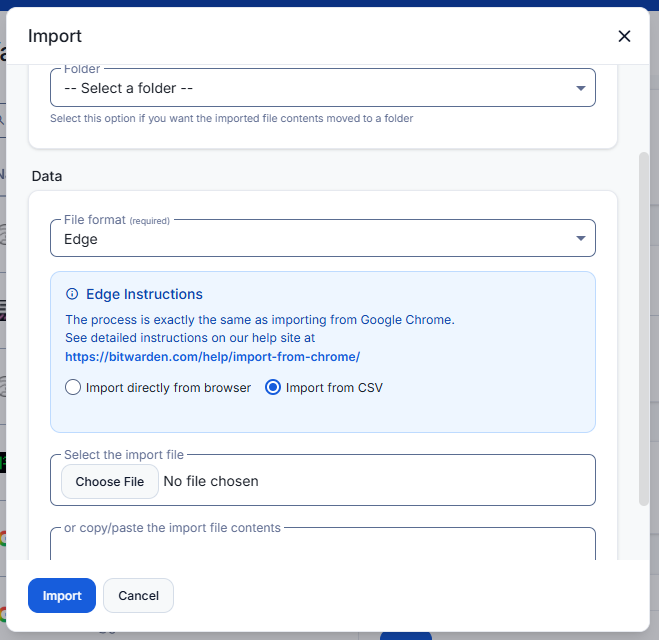
4. Follow the instructions that appear for the location you selected.
5. Click **Import**.
6. If you have passwords stored in multiple browsers or accounts, repeat for each browser/account you have used.

<p class="callout success">Congratulations, your passwords are safely and conveniently stored in Bitwarden!</p>