The installer will download and install the Microsoft 365 desktop apps.
If you see an error that says the Microsoft Office installer.pkg can't be opened because it is from an unidentified developer, wait 10 seconds and move the downloaded file to your desktop. Hold **Control** + click the file to launch the installer.
6. On the first installation screen, select **Continue** to begin the installation process. [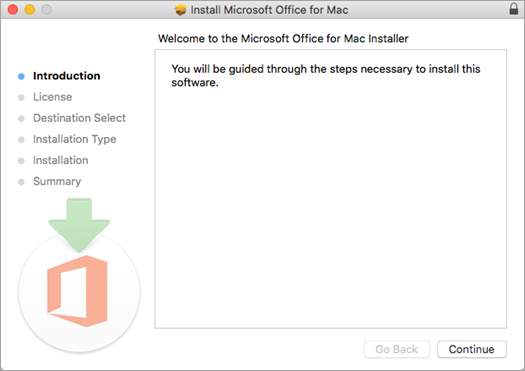](https://helpdesk.brynathyn.edu/uploads/images/gallery/2026-06/DbSimage.png) 7. Review the software license agreement, and then click **Continue**. 8. Review the software license agreement, and then click **Continue**. 9. Select **Agree** to agree to the terms of the software license agreement. 10. Choose how you want to install Microsoft 365 and click **Continue**. 11. Review the disk space requirements or change your install location, and then click **Install**.If you want to only install specific Microsoft 365 apps and not the entire suite, click the Customize button and uncheck the programs you don't want.
12. Enter your Mac login password, if prompted, and then click **Install Software**. *This is the password that you use to log in to your Mac.* [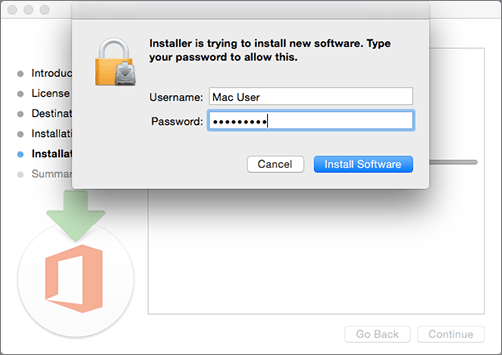](https://helpdesk.brynathyn.edu/uploads/images/gallery/2026-06/1zHimage.png)The software begins to install. Click **Close** when the installation is finished. [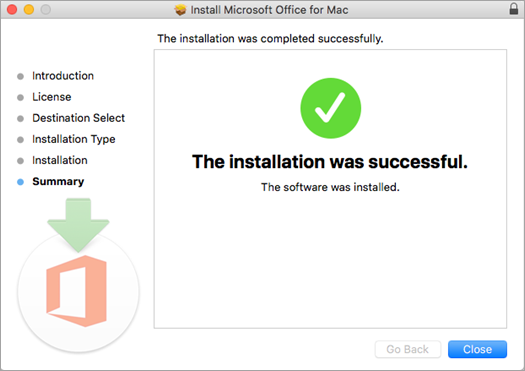](https://helpdesk.brynathyn.edu/uploads/images/gallery/2026-06/LO9image.png)
If you're on a College-owned device, you will see an error that says "Your IT Administrator has set up a policy that prevents changes to known folders." This error can be safely ignored.
OneDrive is now set up.
If you use more than one account, your personal files appear under **OneDrive – Personal** and your work or school files appear under **OneDrive – Bryn Athyn College**.
The OneDrive Sync app for macOS does not currently support adding two business accounts from different organizations if they share the same display name. Attempting to configure such accounts will result in a setup failure.
3. There are a couple of points of OneDrive Setup that are helpful to watch for: - When setting up your OneDrive, it has a default location set. However, you can change this during setup. On the **This is your OneDrive Folder** screen, click **Change Location**. [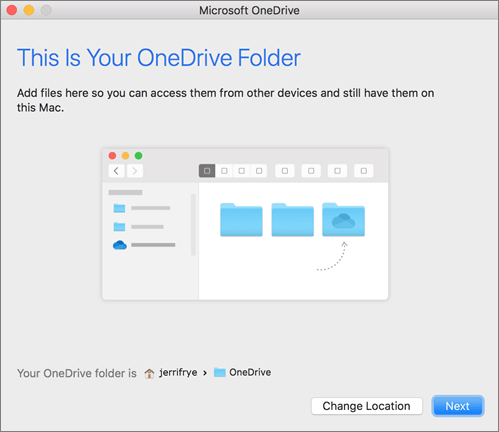](https://helpdesk.brynathyn.edu/uploads/images/gallery/2026-06/9lWimage.png) Select a location where you would like to save your OneDrive files and click **Choose this location**. [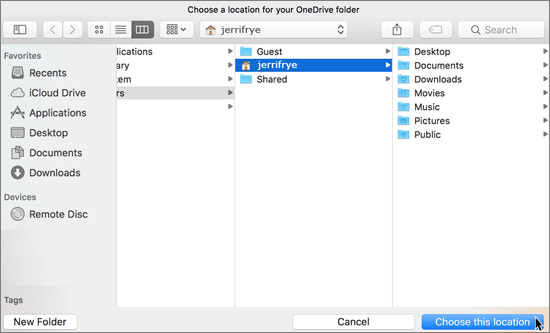](https://helpdesk.brynathyn.edu/uploads/images/gallery/2026-06/XVQimage.png) When you see the **This is your OneDrive Folder** screen, you'll now see a path to the folder you selected. Click **Next** to continue. [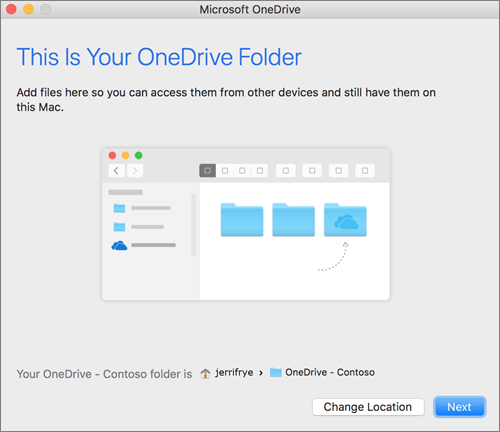](https://helpdesk.brynathyn.edu/uploads/images/gallery/2026-06/C3Cimage.png) - On the **Sync Files from Your OneDrive** screen, you can choose the folders you want to sync to your computer and click **Next**. This conserves space on your computer, and reduces bandwidth needed for the sync processes. 4. Once sync has completed, you can: - Add another account. You can have multiple work or school accounts, but only one Personal OneDrive account. Learn more. - Add Finder integration. If you're on OSX 10.10 or higher, get sync status directly from Finder by enabling Finder overlays in Settings. - First, click the Apple logo in the top left corner of your Mac Desktop and select **System Preferences.** - Select **Extensions** in the top-level menu. - Toggle on the **OneDrive Finder Integration** to enable Finder overlays.You're all set! Click **Open my OneDrive folder** to see your files sync to your folder.
If you use more than one account, your personal files appear under **OneDrive – Personal** and your work or school files appear under **OneDrive – Bryn Athyn College**.
If you forget your email address and/or password, see [What is my Username and Password?](https://helpdesk.brynathyn.edu/books/accounts/page/what-is-my-username-and-password "What is my Username and Password?")
1. Scan a QR code to download the Outlook app from the Apple App Store or Google Play Store. [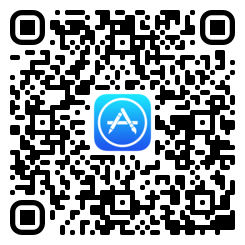](https://helpdesk.brynathyn.edu/uploads/images/gallery/2026-06/tUrqr-code-5.png)[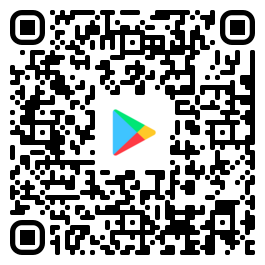](https://helpdesk.brynathyn.edu/uploads/images/gallery/2026-06/7VVqr-code-4.png) 2. Tap **Add Account**. 3. Enter your college email address. 4. Select **Office 365** as your account type or email provider. 5. Enter your Microsoft account password, then click **Sign in**. 6. Approve your sign in request via Authenticator when prompted.You now have access to your college email on the go!
# Encrypting messages in Outlook All students, faculty, and staff should have the ability to send encrypted emails. This page details how to encrypt your message and how to view an encrypted message in Outlook. ## Background Microsoft offers a few different levels of encryption. This is an outline of what the different levels do (all levels are securely encrypted): - **Encrypt-Only** is the default, it means the message is encrypted in transit and the recipient will have to authenticate with their email to view the message, or use a one-time code sent to their email to authenticate. - **Do Not Forward** disables the forward option and disables printing. Of course, this doesn’t disable screenshots or the user’s ability to take a picture with their smartphone. - **Bryn Athyn College – Confidential** means the recipient won’t be able to open the message in a non-Bryn Athyn College/GC Outlook client. This is in case someone is having their work email forwarded to a personal email. - **Bryn Athyn College – Confidential View Only** is the same as above, only the content cannot be modified or replied to. If you wish to send an encrypted message, we recommend setting up the encryption before writing your message. That way, if you accidentally send the message before you are done typing it, it will still be encrypted. Additionally, you can send this link from Microsoft that explains how end users can open a protected message: [https://support.office.com/en-us/article/how-do-i-open-a-protected-message-1157a286-8ecc-4b1e-ac43-2a608fbf3098](https://support.office.com/en-us/article/how-do-i-open-a-protected-message-1157a286-8ecc-4b1e-ac43-2a608fbf3098) ## InstructionsThese instructions were created with the Outlook desktop app. If you're encrypting on the Outlook web version, the instructions remain the same, although the buttons may look slightly different.
1. Create a new email. In that email select the Options tab at the top. [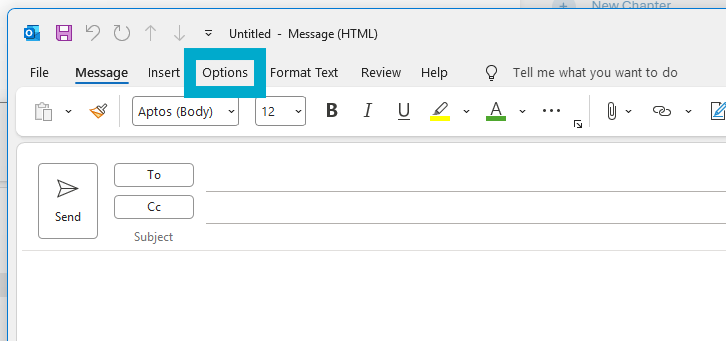](https://helpdesk.brynathyn.edu/uploads/images/gallery/2026-06/aKGimage.png) 2. Select **Encrypt**. [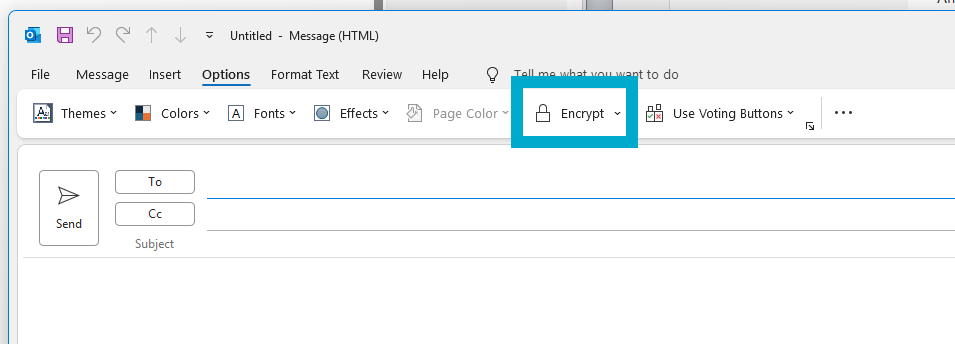](https://helpdesk.brynathyn.edu/uploads/images/gallery/2026-06/bxximage.png) 3. Optionally, choose your encryption level from the drop-down menu. [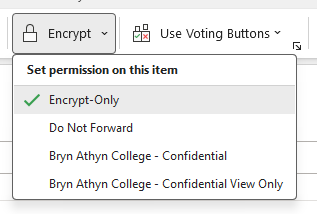](https://helpdesk.brynathyn.edu/uploads/images/gallery/2026-06/iDCimage.png)You may have to click **Encrypt** first for the dropdown to appear correctly if this is your first time encrypting a message.
4. Write and send your message! ## Viewing For anyone with a Bryn Athyn College email, viewing an encrypted email will be the same as opening any other email. If you’re sending an encrypted email to someone outside of Bryn Athyn College, like to a Gmail address, the recipient must go through the Microsoft Purview portal to read it: - Locate the email. [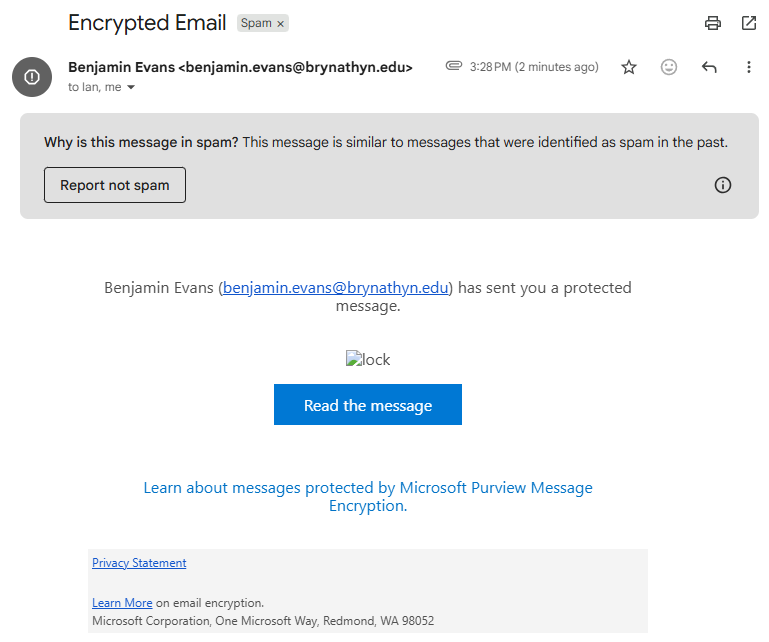](https://helpdesk.brynathyn.edu/uploads/images/gallery/2026-06/rY4image.png)When received, it may automatically go into the recipient's spam folder.
- Once the recipient clicks on **Read the message**, they will be taken to a login page. - Here they can either log in with their personal email account (e.g. `They will then be able to view the contents of the message.
# Reporting messages in Outlook Use the Report Message drop down to select from a couple ways to deal with phishing or junk mail. These features help Microsoft keep your information safe and your inbox filled with only important emails. For more help with managing Junk/Spam emails, see the [Microsoft Support page](https://support.microsoft.com/en-us/outlook/filter-junk-email-and-spam-in-outlook). ## InstructionsThe screenshots below will match the Outlook website and the modern version of the desktop app. If you use the old version (Outlook Classic) on your desktop, the buttons may be in different locations.
1. In the **Home** tab, click the **Report** button with the dropdown arrow. [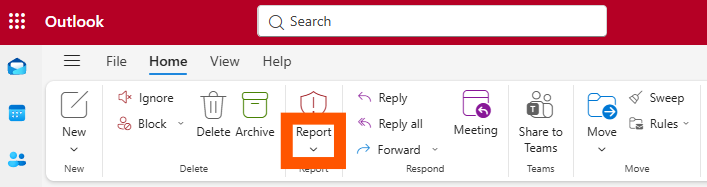](https://helpdesk.brynathyn.edu/uploads/images/gallery/2026-06/G66image.png) 2. With the message you want to report highlighted, click **Report junk** or **Report Phishing**. See [Junk](#bkmrk-junk "Junk") and [Phishing](#bkmrk-phishing "Phishing") at the bottom of this page if you don't know which to select. [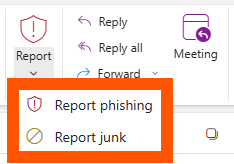](https://helpdesk.brynathyn.edu/uploads/images/gallery/2026-06/JOiimage.png) 3. Click **Report** to confirm. [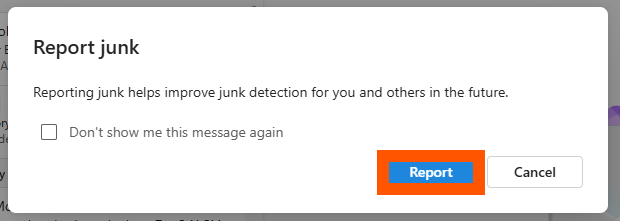](https://helpdesk.brynathyn.edu/uploads/images/gallery/2026-06/TY6image.png) 4. The message will be moved to your Junk Email folder. After 30 days there, it will be deleted.When you report a message, a copy will be sent to Microsoft to update spam filters, and all future messages from that sender will be sent directly to the **Junk Email** folder.
If you reported a message accidentally and wish to restore it: 1. Find the message in your **Junk Email** folder and select it. 2. Click the **Report** dropdown. 3. Click **Not junk**. [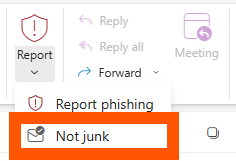](https://helpdesk.brynathyn.edu/uploads/images/gallery/2026-06/xsjimage.png) ### Junk These are messages that you don't want to receive. For example, they may be advertisements you don't care about or find offensive. Junk emails are annoying, but not necessarily malicious. ### Phishing Phishing is the practice of luring you into disclosing personal information, such as bank account numbers and passwords. Often phishing messages look legitimate but have deceptive links that open fake websites. Phishing emails are always malicious, but not necessarily annoying. # Sharing files with OneDrive OneDrive allows you to give anyone access to files you choose to share. You can configure the share to allow people to see or edit the files without a Microsoft account. Optionally, this can be done with extra security measures like expirations dates, file passwords, and email verification. ## Instructions 1. Head to [My files - OneDrive](https://brynathyncollege-my.sharepoint.com/my) and sign in with your BACNC Microsoft 365 account. [What is my username and password?](https://helpdesk.brynathyn.edu/books/accounts/page/what-is-my-username-and-password "What is my username and password?") 2. If the file(s) or folder isn't already on OneDrive, click **Create or upload** to upload them. 3. Hover over the file / folder and click the **Share ** icon [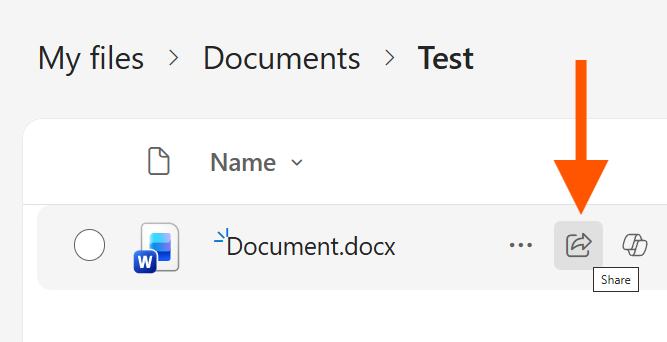](https://helpdesk.brynathyn.edu/uploads/images/gallery/2026-07/co79roimage.png) 4. Click the settings gear next to **Copy link**. [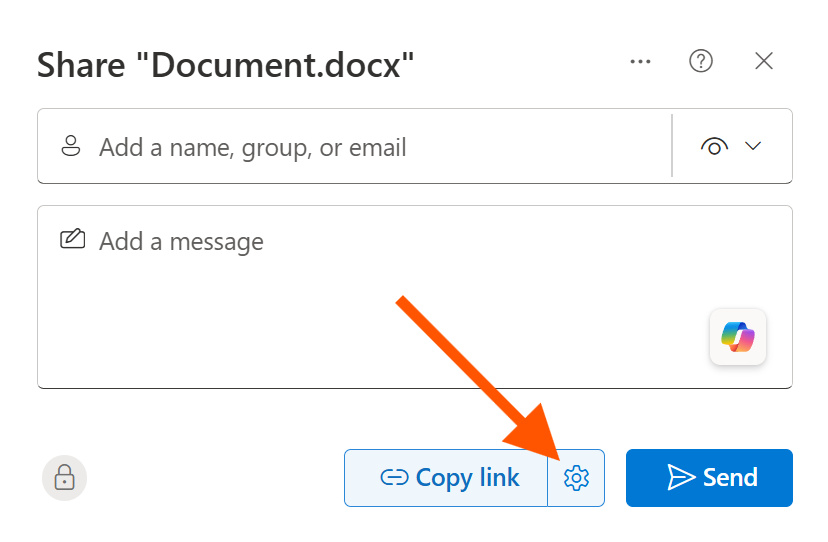 ](https://helpdesk.brynathyn.edu/uploads/images/gallery/2026-07/F17image.png) 5. Choose an access level in the **Link** **settings** popup. [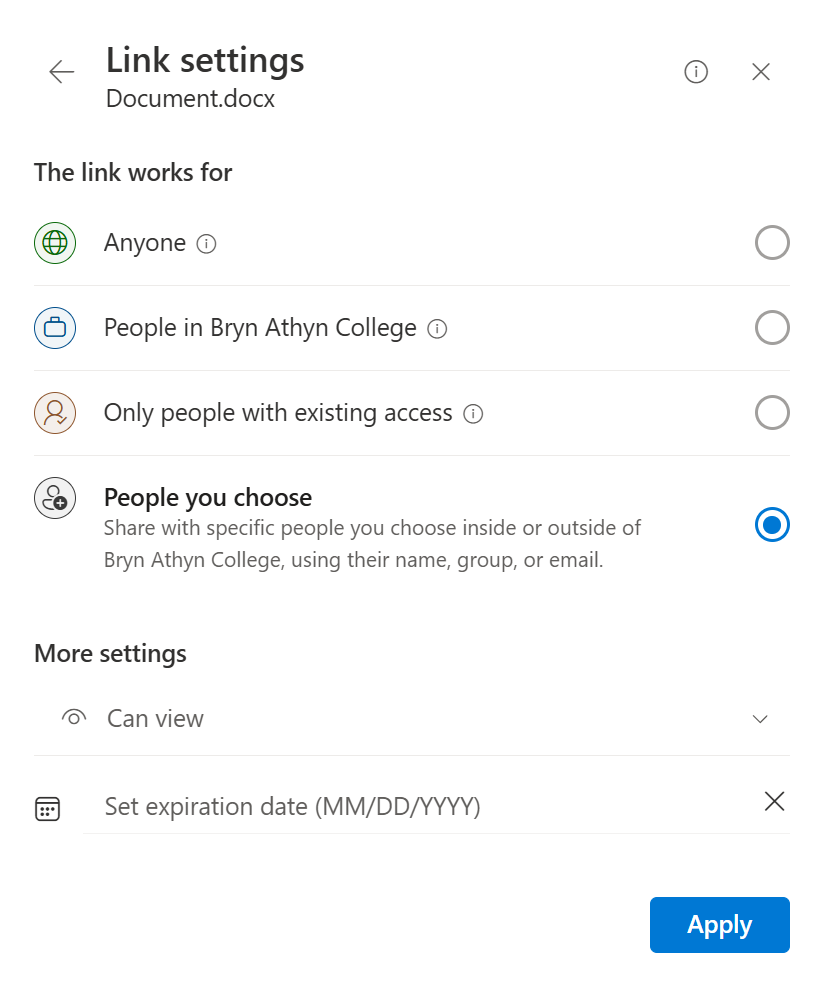](https://helpdesk.brynathyn.edu/uploads/images/gallery/2026-07/screenshot-2026-07-29-161507.png) - **Anyone** allows for access without a Microsoft account. - **People in Bryn Athyn College** only works for users with organization accounts. - **Only people with existing access** inherits the permissions that already exist for that file. - **People you choose** allows you to input email addresses to share with. 6. Change the edit permissions in the dropdown under **More settings** to your desired option. 7. Optionally, set an expiration date and password for the share (extra security). 8. Click **Apply**. 9. Click **Copy link** and send it to whoever needs access. [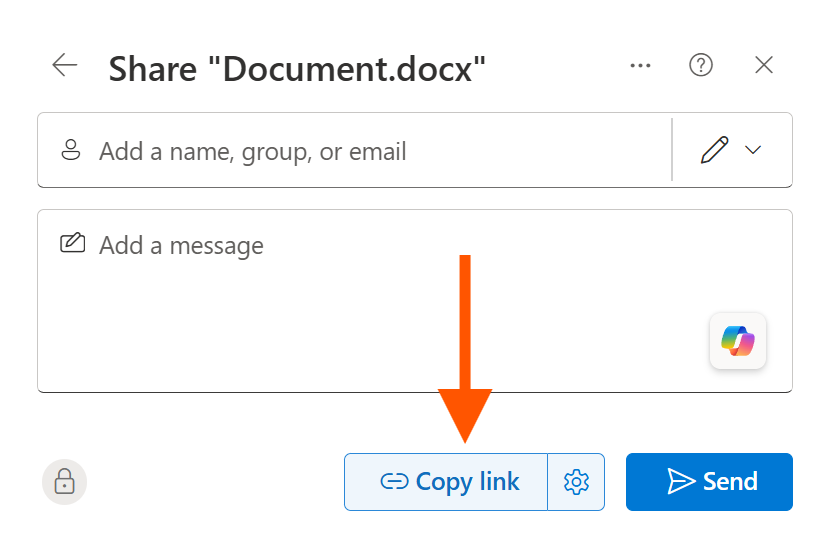 ](https://helpdesk.brynathyn.edu/uploads/images/gallery/2026-07/nA2image.png)