**PRIOR TO ENCRYPTION**: Device encryption requires the creation of a **recovery key**. If you are ever unable to log onto your device or your computer needs replacement, you will NOT be able to recover data from your disk without this recovery key. It is recommended you save it in multiple secure locations for future use. Helpdesk is not responsible for the storage of your recovery keys.
1. Open the Start Menu and search **Manage BitLocker**. [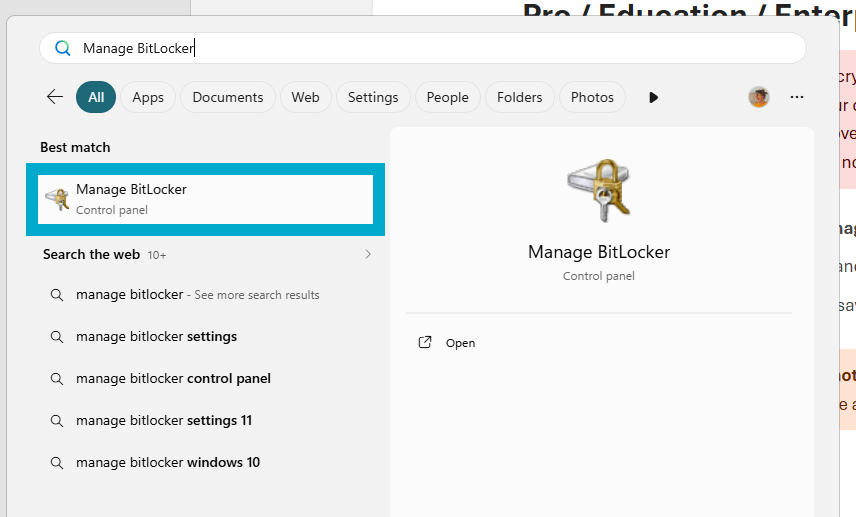](https://helpdesk.brynathyn.edu/uploads/images/gallery/2026-06/LGTimage.png) 2. Select the drive you want to encrypt and press **Turn on BitLocker**. [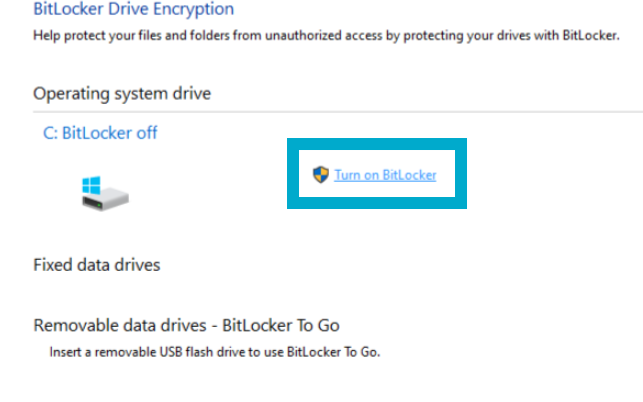](https://helpdesk.brynathyn.edu/uploads/images/gallery/2026-06/k27image.png) 3. Click **Back up your recovery key**. [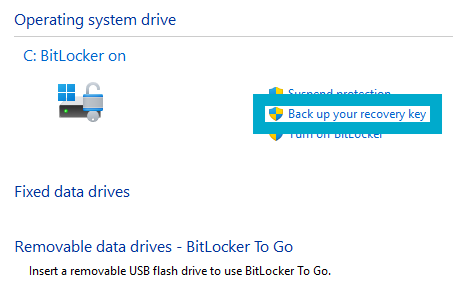](https://helpdesk.brynathyn.edu/uploads/images/gallery/2026-06/8V7image.png) 4. Click **Print the recovery key**. [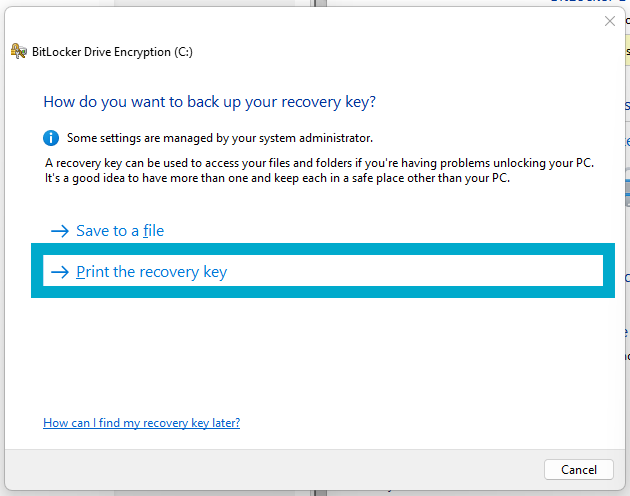](https://helpdesk.brynathyn.edu/uploads/images/gallery/2026-06/kKSimage.png) 5. Click **Microsoft Print to PDF**, then click **Print**. [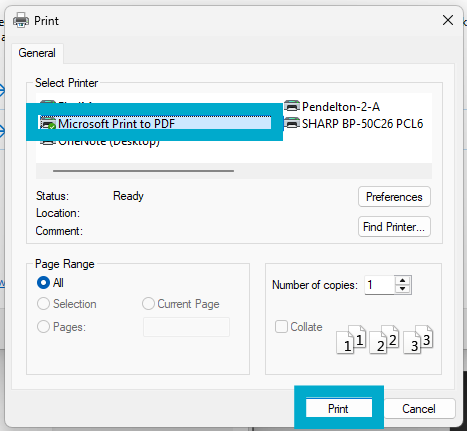](https://helpdesk.brynathyn.edu/uploads/images/gallery/2026-06/BqAimage.png)It is important that the PDF created is **not saved locally**. If BitLocker triggers and locks your encrypted drives, you will not be able to access any local files.
6. Click **Encrypt entire device**. 7. Select **New encryption mode**. 8. Restart your computer. ### Windows Home Edition - Windows Home uses BitLocker, however the user interface is significantly simplified. - See [this guide](https://support.microsoft.com/en-us/windows/security/encryption/device-encryption-in-windows) for instructions on how to enable Device Encryption on your Windows Home device. - When you first sign in or set up a device with a Microsoft account, or work or school account, Device Encryption is turned on and a recovery key is attached to that account. If you're using a local account, Device Encryption isn't turned on automatically.If you forget your password, you will need this key to access your files.
7. Apple can also store they key, in case you lose your password and all other backups. 8. Restart your computer.