# Installing Microsoft 365

All students, faculty and staff are assigned a license to the Microsoft 365 suite of apps.

- Microsoft 365 apps can be accessed via the web at [m365.cloud.microsoft/apps](https://m365.cloud.microsoft/apps).
- The desktop version of Microsoft 365 apps offer more features and can be installed with the instructions in the [Desktop Apps](#bkmrk-desktop-apps "Desktop Apps") section.
- You can install Microsoft 365 apps on your Android or iOS device with the links in the [Mobile Apps](#bkmrk-mobile-apps "Mobile Apps") section.

## Web apps

The Microsoft 365 web apps offer a convenient way to use Microsoft 365 in your browser.

Microsoft 365 web apps are found at [m365.cloud.microsoft/apps](https://m365.cloud.microsoft/apps).

## Desktop apps

Desktop apps for Microsoft 365 offer the most robust features and are installed via the instructions below.

<details id="bkmrk-windowshead-to%C2%A0m365."><summary>Windows</summary>

1. Head to [m365.cloud.microsoft/apps](https://m365.cloud.microsoft/apps).
2. Sign in with your campus [username and password](https://helpdesk.brynathyn.edu/books/accounts/page/what-is-my-username-and-password "What is my Username and Password?").
3. Click the **Install apps** dropdown then **Microsoft 365 apps**.[![ms365_install_apps](https://helpdesk.brynathyn.edu/uploads/images/gallery/2026-06/scaled-1680-/screenshot-2026-06-19-083747.png)](https://helpdesk.brynathyn.edu/uploads/images/gallery/2026-06/scaled-1680-/screenshot-2026-06-19-083747.png)
4. Click **Install Office** to download the installer.[![image.png](https://helpdesk.brynathyn.edu/uploads/images/gallery/2026-06/scaled-1680-/SUSimage.png)](https://helpdesk.brynathyn.edu/uploads/images/gallery/2026-06/SUSimage.png)
5. Open the **OfficeSetup.exe** installer that just downloaded.[![image.png](https://helpdesk.brynathyn.edu/uploads/images/gallery/2026-06/scaled-1680-/4Bgimage.png)](https://helpdesk.brynathyn.edu/uploads/images/gallery/2026-06/4Bgimage.png)
6. If prompted, allow the installer to run by clicking **Yes** on the User Account Control popup.
    - College-owned computers will require administrator credentials to continue.

<p class="callout success">The installer will download and install the Microsoft 365 desktop apps.</p>

</details><details id="bkmrk-macoshead-to%C2%A0m365.cl"><summary>macOS</summary>

1. Head to [m365.cloud.microsoft/apps](https://m365.cloud.microsoft/apps).
2. Sign in with your campus [username and password](https://helpdesk.brynathyn.edu/books/accounts/page/what-is-my-username-and-password "What is my Username and Password?").
3. Click the **Install apps** dropdown then **Microsoft 365 apps**.[![ms365_install_apps](https://helpdesk.brynathyn.edu/uploads/images/gallery/2026-06/scaled-1680-/screenshot-2026-06-19-083747.png)](https://helpdesk.brynathyn.edu/uploads/images/gallery/2026-06/scaled-1680-/screenshot-2026-06-19-083747.png)
4. Click **Install Office** to download the installer.[![image.png](https://helpdesk.brynathyn.edu/uploads/images/gallery/2026-06/scaled-1680-/SUSimage.png)](https://helpdesk.brynathyn.edu/uploads/images/gallery/2026-06/SUSimage.png)
5. Wait for the download to complete.
    1. Open **Finder**.
    2. Go to **Downloads**.
    3. Double-click **Microsoft\_365\_and\_Office\_BusinessPro\_Installer.pkg** file.  
        *File name will vary between Office versions.*  
        [![image.png](https://helpdesk.brynathyn.edu/uploads/images/gallery/2026-06/scaled-1680-/KwOimage.png)](https://helpdesk.brynathyn.edu/uploads/images/gallery/2026-06/KwOimage.png)
    
    <p class="callout info">If you see an error that says the Microsoft Office installer.pkg can't be opened because it is from an unidentified developer, wait 10 seconds and move the downloaded file to your desktop. Hold **Control** + click the file to launch the installer.</p>
6. On the first installation screen, select **Continue** to begin the installation process.  
    [![image.png](https://helpdesk.brynathyn.edu/uploads/images/gallery/2026-06/scaled-1680-/DbSimage.png)](https://helpdesk.brynathyn.edu/uploads/images/gallery/2026-06/DbSimage.png)
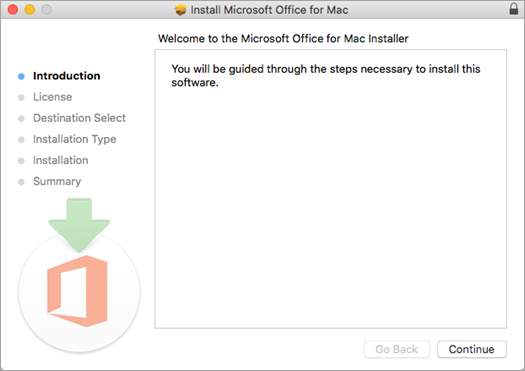
7. Review the software license agreement, and then click **Continue**.
8. Review the software license agreement, and then click **Continue**.
9. Select **Agree** to agree to the terms of the software license agreement.
10. Choose how you want to install Microsoft 365 and click **Continue**.
11. Review the disk space requirements or change your install location, and then click **Install**.<p class="callout info">If you want to only install specific Microsoft 365 apps and not the entire suite, click the Customize button and uncheck the programs you don't want.</p>
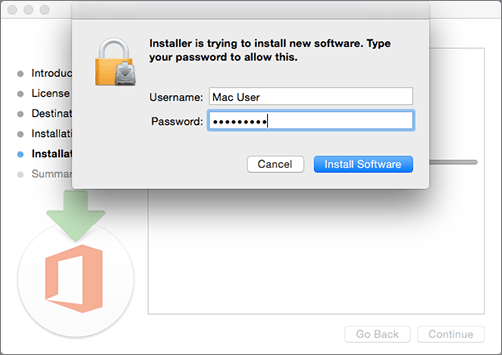
12. Enter your Mac login password, if prompted, and then click **Install Software**.  
    *This is the password that you use to log in to your Mac.*  
    [![image.png](https://helpdesk.brynathyn.edu/uploads/images/gallery/2026-06/scaled-1680-/1zHimage.png)](https://helpdesk.brynathyn.edu/uploads/images/gallery/2026-06/1zHimage.png)
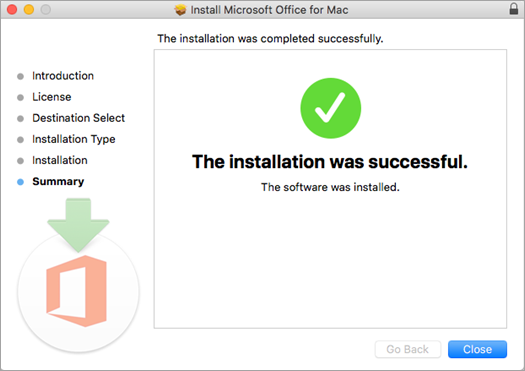
<p class="callout success">The software begins to install. Click **Close** when the installation is finished.  
[![image.png](https://helpdesk.brynathyn.edu/uploads/images/gallery/2026-06/scaled-1680-/LO9image.png)](https://helpdesk.brynathyn.edu/uploads/images/gallery/2026-06/LO9image.png)</p>
</details>## Mobile apps

<details id="bkmrk-androidmicrosoft-365"><summary>Android</summary>

Microsoft 365 apps can be downloaded on Android devices via the Google Play Store

- [Outlook](https://play.google.com/store/apps/details?id=com.microsoft.office.outlook)
- [Word](https://play.google.com/store/apps/details?id=com.microsoft.office.word)
- [Excel](https://play.google.com/store/apps/details?id=com.microsoft.office.excel)
- [PowerPoint](https://play.google.com/store/apps/details?id=com.microsoft.office.powerpoint)
- [Teams](https://play.google.com/store/apps/details?id=com.microsoft.teams)
- [OneNote](https://play.google.com/store/apps/details?id=com.microsoft.office.onenote)
- [Microsoft 365 Copilot](https://play.google.com/store/apps/details?id=com.microsoft.office.officehubrow)

</details><details id="bkmrk-iosmicrosoft-365-app"><summary>iOS</summary>

Microsoft 365 apps can be downloaded on iPhones via the Apple App Store.

[Microsoft 365 App bundle](https://apps.apple.com/us/app-bundle/microsoft-365/id1450038993)

</details>