# Recovering deleted data
This document outlines how long data is recoverable from various services that the college uses, as well as how to retrieve data if it was unintentionally deleted.
Microsoft 365
- Currently there is no retention policy for data in Microsoft 365.
- Data of faculty and staff is backed up with 11:11 backup services on a 1-year retention period.
- If you lose data that is unrecoverable following the steps in this document, and it is within a year since you lost the data, contact the IT department to recover it for you.
OneDrive
Files deleted from your OneDrive are restorable in 3 stages over the course of approximately 3 months. See below for details.
- **Recycle Bin**
- Deleted items are stored in the Recycle bin for up to 93 days.
- To access it:
1. Go to the [OneDrive website](https://brynathyncollege-my.sharepoint.com/).
2. Log in with your Microsoft account.See [Logging in with Microsoft 365](https://helpdesk.brynathyn.edu/books/accounts/page/logging-in-with-microsoft-365 "Logging in with Microsoft 365") for more detailed instructions.
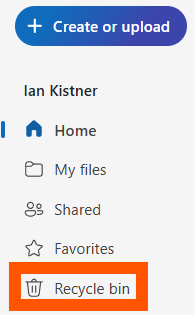
3. On the left pane, click **Recycle bin**.
[](https://helpdesk.brynathyn.edu/uploads/images/gallery/2026-06/lZmimage.png)
- After 93 days pass since they were added, files are deleted permanently.
- **Second-stage Recycle Bin**
- Items manually deleted from the Recycle bin are stored in the **Second-stage recycle bin** for the remainder of the 93 days.
- E.g. if a file is purged from the Recycle bin on day 3 since its deletion, it will still be in the Second-stage recycling bin for 90 days.
- To access it:
- 1. Go to the main **Recycle bin** (see above).
2. Scroll to the bottom of the page.
3. Click the link to **Second-stage recycle bin**.
[](https://helpdesk.brynathyn.edu/uploads/images/gallery/2026-06/H5Fimage.png)
- After 93 days pass since they were originally deleted to the Recycle bin, files are deleted permanently.
- **Restoring**
- Items deleted from the Second-stage recycle bin can be restored within the original 93 day window.
- E.g. if a file is purged from the Second-stage recycle bin on day 23 since its deletion, it will still be recoverable for 70 days.
- To restore these files:
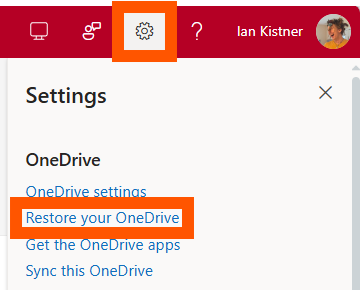
1. Click on the **gear** icon in the top right corner of the screen.
2. Click **Restore your OneDrive**.
[](https://helpdesk.brynathyn.edu/uploads/images/gallery/2026-06/2szimage.png)
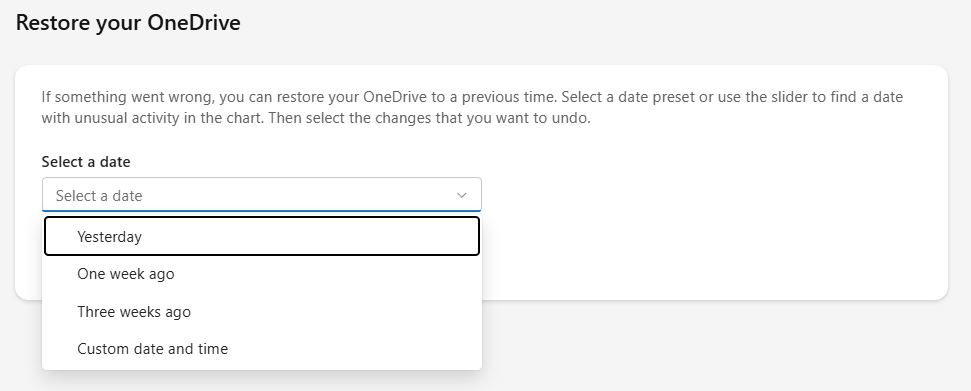
3. Select a date to restore back to (one before the date you deleted the desired files).
[](https://helpdesk.brynathyn.edu/uploads/images/gallery/2026-06/UOyimage.png)
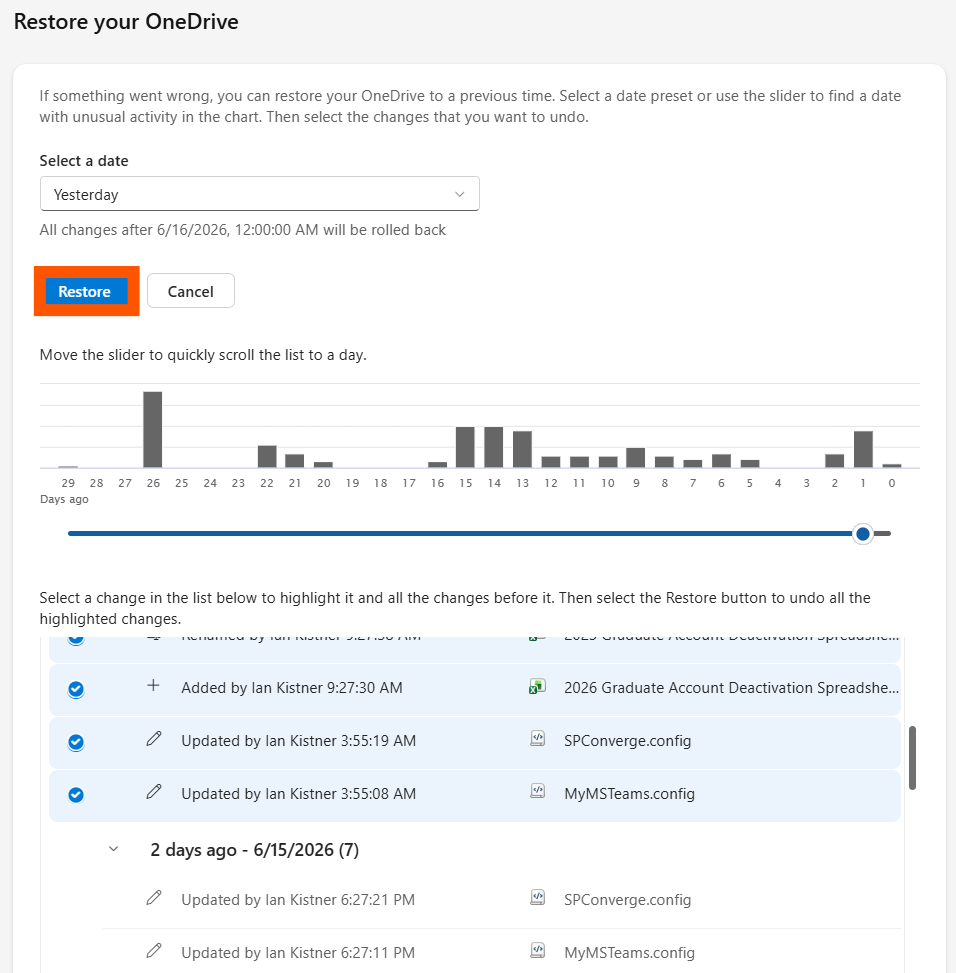
4. Select updates to keep/discard that occurred since the selected date.
[](https://helpdesk.brynathyn.edu/uploads/images/gallery/2026-06/cqIimage.png)
5. Click **Restore** to apply changes and restore your files.
If your Microsoft account gets deleted, all data from your OneDrive will remain recoverable by the Helpdesk for **365 days**.
SharePoint
SharePoint retention has a similar 93-day retention period to OneDrive, just without the Second-stage recycle bin.
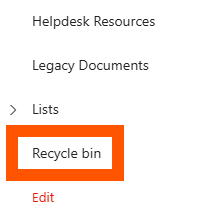
- Deleting a file in SharePoint moves it to the **Recycle bin**.
- The **Recycle bin** is viewable in the left pane of any SharePoint site online.
[](https://helpdesk.brynathyn.edu/uploads/images/gallery/2026-06/kJ0image.png)
- Deleted files will remain there for the duration of the 93 days unless purged from the Recycle bin manually.
- If a file is purged, it is still recoverable for the remainder of the retention period.Contact the Helpdesk to recover purged files.
After 93 days are up, any deleted files will no longer be recoverable.
Outlook (Exchange)
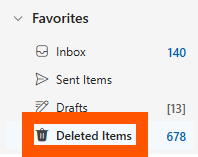
- Deleted items in Outlook will be sent to your **Deleted Items** folder, where they will stay indefinitely.
[](https://helpdesk.brynathyn.edu/uploads/images/gallery/2026-06/6RHimage.png)
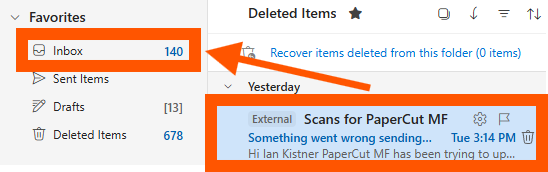
- To recover items from the **Deleted Items** folder:
- Select an email.
- Drag it to your **Inbox** or any other desired folder.
[](https://helpdesk.brynathyn.edu/uploads/images/gallery/2026-06/Lrwimage.png)
- Items purged from the deleted items folder it will be retrievable for 30 more days.
- To recover items this way:
- Navigate to the **Deleted Items** folder.
- Click **Recover items deleted from this folder**.
- Right click on the item you want to restore, then click **Restore**.
- This will put the item back in your **Deleted Items** folder.
- Drag it out to the desired folder.
Moodle
- Moodle runs daily backups that are kept for 1 month.
- **Recycle Bin**:
- This is used to restore courses or other deleted items.
- The Recycle bin is set to store data for 6 months before deleting it.
Blackbaud Hosted Solutions (RE & FE)
- Backups are fully handled by Blackbaud. Their policy document is linked below.
- A sign-in may be required to view the page: [https://community.blackbaud.com/blogs/64/1250](https://community.blackbaud.com/blogs/64/1250)