# Setting up OneDrive
Microsoft OneDrive is a cloud storage solution available for everyone at Bryn Athyn College.
- With OneDrive, you can sync files between your computer and the cloud, so you can get to your files from anywhere—your computer, your mobile device, or through the OneDrive website at OneDrive.com.
- If you add, change, or delete a file or folder in your OneDrive folder, the file or folder is added, changed, or deleted on the OneDrive website and vice versa.
- You can work with your synced files directly in File Explorer in Windows or Finder in macOS. Whenever you’re online, any changes that you or others make will sync automatically. Once synced, you can access your files even when you’re offline.
## Installation
Windows
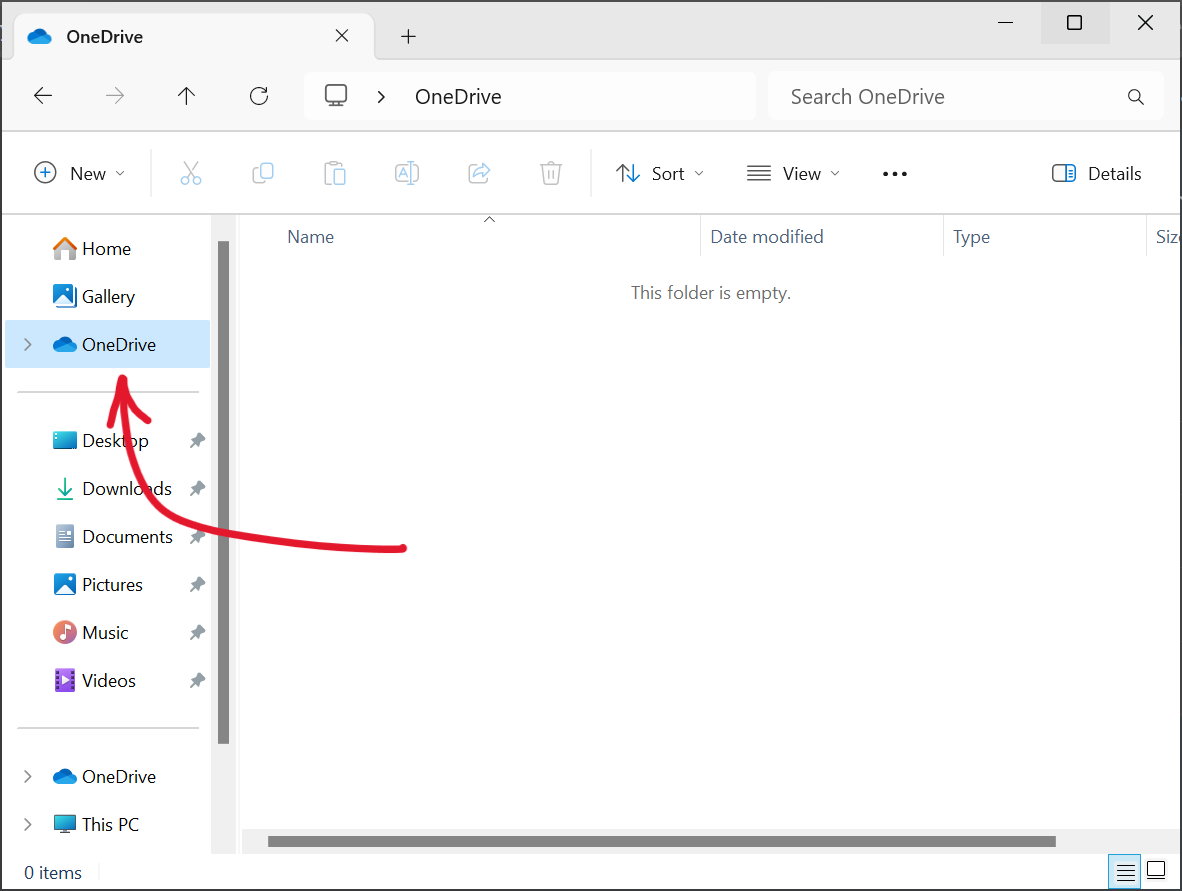
1. OneDrive is pre-installed with Windows 11. You can find it by opening **File Explorer** and clicking the **OneDrive** folder on the left pane.
[](https://helpdesk.brynathyn.edu/uploads/images/gallery/2026-06/LL9image1.png)
2. If OneDrive has not been set up yet, you will be prompted to enter your email.[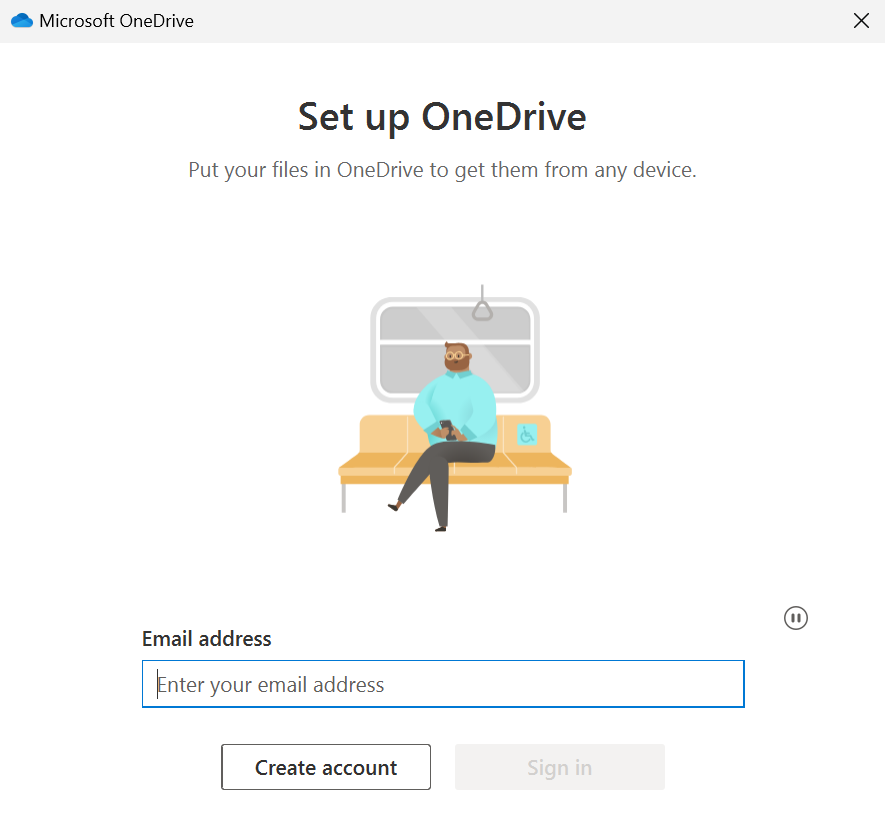](https://helpdesk.brynathyn.edu/uploads/images/gallery/2026-06/scaled-1680-/yE7image2.png)
- Use your Bryn Athyn College Microsoft 365 credentials to sign in.
[What is my Username and Password?](https://helpdesk.brynathyn.edu/books/accounts/page/what-is-my-username-and-password "What is my Username and Password?")
3. Keep **Allow my organization to manage my device** checked, then click **OK**.[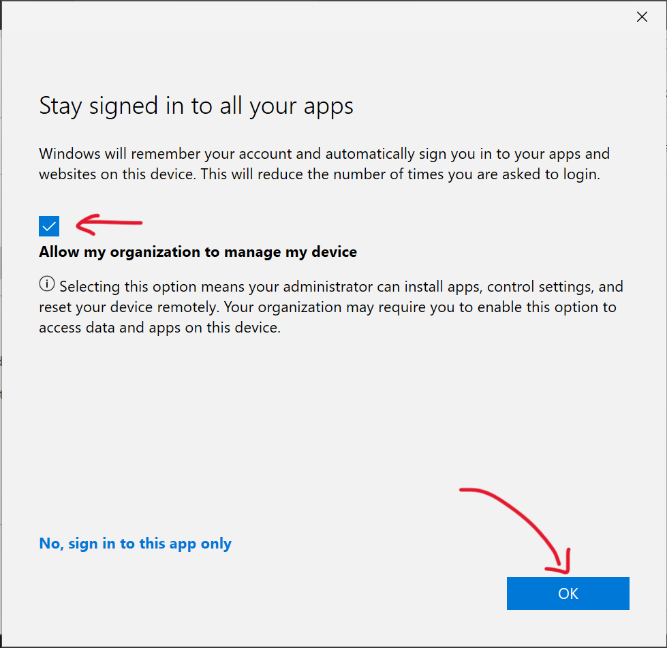](https://helpdesk.brynathyn.edu/uploads/images/gallery/2026-06/scaled-1680-/NcAimage4.png)
4. When prompted to use Windows Hello, click **OK**.[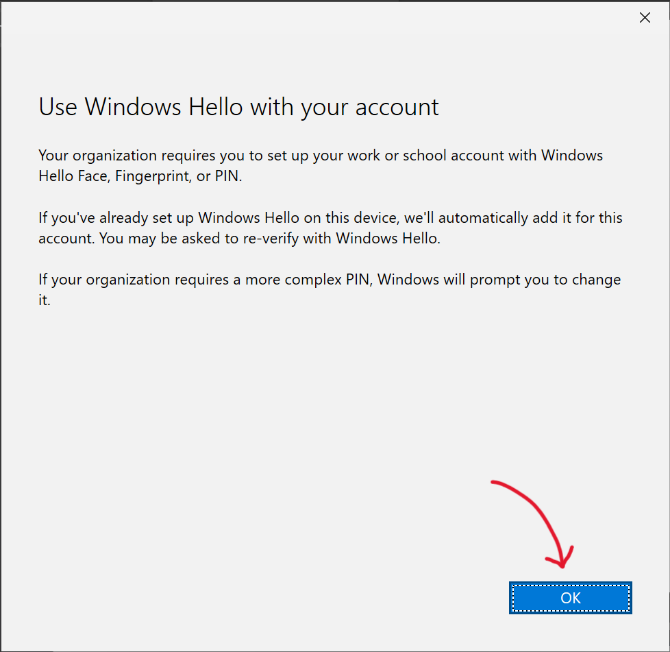](https://helpdesk.brynathyn.edu/uploads/images/gallery/2026-06/scaled-1680-/vwCimage3.png)
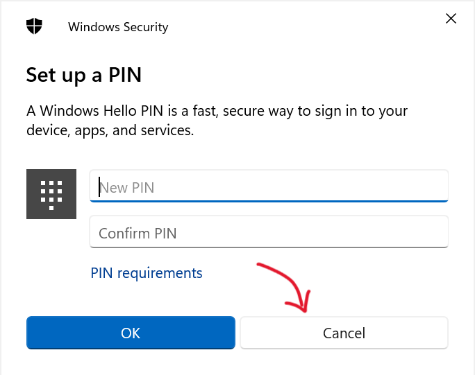
5. If you're asked to set up a PIN, press **Cancel**.
[](https://helpdesk.brynathyn.edu/uploads/images/gallery/2026-06/scaled-1680-/Zt1image5.png)
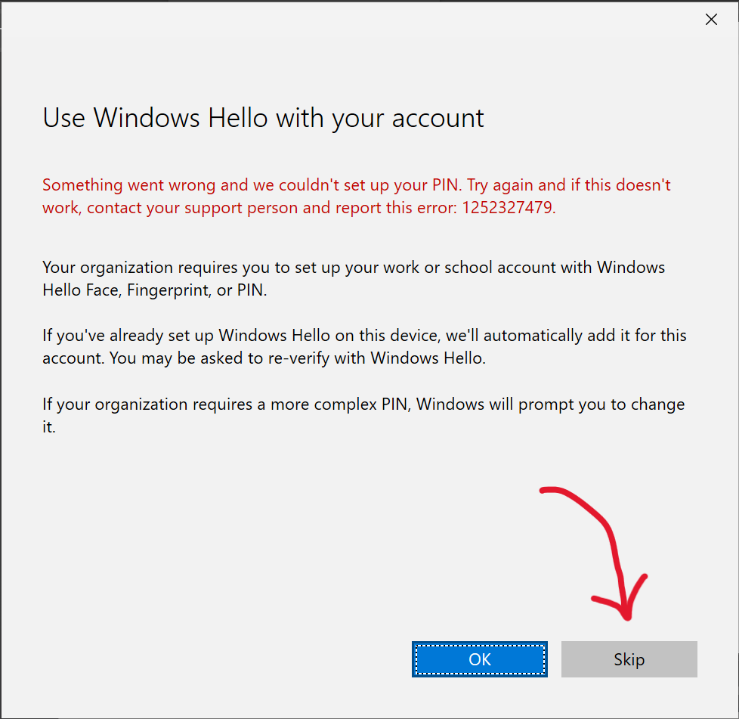
6. Click **Skip**.
[](https://helpdesk.brynathyn.edu/uploads/images/gallery/2026-06/scaled-1680-/5l3image7.png)
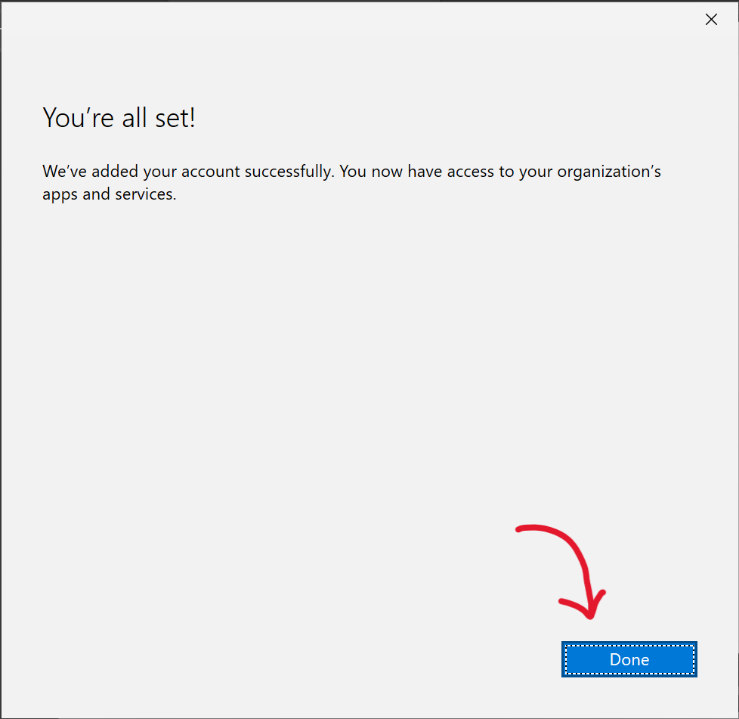
7. Click **Done**.
[](https://helpdesk.brynathyn.edu/uploads/images/gallery/2026-06/scaled-1680-/0vnimage6.png)
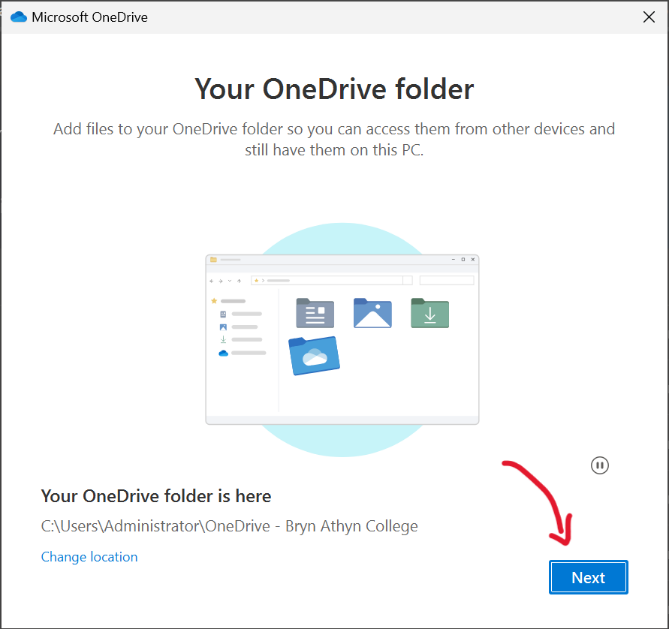
8. Click **Next**.
[](https://helpdesk.brynathyn.edu/uploads/images/gallery/2026-06/scaled-1680-/cSMimage8.png)
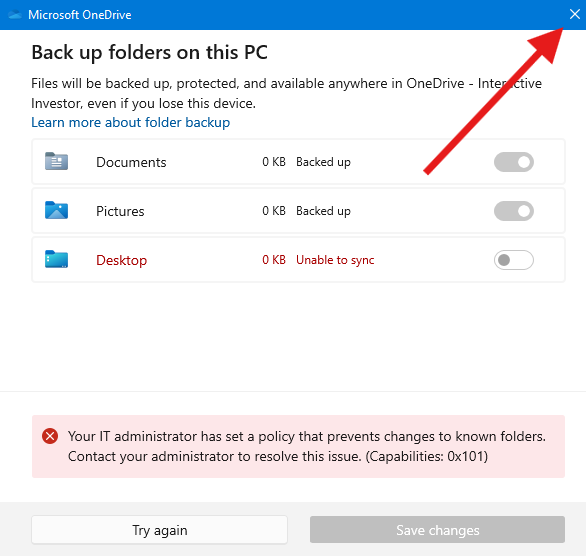
9. Once you reach the **Back up folders on this PC** screen, press the 𐌗 in the top right corner to close the window.
[](https://helpdesk.brynathyn.edu/uploads/images/gallery/2026-06/IQHimage.png)
If you're on a College-owned device, you will see an error that says
"Your IT Administrator has set up a policy that prevents changes to known folders."
This error can be safely ignored.
OneDrive is now set up.
If you use more than one account, your personal files appear under **OneDrive – Personal** and your work or school files appear under **OneDrive – Bryn Athyn College**.
macOS
1. Download and install OneDrive for your computer from
[microsoft.com/microsoft-365/onedrive/download](https://www.microsoft.com/microsoft-365/onedrive/download)
2. Start OneDrive Setup by pressing `cmd+Space` to launch a Spotlight query and type "OneDrive". When prompted, enter your Bryn Athyn College Microsoft 365 account, and select **Sign in**.The OneDrive Sync app for macOS does not currently support adding two business accounts from different organizations if they share the same display name. Attempting to configure such accounts will result in a setup failure.
3. There are a couple of points of OneDrive Setup that are helpful to watch for:
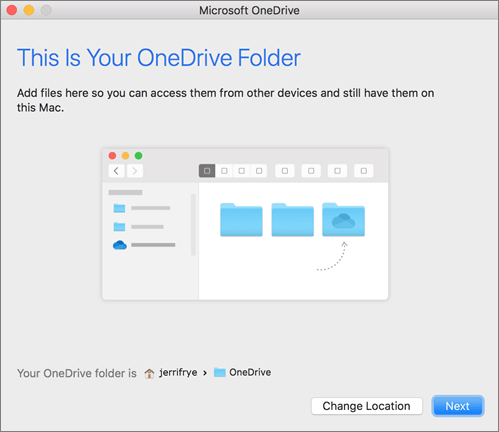
- When setting up your OneDrive, it has a default location set. However, you can change this during setup. On the **This is your OneDrive Folder** screen, click **Change Location**.
[](https://helpdesk.brynathyn.edu/uploads/images/gallery/2026-06/9lWimage.png)
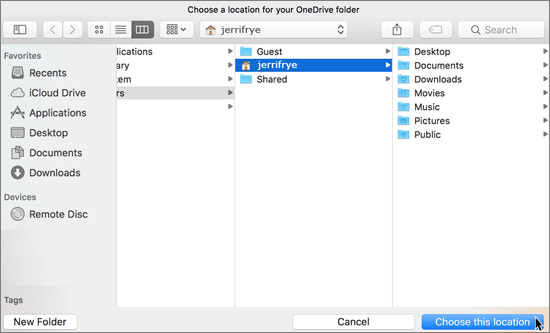
Select a location where you would like to save your OneDrive files and click **Choose this location**.
[](https://helpdesk.brynathyn.edu/uploads/images/gallery/2026-06/XVQimage.png)
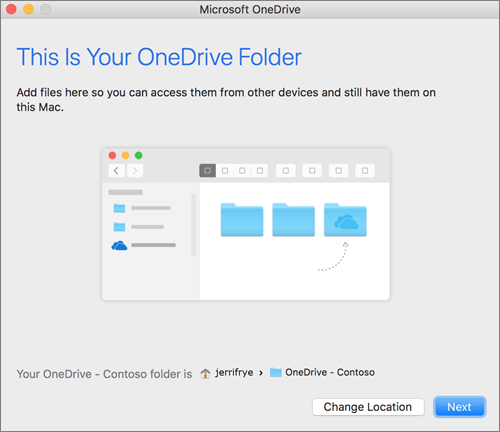
When you see the **This is your OneDrive Folder** screen, you'll now see a path to the folder you selected. Click **Next** to continue.
[](https://helpdesk.brynathyn.edu/uploads/images/gallery/2026-06/C3Cimage.png)
- On the **Sync Files from Your OneDrive** screen, you can choose the folders you want to sync to your computer and click **Next**. This conserves space on your computer, and reduces bandwidth needed for the sync processes.
4. Once sync has completed, you can:
- Add another account. You can have multiple work or school accounts, but only one Personal OneDrive account. Learn more.
- Add Finder integration. If you're on OSX 10.10 or higher, get sync status directly from Finder by enabling Finder overlays in Settings.
- First, click the Apple logo in the top left corner of your Mac Desktop and select **System Preferences.**
- Select **Extensions** in the top-level menu.
- Toggle on the **OneDrive Finder Integration** to enable Finder overlays.
You're all set! Click **Open my OneDrive folder** to see your files sync to your folder.
If you use more than one account, your personal files appear under **OneDrive – Personal** and your work or school files appear under **OneDrive – Bryn Athyn College**.
Android
You can download OneDrive on an Android device via the [Google Play Store](https://play.google.com/store/apps/details?id=com.microsoft.skydrive).
[](https://helpdesk.brynathyn.edu/uploads/images/gallery/2026-06/LmLimage.png)
iOS
You can download OneDrive on an iPhone via the [Apple App Store](https://apps.apple.com/us/app/microsoft-onedrive/id477537958).
[](https://helpdesk.brynathyn.edu/uploads/images/gallery/2026-06/ifmimage.png)