# Sharing files with OneDrive

OneDrive allows you to give anyone access to files you choose to share. You can configure the share to allow people to see or edit the files without a Microsoft account. Optionally, this can be done with extra security measures like expirations dates, file passwords, and email verification.

## Instructions

1. Head to [My files - OneDrive](https://brynathyncollege-my.sharepoint.com/my) and sign in with your BACNC Microsoft 365 account.  
    [What is my username and password?](https://helpdesk.brynathyn.edu/books/accounts/page/what-is-my-username-and-password "What is my username and password?")
2. If the file(s) or folder isn't already on OneDrive, click **Create or upload** to upload them.
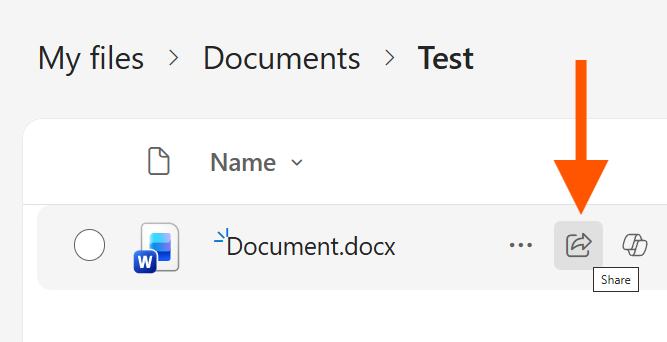
3. Hover over the file / folder and click the **Share <svg fill="none" height="24" viewbox="0 0 24 24" width="24" xmlns="http://www.w3.org/2000/svg"><path d="M6.747 4h3.464a.75.75 0 0 1 .102 1.493l-.102.007H6.747a2.25 2.25 0 0 0-2.245 2.096l-.005.154v9.5a2.25 2.25 0 0 0 2.096 2.245l.154.005h9.5a2.25 2.25 0 0 0 2.245-2.096l.005-.154v-.498a.75.75 0 0 1 1.494-.101l.006.101v.498a3.75 3.75 0 0 1-3.55 3.745l-.2.005h-9.5a3.75 3.75 0 0 1-3.745-3.55l-.005-.2v-9.5a3.75 3.75 0 0 1 3.55-3.745l.2-.005h3.464-3.464ZM14.5 6.544V3.75a.75.75 0 0 1 1.187-.61l.082.069 5.994 5.75c.28.268.306.7.077.997l-.077.085-5.994 5.752a.75.75 0 0 1-1.262-.434l-.007-.107V12.45l-.321-.006c-2.658-.008-4.93 1.083-6.865 3.301-.496.568-1.425.132-1.306-.612.827-5.14 3.6-8.045 8.19-8.559l.302-.03V3.75v2.794Z" fill="#444444"></path></svg>** icon [![9roimage.png](https://helpdesk.brynathyn.edu/uploads/images/gallery/2026-07/scaled-1680-/co79roimage.png)](https://helpdesk.brynathyn.edu/uploads/images/gallery/2026-07/co79roimage.png)
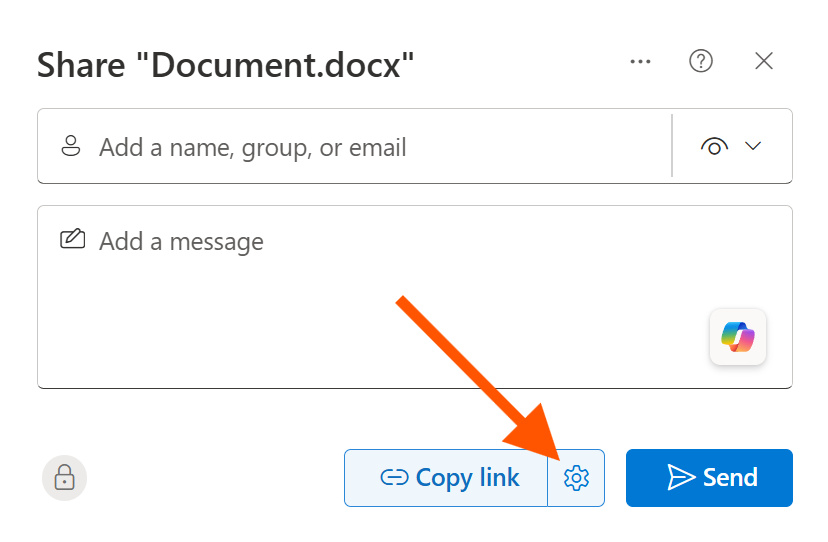
4. Click the settings gear<svg fill="none" height="24" viewbox="0 0 24 24" width="24" xmlns="http://www.w3.org/2000/svg"><path d="M12.012 2.25c.734.008 1.465.093 2.182.253a.75.75 0 0 1 .582.649l.17 1.527a1.384 1.384 0 0 0 1.927 1.116l1.401-.615a.75.75 0 0 1 .85.174 9.792 9.792 0 0 1 2.204 3.792.75.75 0 0 1-.271.825l-1.242.916a1.381 1.381 0 0 0 0 2.226l1.243.915a.75.75 0 0 1 .272.826 9.797 9.797 0 0 1-2.204 3.792.75.75 0 0 1-.848.175l-1.407-.617a1.38 1.38 0 0 0-1.926 1.114l-.169 1.526a.75.75 0 0 1-.572.647 9.518 9.518 0 0 1-4.406 0 .75.75 0 0 1-.572-.647l-.168-1.524a1.382 1.382 0 0 0-1.926-1.11l-1.406.616a.75.75 0 0 1-.849-.175 9.798 9.798 0 0 1-2.204-3.796.75.75 0 0 1 .272-.826l1.243-.916a1.38 1.38 0 0 0 0-2.226l-1.243-.914a.75.75 0 0 1-.271-.826 9.793 9.793 0 0 1 2.204-3.792.75.75 0 0 1 .85-.174l1.4.615a1.387 1.387 0 0 0 1.93-1.118l.17-1.526a.75.75 0 0 1 .583-.65c.717-.159 1.45-.243 2.201-.252Zm0 1.5a9.135 9.135 0 0 0-1.354.117l-.109.977A2.886 2.886 0 0 1 6.525 7.17l-.898-.394a8.293 8.293 0 0 0-1.348 2.317l.798.587a2.881 2.881 0 0 1 0 4.643l-.799.588c.32.842.776 1.626 1.348 2.322l.905-.397a2.882 2.882 0 0 1 4.017 2.318l.11.984c.889.15 1.798.15 2.687 0l.11-.984a2.881 2.881 0 0 1 4.018-2.322l.905.396a8.296 8.296 0 0 0 1.347-2.318l-.798-.588a2.881 2.881 0 0 1 0-4.643l.796-.587a8.293 8.293 0 0 0-1.348-2.317l-.896.393a2.884 2.884 0 0 1-4.023-2.324l-.11-.976a8.988 8.988 0 0 0-1.333-.117ZM12 8.25a3.75 3.75 0 1 1 0 7.5 3.75 3.75 0 0 1 0-7.5Zm0 1.5a2.25 2.25 0 1 0 0 4.5 2.25 2.25 0 0 0 0-4.5Z" fill="#444444"></path></svg> next to **Copy link**.   
    [![image.png](https://helpdesk.brynathyn.edu/uploads/images/gallery/2026-07/scaled-1680-/F17image.png) ](https://helpdesk.brynathyn.edu/uploads/images/gallery/2026-07/F17image.png)
5. Choose an access level in the **Link** **settings** popup.  
    [![Screenshot 2026-07-29 161507.png](https://helpdesk.brynathyn.edu/uploads/images/gallery/2026-07/scaled-1680-/screenshot-2026-07-29-161507.png)](https://helpdesk.brynathyn.edu/uploads/images/gallery/2026-07/screenshot-2026-07-29-161507.png)
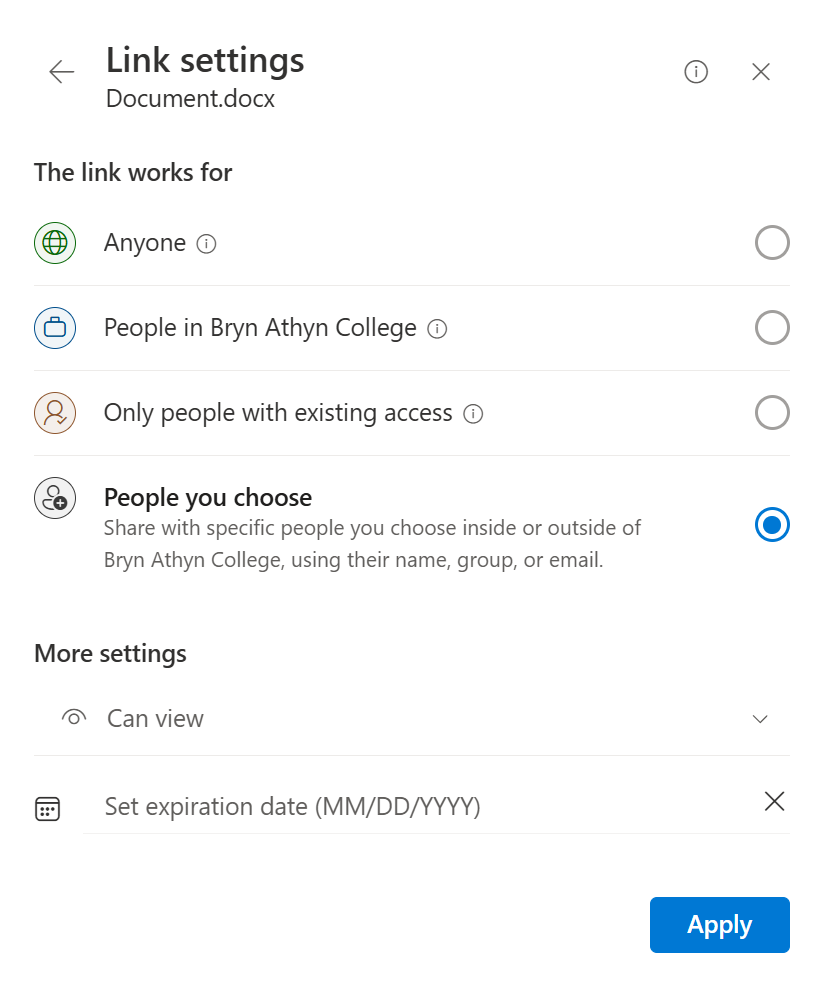
    
    
    - **Anyone** allows for access without a Microsoft account.
    - **People in Bryn Athyn College** only works for users with organization accounts.
    - **Only people with existing access** inherits the permissions that already exist for that file.
    - **People you choose** allows you to input email addresses to share with.
6. Change the edit permissions in the dropdown under **More settings** to your desired option.
7. Optionally, set an expiration date and password for the share (extra security).
8. Click **Apply**.
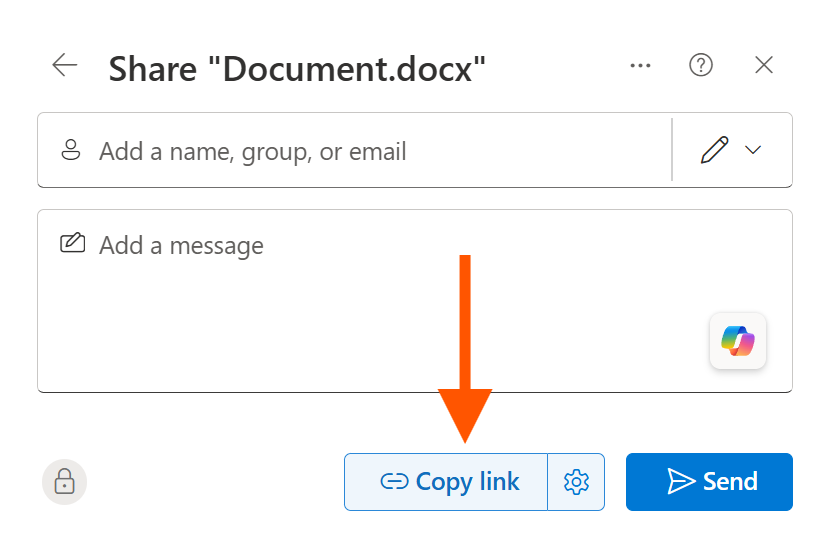
9. Click **Copy link** and send it to whoever needs access.   
    [![image.png](https://helpdesk.brynathyn.edu/uploads/images/gallery/2026-07/scaled-1680-/nA2image.png) ](https://helpdesk.brynathyn.edu/uploads/images/gallery/2026-07/nA2image.png)