Unifi Identity Enterprise VPN is only available to those who need it for their work. If you want to get it set up, make sure to contact the Helpdesk first so we can authorize you. Otherwise, you will not be able to complete the setup process.
1. Download the application for your device by clicking a link below. - [Windows](https://download.uid.ui.com/?app=UI-DESKTOP-WINDOWS) - [macOS](https://download.uid.ui.com/?app=UI-DESKTOP-MACOS) - Alternatively, install it from [https://ui.com/identity](https://ui.com/identity). Make sure you choose the Enterprise version that matches your operating system. [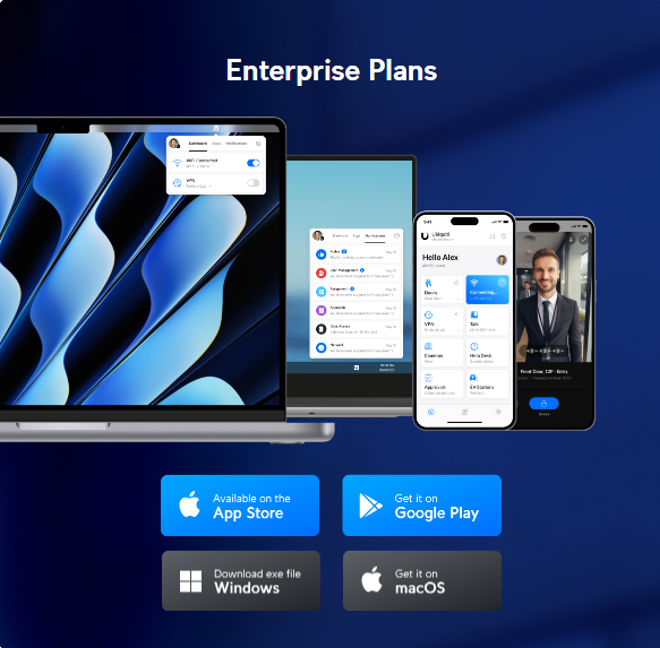](https://helpdesk.brynathyn.edu/uploads/images/gallery/2026-06/FD5image.png) 2. Run the downloaded file. 3. Select **Launch Identity Enterprise Now** when prompted.For macOS users there may be a couple additional steps on installation for giving the application the appropriate permissions to run as a VPN on your device.
4. Enter `brynathyncollege` as the Workspace name, then click **Continue**. 5. Click **Microsoft** below the sign-in fields, and log in with your Microsoft 365 account if prompted.See [Logging in with Microsoft 365](https://helpdesk.brynathyn.edu/books/accounts/page/logging-in-with-microsoft-365 "Logging in with Microsoft 365") for more information.
6. Set up at least one MFA method when prompted. - **Unifi Verify** app: - Download Verify from the Google Play Store or Apple App Store. - After installation, scan the QR code in the MFA set up prompt. - This allows you to approve MFA prompts by a pop-up notification on your phone, or by entering a 6-digit TOTP (Timed One Time Password) from within the app. - **SMS** or **Email**: - These both send a 6-digit code upon MFA request that must be entered. - After inputting your preferred MFA methods, you will be signed into the desktop application. You will also be redirected to a web page that you can close out of. 7. Connect to the VPN. 1. Navigate to the **System Tray** in Windows (bottom right-hand corner of your screen) or the **Notification Area** in MacOS. 2. Select this icon: [](https://helpdesk.brynathyn.edu/uploads/images/gallery/2026-06/dH7image.png) 8. Select the tab indicated in the image below and you should see the option to connect to the bacvpn.org VPN with a toggle. [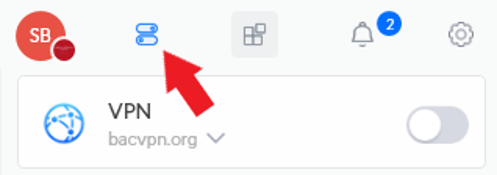](https://helpdesk.brynathyn.edu/uploads/images/gallery/2026-06/RuFimage.png)After turning it on you will be prompted for MFA approval. Approving should complete the connection. **You will be required to verify MFA on every connection to the VPN**.