
Resetting your Password
You might be unable to access your school email account because of one of the following reasons:
- Your password is not working, and you want to reset it.
- You know your password, but your account is locked out and you want to unlock it.
Follow the steps below to reset your password and access your account, provided you have previously set up authentication methods. (Phone number, recovery email, authenticator app, etc.)
Instructions
- From the Microsoft 365 sign-in page, select Can't access your account? > Work or school account
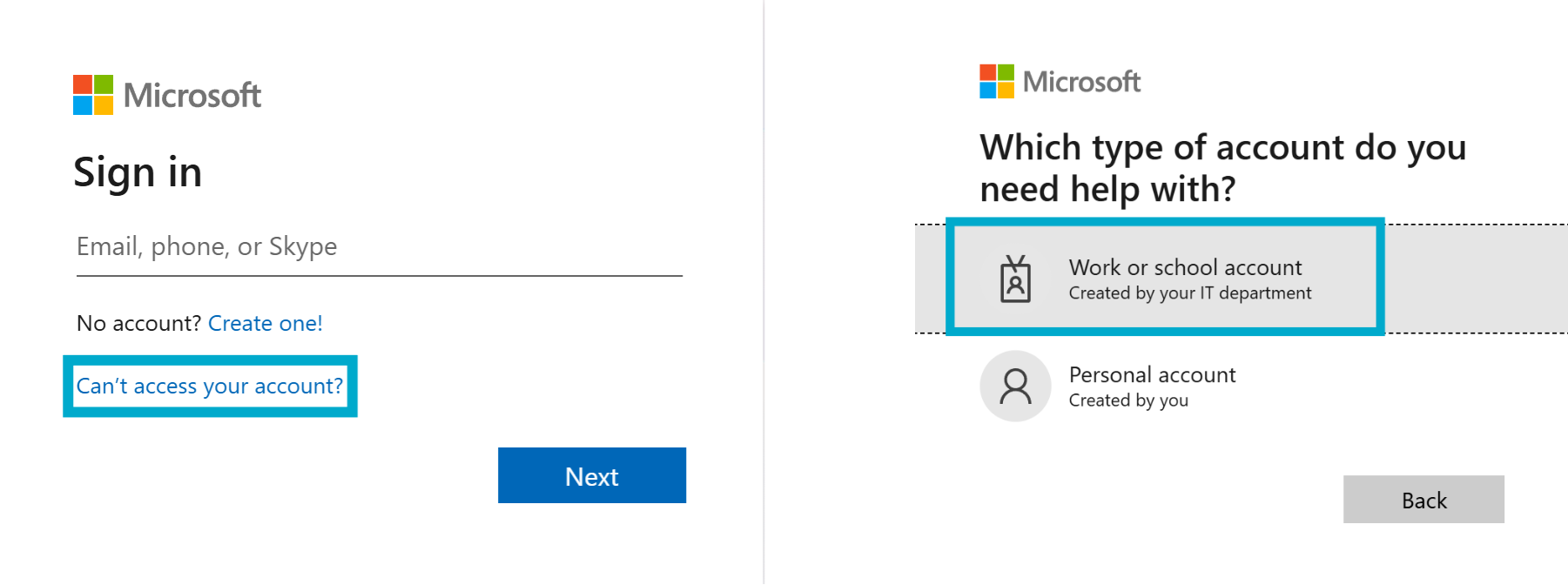
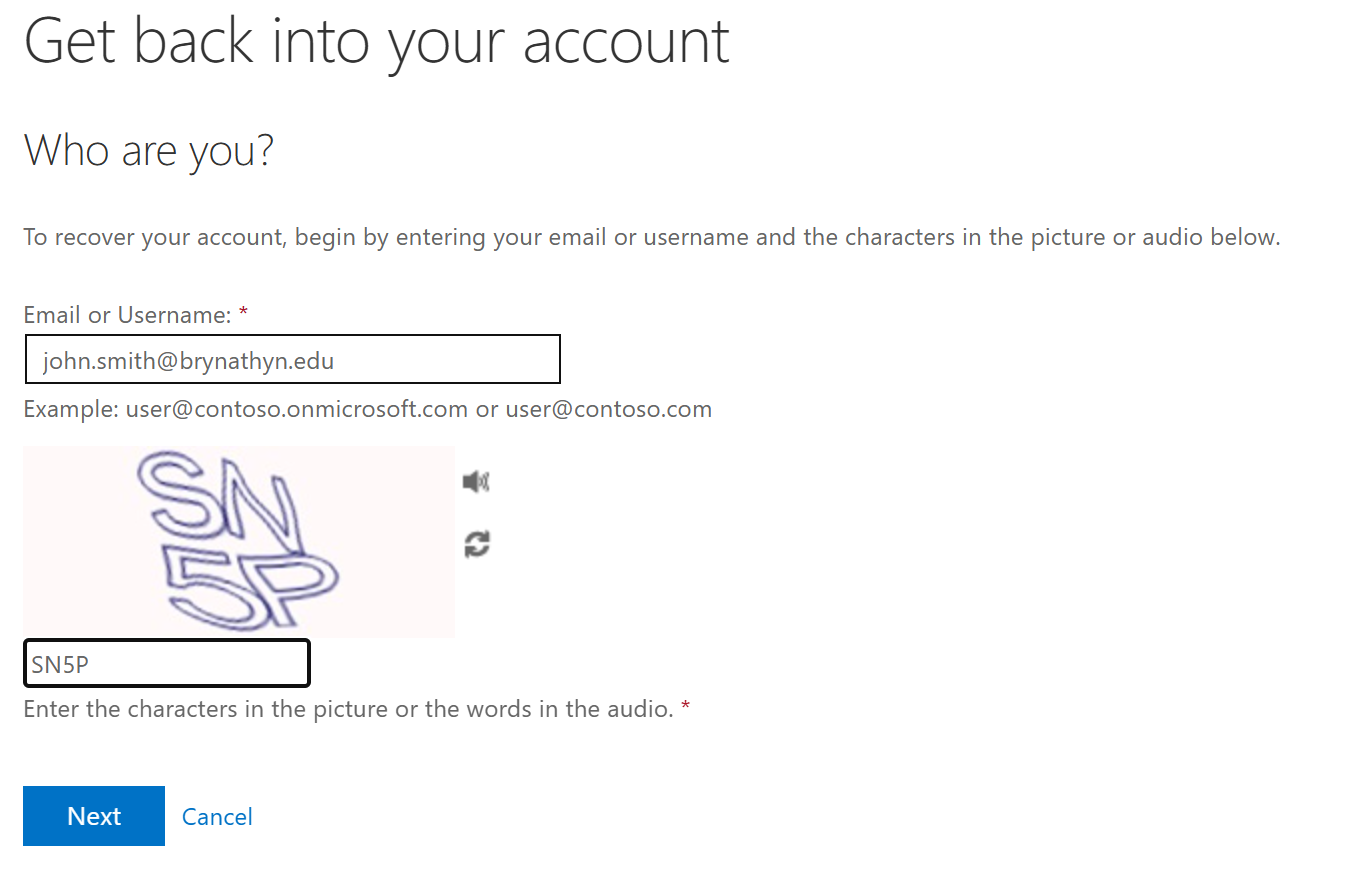
- Enter your Bryn Athyn College Microsoft 365 email address and then enter the characters in the generated image.
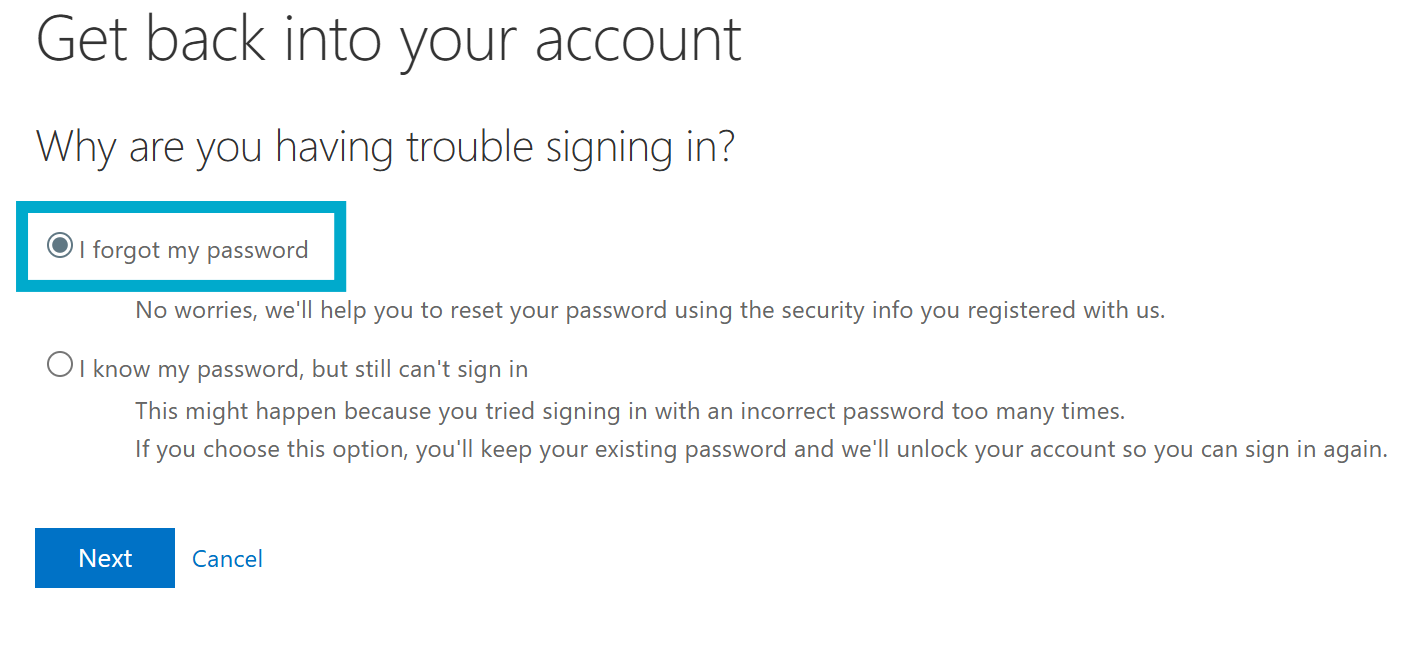
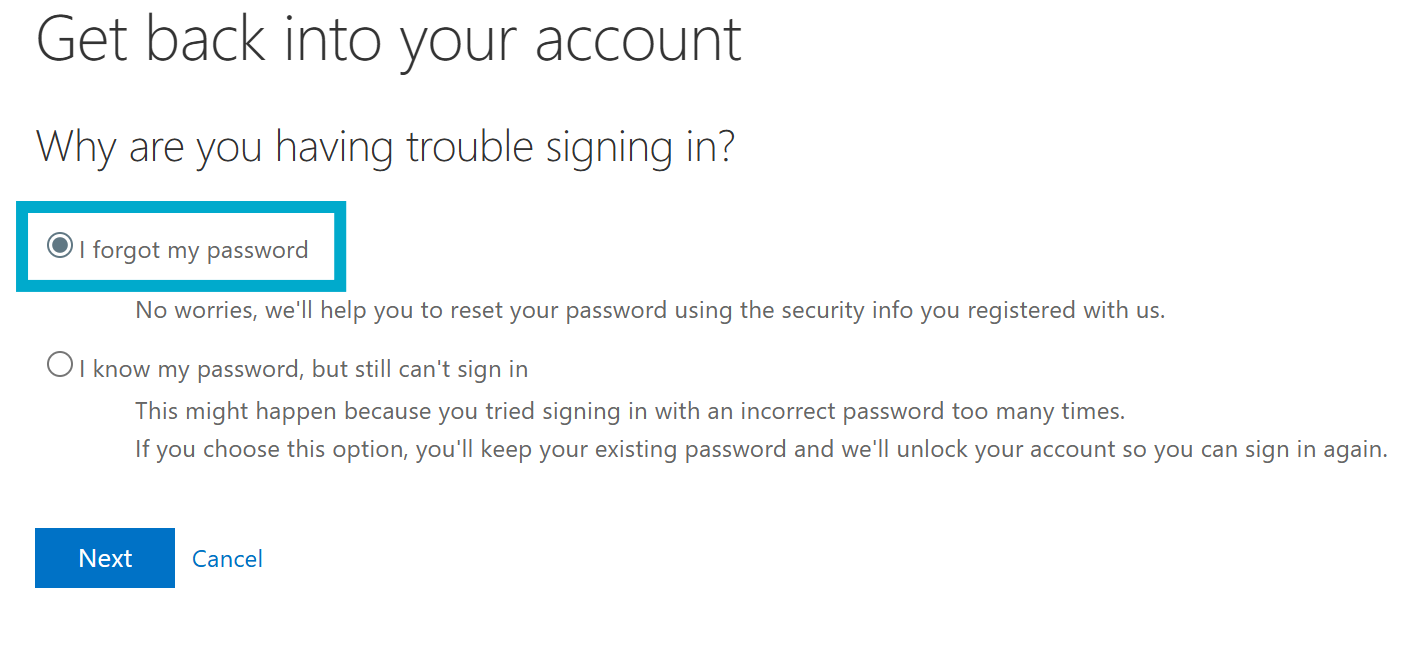
- Select I forgot my password then Next
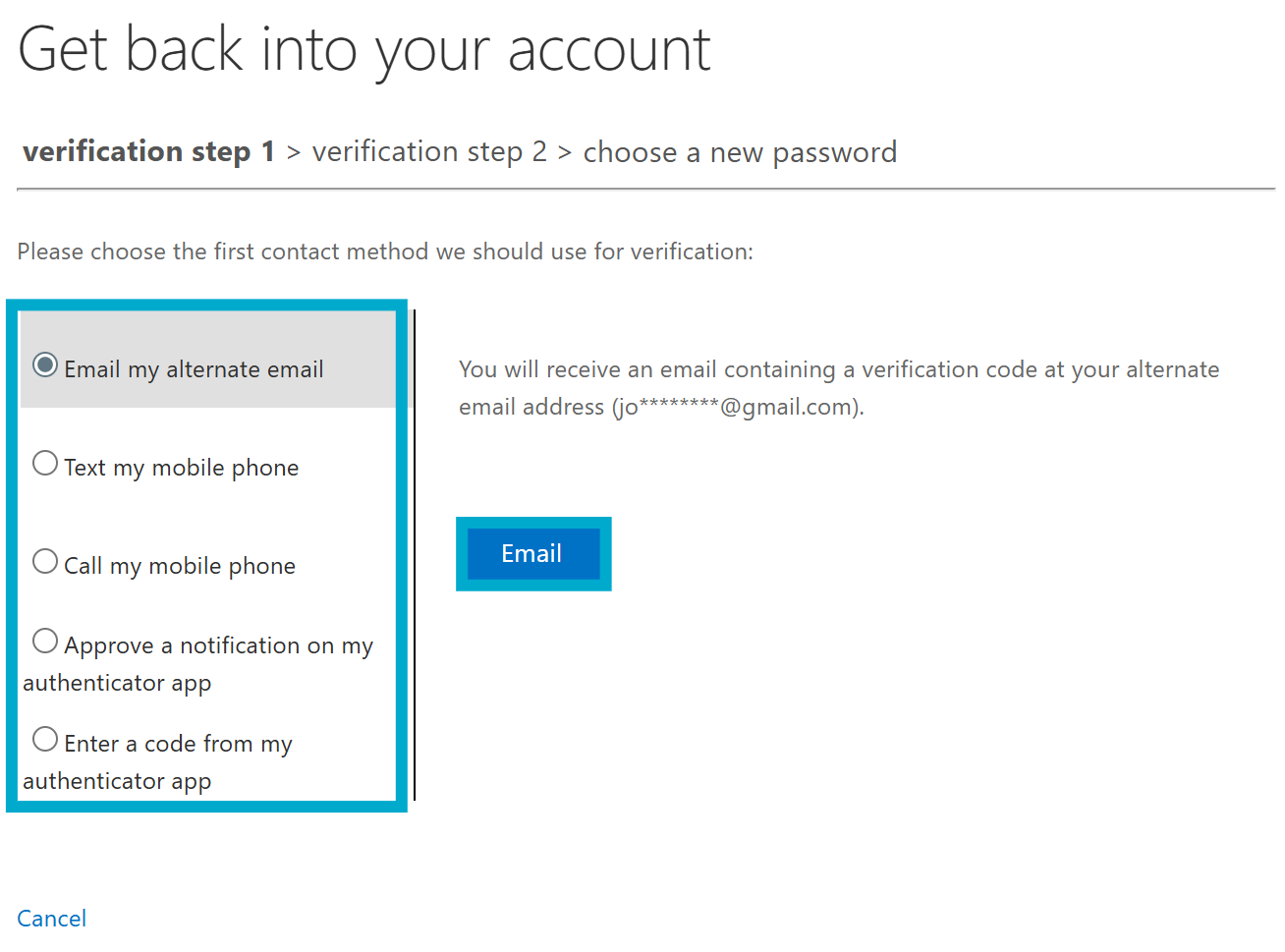
- Select the first contact method you will use for verification, then the action button under the explanation on the left. (Email, text, send notification, etc)
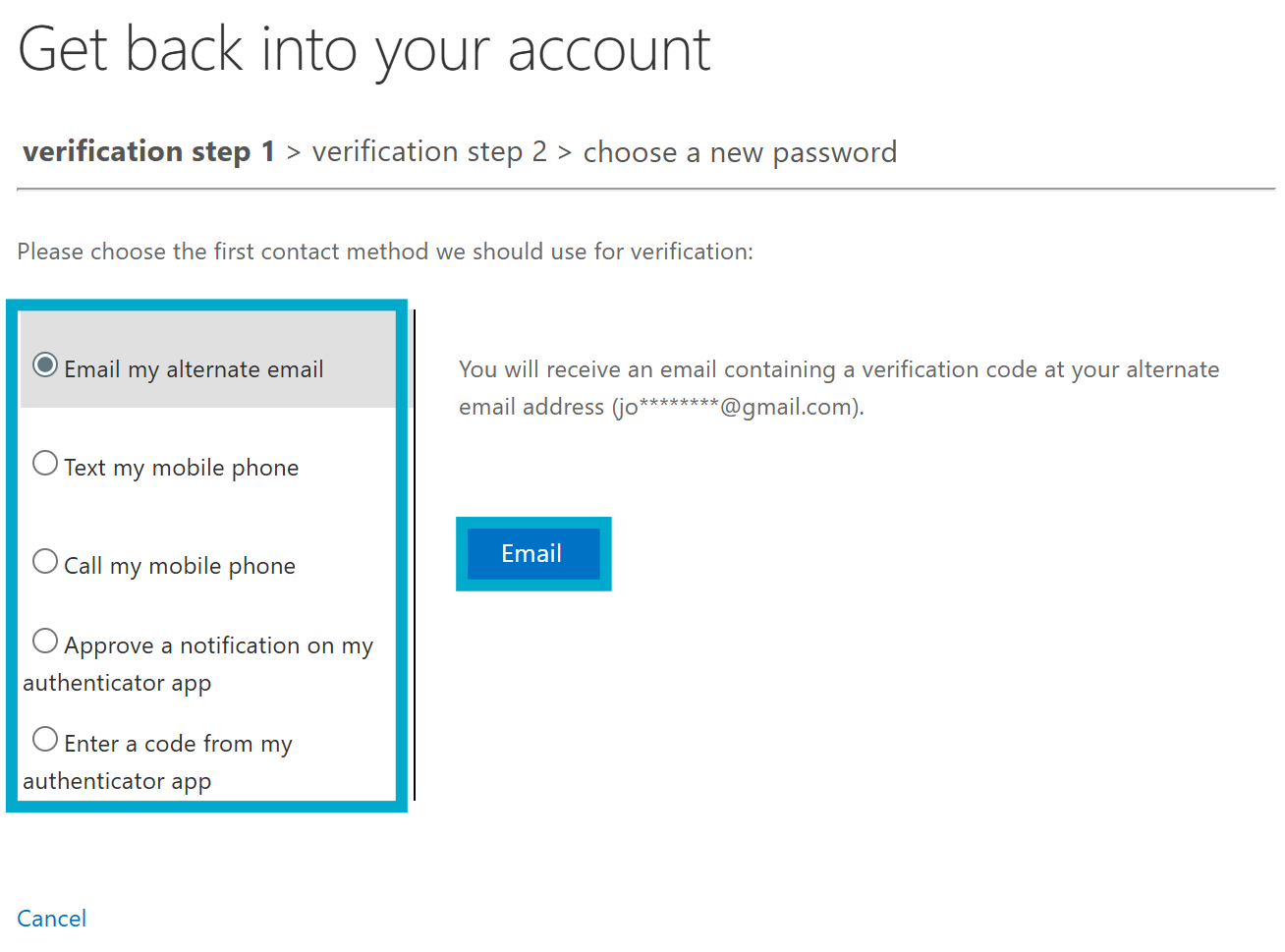
- Enter the verification code received at the selected contact method and click Next
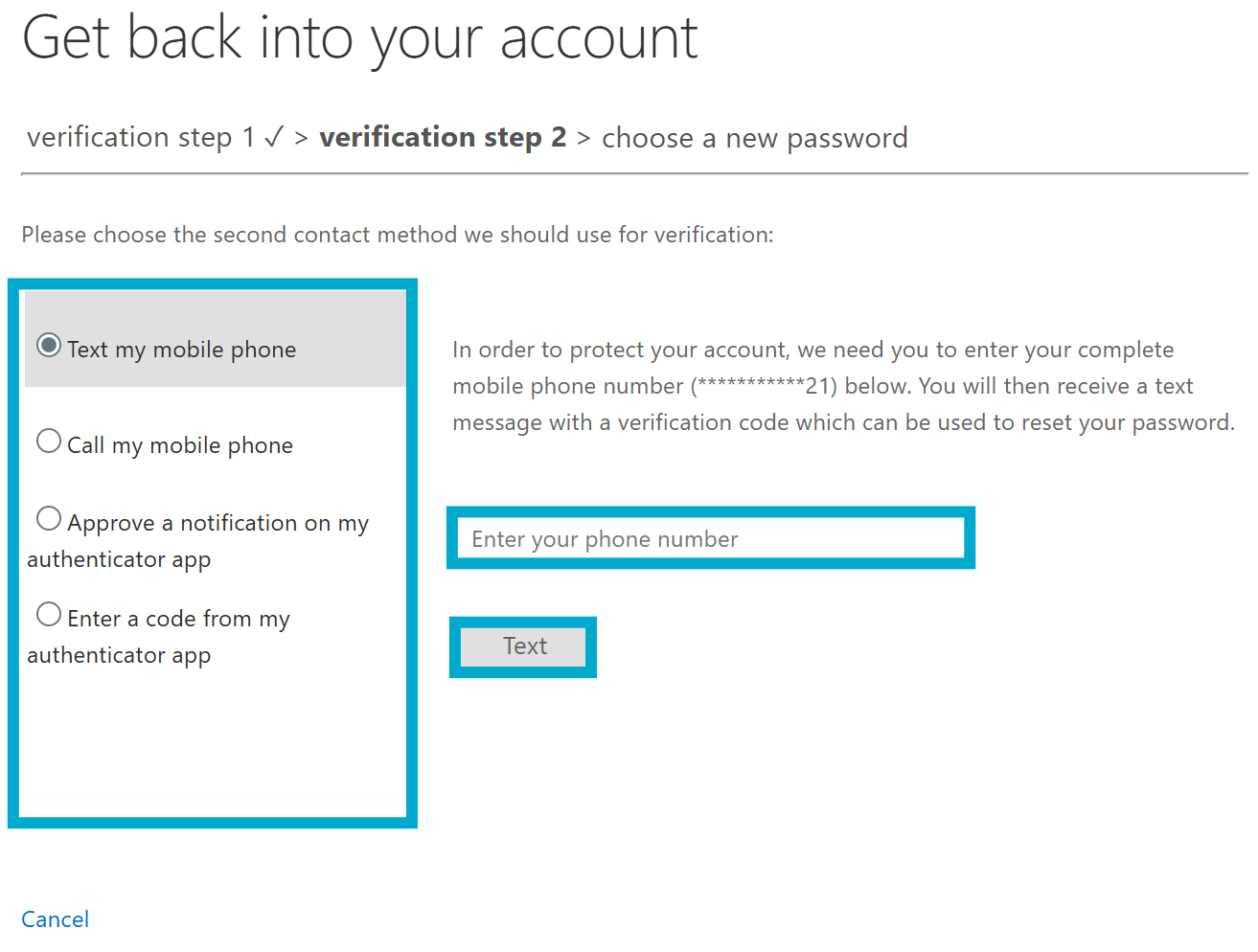
- Select the second contact method you prefer, then the action button.
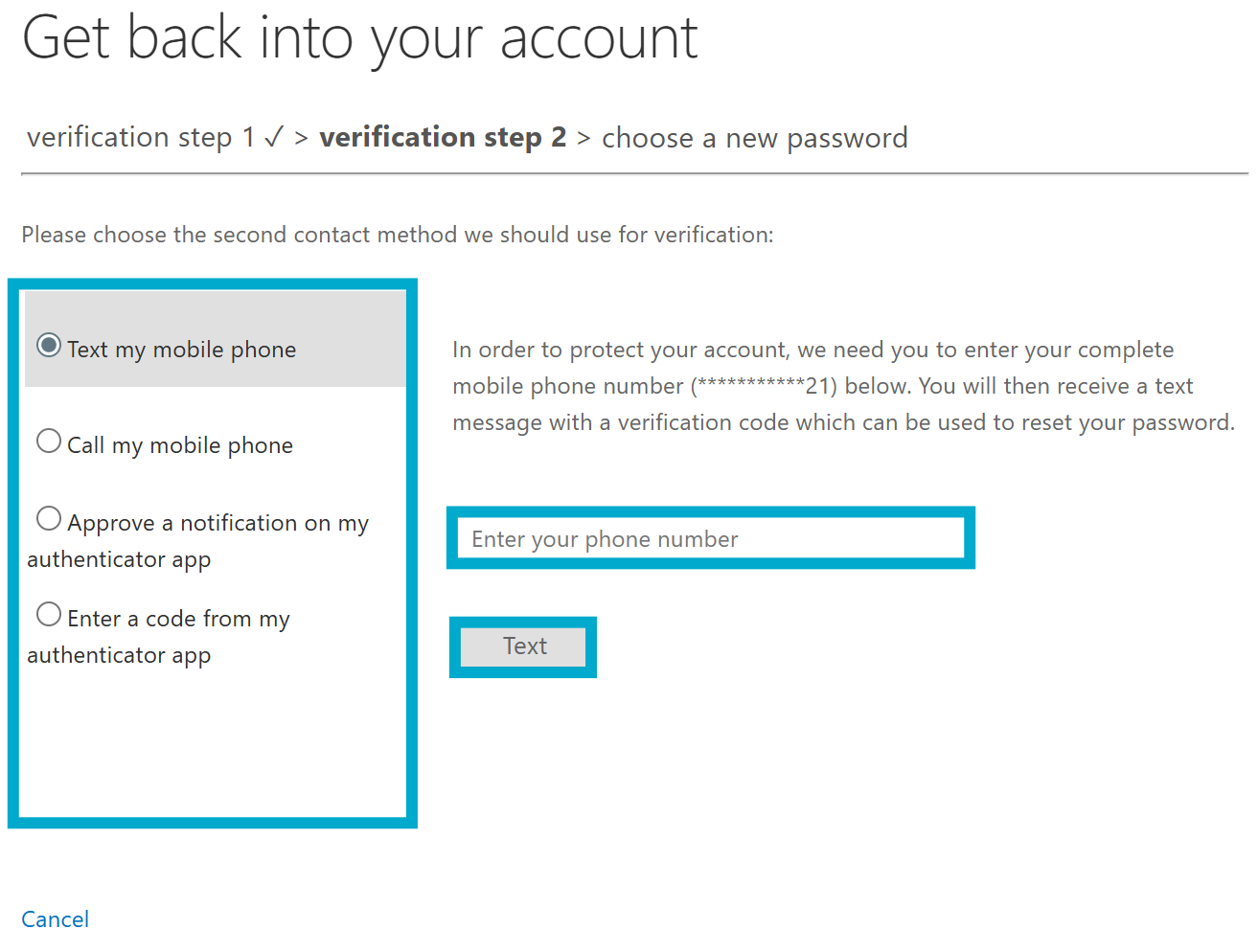
- Enter the second verification code and click Next
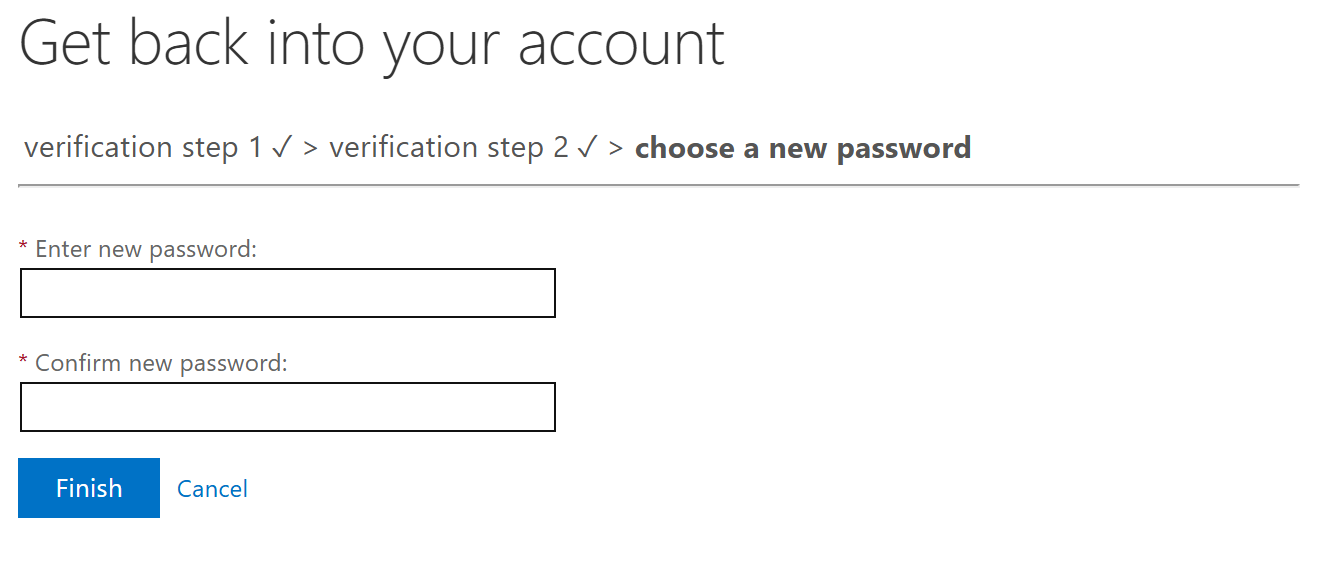
- Enter your new password and click Finish
- Our password policy requires that you choose a password that's at least 8 characters long, includes uppercase and lowercase characters, a number, and a special character.
- We suggest the use of a password management program to keep track of unique and secure passwords.
- You can generate easy-to-type passphrases for free with the
If you receive a confirmation email from msonlineservicesteam@microsoftonline.com and you did not initiate a password reset, contact the helpdesk immediately.