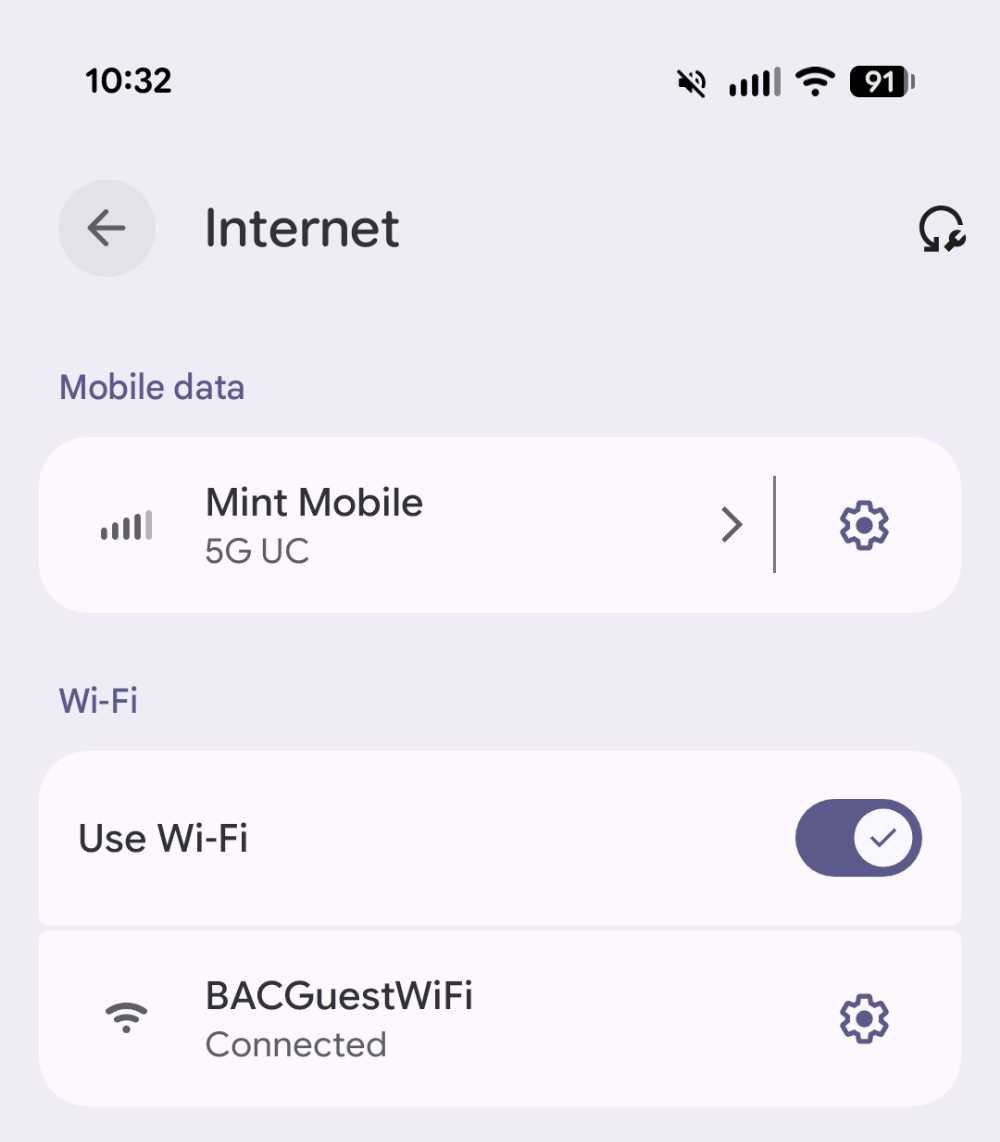
BACGuestWiFi
Guests on campus can connect to BACGuestWiFi by selecting the network and using the password:
RedLions2026
Windows
ms-settings:network-wifiOpen Wi-Fi settings
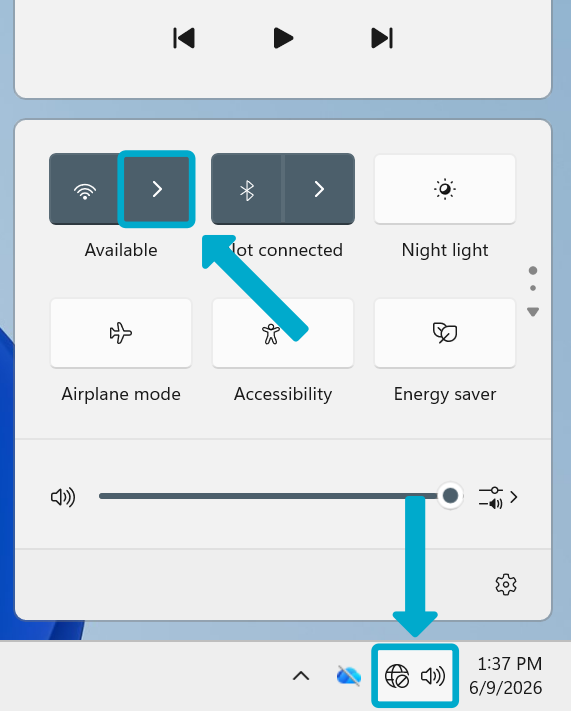
- Open the Quick Access panel in the taskbar
- Click the arrow by the Wi-Fi symbol
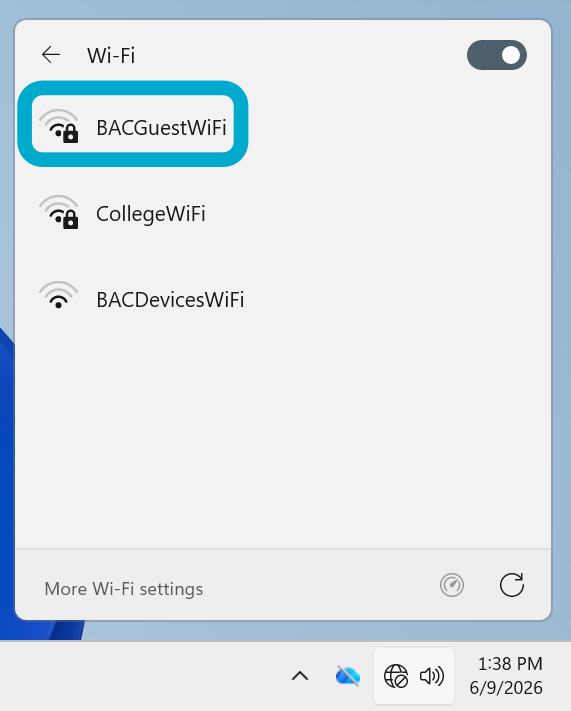
- Select BACGuestWiFi then Connect
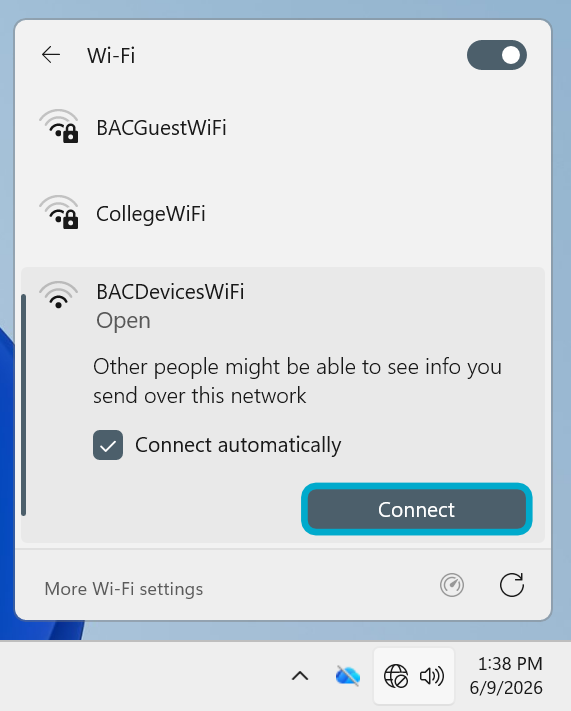
- Enter the password {{@69#bkmrk-bacguestwifi-pw}}
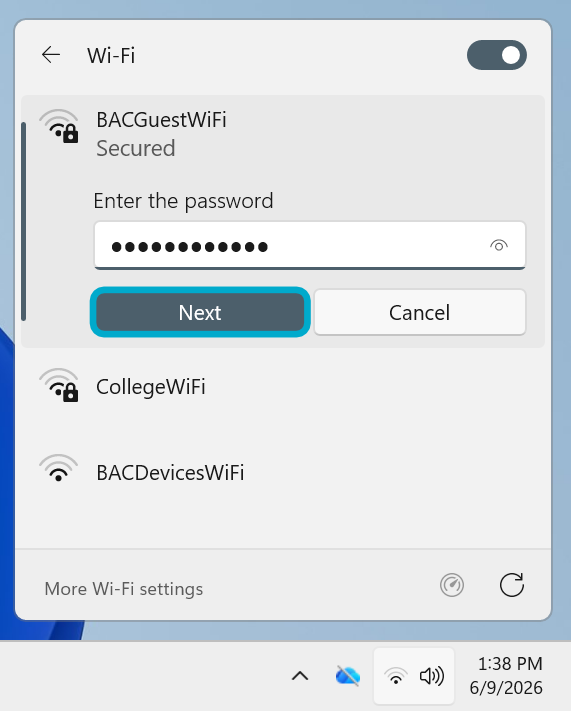
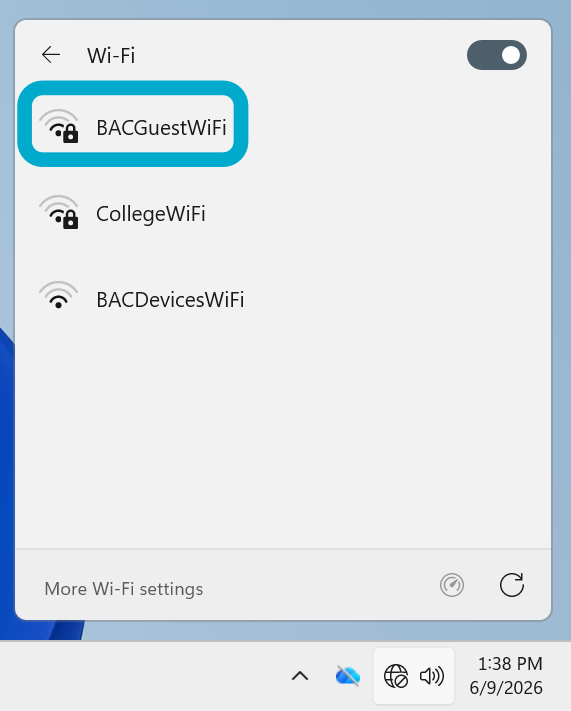
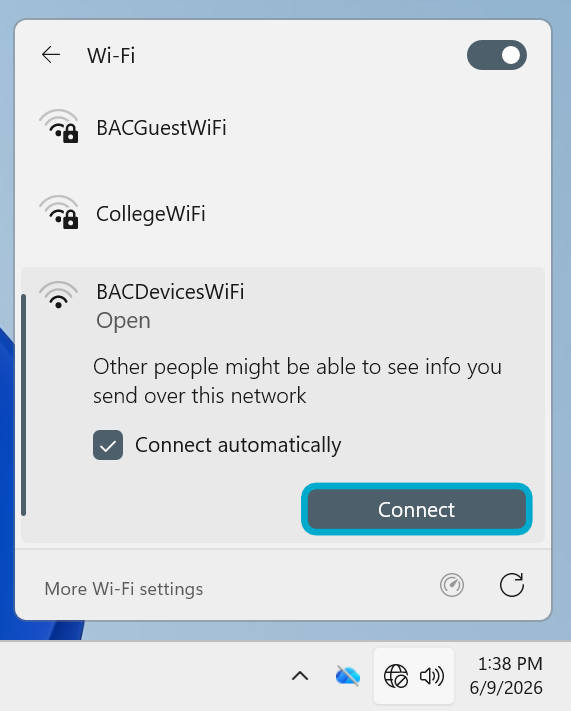
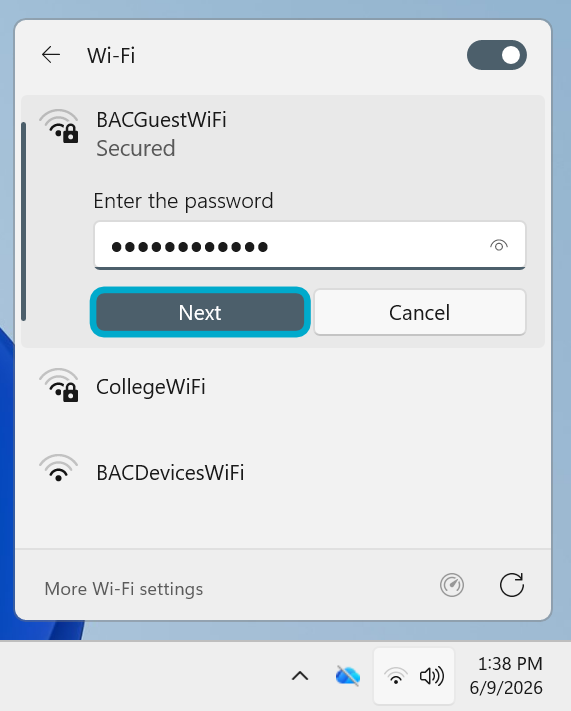
You should now be connected. If not, contact the Helpdesk.
MacOS
- Open your Wi-Fi menu in the top right of your screen by clicking on the Wi-Fi symbol.

- Click on BACGuestWiFi from the dropdown menu of options that appears. This should open a
pop-up window.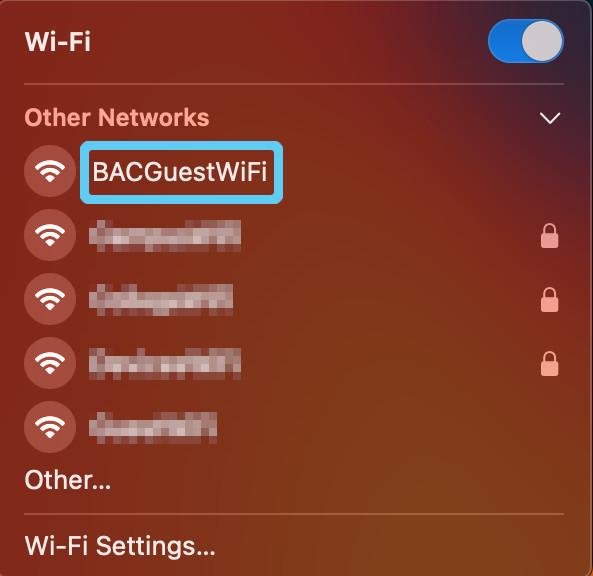
- Enter the password {{@69#bkmrk-bacguestwifi-pw}} and click Join.

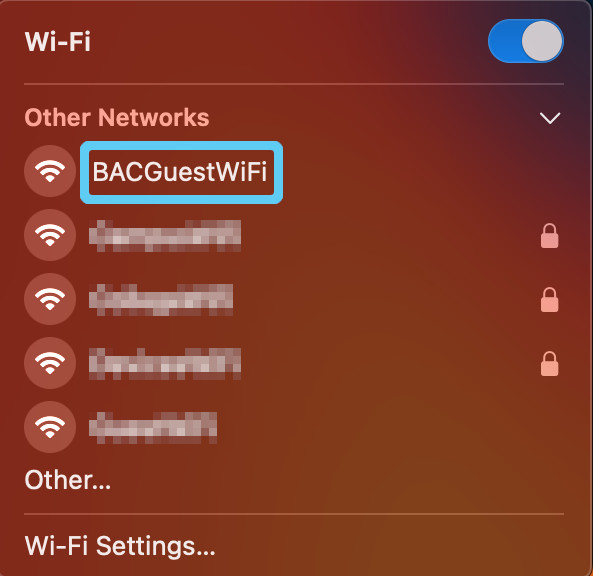
You should now be connected. If not, contact the Helpdesk.
iOS
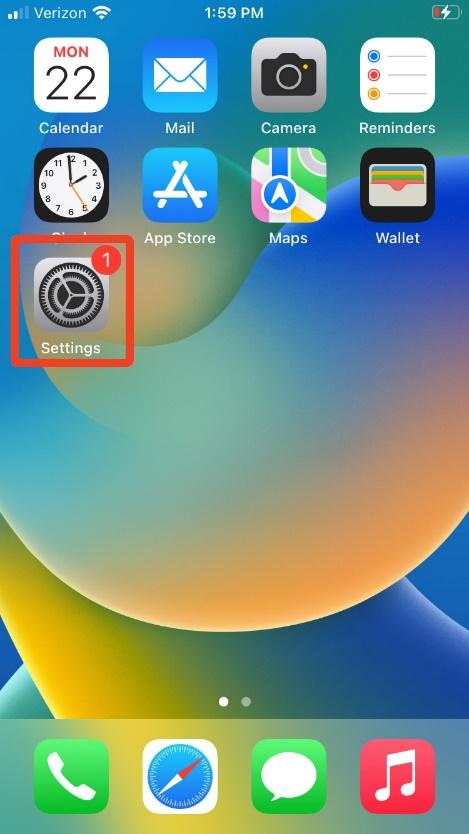
- Open Settings
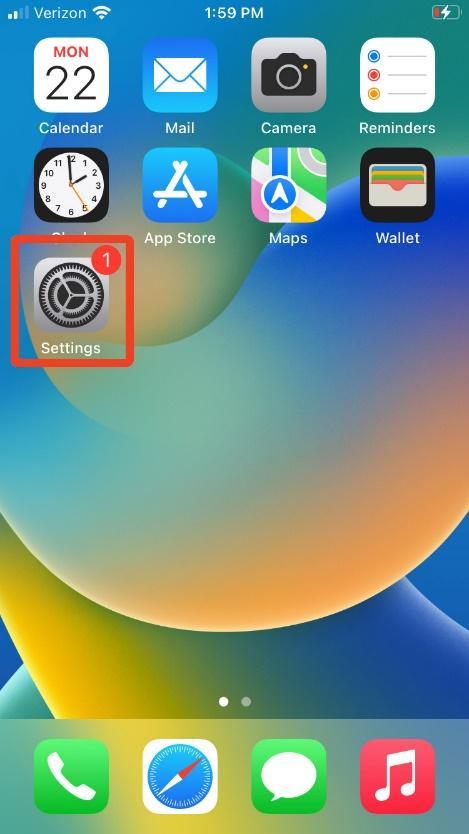
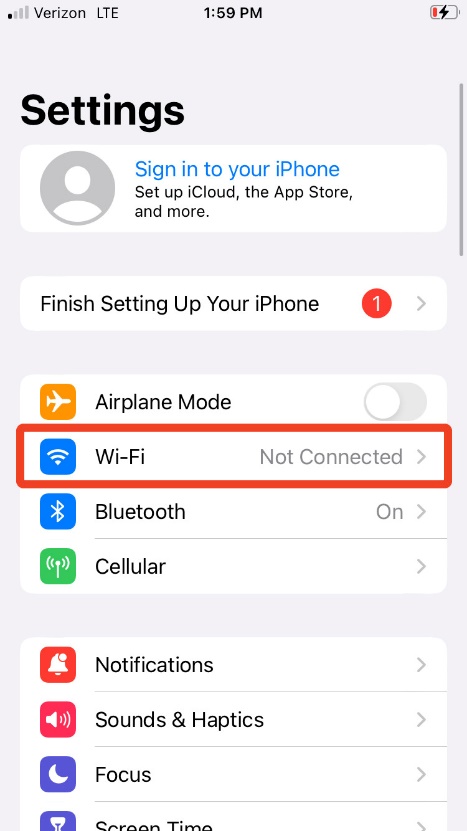
- Select Wi-Fi
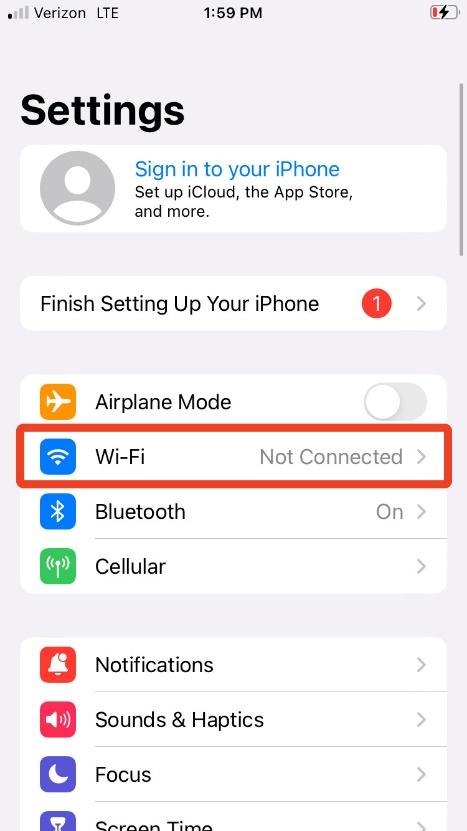
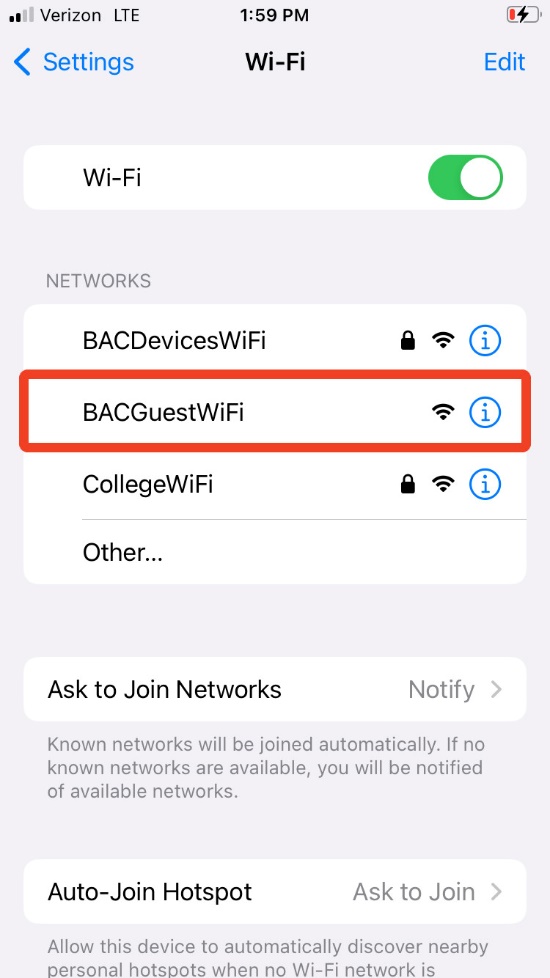
- Wait for your iPhone to scan for networks, then select BACGuestWiFi
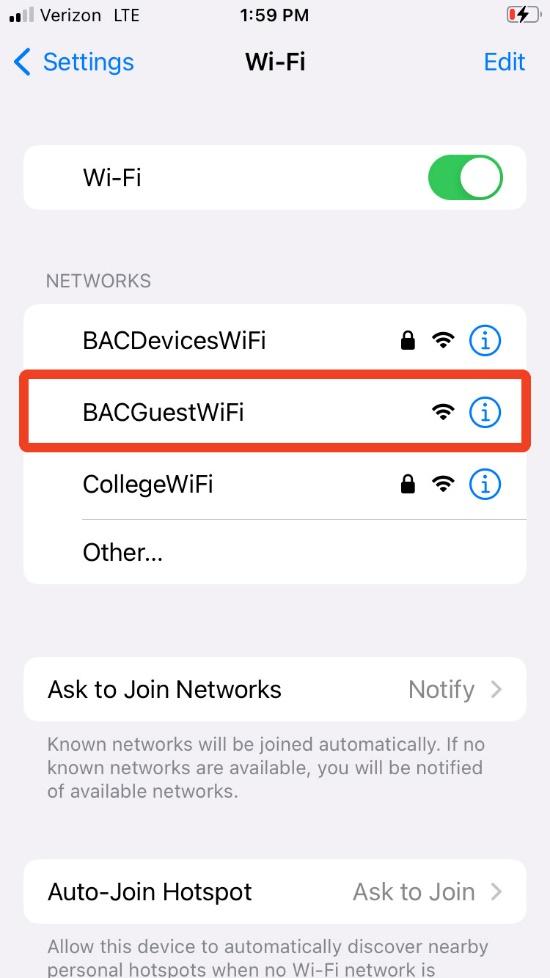
- Enter the password {{@69#bkmrk-bacguestwifi-pw}}
- Click Join.
You should now be connected. If not, contact the Helpdesk.
Android
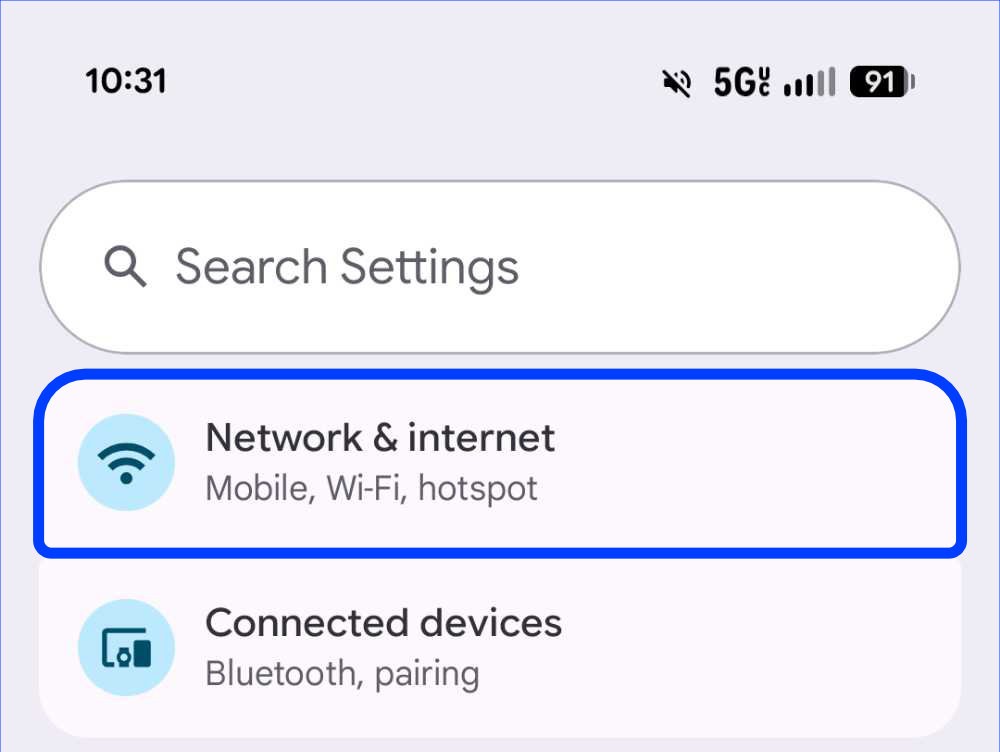
- Open Settings
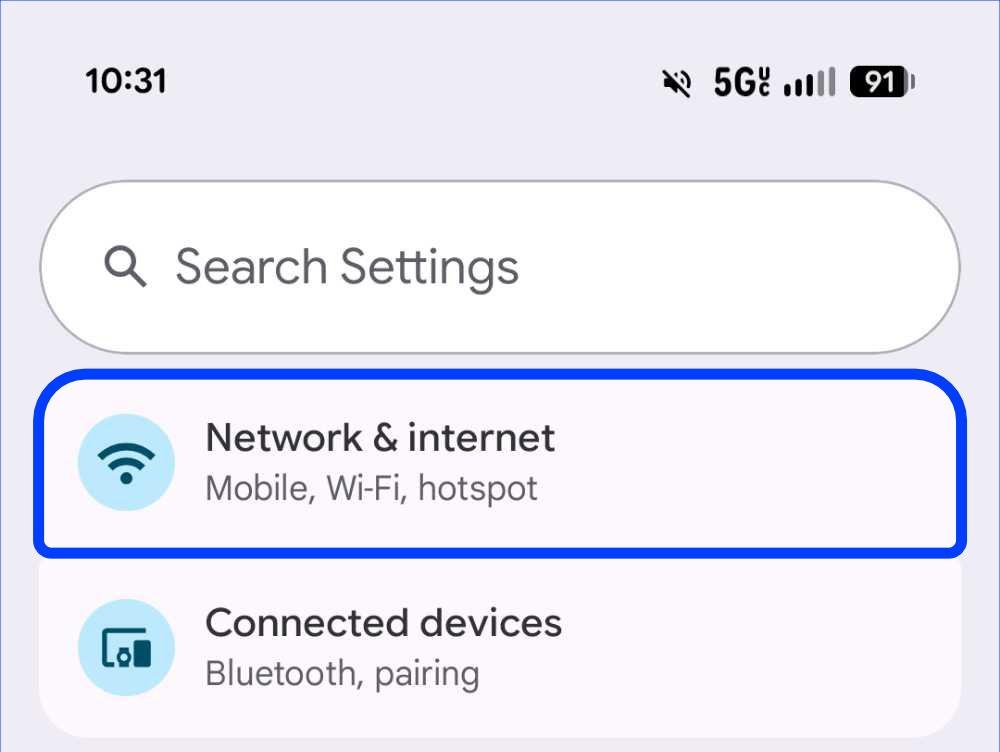
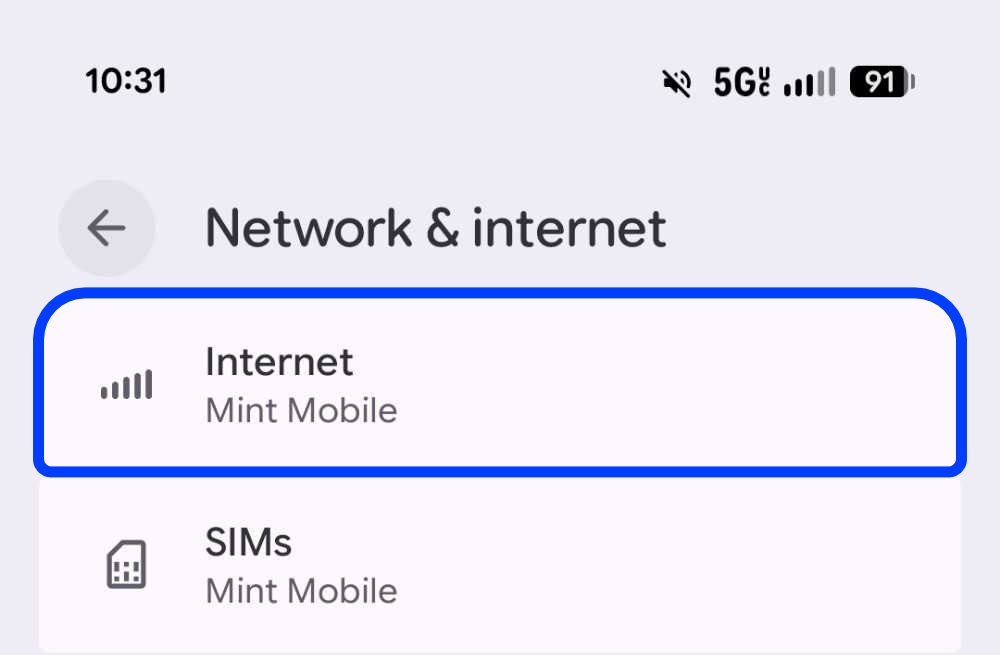
- Tap Network & internet
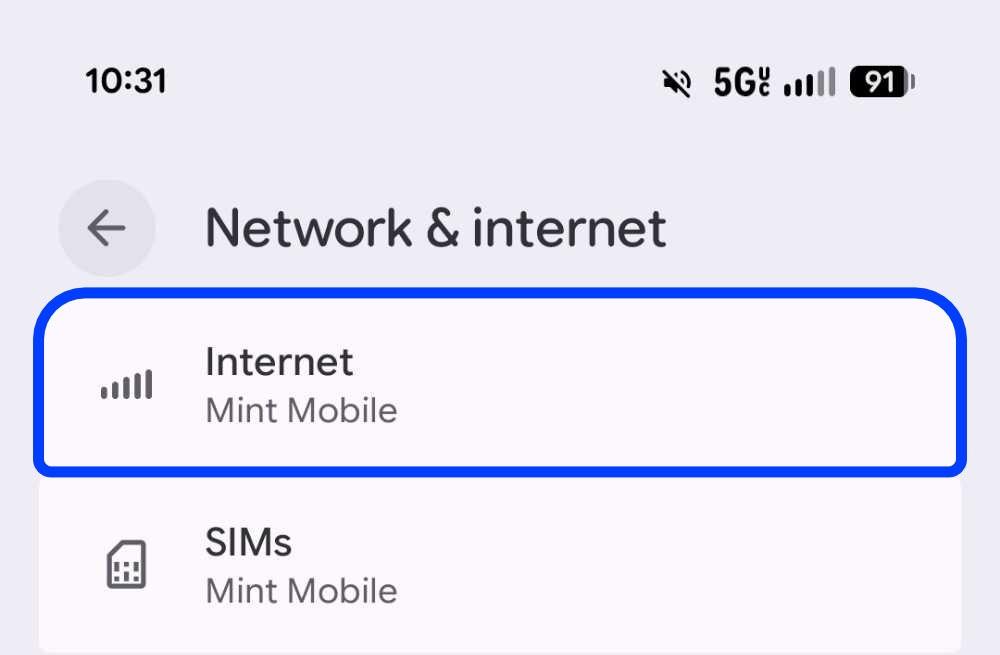
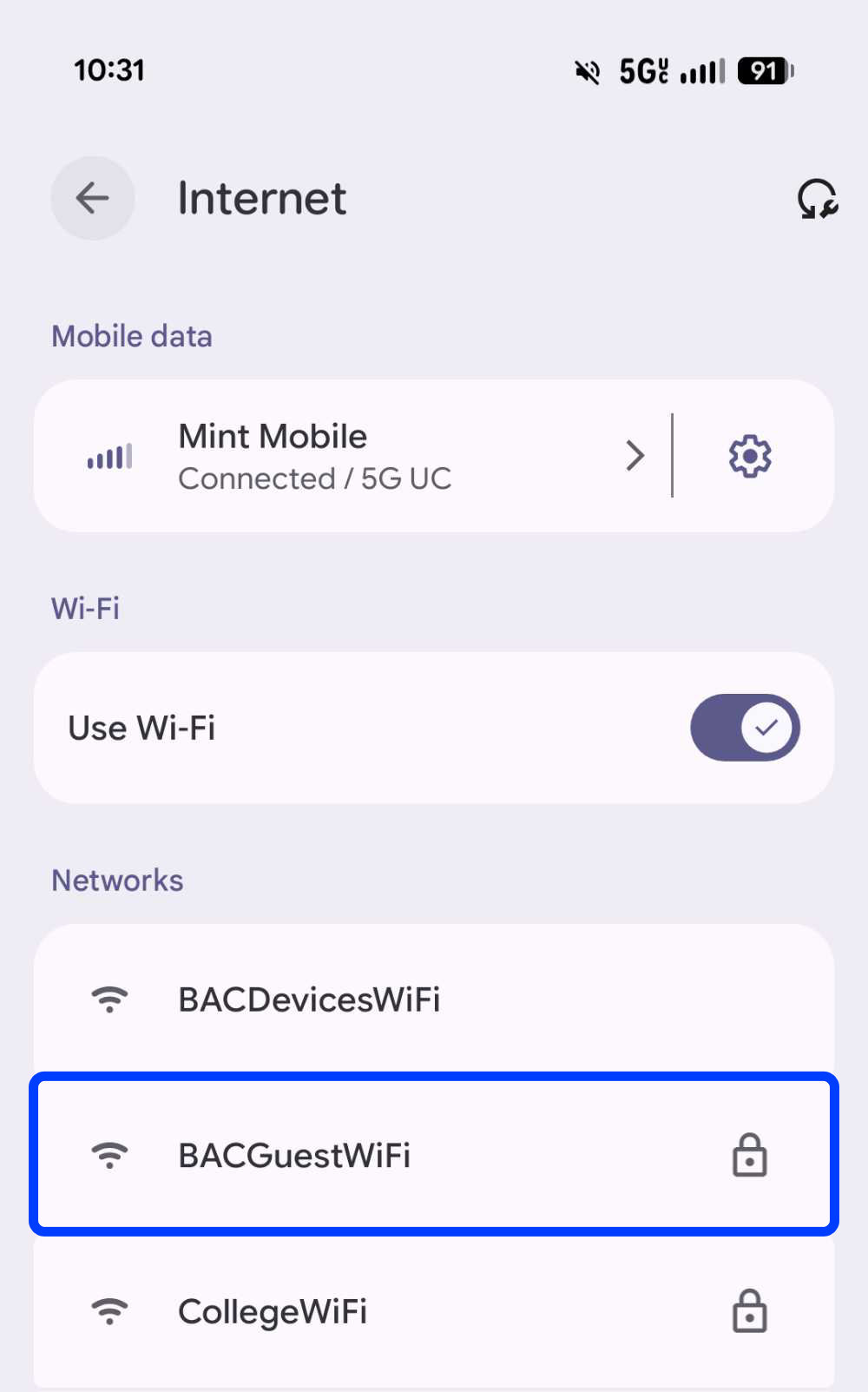
- Tap Internet
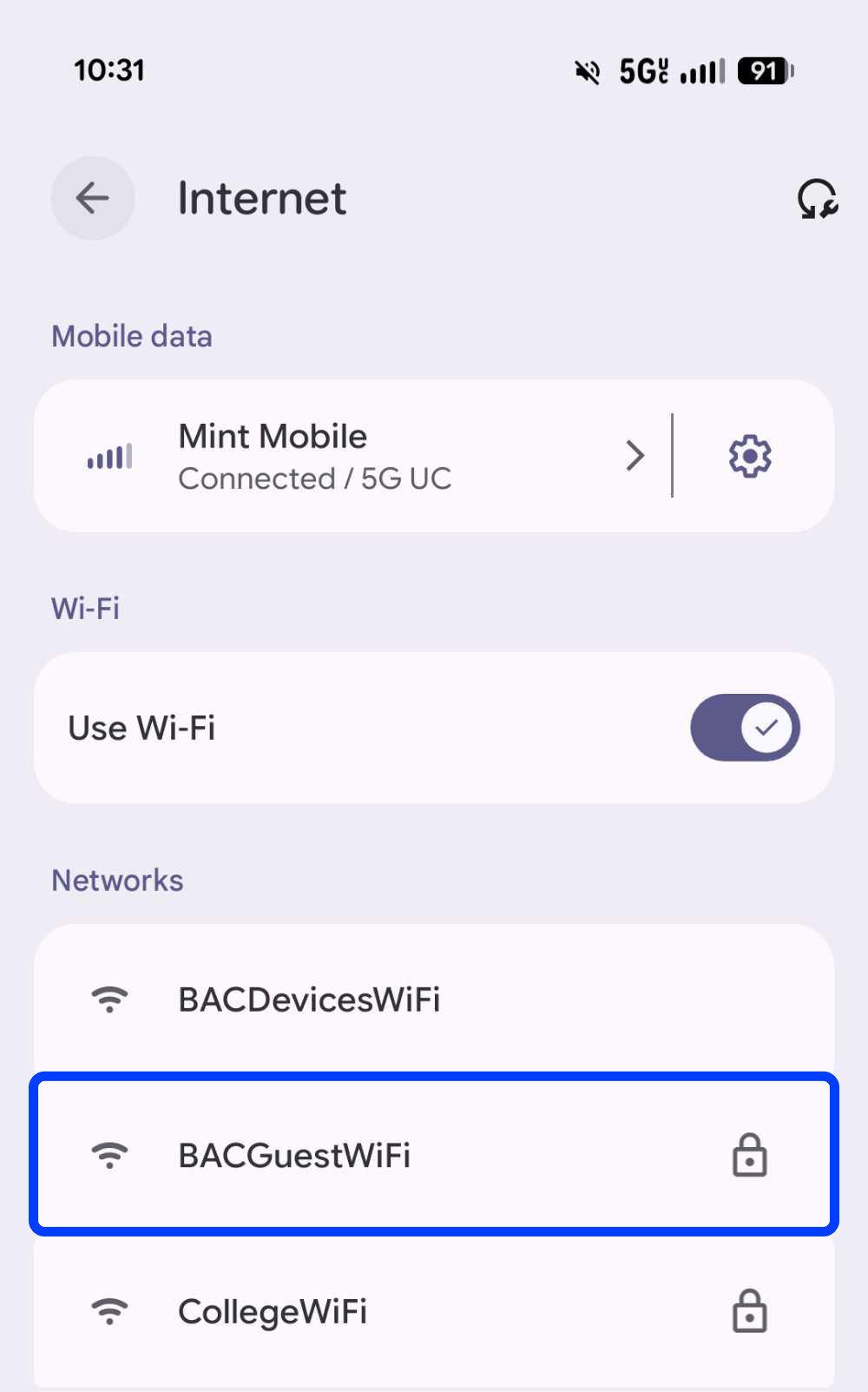
- Select BACGuestWiFi
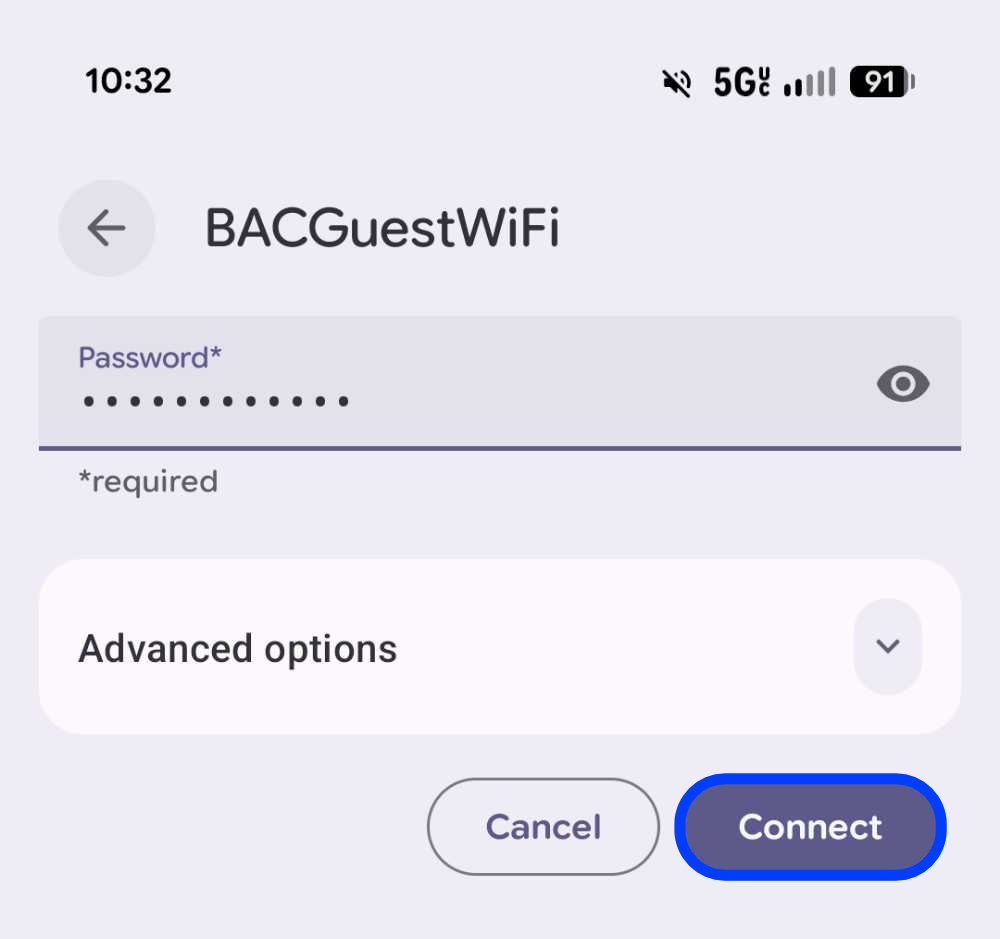
- Enter the password {{@69#bkmrk-bacguestwifi-pw}}
And tap Connect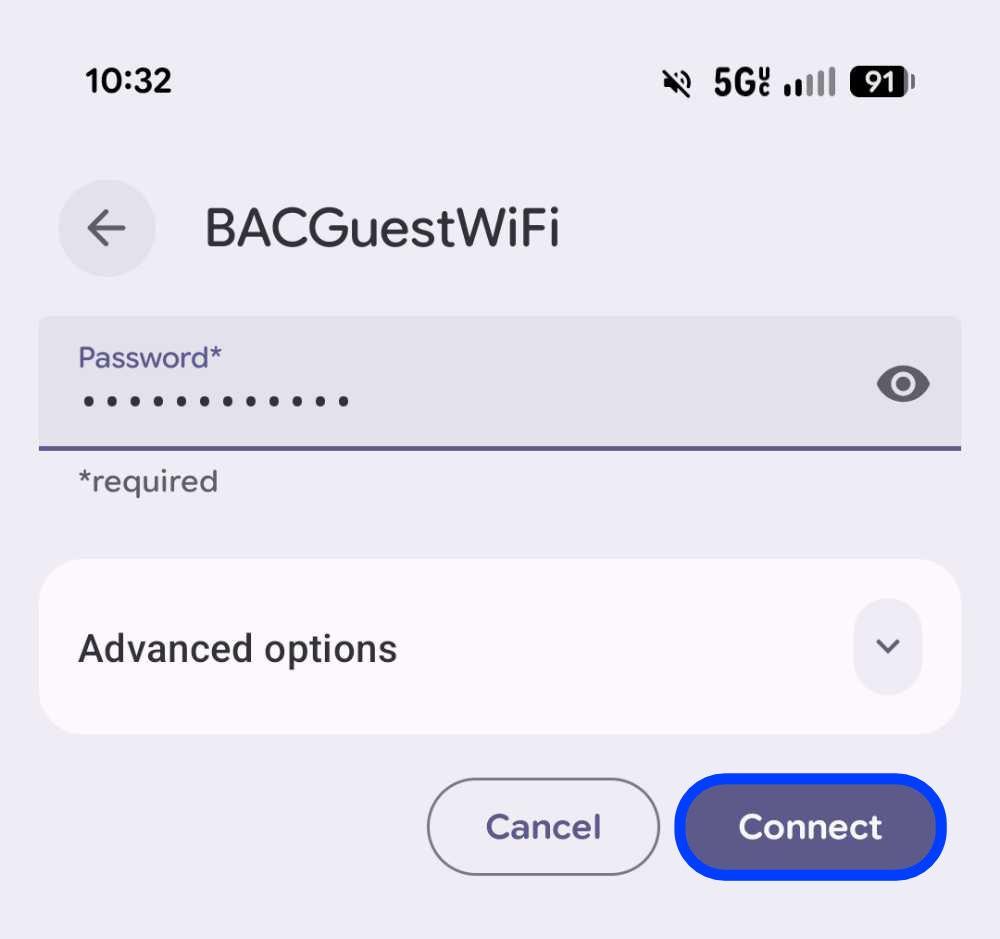
You should now be connected. If not, contact the Helpdesk.