PaperCut
Papercut Print Deploy allows you to use the FindMe virtual printer. When you print to FindMe, you can release the print job at any copier by going to it in person and scanning your ID. Not only does this let you print something and decide which printer you want to pick it up at afterwards, but it is also one of two ways to securely print on campus (see Secure Printing for more information). This page contains instructions on how to set up FindMe on Windows and MacOS.
This is a long one. Use the page navigation to the left of the reading pane to jump to an operating system instead of scrolling.
Windows
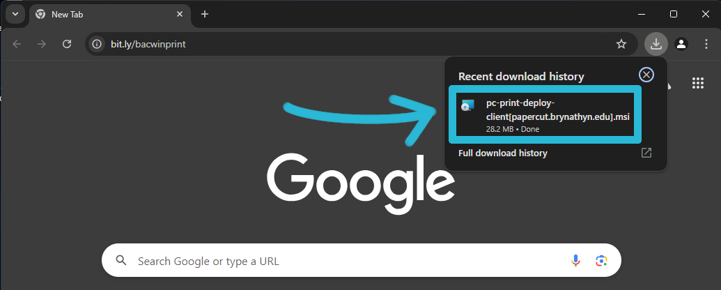
- Go to bit.ly/bacwinprint in your browser.
- This will automatically begin downloading the installer.
- Click on the installer from your download history to open it.
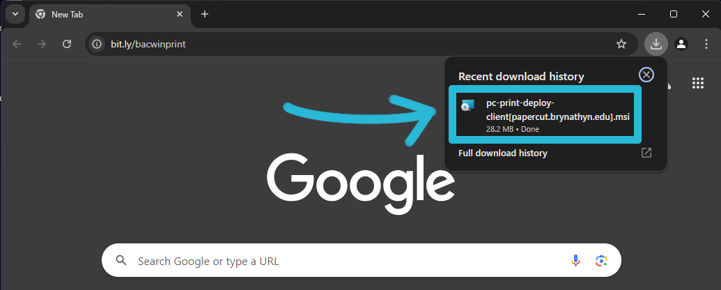
- Once it opens, follow the prompts to install Print Deploy.
Make sure to authenticate with any prompts that appear during installation and allow the program to make changes to your PC when prompted.
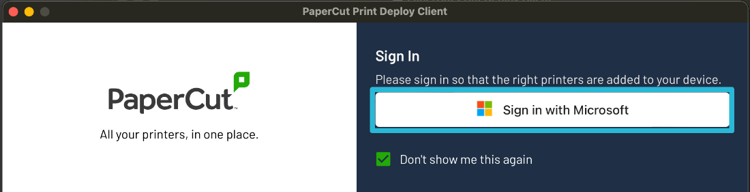
- After it finishes installing, a click “Sign in with Microsoft” in the pop-up box.
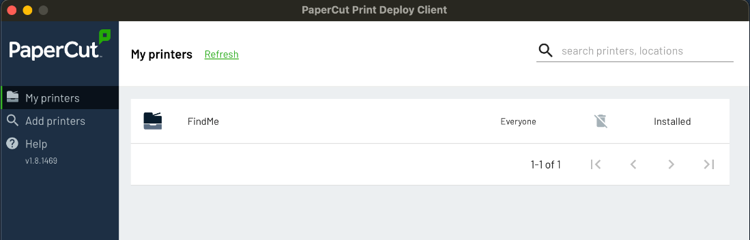
- After you’ve signed in with your Microsoft 365 account, Print Deploy should look like this. You can now close the window and Print Deploy will run in the background.
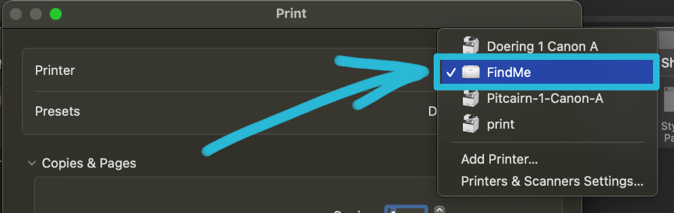
- When printing a document, select “FindMe” and print to it. You can then go to one of the campus copiers and release the print there.
- If you have your Bryn Athyn College ID card, scan it to release the print.
- If you don’t have your ID card, you can use the pin found on the PaperCut dashboard and enter that manually at the printer.
MacOS
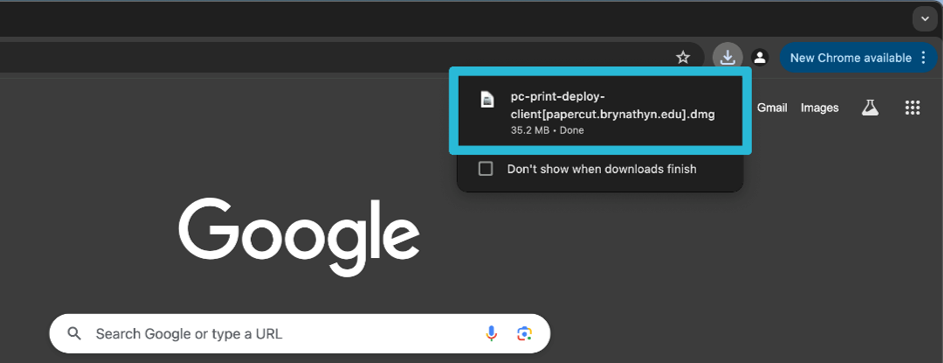
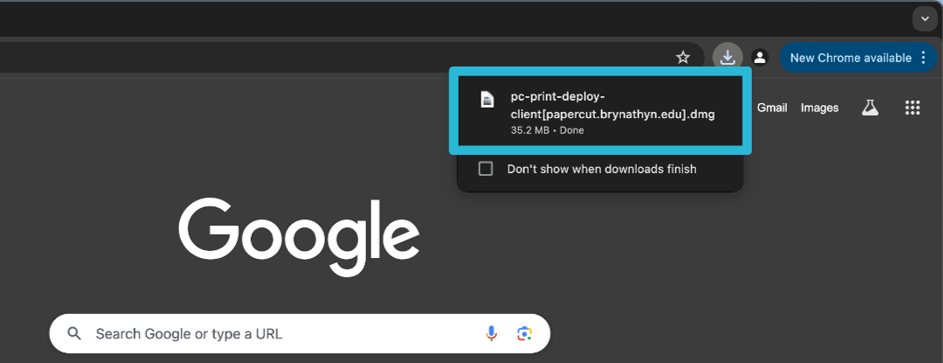
- Go to bit.ly/bacmacprint in your browser.
- This will automatically begin downloading the installer.
- Click the installer from your downloads history to open it.
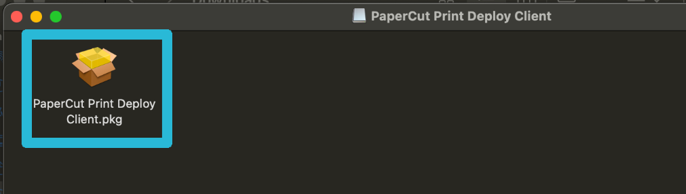
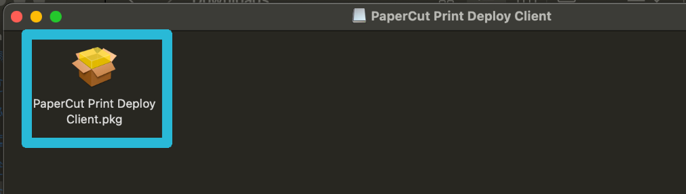
- Double-click the .pkg file in the pop-up window to start the installation.
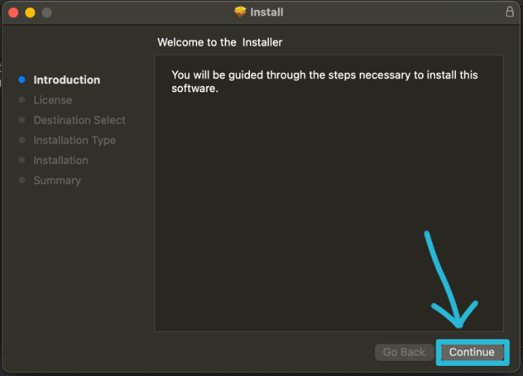
- Click Continue and follow the prompts to install Print Deploy.
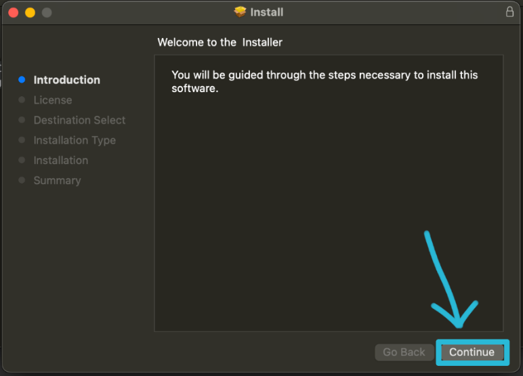
Make sure to allow any permissions requests and to authenticate when prompted.
- Once the installation is complete, click Sign in with Microsoft in the pop-up box.
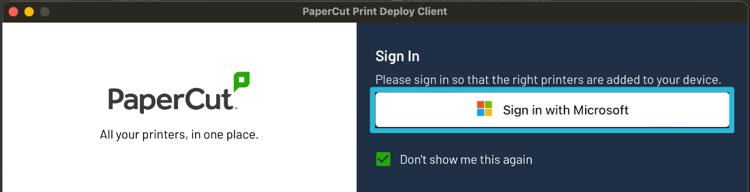
- After the installation is finished, Print Deploy should look like this.
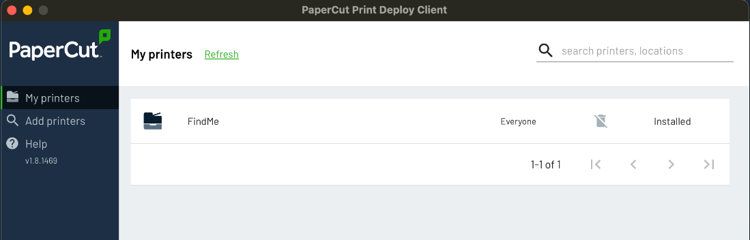
Ensure that FindMe says Installed on the righthand side.
- You can now close Print Deploy, and it will run in the background.
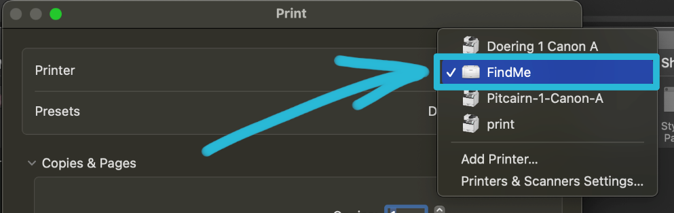
- When printing from the software of your choice, select FindMe and print to it. You can then go to any of the campus copiers and release the print there with your ID card or PaperCut ID.