
Printing on Non-Standard Paper
The bypass tray on a copier is an optional side tray that can be used for feeding abnormal paper, such as envelopes, glossy paper, or weighted paper. To use the bypass tray correctly, you will need to start at the physical copier before doing anything on your computer.
- Sign into the copier by scanning your ID card or entering your pin code.
- Press Access Device.
- Open the bypass tray and insert the paper you wish to print to.
- Make sure that you adjust the paper guides to line the paper up and keep it secure.
- Once your paper is in the bypass tray you should see a pop-up window on the copier display. This will display whatever the last selected options for the bypass tray were.
- If the displayed settings are correct, press OK.
Formatting issues may arise if the document format being submitted does not align with the settings configured on the copier when paper is loaded into the bypass tray.
- If you need to adjust the type or size setting, use the touchscreen to select each and adjust as needed.
- When selecting the size, you can usually select auto-inch and use the physical paper guides on the bypass tray for the copier to recognize the size. Otherwise, enter it manually.
- If you need to adjust the type or size setting, use the touchscreen to select each and adjust as needed.
- Sign out of the copier.
- Open the document you need to print on your computer.
The attached screenshots are of printing from Word. If you're printing from a non-Microsoft product, getting to the print menu may be slightly different, but the printer properties will look the same.
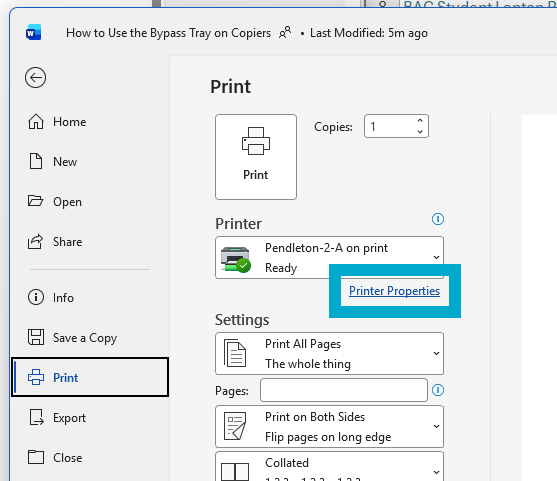
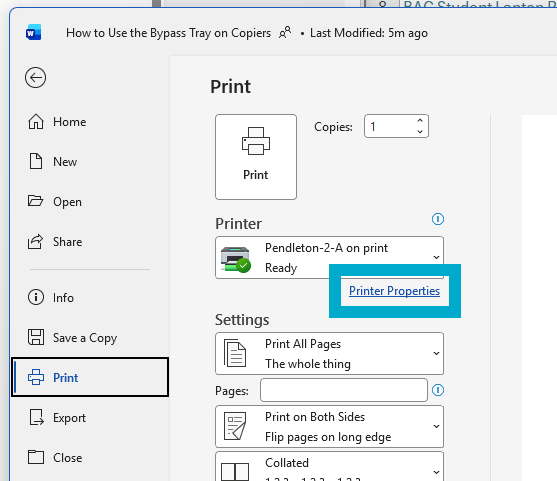
- Go to the Print menu for the software you are printing from.
- Select the Printer Properties link underneath the printer selection dropdown.
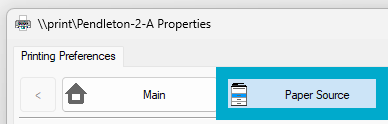
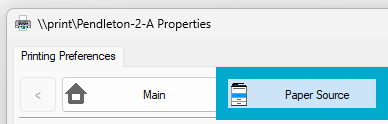
- Click the Paper Source tab in the window that appears.
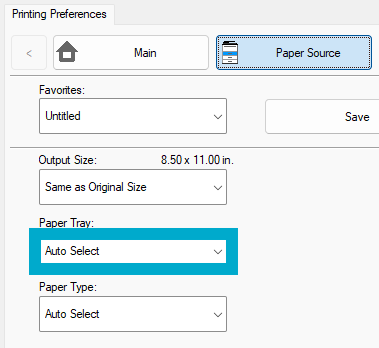
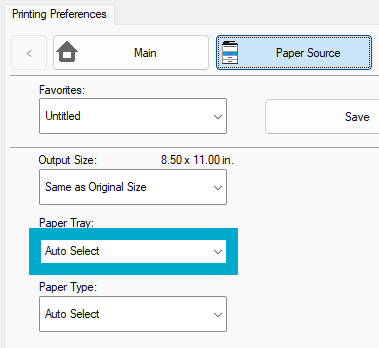
- Select the Paper Tray drop down menu.
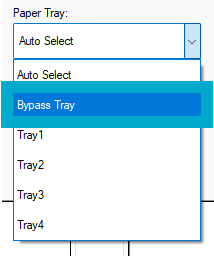
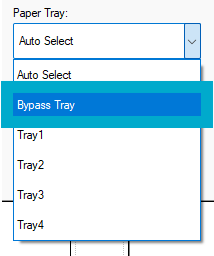
- Choose the Bypass Tray option.
For subsequent print jobs to the same printer, you will need to repeat steps 7-11 but instead set the paper tray to Auto Select. This will allow you to print normal pages without issue.
Your document can now be printed using the bypass tray and whatever paper type you specified.