Encrypting your Computer
Users with personal devices have a responsibility to ensure that their devices connected to the BAC Network are encrypted. College owned devices set up by Helpdesk will be encrypted during setup. This page has instructions for encrypting personal devices.
Windows
Pro / Education / Enterprise Edition
PRIOR TO ENCRYPTION: Device encryption requires the creation of a recovery key. If you are ever unable to log onto your device or your computer needs replacement, you will NOT be able to recover data from your disk without this recovery key. It is recommended you save it in multiple secure locations for future use. Helpdesk is not responsible for the storage of your recovery keys.
Home Edition
Windows Home uses BitLocker, however the user interface is significantly simplified. See this guide for instructions on how to encrypt your Windows Home device.
MacOS
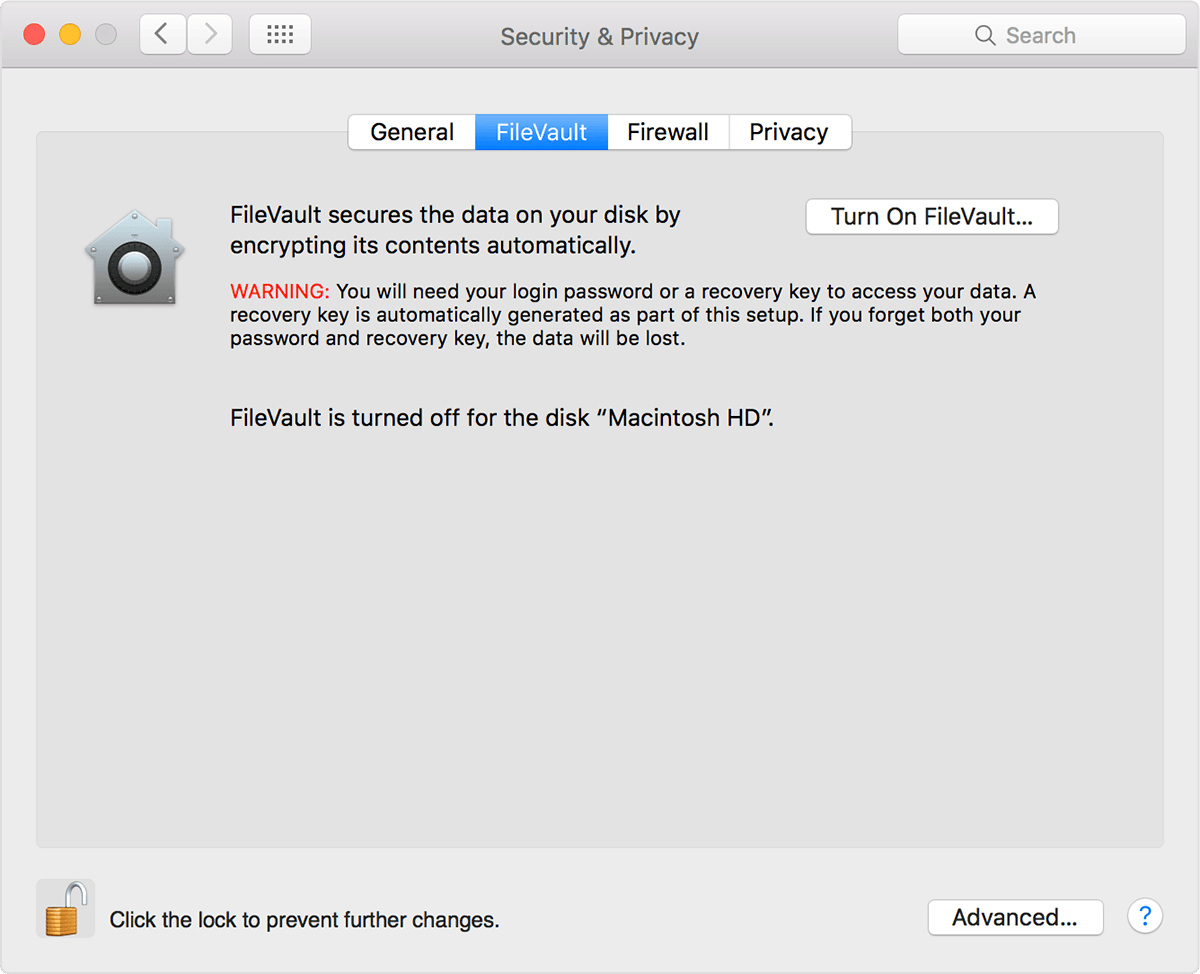
- Go to System Preferences.
- Open Security & Privacy.
- Choose the tab File-Vault and authenticate by clicking on the padlock in the bottom left corner.
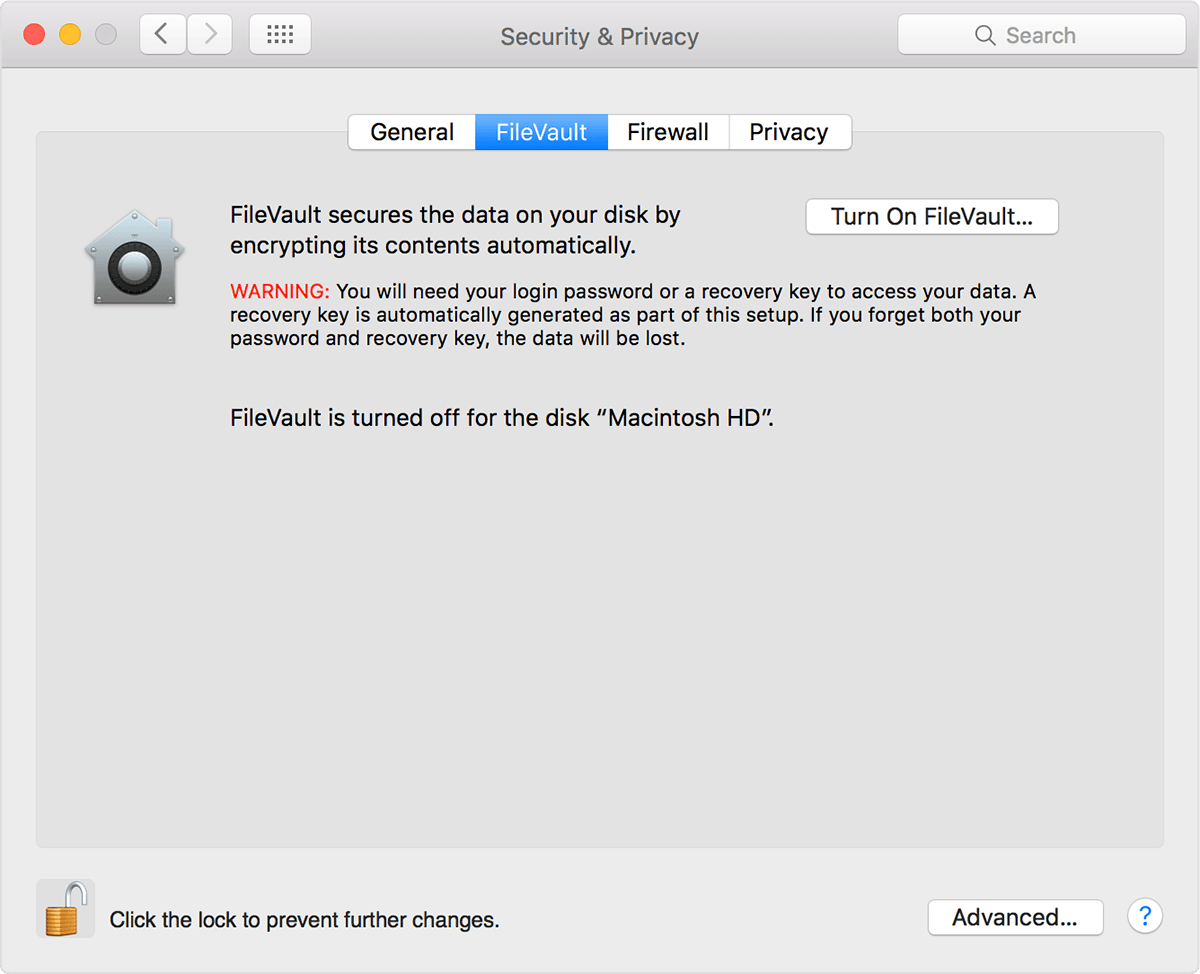
- Click Turn on FileVault.
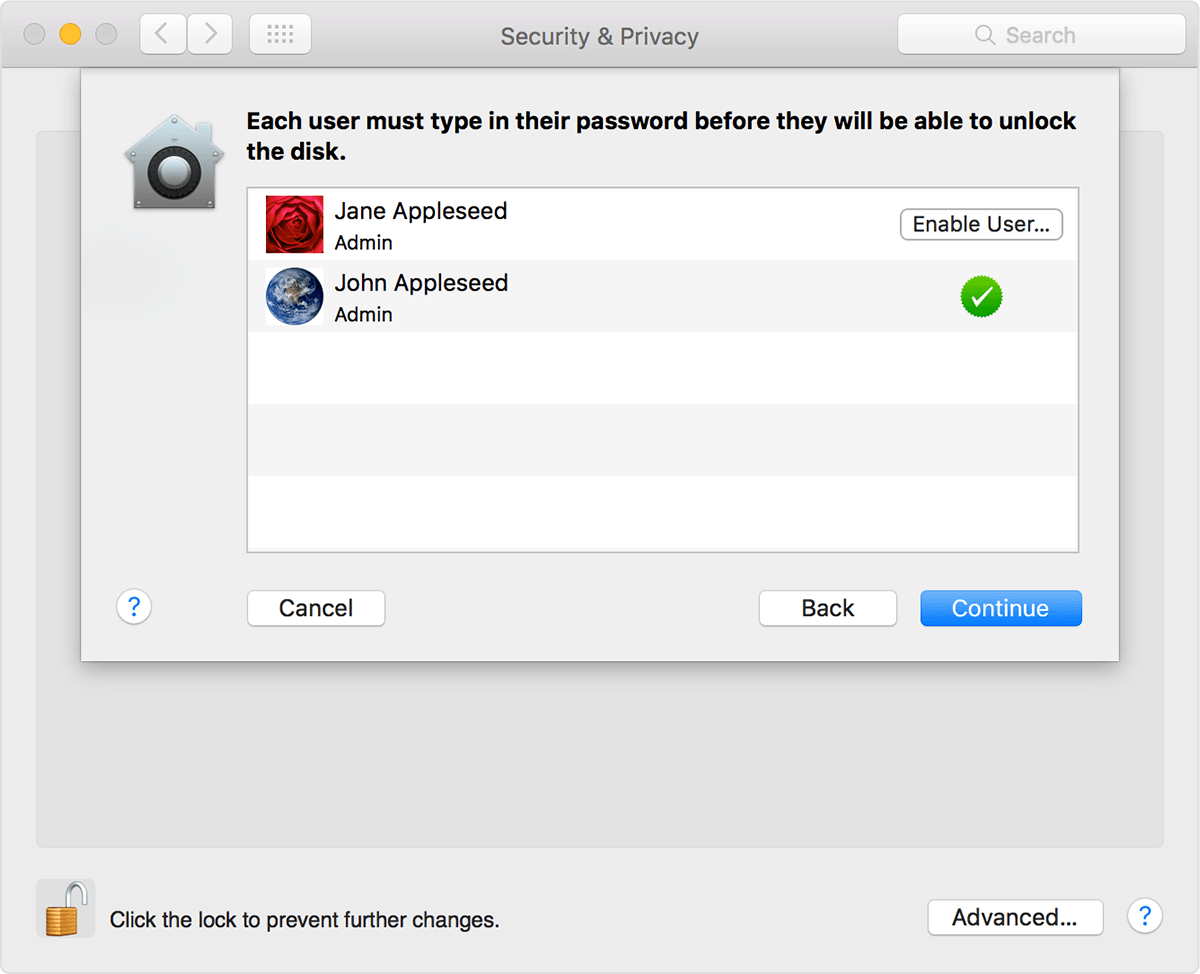
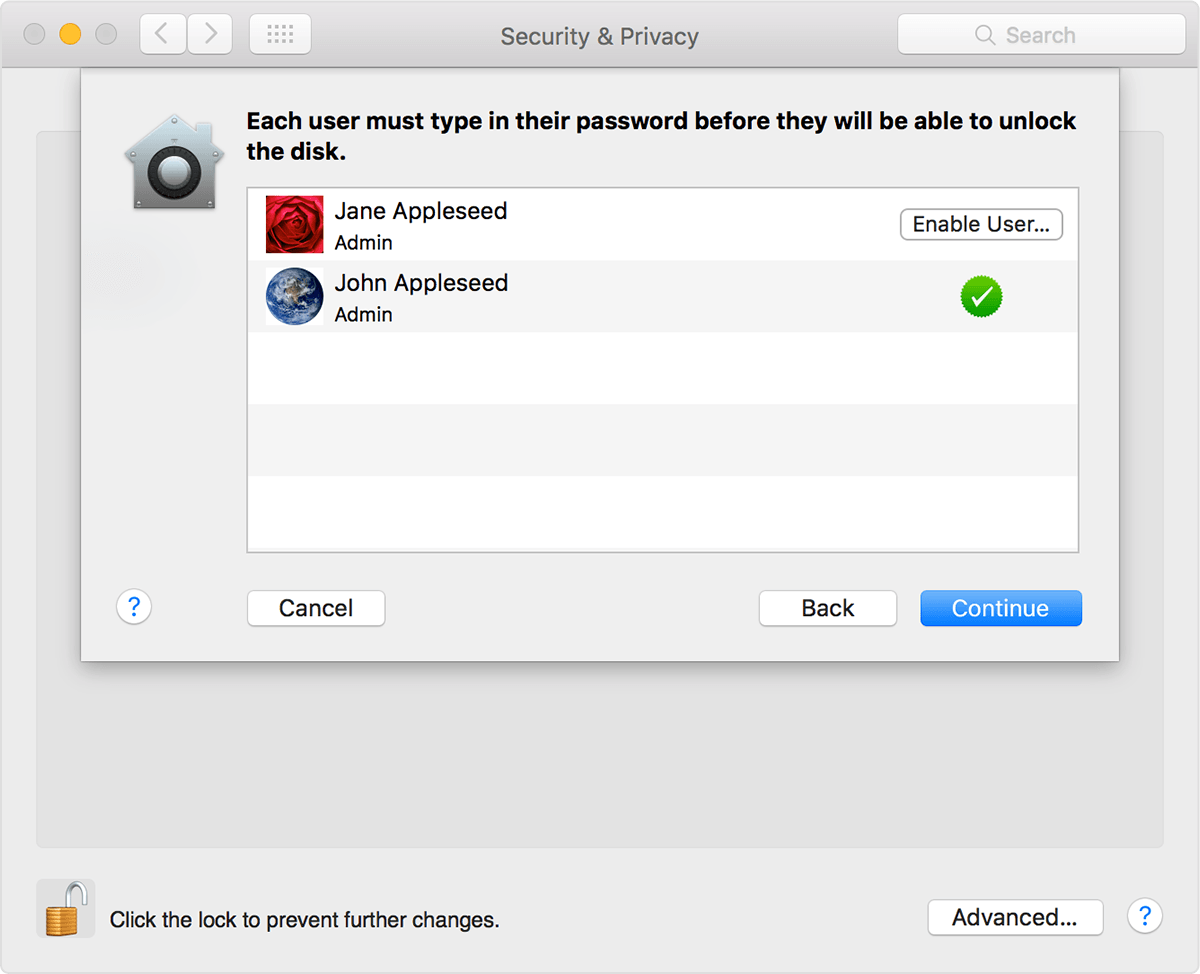
- Select the user(s).
- Write down/take picture of the recovery key.
If you forget your password, you will need this key to access your files.
- Apple can also store they key, in case you lose your password and all other backups.
- Restart your computer.