
Meeting on Teams
Scheduling a Meeting
When scheduling a Teams meeting, you are given a variety of options. To schedule a specific type of meeting:
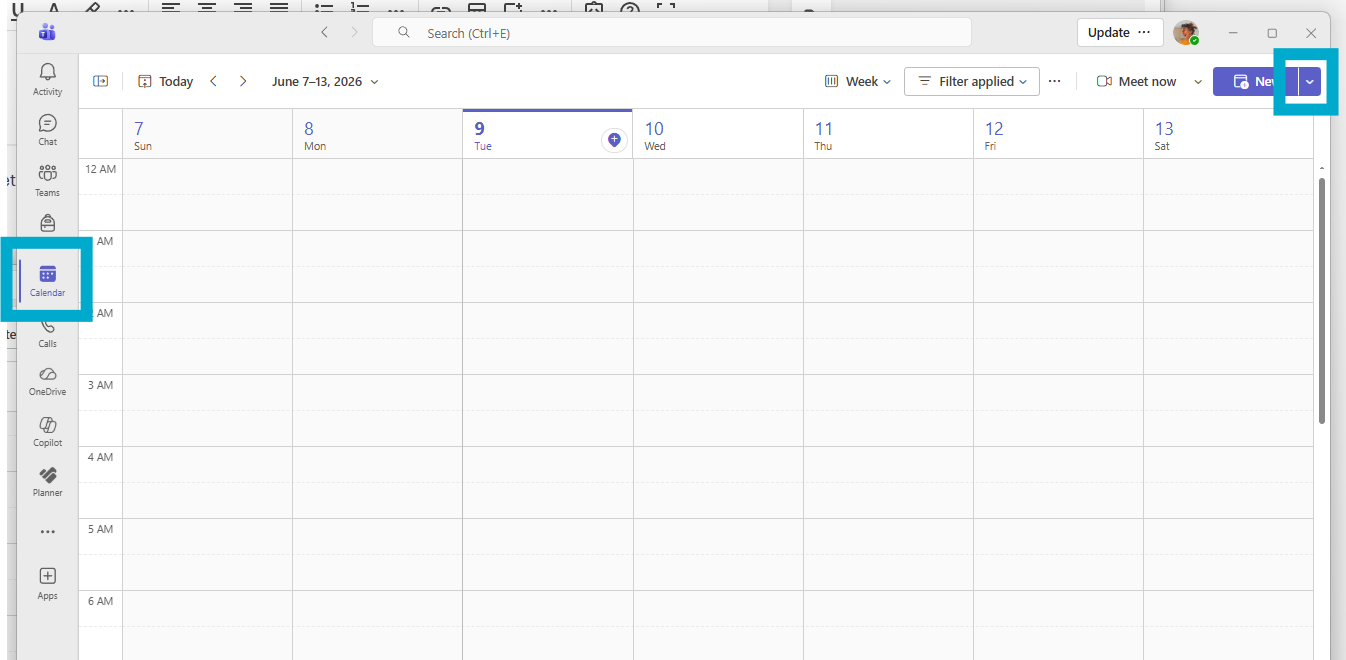
- Select the Calendar view.
- Select the drop-down arrow in the top right.
- Pick a template to use.
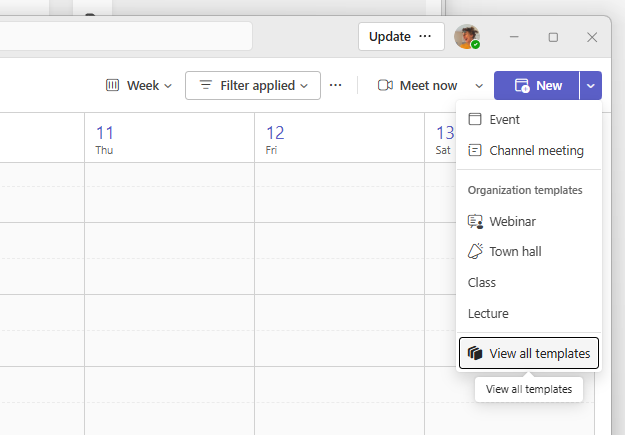
- View all templates will show the full list. Each is described in the section below.
- Fill in the rest of the basic information about the meeting (location, time, attendees, etc.), then send the invite.
Types of Meetings
Channel Meeting
Choosing Channel meeting will create a basic Teams meeting where participants can discuss with each other. This is the best option for one-on-one or group conversations.
Live Event and Town Hall
Live Events and Town Halls support a massive number of viewers connecting to watch content live from the host. Viewer participation is under the control of meeting organizers for managed Q&A and similar interaction. These are best suited to public presentations. The main difference is that in Town Halls participants are strictly limited to no microphone or camera, whereas in Live Events input permissions can be changed.
Webinar
Webinars are similar to live events, but have advanced features both for pre-registering attendees, and for managing multiple presenters. This is ideal for when presenters are attending from multiple locations.
Lecture and Class
These are very similar to meetings, but have a few additional options to limit which participants can present, use their mics, text chat, etc. The only difference between the two is that classes have chat set to only during the meeting, whereas lectures default to having the chat available outside the meeting.