
Reporting messages in Outlook
Use the Report Message drop down to select from a couple ways to deal with phishing or junk mail. These features help Microsoft keep your information safe and your inbox filled with only important emails. For more help with managing Junk/Spam emails, see the Microsoft Support page.
Instructions
The screenshots below will match the Outlook website and the modern version of the desktop app. If you use the old version (Outlook Classic) on your desktop, the buttons may be in different locations.
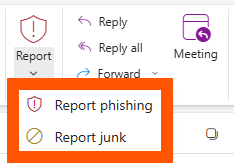
- In the Home tab, click the Report button with the dropdown arrow.
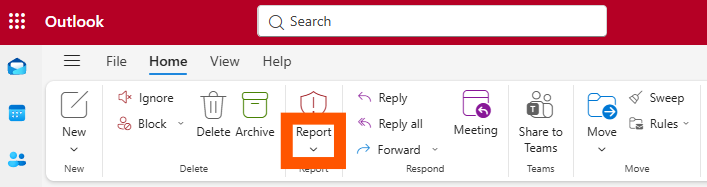
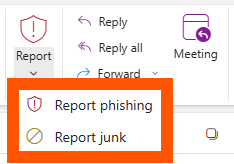
- With the message you want to report highlighted, click Report junk or Report Phishing. See Junk and Phishing at the bottom of this page if you don't know which to select.
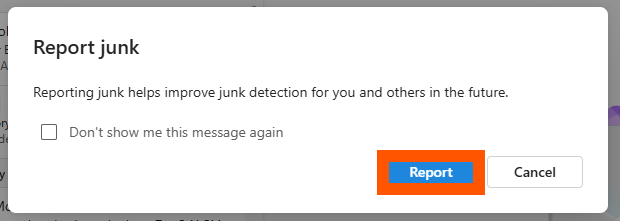
- Click Report to confirm.
- The message will be moved to your Junk Email folder. After 30 days there, it will be deleted.
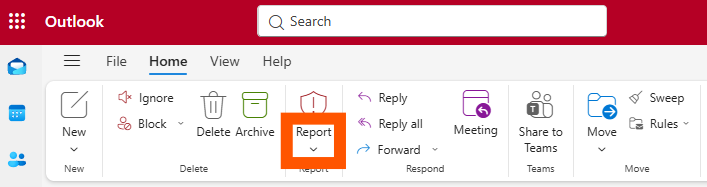
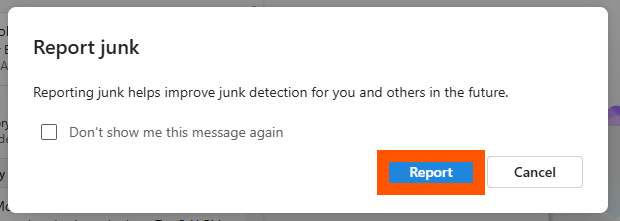
When you report a message, a copy will be sent to Microsoft to update spam filters, and all future messages from that sender will be sent directly to the Junk Email folder.
If you reported a message accidentally and wish to restore it:
- Find the message in your Junk Email folder and select it.
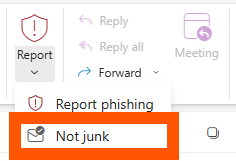
- Click the Report dropdown.
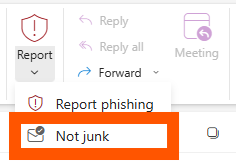
- Click Not junk.
Junk
These are messages that you don't want to receive. For example, they may be advertisements you don't care about or find offensive. Junk emails are annoying, but not necessarily malicious.
Phishing
Phishing is the practice of luring you into disclosing personal information, such as bank account numbers and passwords. Often phishing messages look legitimate but have deceptive links that open fake websites. Phishing emails are always malicious, but not necessarily annoying.