
Using a Password Manager
The Helpdesk recommends you use a password manager to keep track of your account information. The default password managers in your web browser are not actually very secure; not to mention that your browser login is likely the first thing to be compromised in a theoretical data breach. Our recommendation is to use Bitwarden, which is high quality, free, and cross-compatible.
Switching pagefrom containsyour instructionsbrowser onpassword howmanager to set up Bitwarden onis yourquick computer.and simple! Instructions for this are at the bottom of the page. Take me there!
Setup
- Go to https://bitwarden.com/
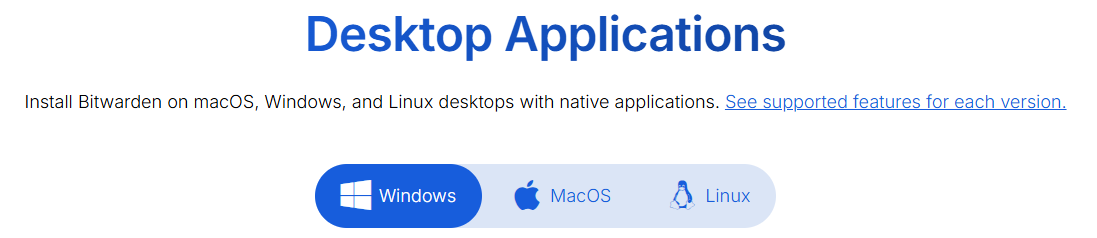
- Click on the Downloads tab at the top of the page.


- Download and install the desired version of
Bitwarden.Bitwarden (we recommend you start with the desktop application). The available versions are:- Browser extension—useful for auto-filling usernames and passwords online

- Desktop application—useful for filling in credentials in non-browser applications faster
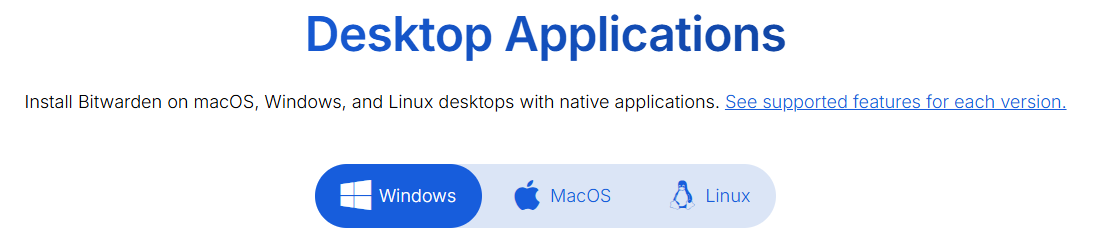
- Bitwarden is also available as a mobile app for use on the go, as well as being viewable as a normal website.
- Browser extension—useful for auto-filling usernames and passwords online
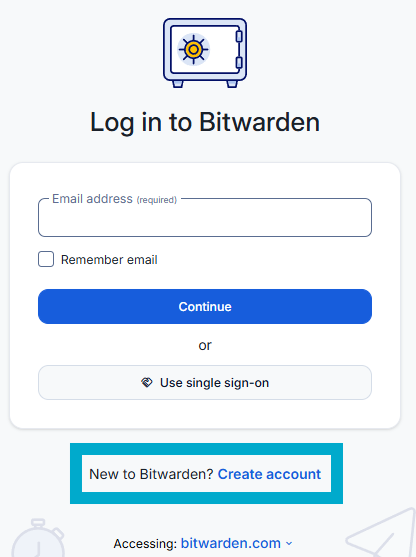
- Find and open
Bitwarden.the version of Bitwarden downloaded. - Click on Create Account.
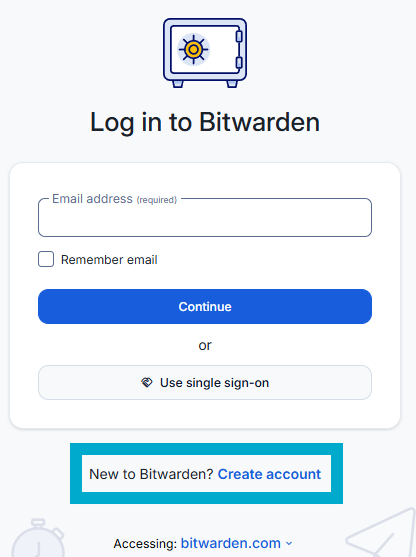
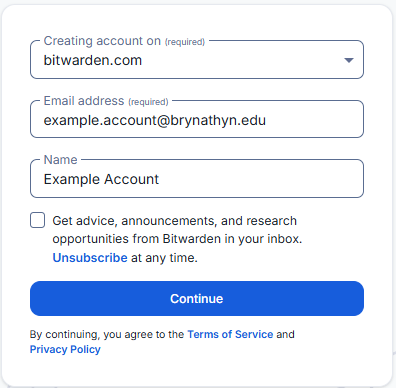
- Fill out the information on the screen and
rememberclicktoContinue.
check the Terms of Service box.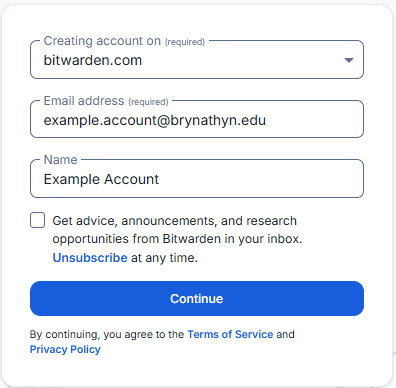
If you forget your master password, you will NOT be able to access your vault. Neither the Helpdesk nor Bitwarden support can help you get back into your account.
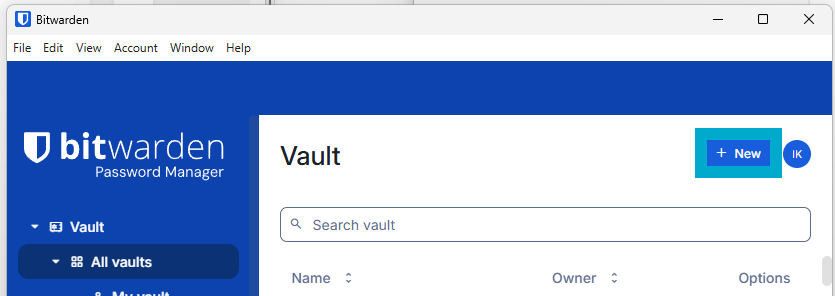
Once completed, youYou will now be able to log in on the main page.- Once in,
youclickwill+seeNew to add aplusnewsignloginat(desktoptheapplicationbottompictured,whichhoweverwillthisletshouldyoubeaddevidentpasswords.on all platforms).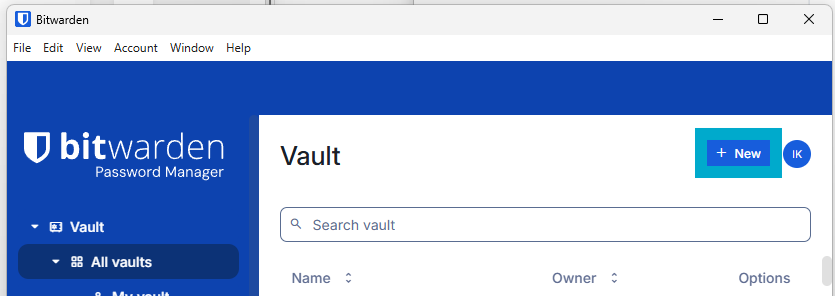
- Store various passwords by filling out the Name, Username, and Password fields.
- You can
alsoinclude the URL and any notes related to the account/log in. - You will be able to either right click on the entries or select the
littleclipboardsignsicons next to them when you need to copy/paste your password over. - You can also store things like debit or credit cards and use Bitwarden to securely auto-fill them in various websites or apps.
- You can
- Once you have, say, the
checkmarkdesktopnextversion installed, we recommend installing the browser extension and mobile app. Once you log in with the account you created, all of your passwords will appear and be accessible just like that.


There are also paid versions of Bitwarden that are available for both individual use and sharing either with one person or family. This can allow you to theshare passwordpasswords and access other premium features like MFA. More details can be found at this link: https://bitwarden.com/pricing/
Transferring your Passwords
Passwords saved in your browser can either be easily exported, then imported into Bitwarden; or even more easily imported straight from Bitwarden (depending on where you want to seeexport whetherthem itfrom). hasTo beendo exposedso:
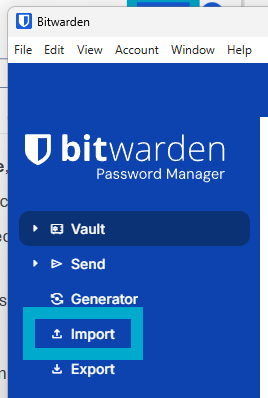
- In the Bitwarden desktop application, click the Import button on the left side of the main screen.
- Under File format, select the location of the passwords you exported from.
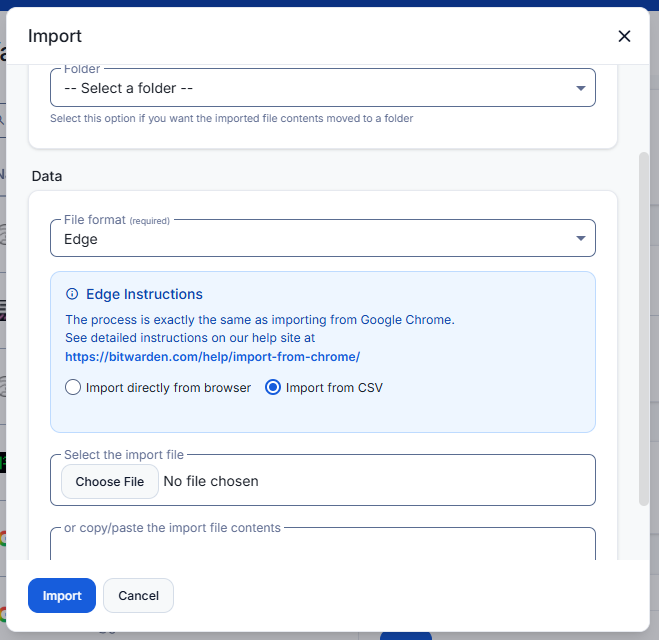
- Follow the instructions that appear for the location you selected.
- Click Import.
- If you have passwords stored in
anymultipleknownbrowsersbreaches.orTheaccounts,passwordrepeatusedfor each browser/account you have used.
Congratulations, your passwords are safely and conveniently stored in the screenshot is password
Bitwarden stores all passwords encrypted in the cloud and the vault will sync across all your devices. Bitwarden!