
Logging in to Microsoft 365
Microsoft 365 may ask you to log in at various points on various applications or websites. If you come across a sign in window and encounter any errors or other difficulties, follow the instructions below.
For more information about what to enter for your email, see Emails vs. Usernames.
Instructions
- Ensure that you're in the correct place
- The proper window should look like this:
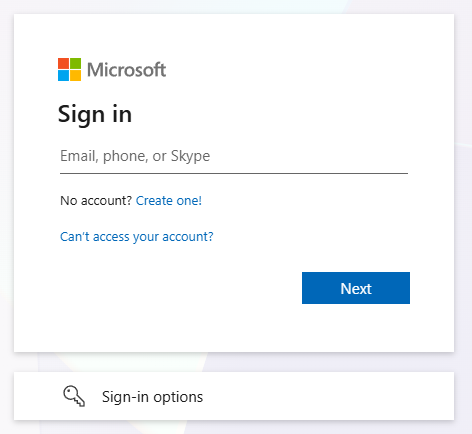
- Enter your email address where it says "Email, phone, or Skype"
- e.g.
john.smith@brynathyn.eduorjdoe@newchurch.org
- e.g.
- Click "Next" or press enter
- Enter your Microsoft account password in the "Password" field that appears
- Click "Sign in" or press enter
- You should receive a prompt to "Approve sign in request". Follow the provided instructions to complete your sign in.
If this is your first time logging in to a Microsoft 365 service, you may want to download the suite of apps. See Installing Microsoft 365 for more information.