
Logging in with Microsoft 365
Your Microsoft 365 account is used to log in to various services provided by the college. This includes the Microsoft 365 suite of apps (Word, PowerPoint, Excel, Outlook, Teams, etc.), as well as other places like Moodle. All of these will ask you to sign in occasionally. If you come across a sign in window and encounter any errors or other difficulties, follow the instructions below:
If you want to log into a specific app like Outlook or Word, go to https://m365.cloud.microsoft/apps.
- Ensure that you're in the correct place.
The proper window should look like this: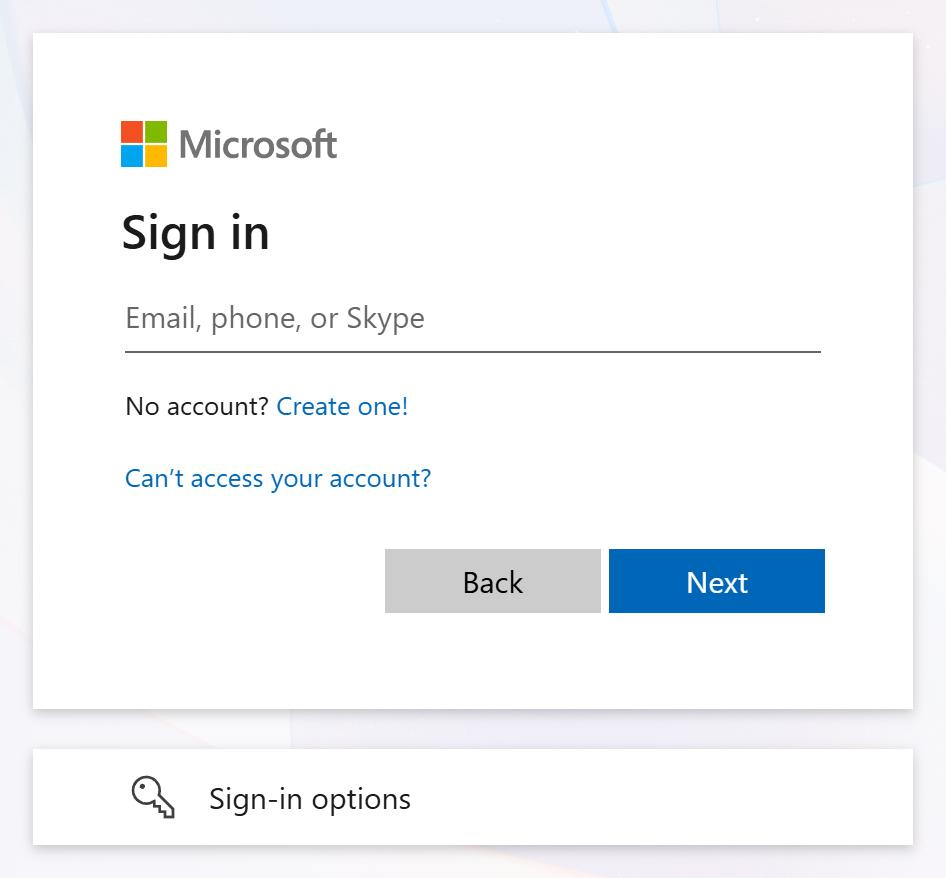
- Enter your email address where it says Email, phone, or Skype.
For more information about what to enter, see What is my Username and Password?
- Click Next.
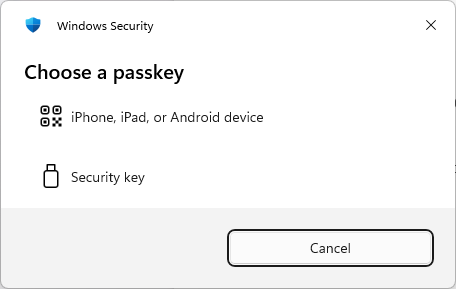
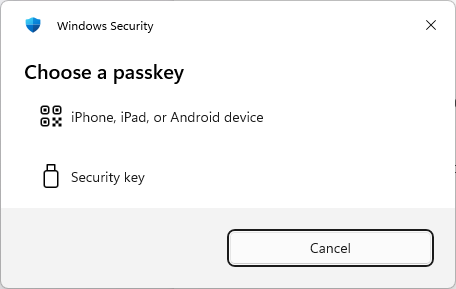
- If you receive a prompt for a passkey, click Cancel.
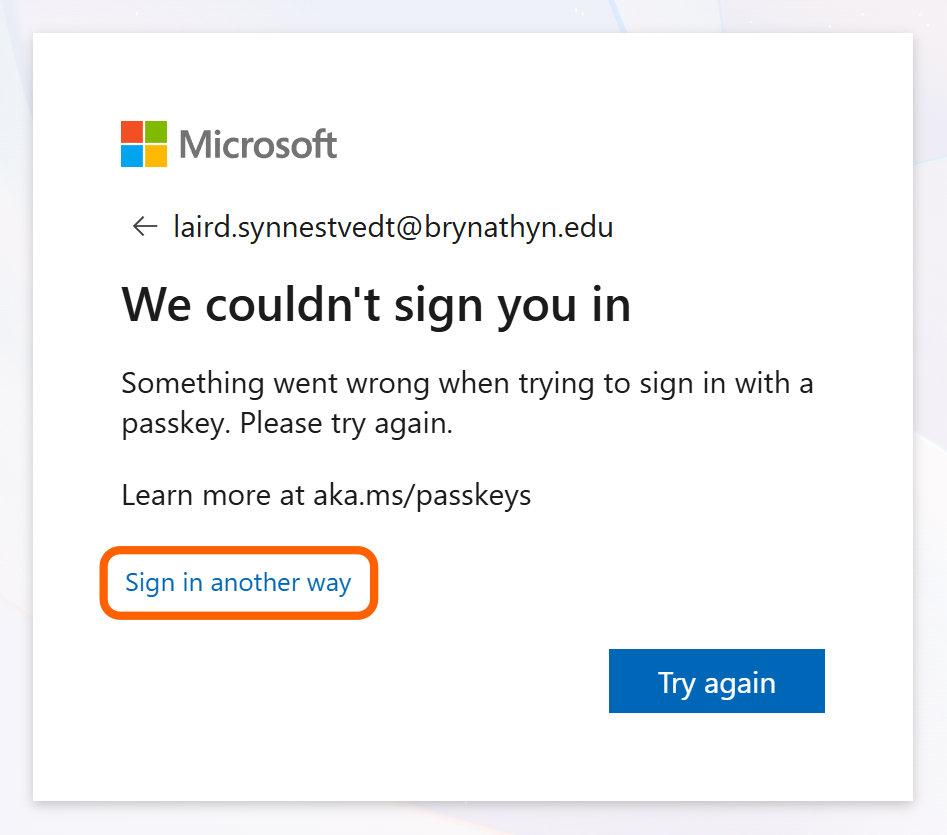
- Select Sign in another way to use your password instead.
- If you receive a prompt for a passkey, click Cancel.
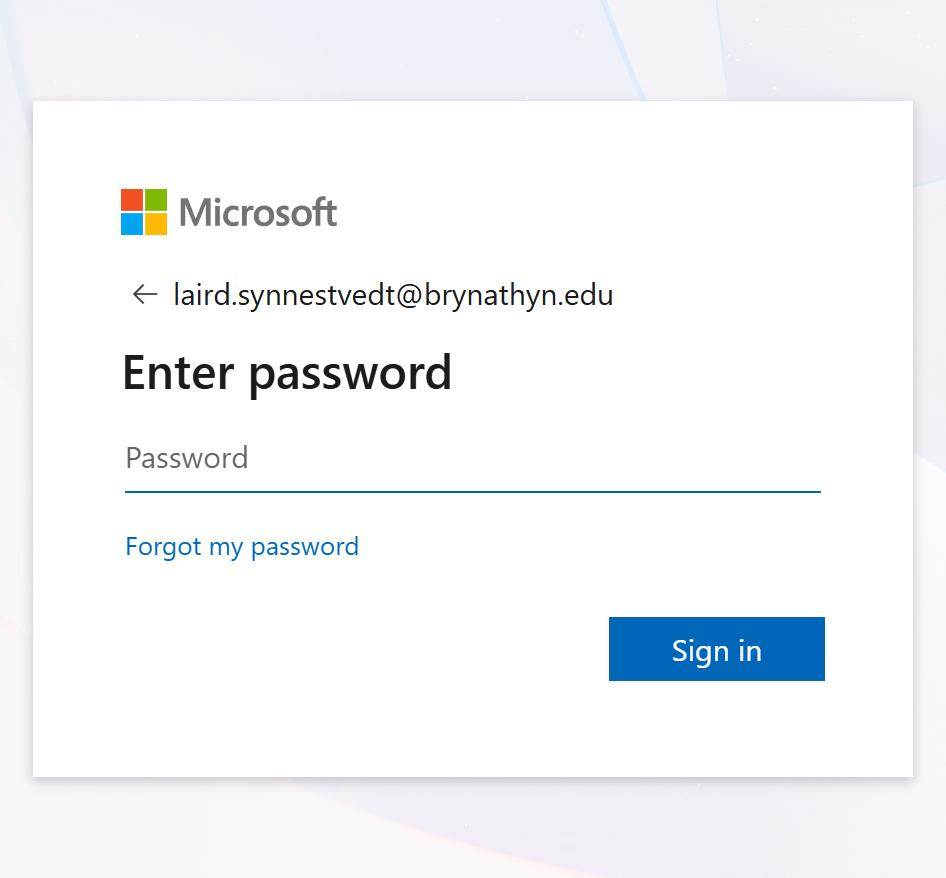
- Enter your Microsoft account password in the Password field that appears.
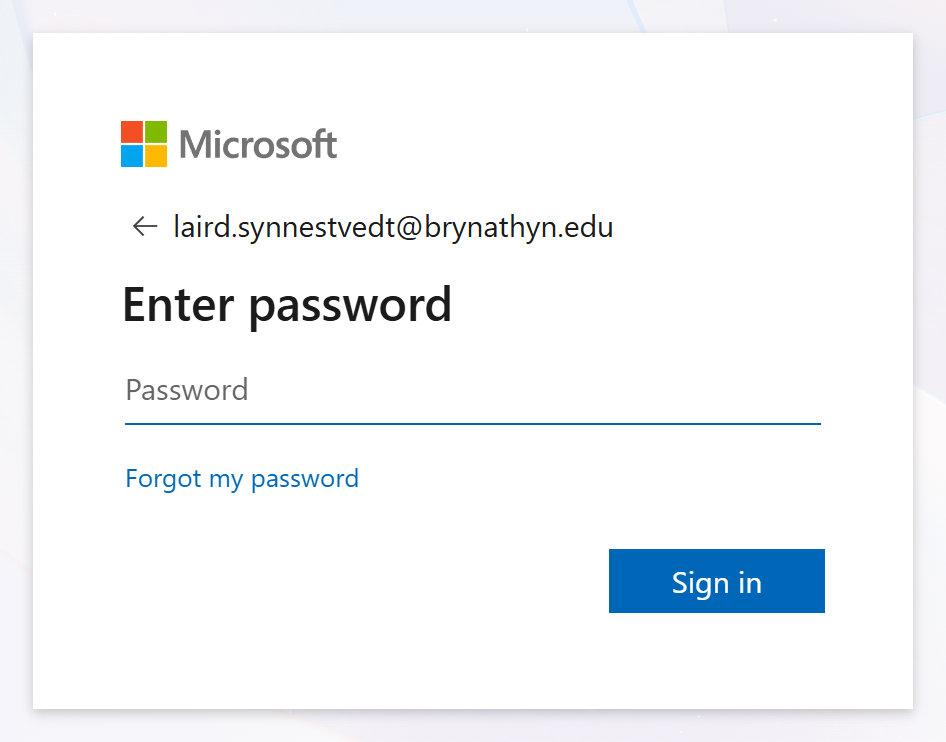
- Click Sign In.
- You may receive a prompt to Approve sign in request. Follow the provided instructions to complete your sign in.

Congratulations, you've signed in with Microsoft 365!