
Logging in to Microsoft 365
Microsoft 365 may ask you to log in at various points on various applications or websites. If you come across a sign in window and encounter any errors or other difficulties, follow the instructions below.
For more information about what to enter for your email, see Emails vs. Usernames.
General Instructions
- Ensure that you're in the correct place
- The proper window should look like this:
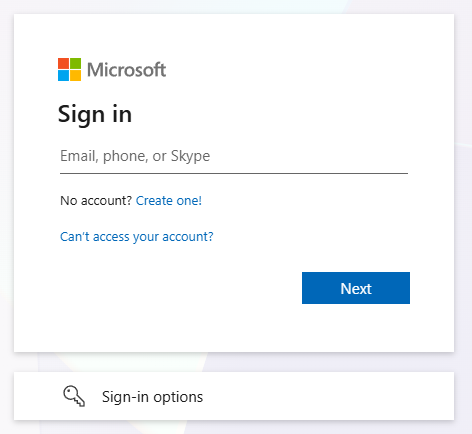
- Enter your email address where it says
"Email, phone, orSkype"Skype- e.g.
john.smith@brynathyn.eduorjdoe@newchurch.org
- e.g.
ClickSelect"Next" or press enterNext- Enter your Microsoft account password in the
"Password"Password field that appears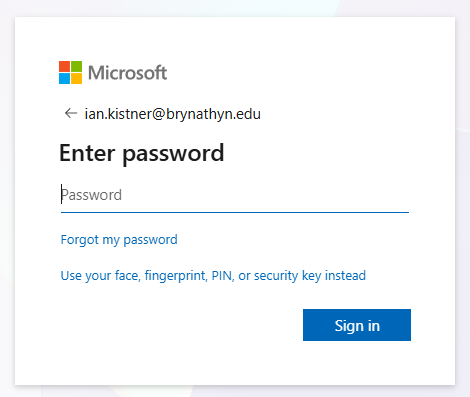
ClickSelect"Signin" or press enterInIf this is your first time logging into Microsoft 365, skip step 6 and read the Initial Login section below.
- You should receive a prompt to
"Approve sign inrequest"request. Follow the provided instructions to complete your sign in.
Initial Login
When you first log into your account you will be asked to fill in some options for secondary authentication. Filling these out is mandatory allows you to reset your own password if you forget it.
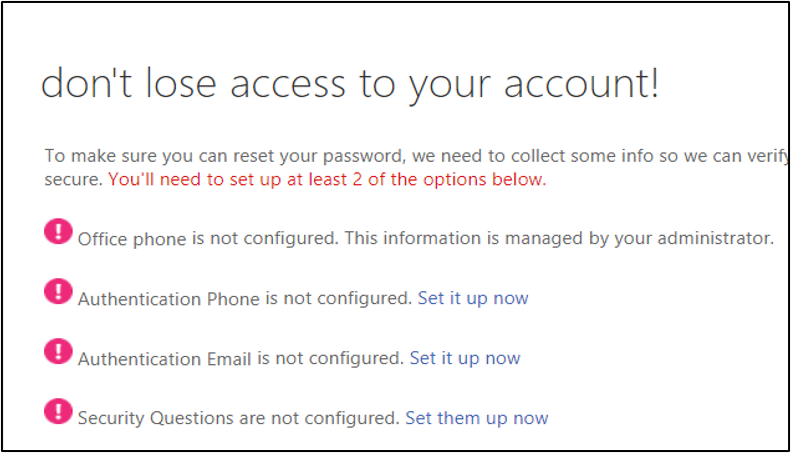
- Fill out at least two of the options listed.
- We recommend filling out the phone and email options.
- Fill out the security questions as prompted.
- Reset your password.
This step is VERY IMPORTANT, as all helpdesk technicians have access to your temporary password. Instructions for this can be found in the page for Resetting your Password.
Since you are now done setting up your Microsoft account, you will want to download the suite of apps. See Installing Microsoft 365 for more information.