CollegeWiFi
CollegeWiFi is the default for connecting your personal and work devices to Wi-Fi. Make sure you know your username and password before starting. What is my Username and Password?
- Open Quick Settings by clicking on the taskbar area shown below.
- Click the arrow next to the Wi-Fi symbol.
- Select CollegeWiFi, check Connect automatically then click Connect.
- Enter your campus username and password, then click Connect
Android
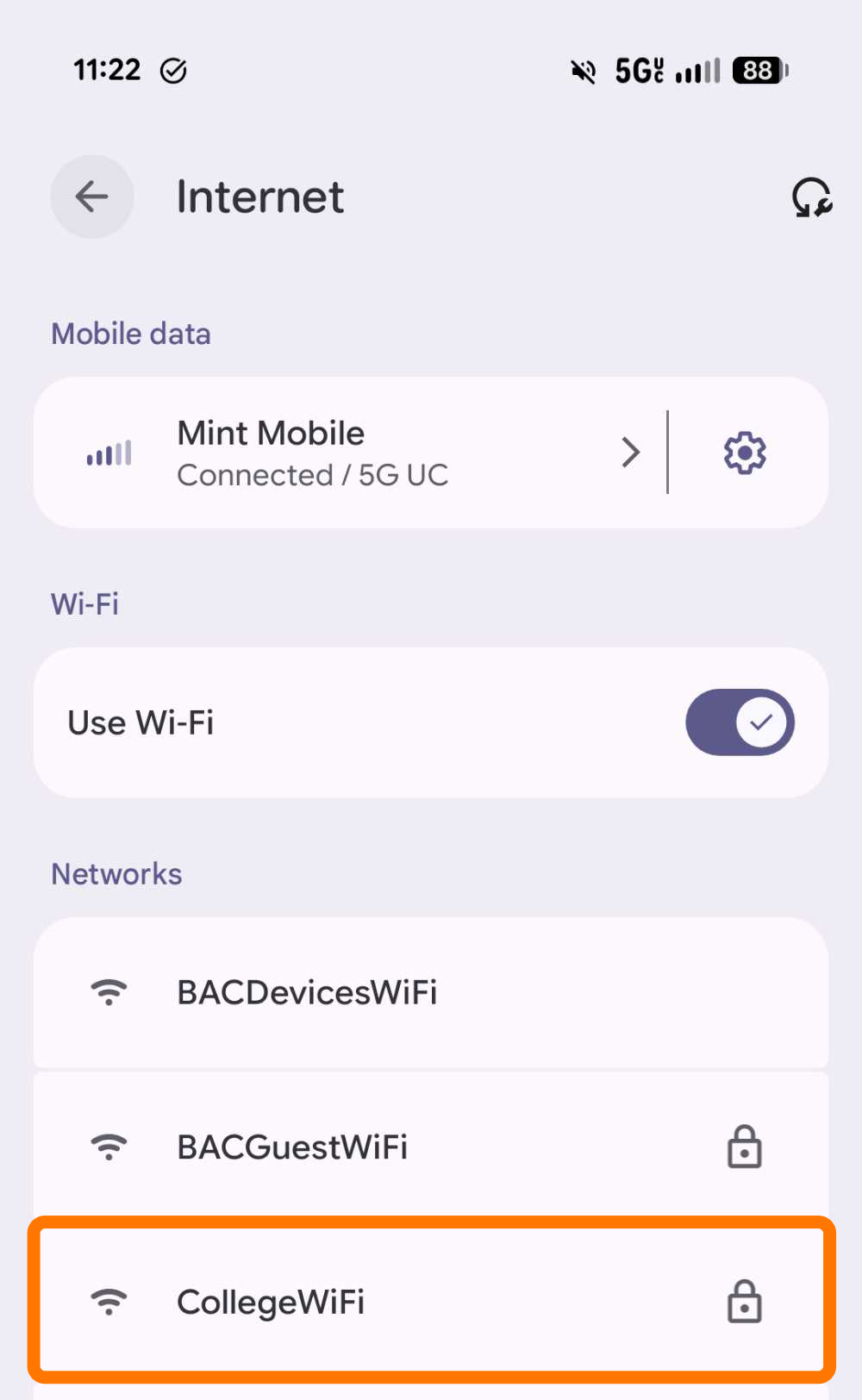
- Navigate to your Wi-Fi settings and select CollegeWiFi
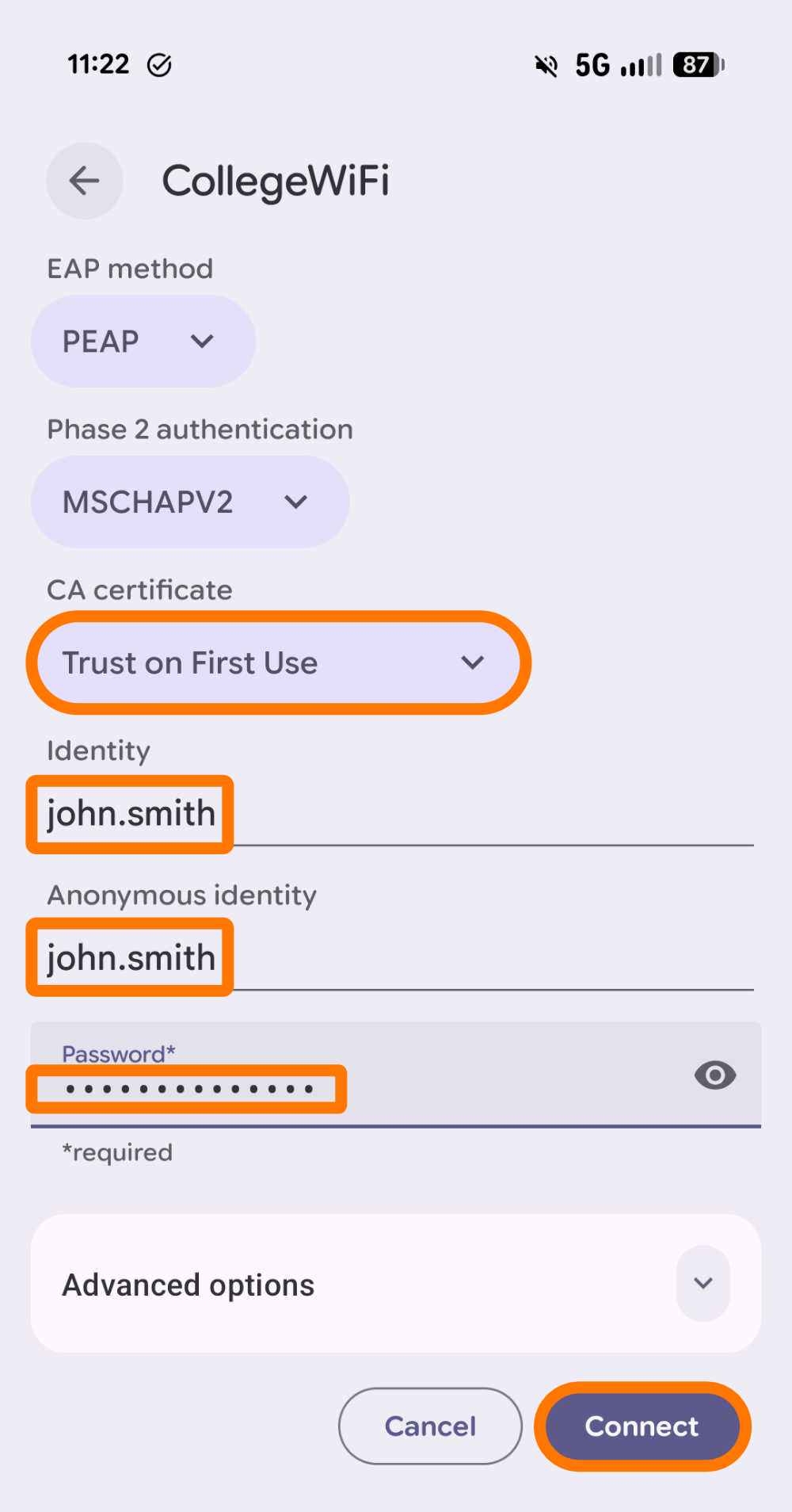
- Configure the credentials like in the screenshot below.
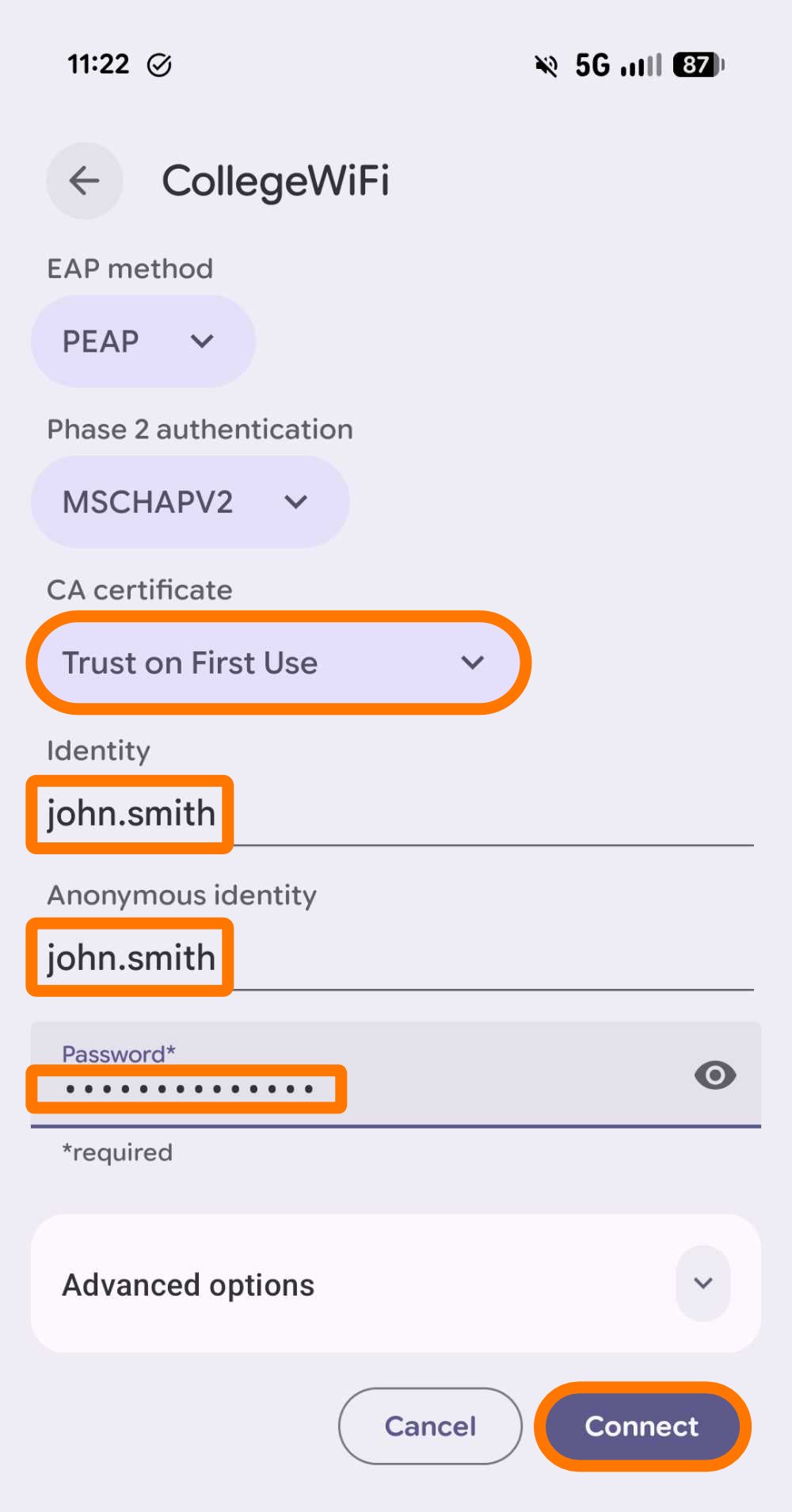
- Under the CA certificate drop-down, select Trust on First Use
- Enter your campus username in the Identity and Anonymous identity fields.
- Use your campus password in the Password field.
- Click Connect.
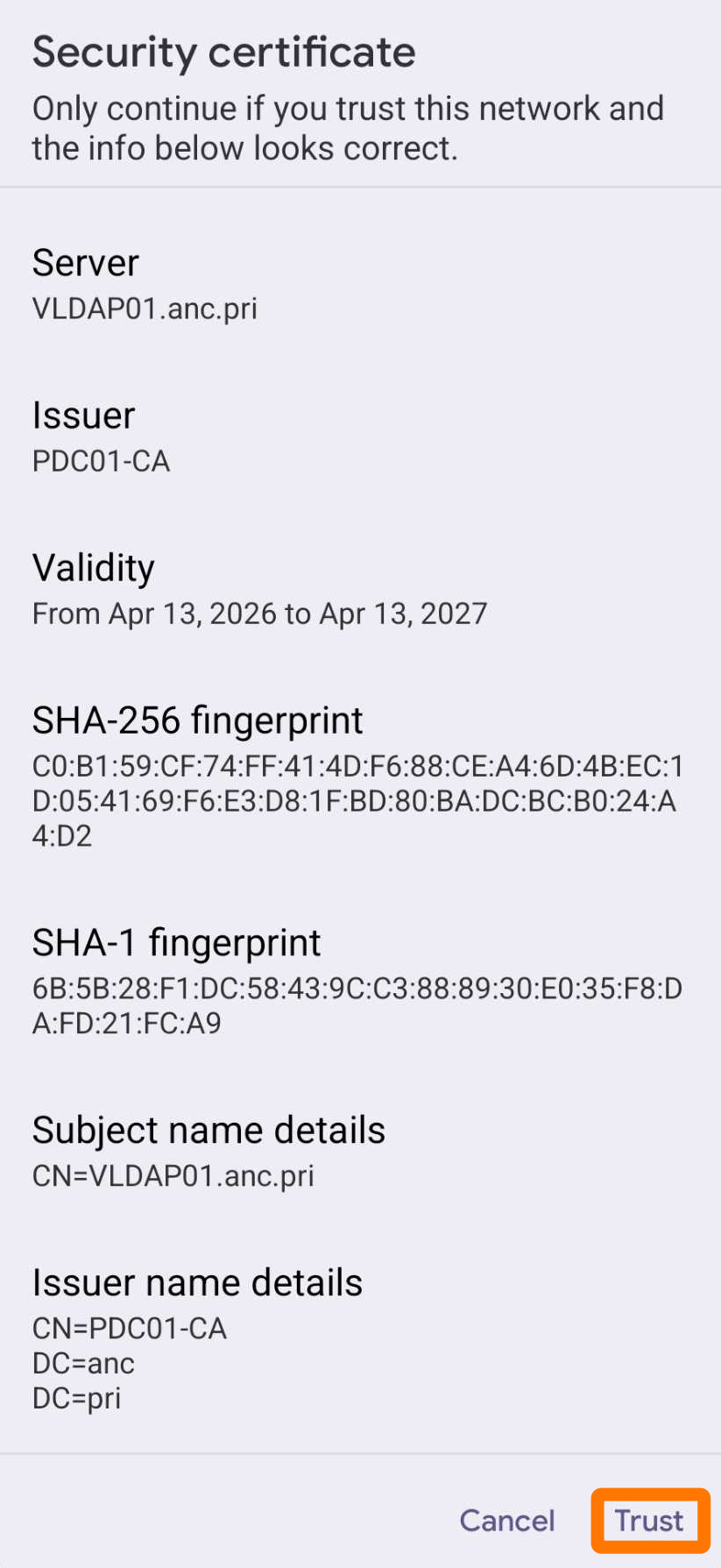
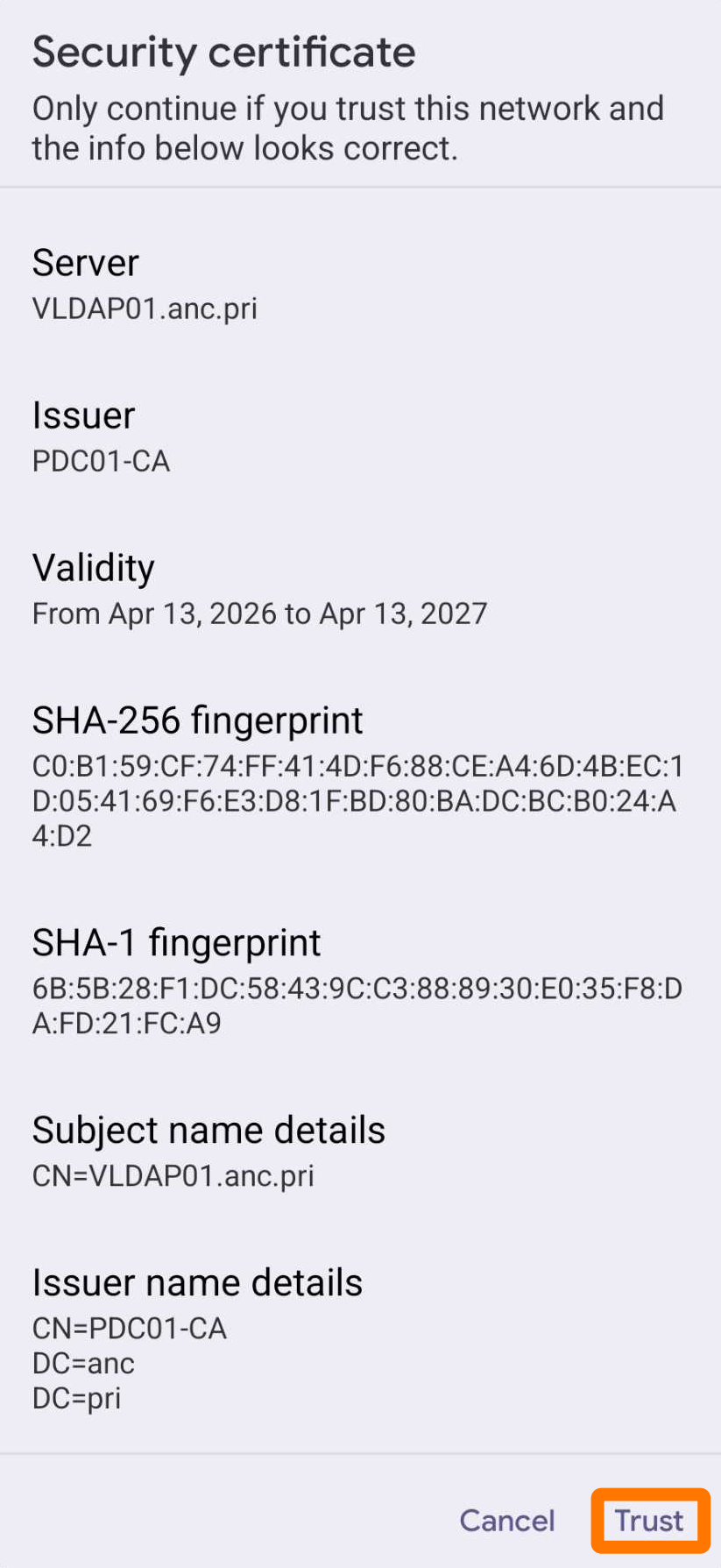
- If you see a Security certificate prompt, select Trust.
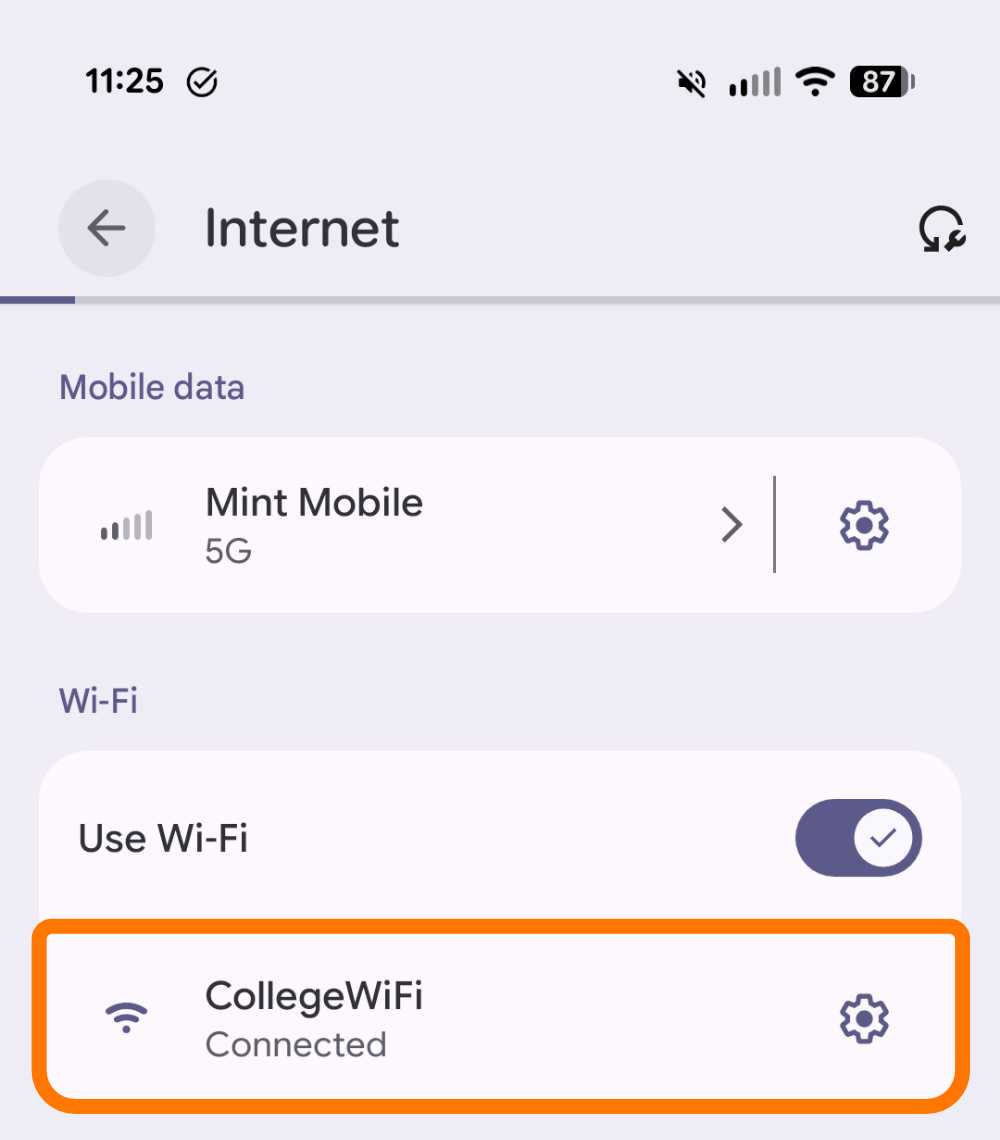
You should now be connected. If not, contact the Helpdesk.