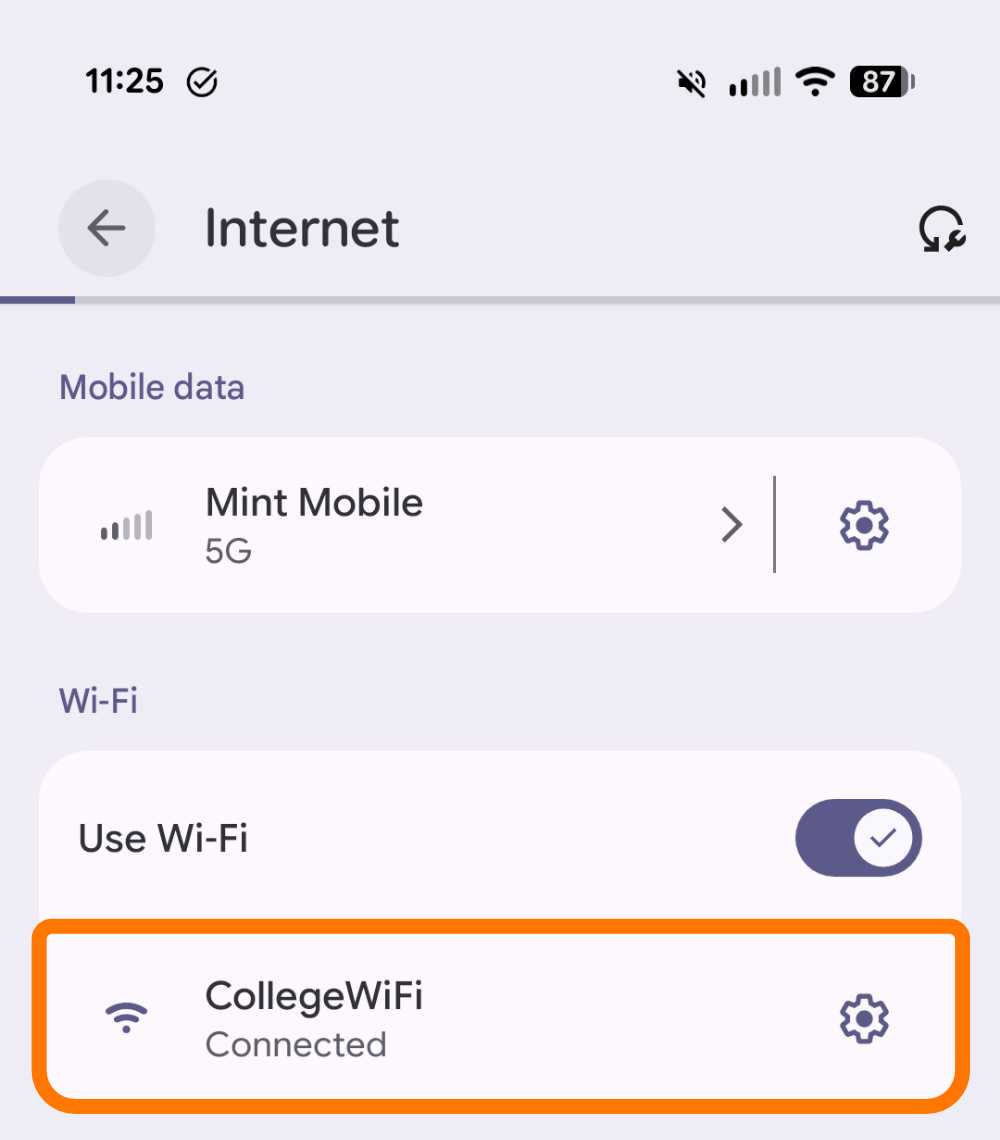
CollegeWiFi
CollegeWiFi is the default for connecting your personal and work devices to Wi-Fi. Make sure you know your username and password before starting. What is my Username and Password?
- Open Quick Settings by clicking on the taskbar area shown below.
- Click the arrow next to the Wi-Fi symbol.
- Select CollegeWiFi, check Connect automatically then click Connect.
- Enter your campus username and password, then click Connect
Android
The process for connecting to CollegeWiFi is slightly different between smartphone brands. If you cannot find analogous options to the steps below on your phone, please reach out to the Helpdesk.
- Navigate to your Wi-Fi settings and select CollegeWiFi
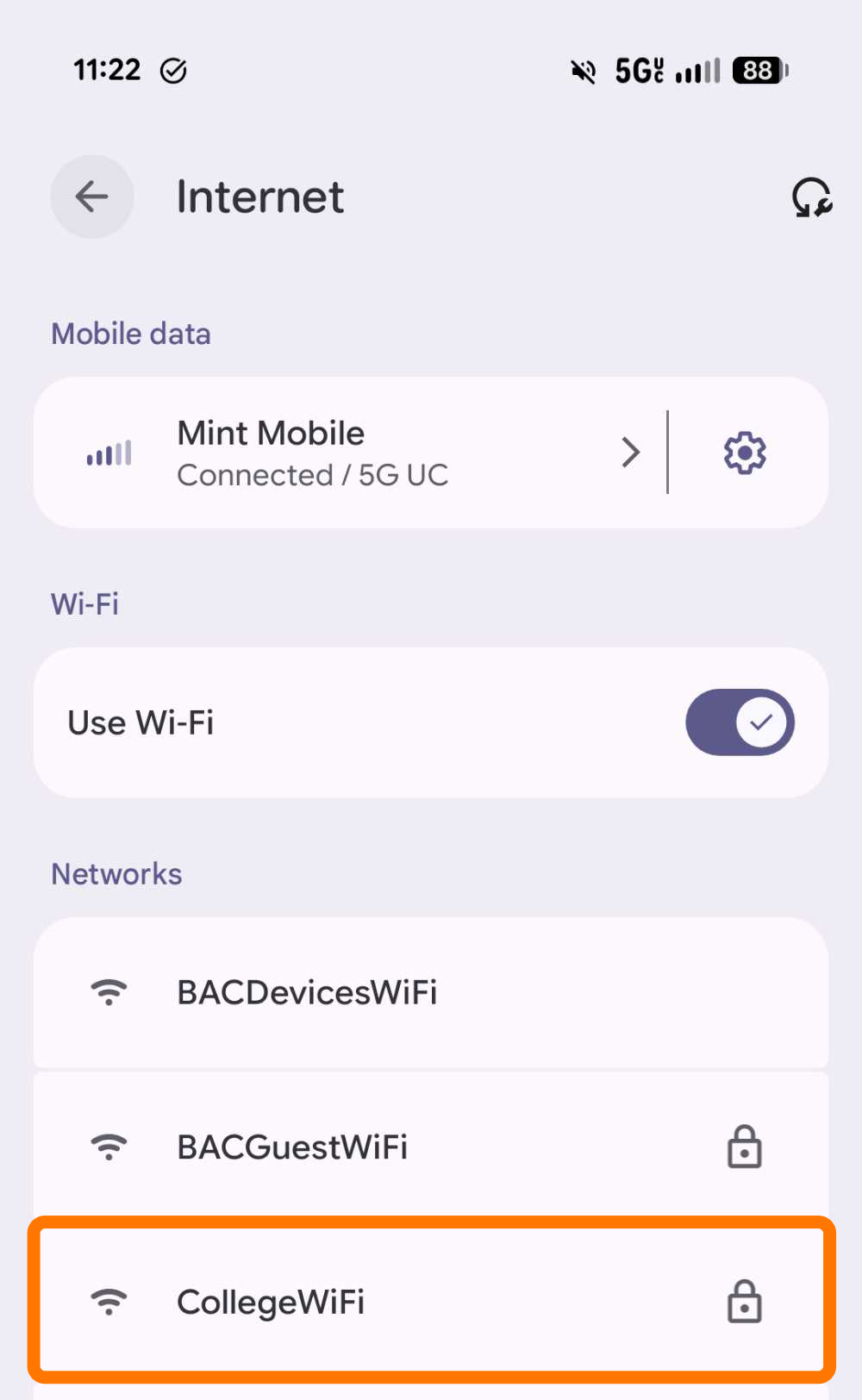
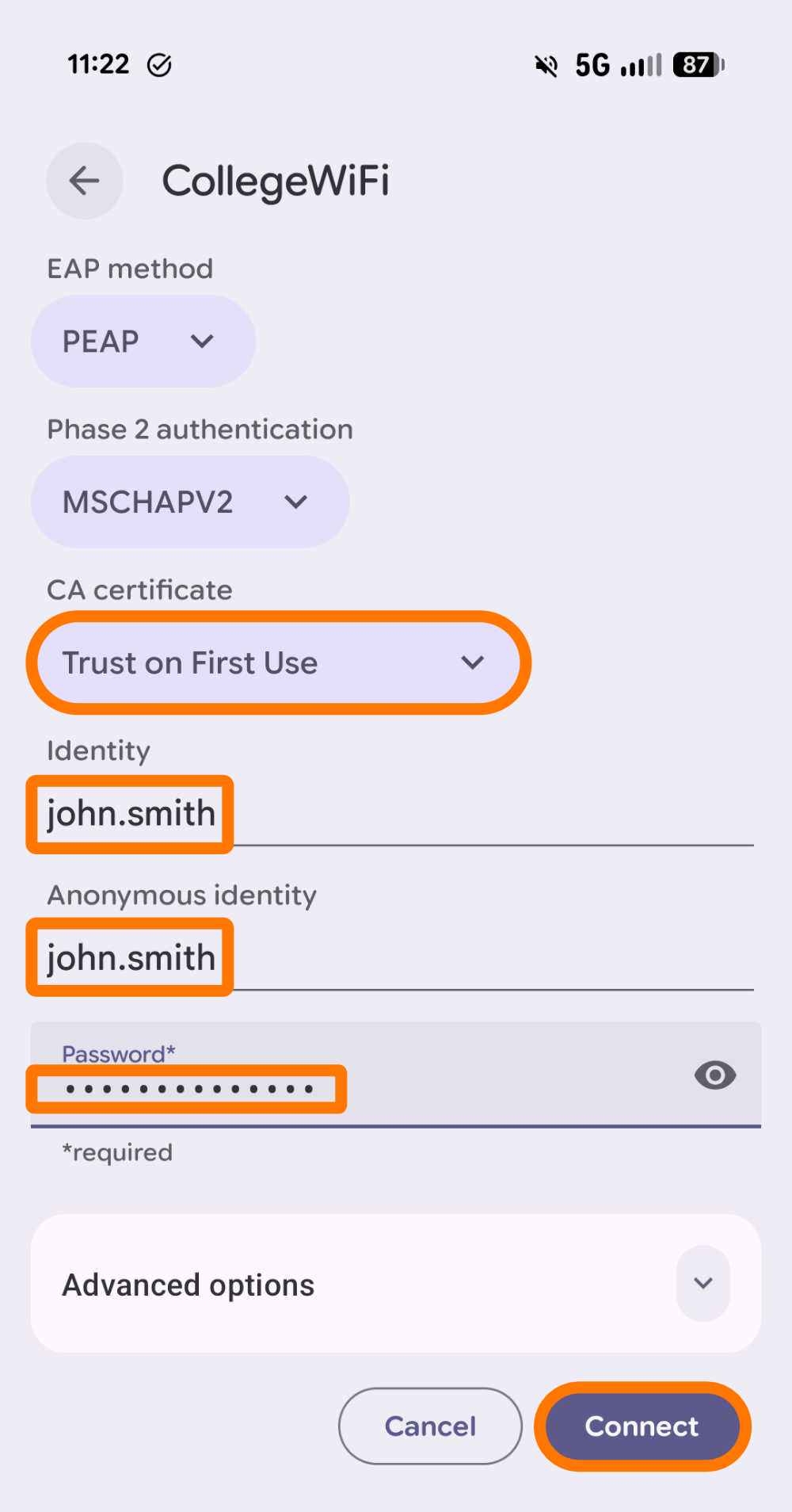
- Configure the credentials like in the screenshot below.
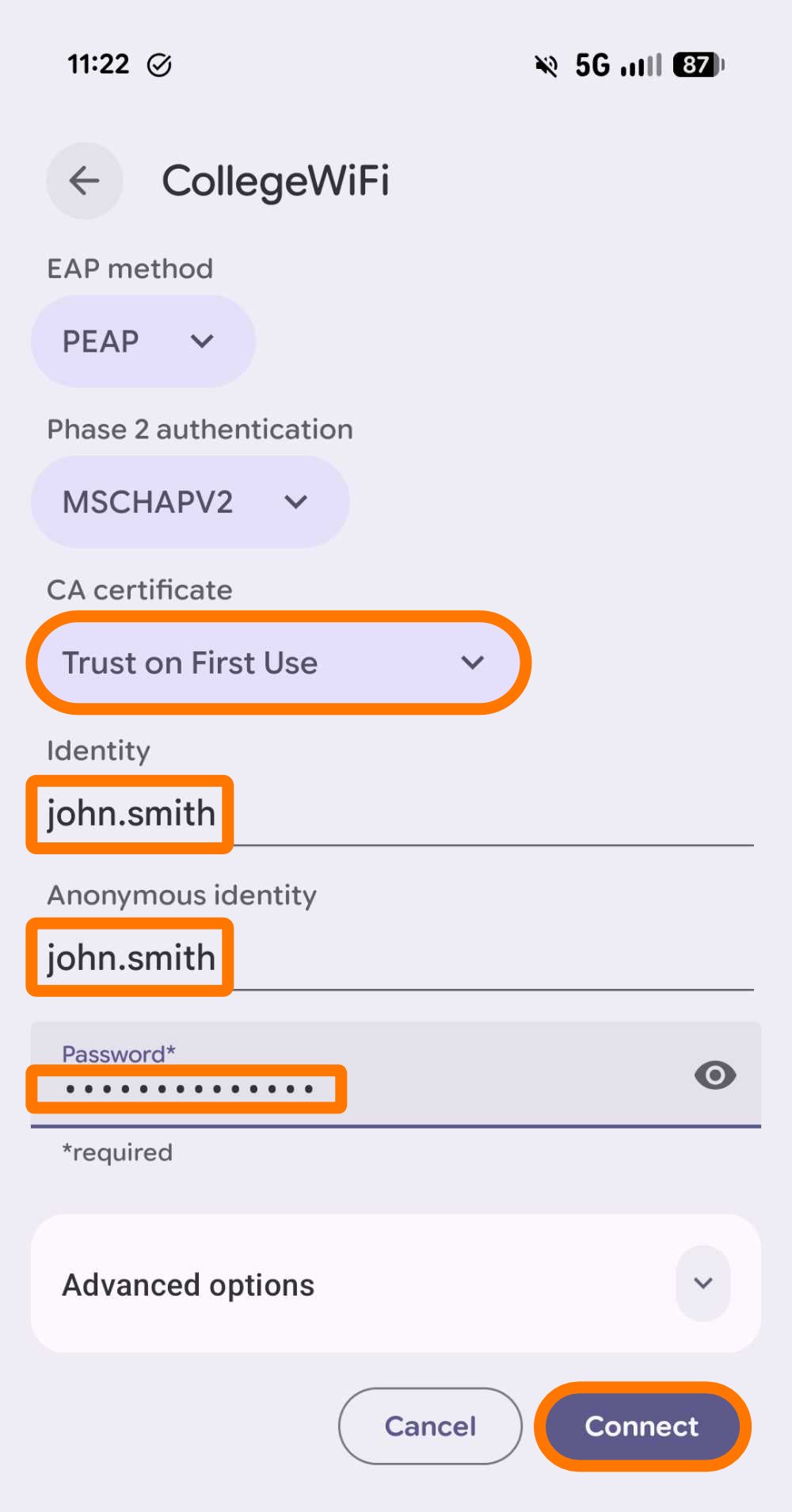
- Under the CA certificate drop-down, select Trust on First Use
- Enter your campus username in the Identity and Anonymous identity fields.
- Use your campus password in the Password field.
- Click Connect.
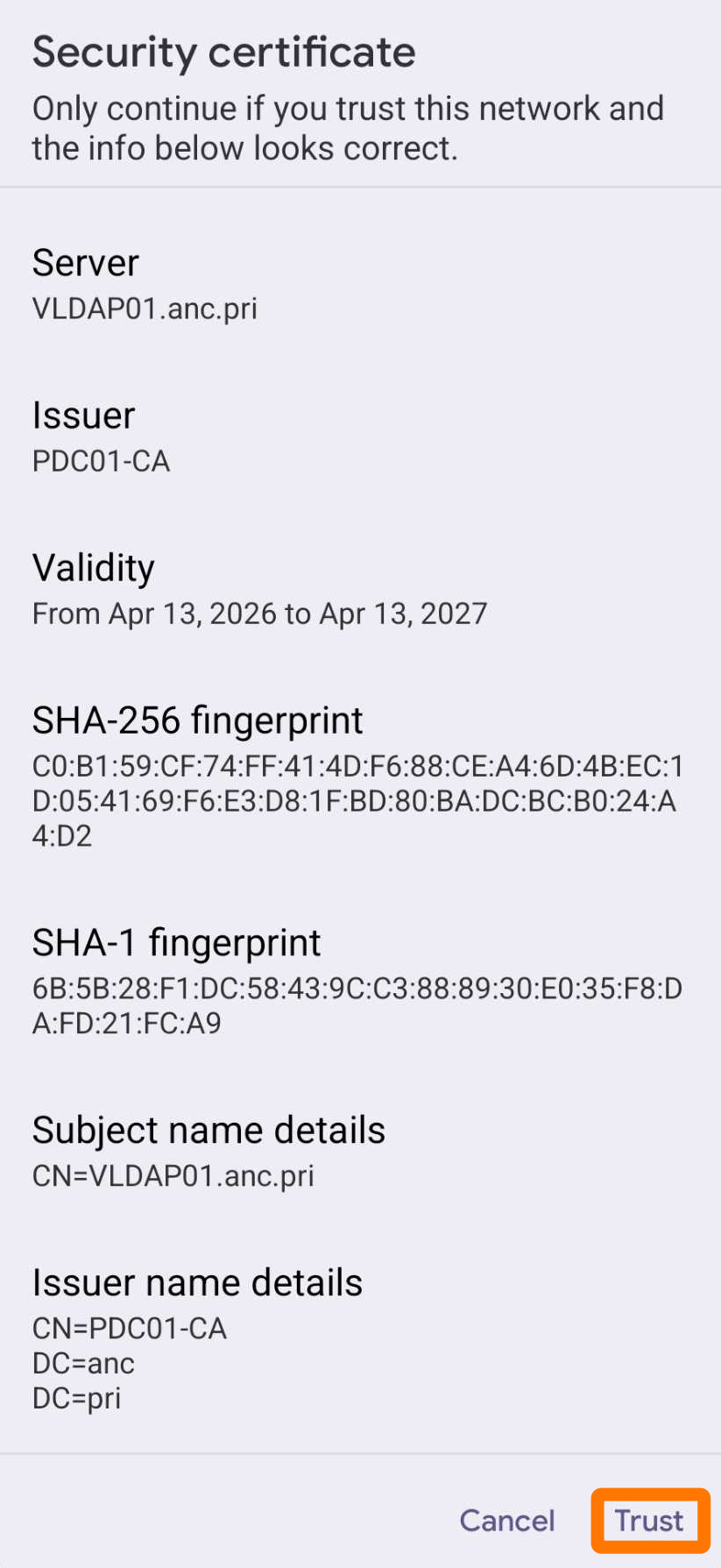
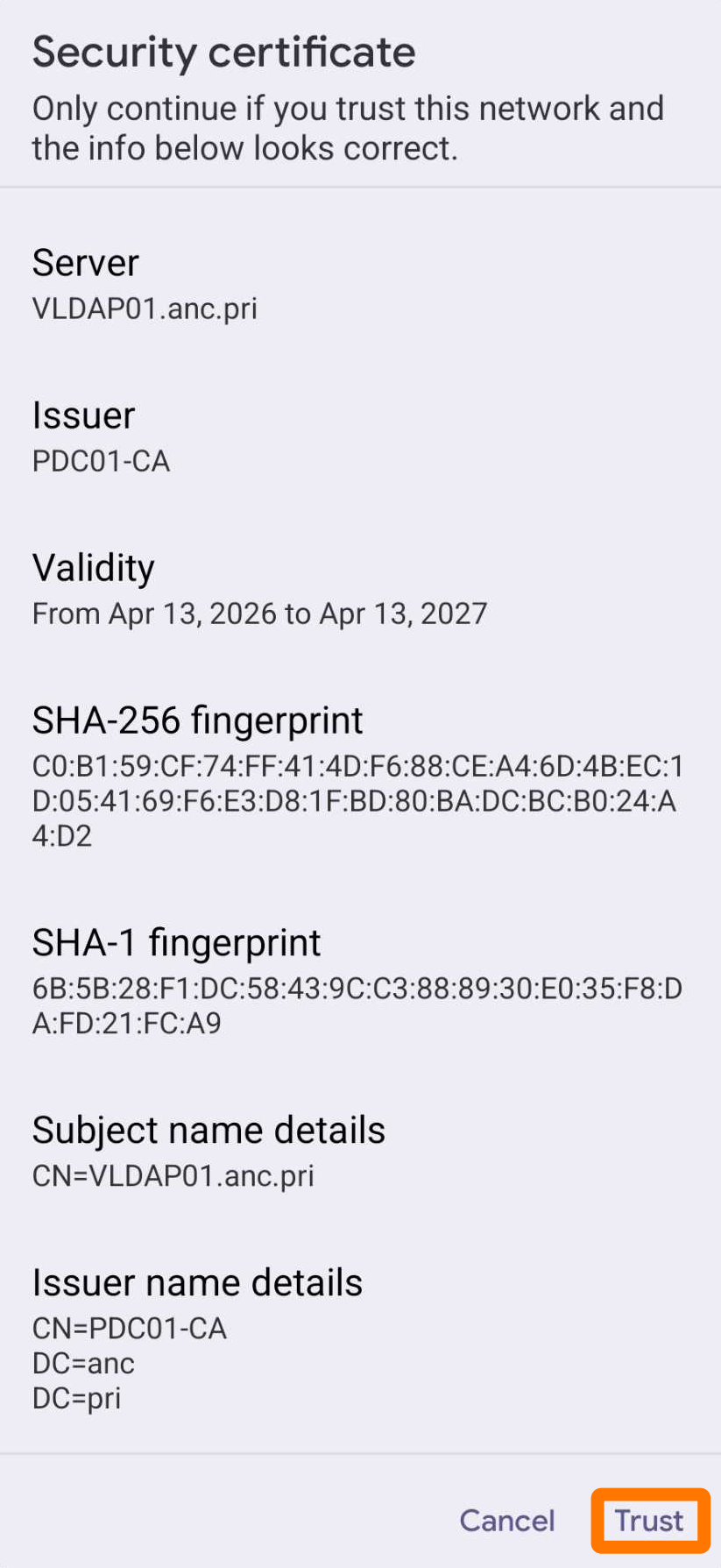
- If you see a Security certificate prompt, select Trust.
You should now be connected. If not, contact the Helpdesk.