Scanning & Copying
Setting up your ID
This part of the process is only relevant if this is your first time scanning on the campus copiers. If you have already done this, jump to Scanning or Copying.
- Scan your ID on the copier's card scanner.
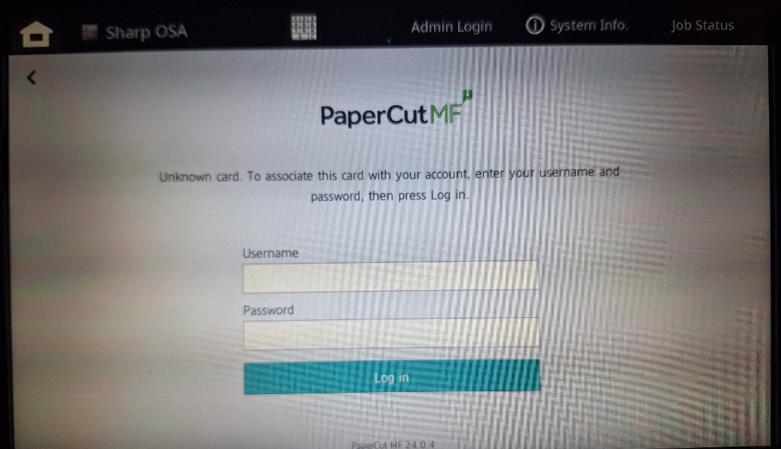
- This should prompt the following menu to appear on the screen:
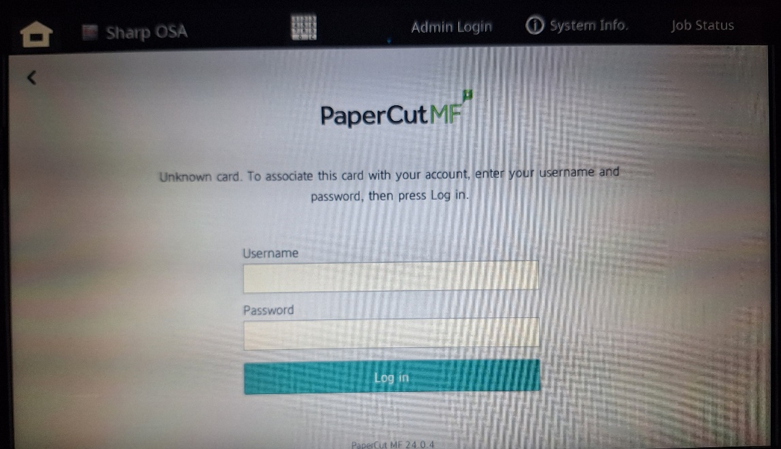
- This should prompt the following menu to appear on the screen:
- Enter the following credentials:
- Username:
<College email address> - Password:
<College Microsoft account password>
Most copiers have a pull-out physical keyboard, which can be useful for this step. For help, see What is my Username and Password?
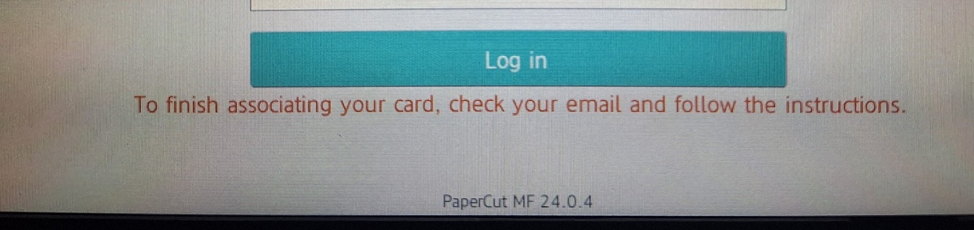
- Once you have entered your login information a red notification will pop up under the log in button, which means you have entered your login information correctly.
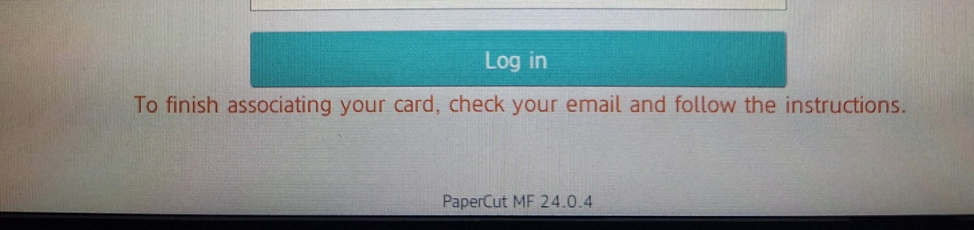
- Username:
- Look for an email from bac.noreply@brynathyn.edu to your BAC address containing instructions on how to finish associating your card with the copiers. Follow the steps provided.
If you don’t see this email, make sure you check your junk/trash folder.
Scanning
Now that your ID card is associated with the copiers, you can start the scanning process.
- Place the pages you wish to scan in the top tray of the copier, face up.
- Scan your ID card on the copier's card scanner.
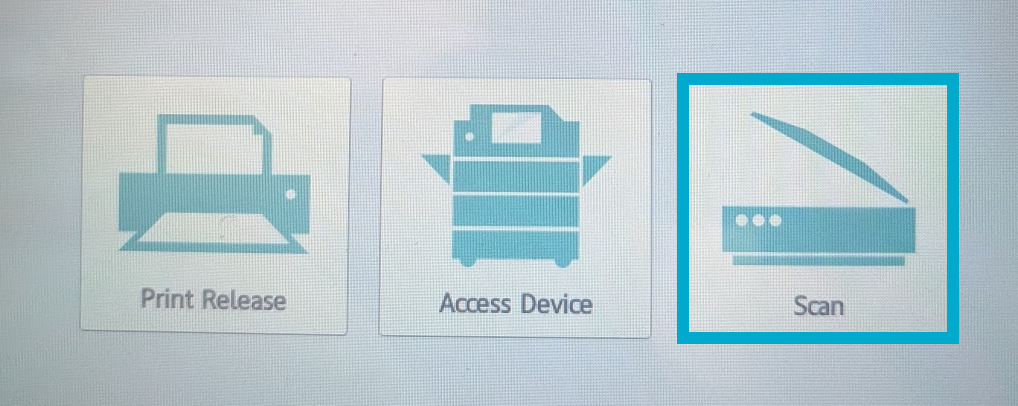
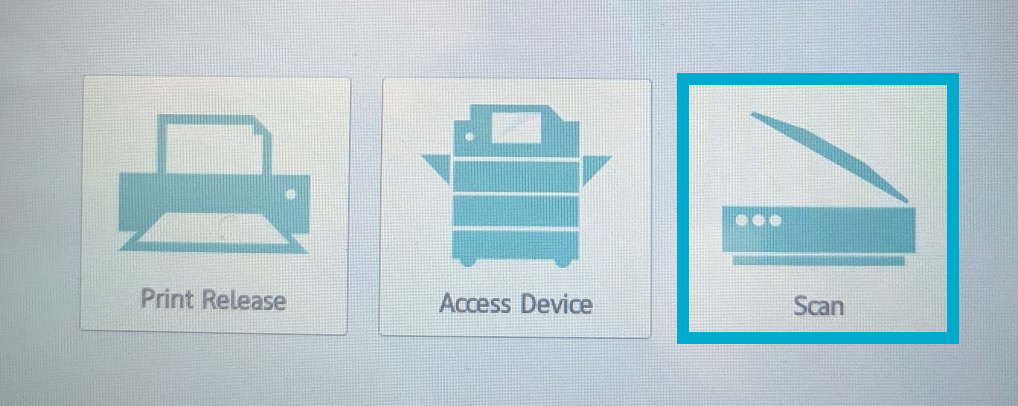
- Press Scan on the menu that appears on the screen.
- Chose an option to scan to:
- Scan to My Email will automatically fill in your BAC Email address.
- Scan to Email will allow you to enter any email address to send the scanned document to.
Press Start to begin. You will be sent a PDF of your scan from bac.noreply@brynathyn.edu.
Copying
- Place the pages you wish to copy in the top tray of the copier, face up.
- Scan your ID card on the copier's card scanner.
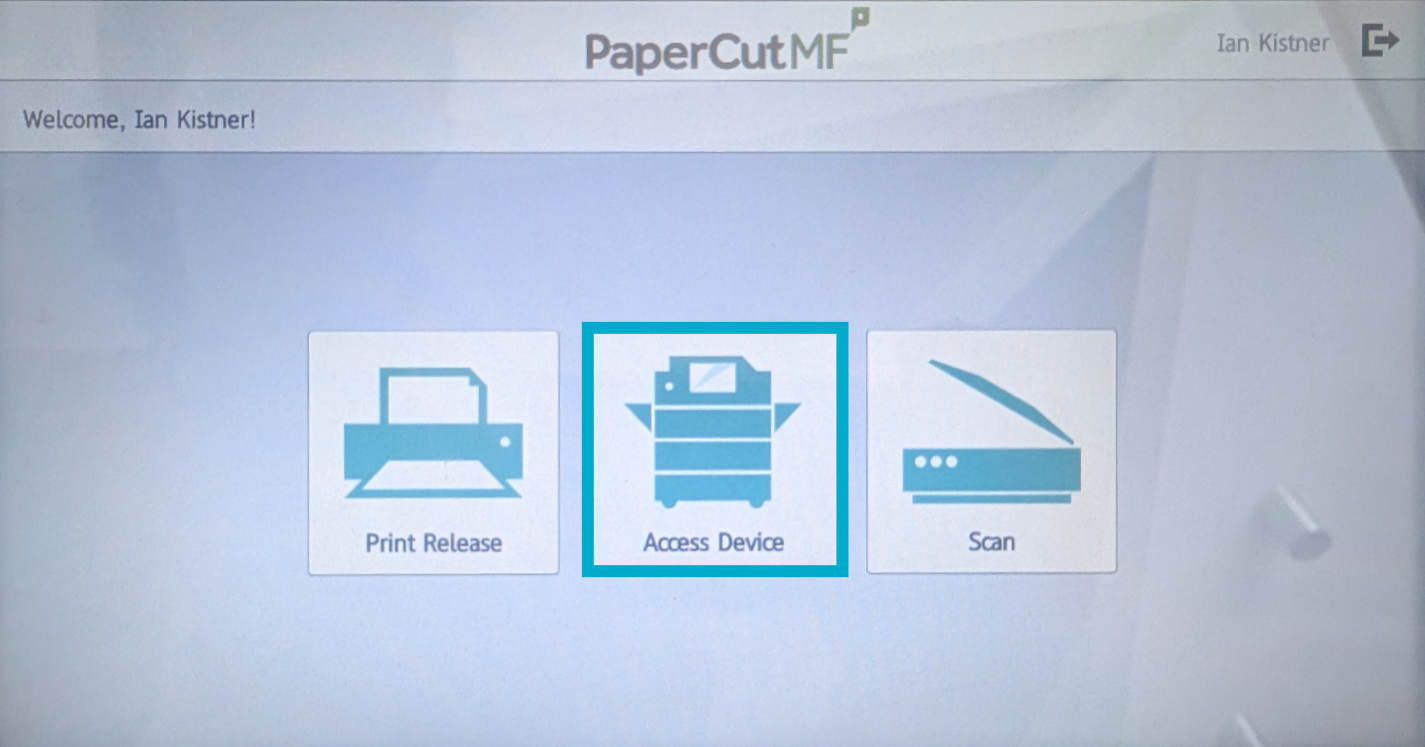
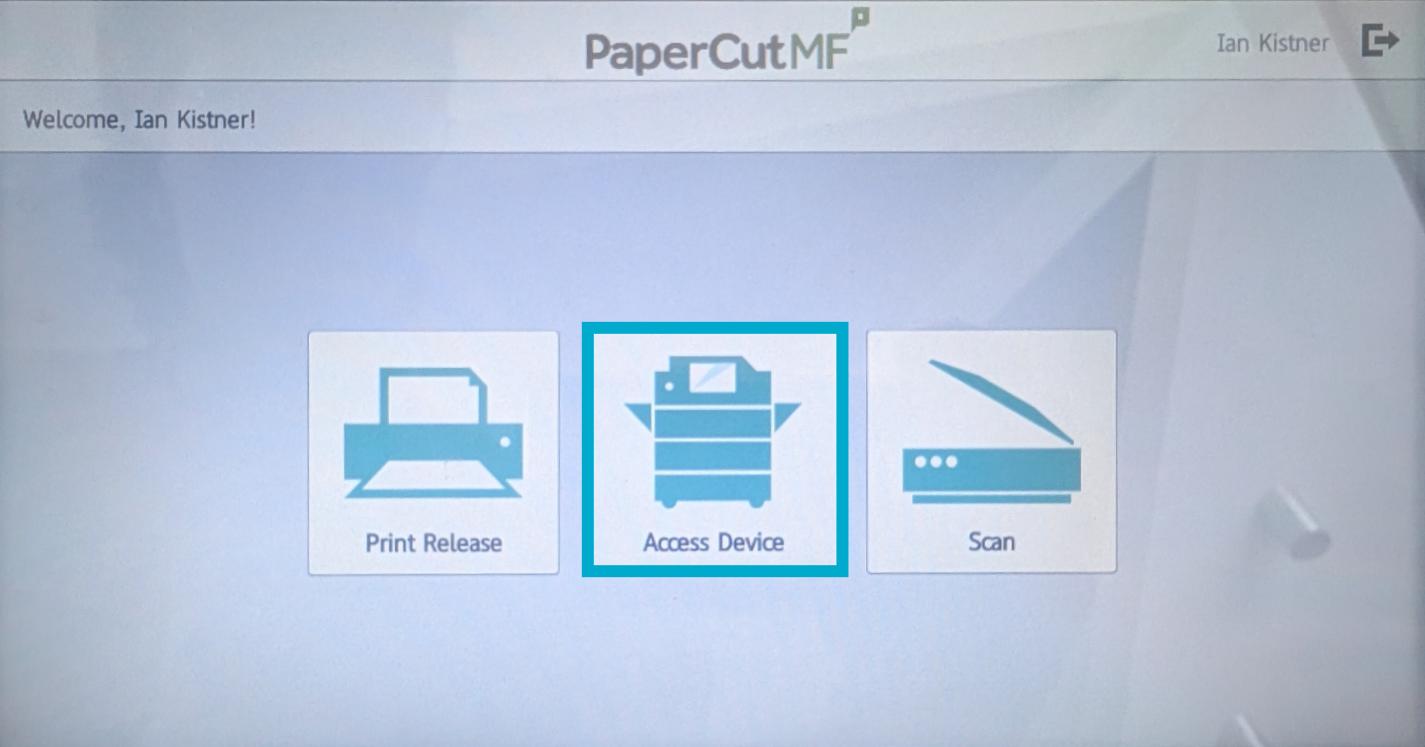
- Press Access Device.