
Scanning & copying
If this is your first time accessing the copiers, start with Associating your ID with copiers.
Scanning
- Place the pages you wish to scan in the top tray of the copier, face up.
- Scan your ID card on the copier's card scanner.
If you have already associated your ID and it says Unknown card, try scanning again slowly.
- Press Scan on the menu that appears on the screen.
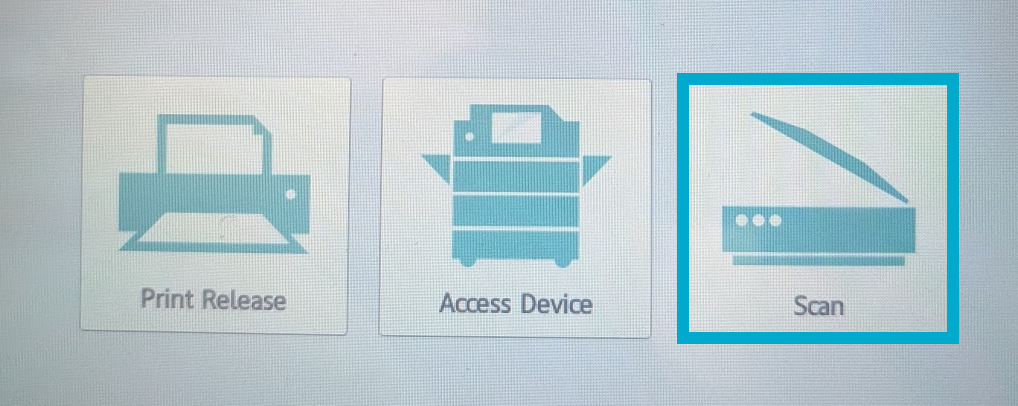
- Chose an option to scan to:
- Scan to My Email will automatically fill in your BAC Email address.
- Scan to Email will allow you to enter any email address to send the scanned document to.
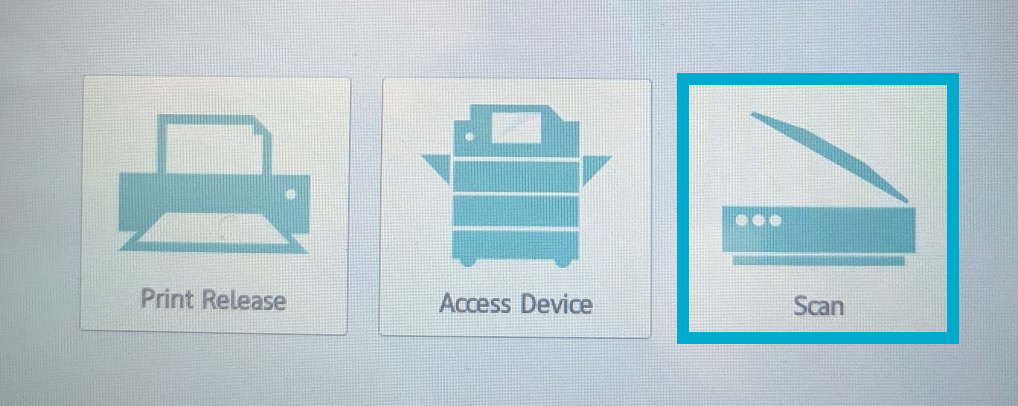
Press Start to begin. You will be sent a PDF of your scan from bac.noreply@brynathyn.edu.
Copying
- Place the pages you wish to copy in the top tray of the copier, face up.
- Scan your ID card on the copier's card scanner.
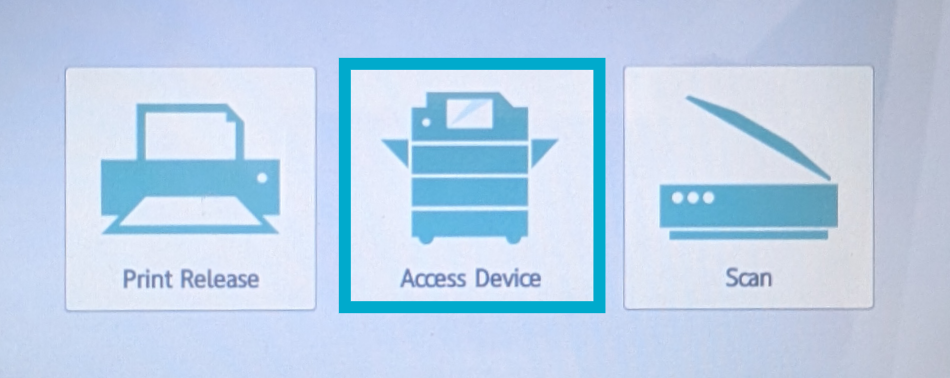
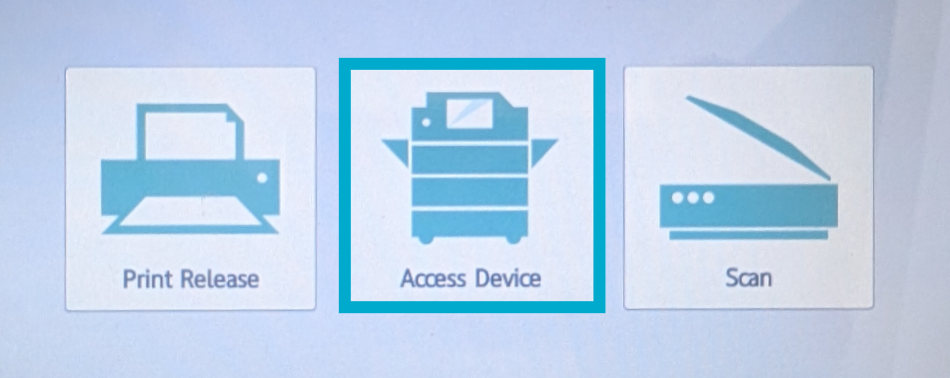
- Press Access Device.
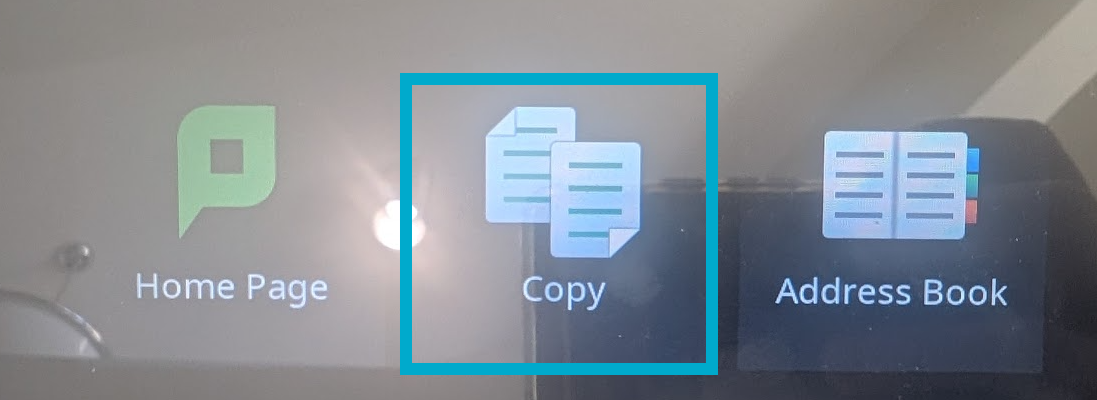
- Press Copy.
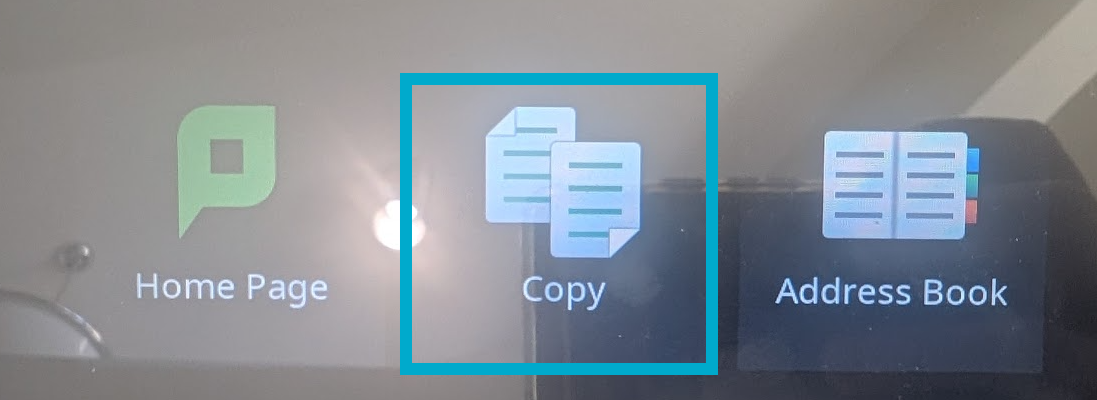
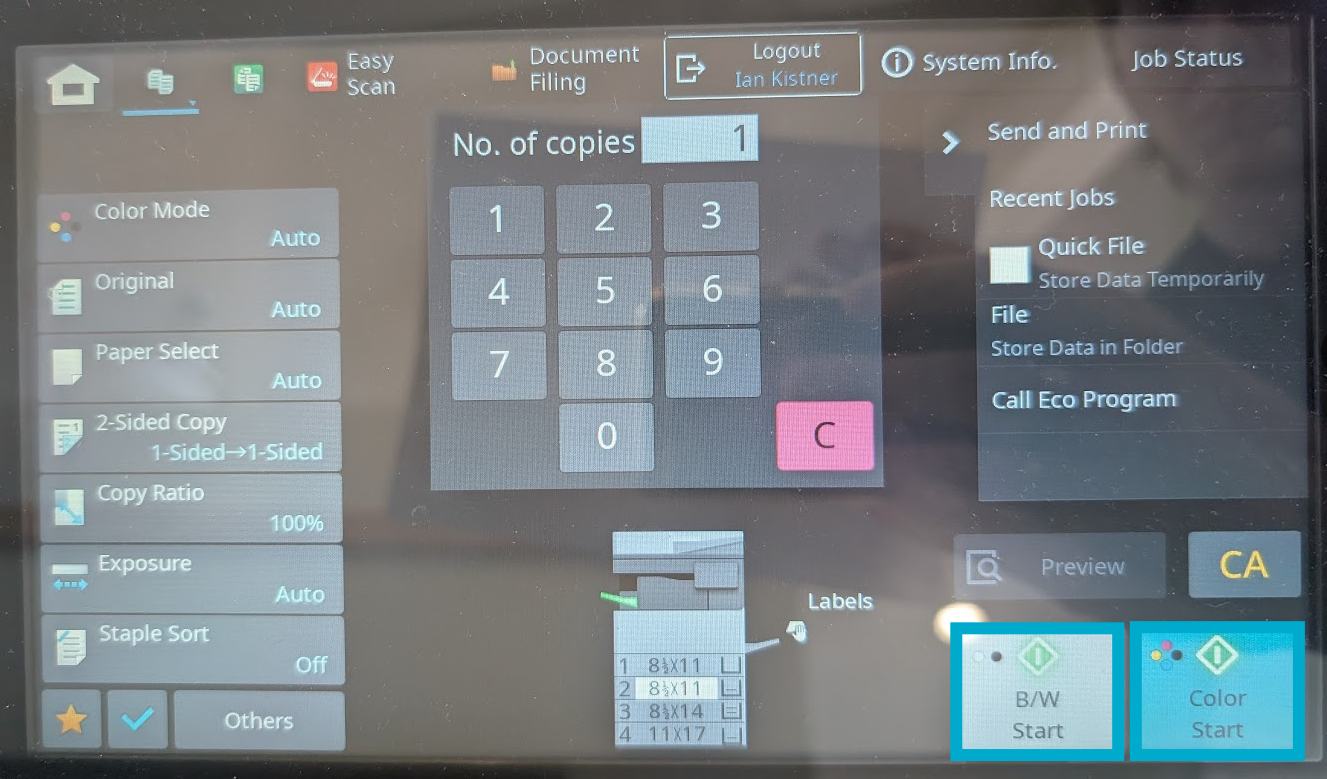
- Select the number of copies you want and adjust the settings for copying as desired in the menu that appears.
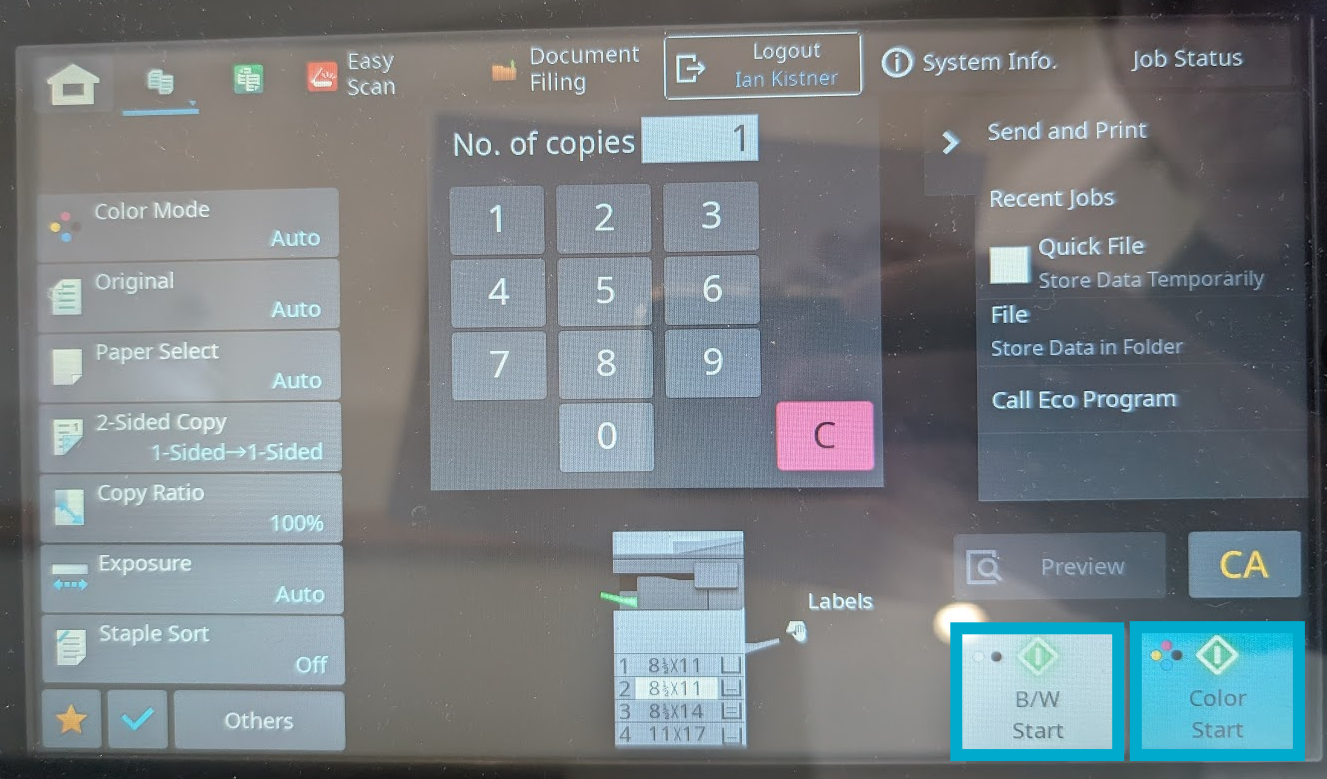
- Press either Black/White Start or Color Start to begin the copying job.
The copier will spit out the original pages it is processing immediately, then will begin printing the copies after a brief delay.