Web Printing
Web printing is the default way for students to print on campus. This page contains instructions for web printing which should work on all computers.
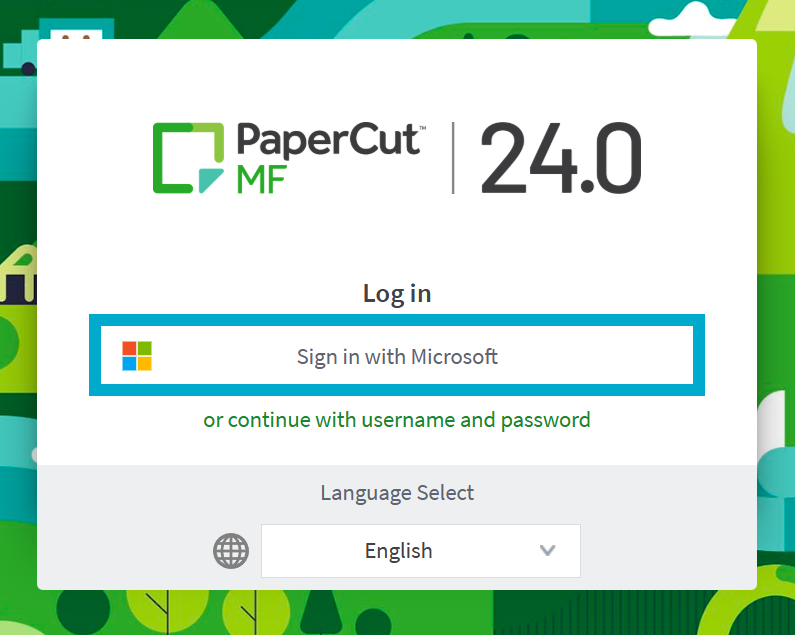
- Go to papercut.brynathyn.edu or print.brynathyn.edu.
- Select Sign in with Microsoft and enter your Microsoft account credentials.
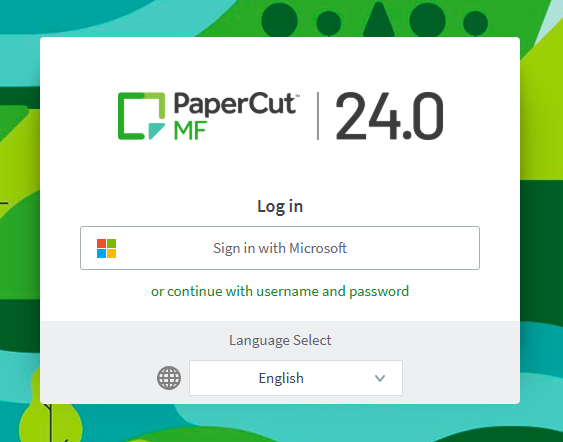
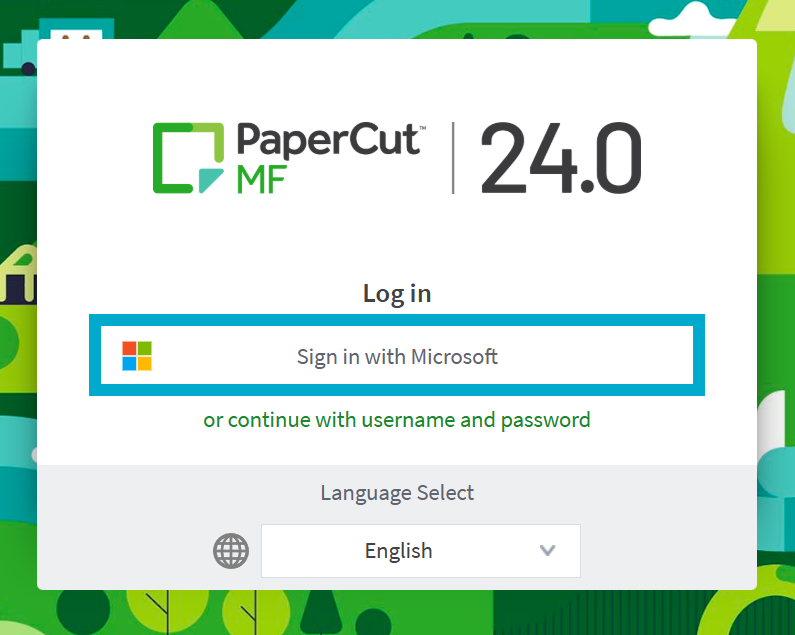
See Logging in with Microsoft 365 if you need help with this step.
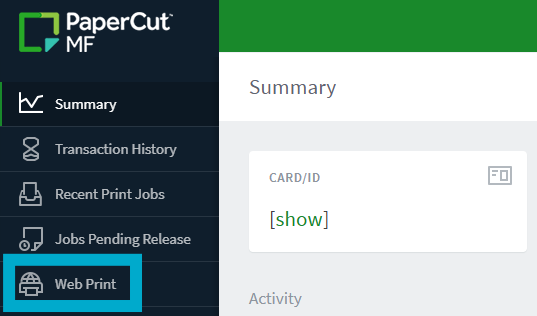
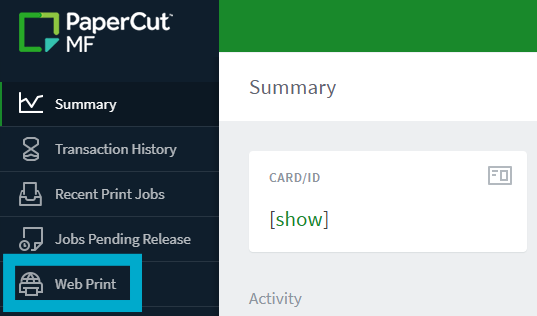
- Select Web Print on the sidebar.
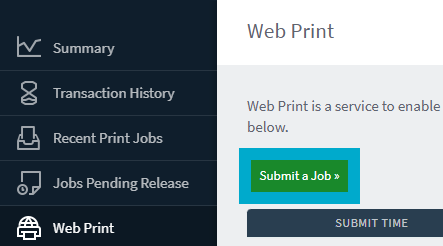
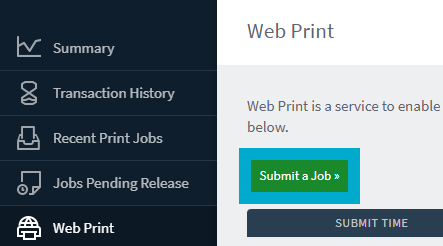
- Click Submit a Job.
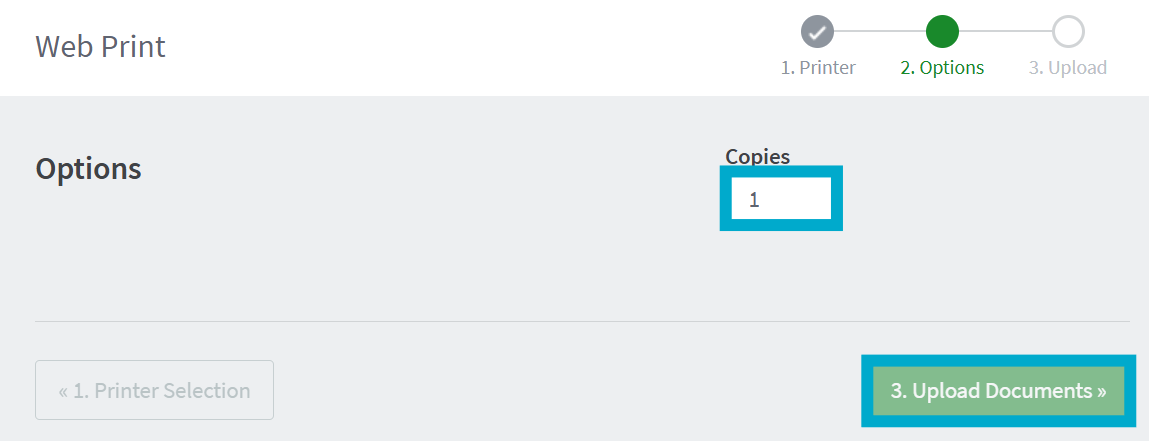
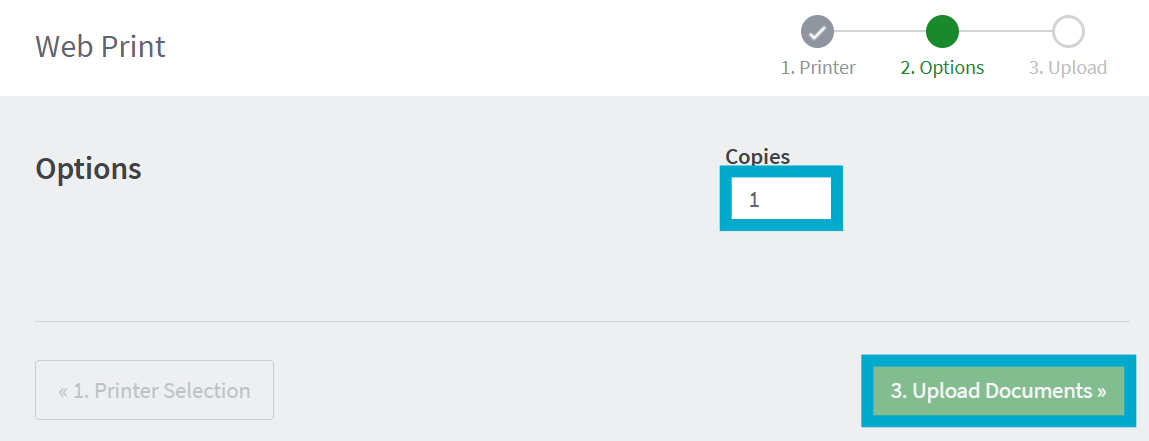
- Confirm the copies to print, then click Upload Documents.
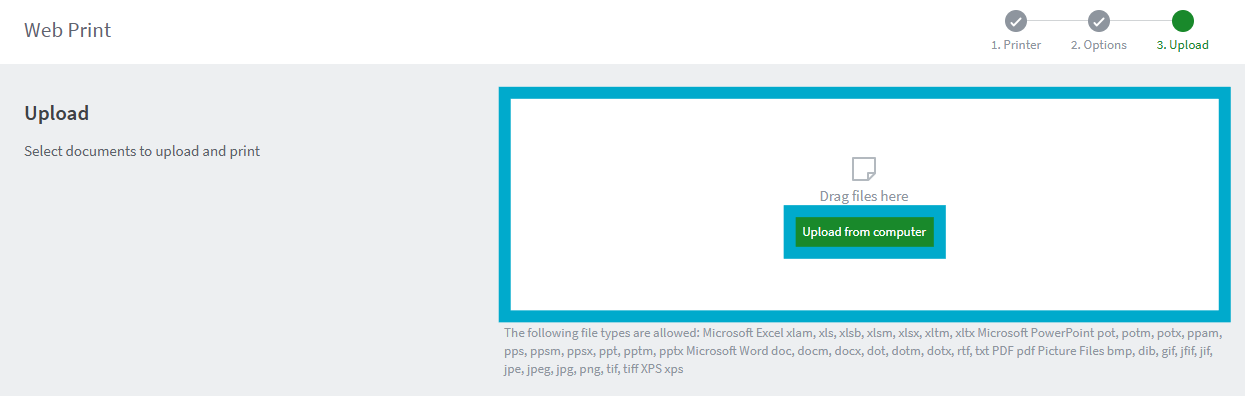
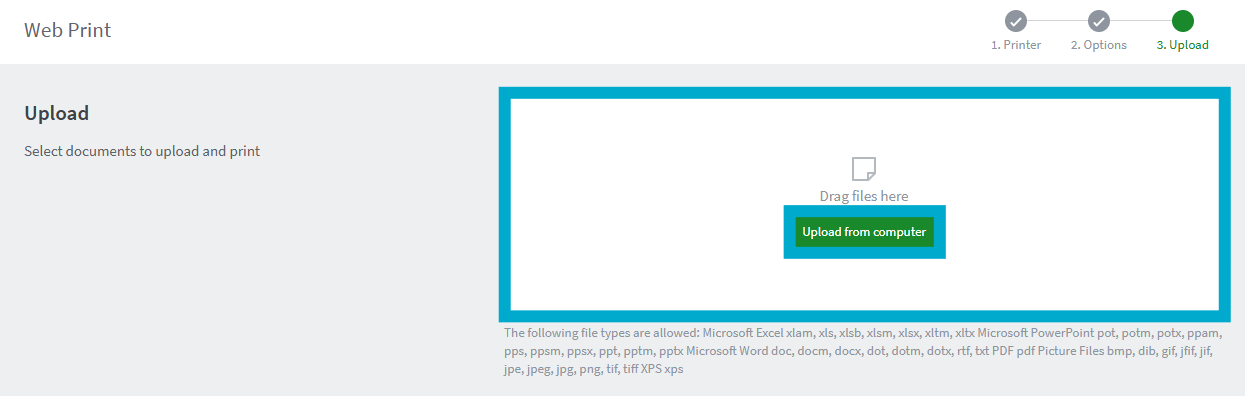
- Select Upload from computer and upload the file(s) you wish to print or simply drag and drop files onto the Drag files here box.
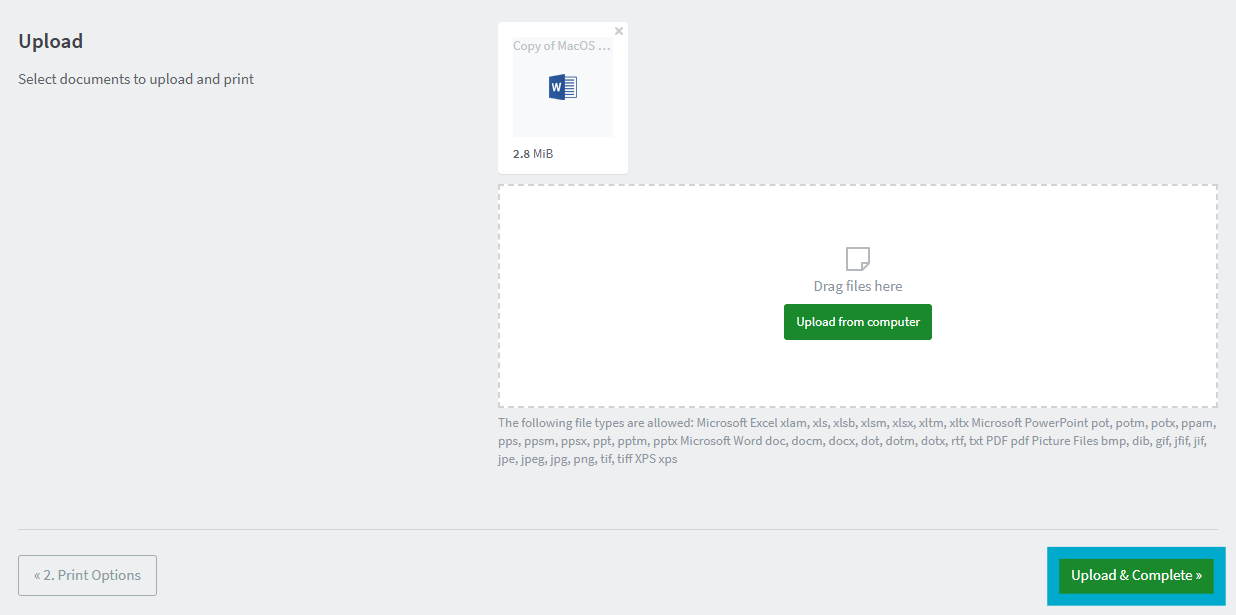
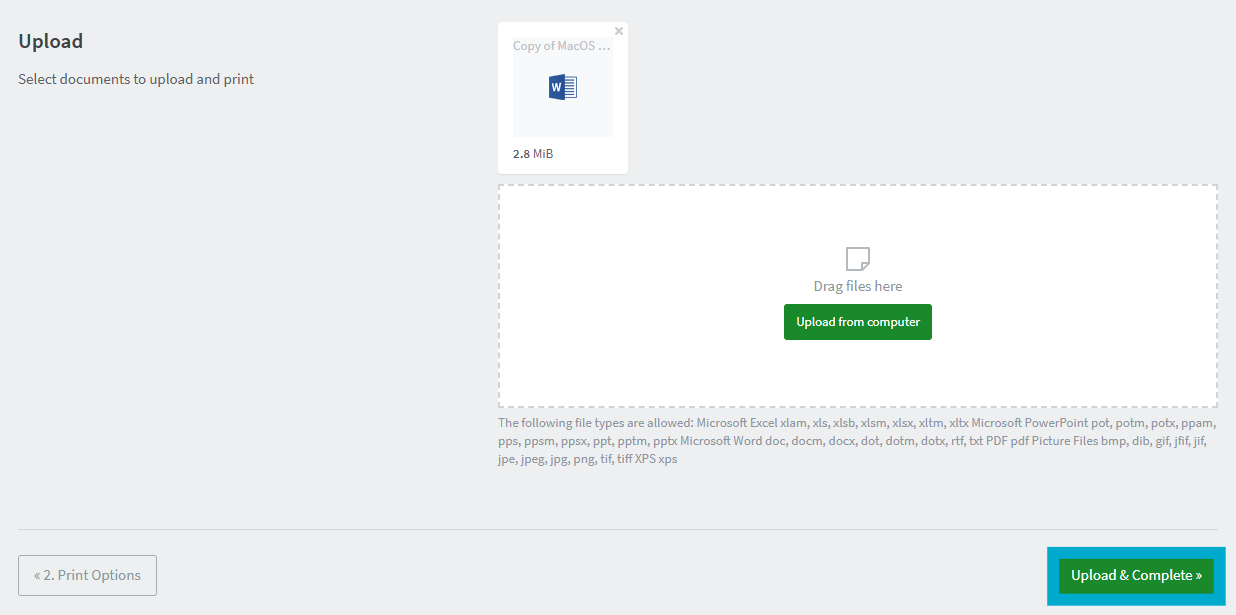
- After your files are uploaded, click Upload & Complete to print them.
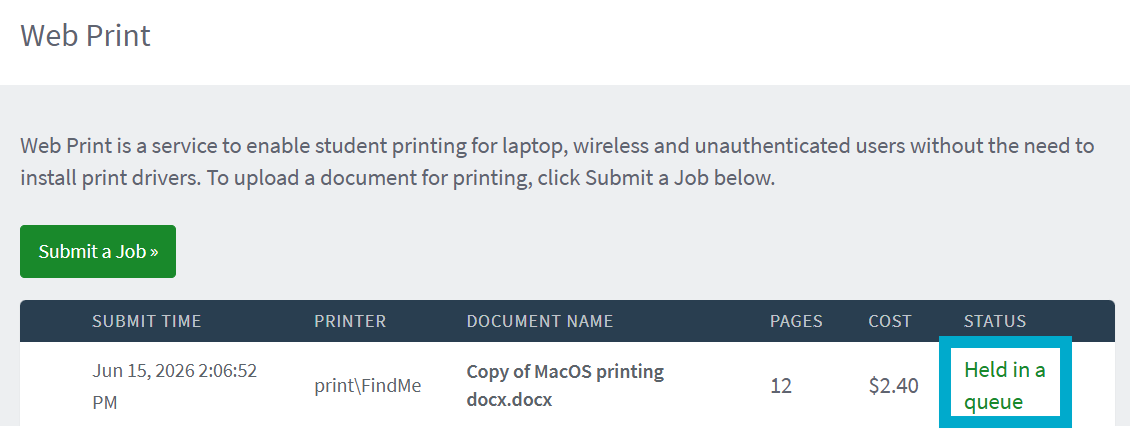
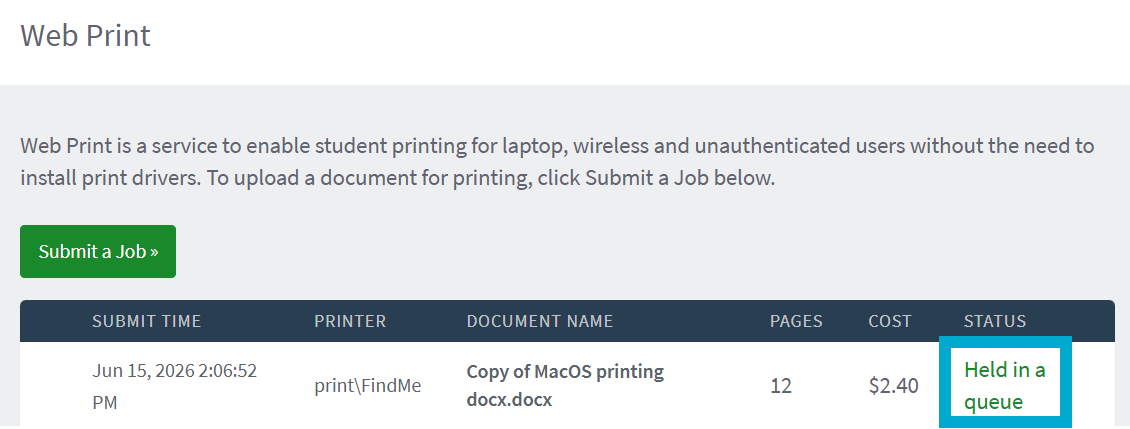
- Once the status says Held in a queue, your print is ready to be released at the printer.
- Go to one of the copiers to release the print there.
- If you have your Bryn Athyn College ID card, scan it at the copier to release the print.
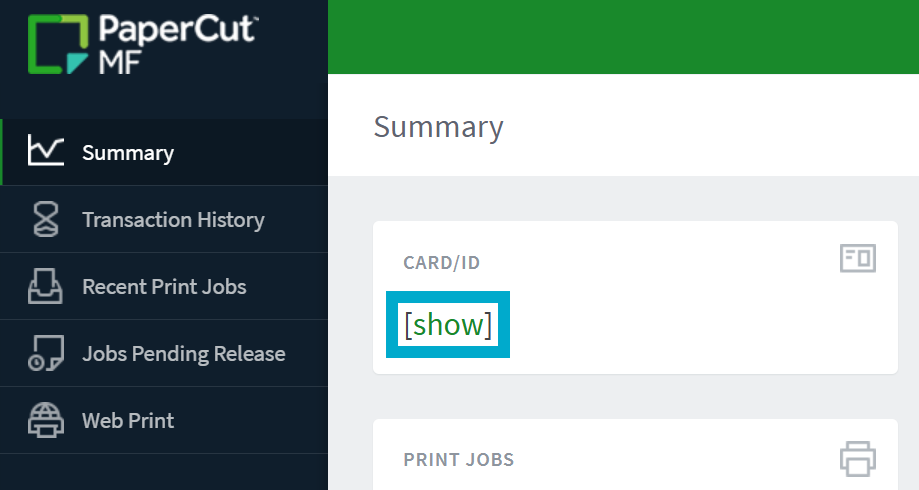
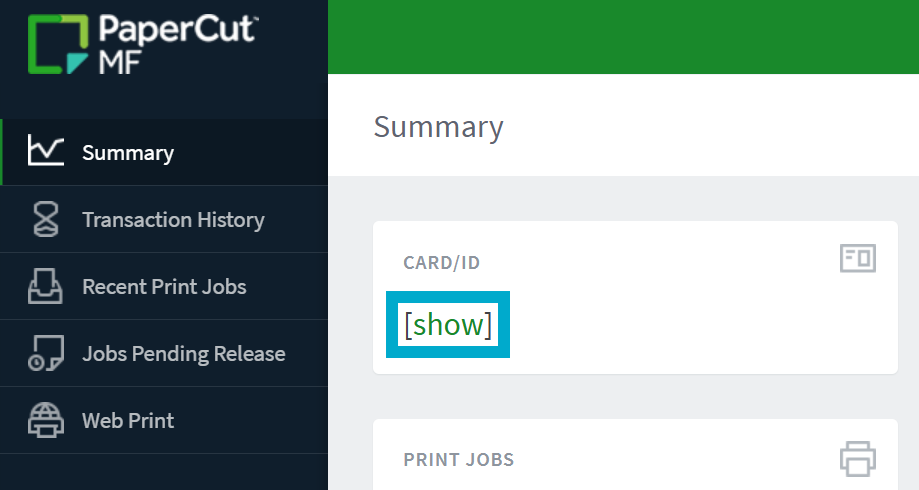
- If you don’t have your ID card, you can use the pin found on the PaperCut dashboard and enter that manually at the printer.
- Additionally, all students should have received an email with their PaperCut ID.