Web printing
Web printing is the default way for students to print on campus. This page contains instructions for web printing which should work on all computers.
Student only have access to the following copiers:
Library-2-Students
CollegeCenter-3-Students
Before setting up PaperCut, ensure your ID is associated with the copiers.
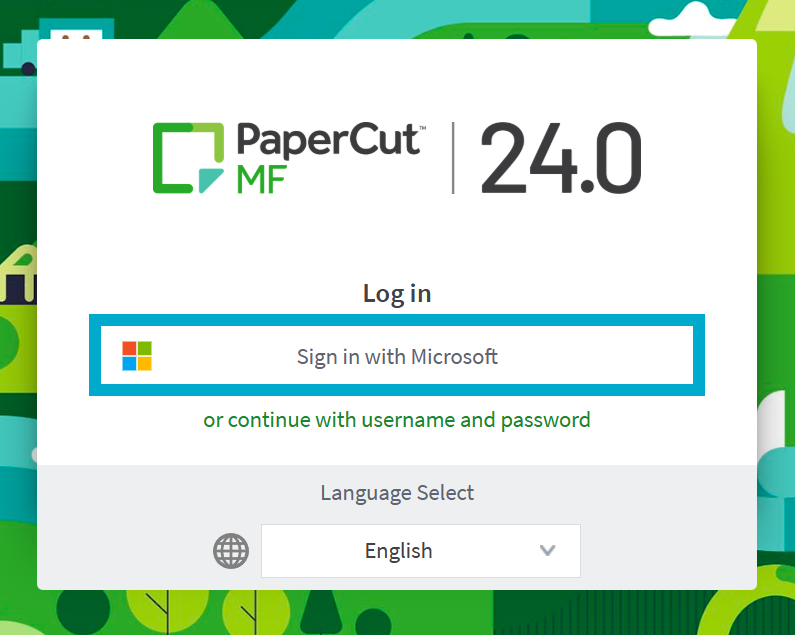
- Go to print.brynathyn.edu.
- Select Sign in with Microsoft and enter your Microsoft account credentials.
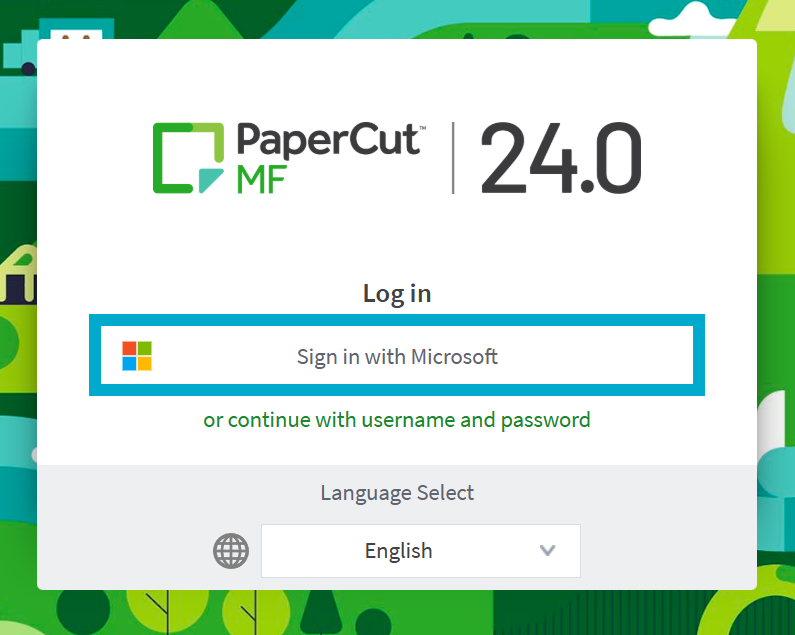
See Logging in with Microsoft 365 if you need help with this step.
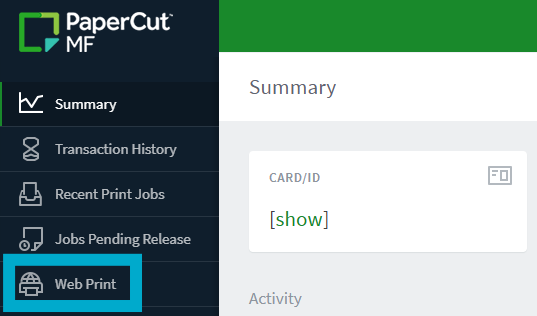
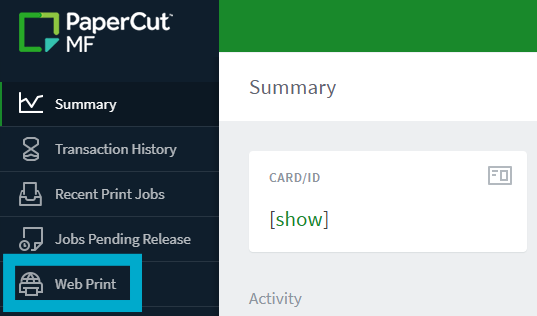
- Select Web Print on the sidebar.
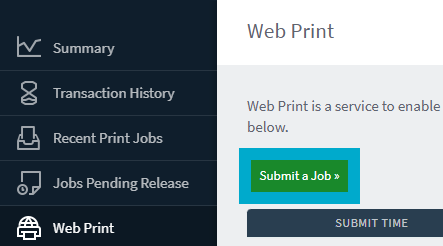
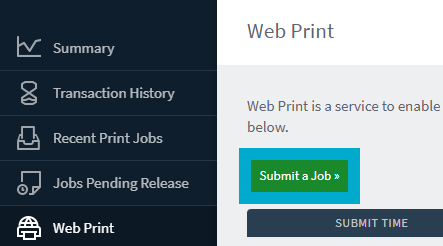
- Click Submit a Job.
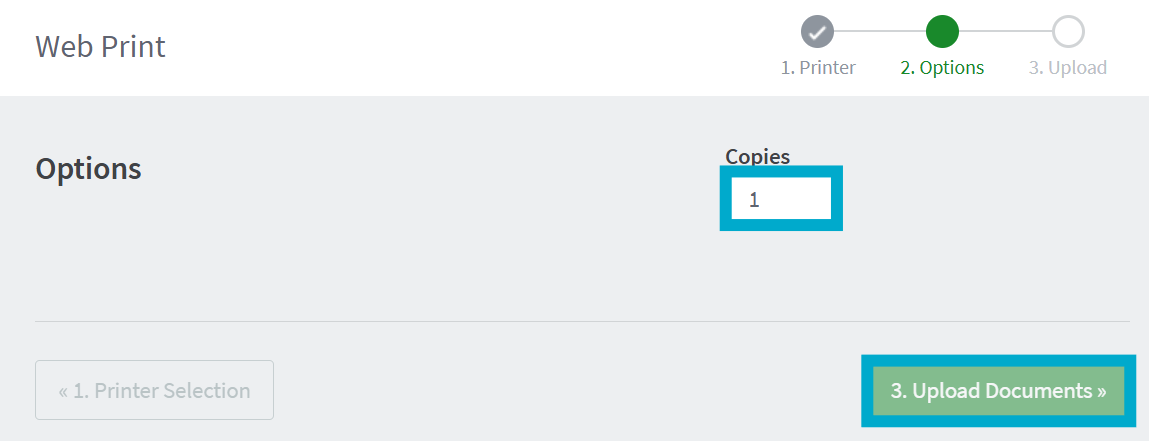
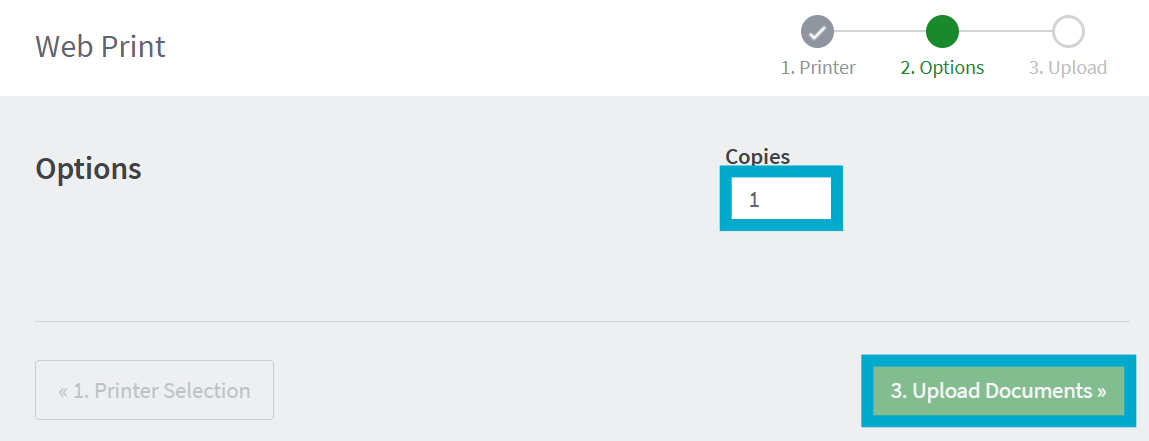
- Confirm the number of copies to print, then click Upload Documents.
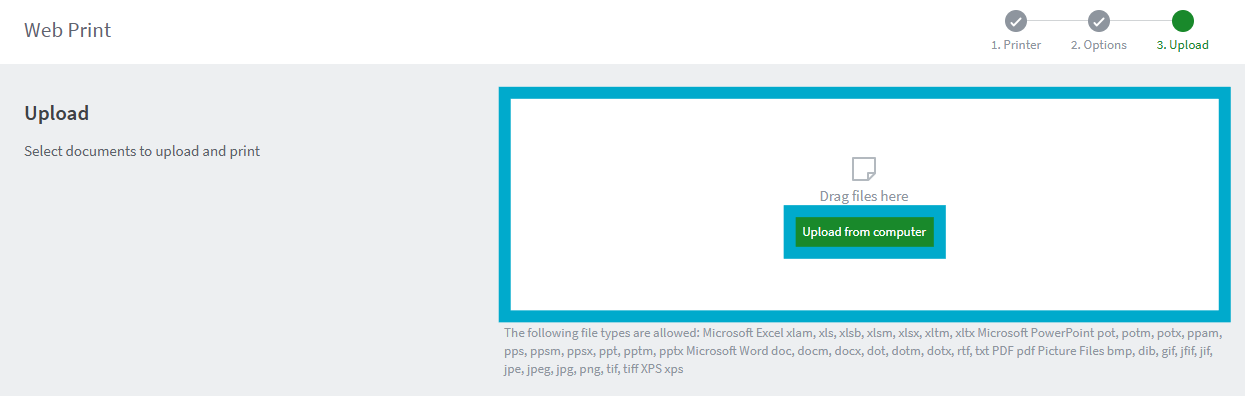
- Select Upload from computer and upload the file(s) you wish to print or simply drag and drop files onto the Drag files here box.
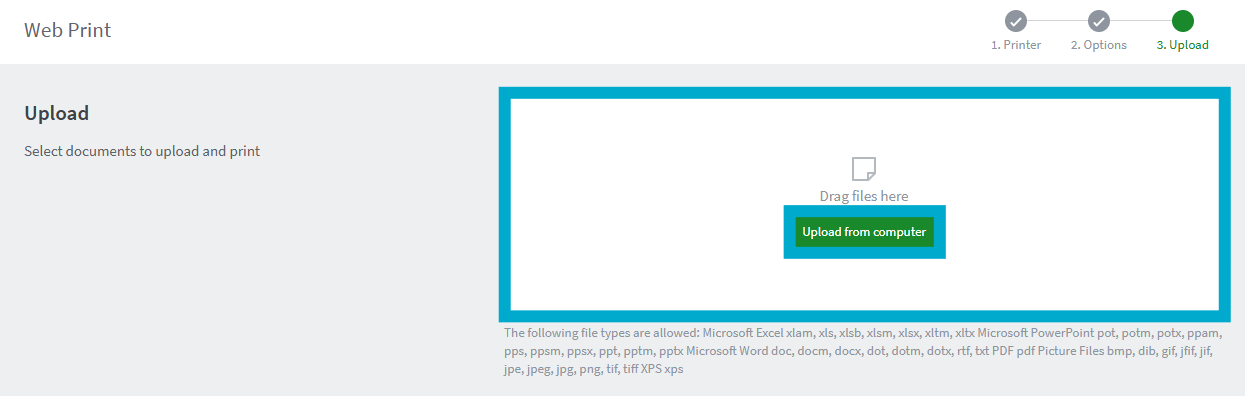
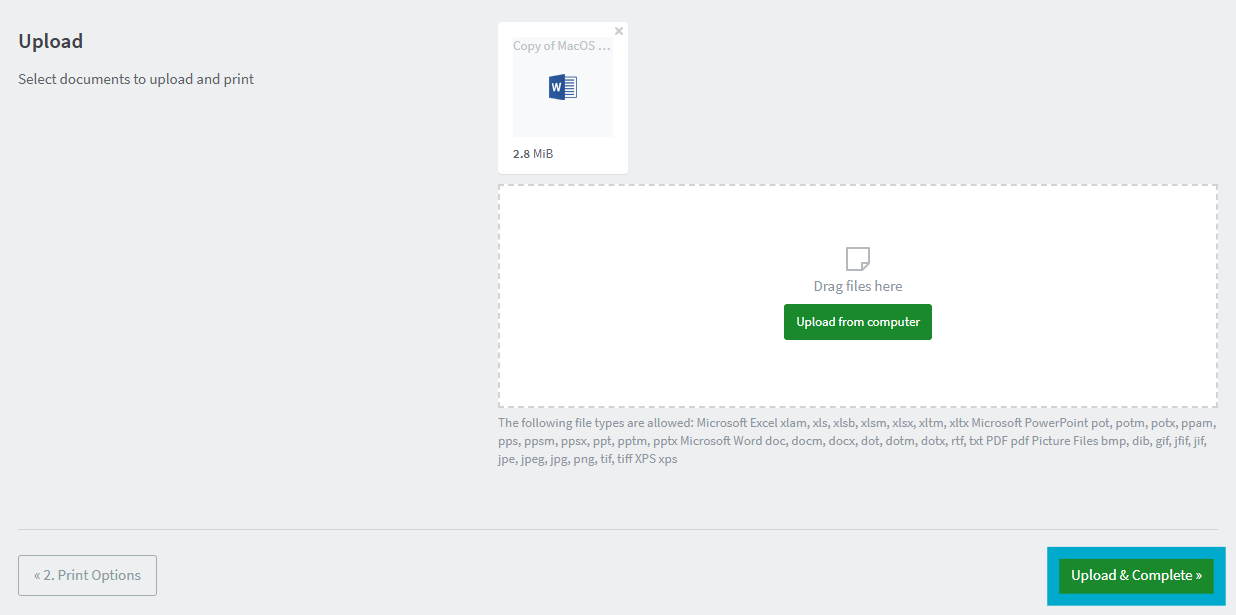
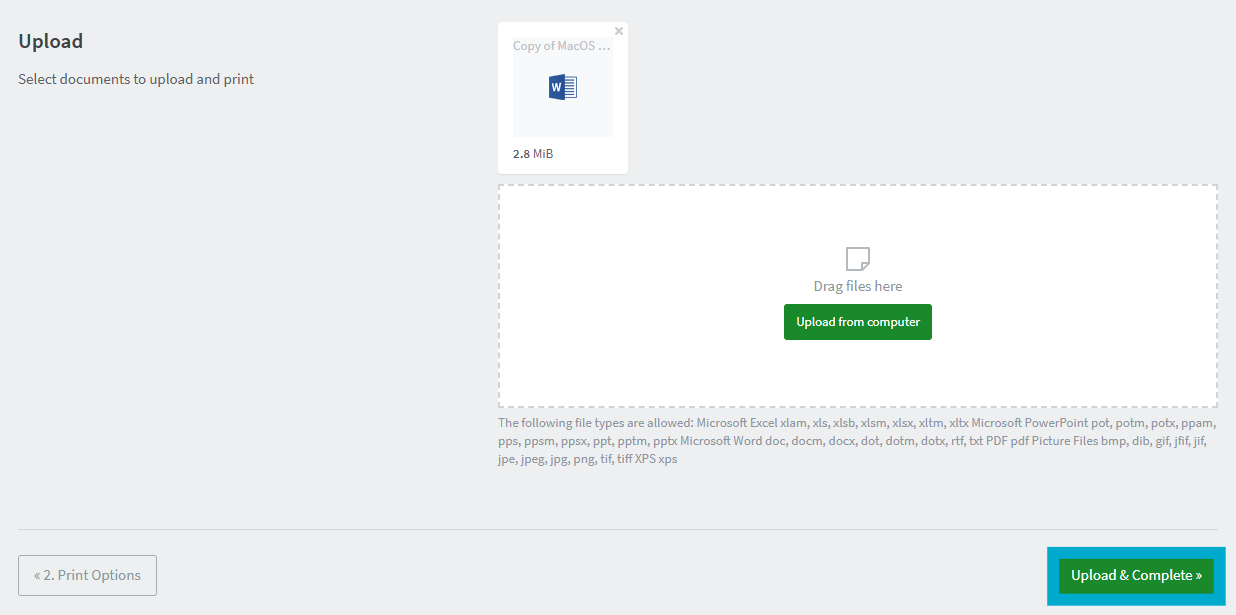
- After your files are uploaded, click Upload & Complete to print them.
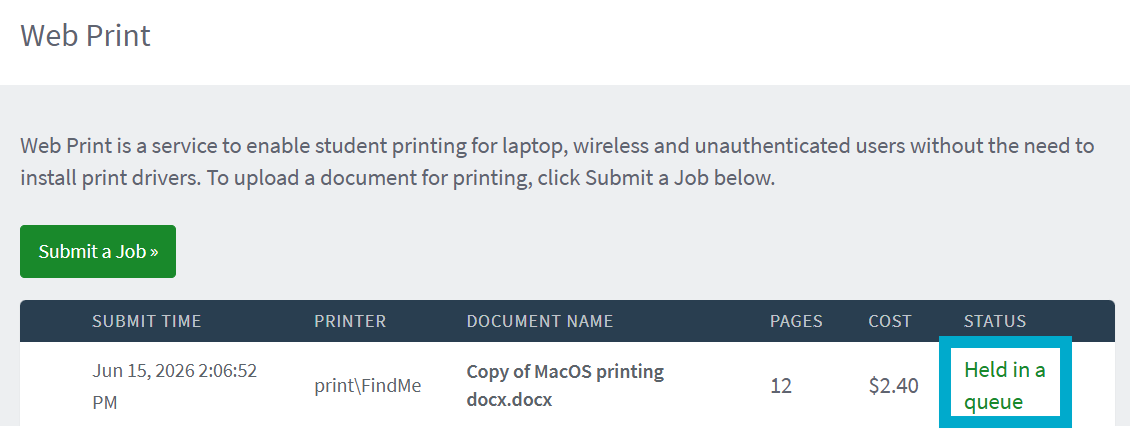
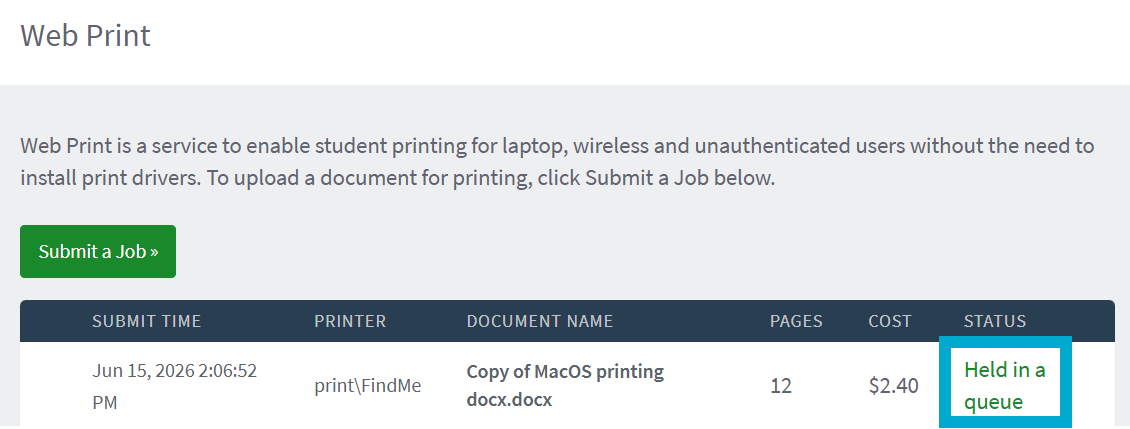
- Once the status says Held in a queue, your print is ready to be released at the printer.
- Go to one of the copiers to release the print there.
- If you have your Bryn Athyn College ID card, scan it at the copier to release the print.
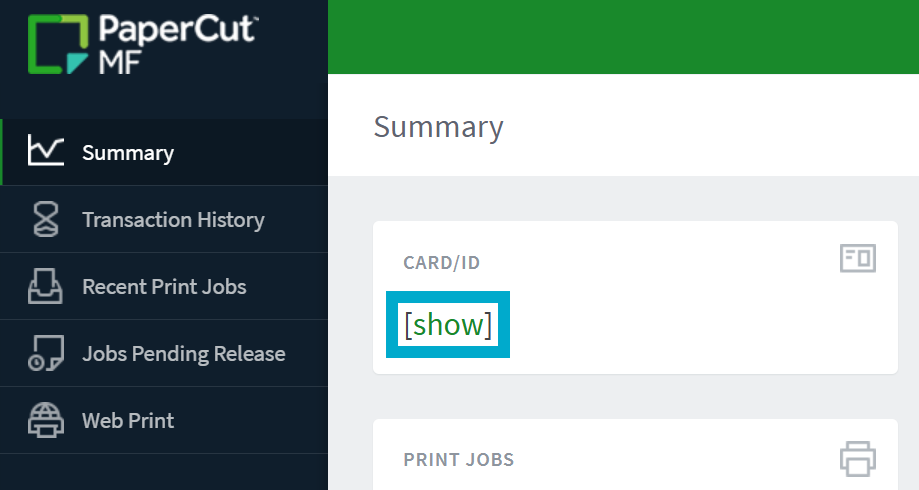
- If you don’t have your ID card, you can use the pin found on the PaperCut dashboard and enter that manually at the printer.
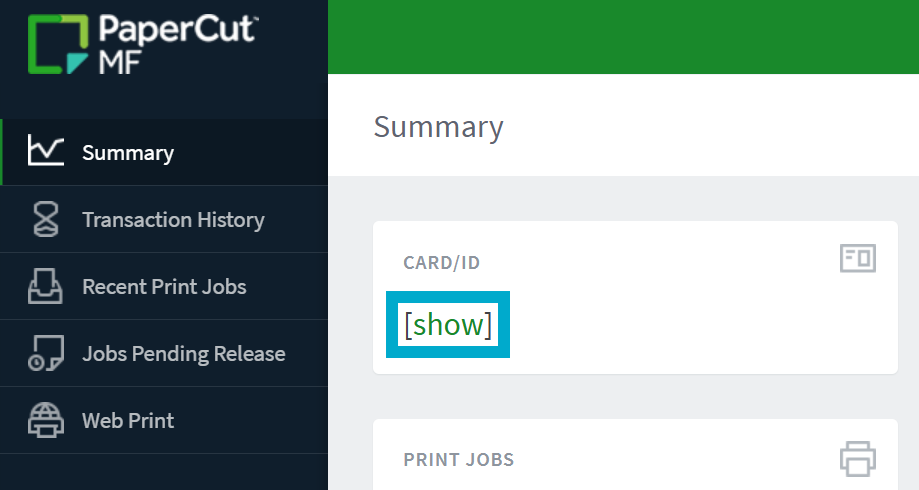
- Additionally, all students should have received an email with their PaperCut ID.