
Setting up your Microsoft account
The first time you log in to your College Microsoft account, you will have to go through a few additional setup steps. This page will walk you through the process of getting your account ready to use.
- Go to login.microsoftonline.com.
- Enter your email and password, as received in your New Account email.
This process is explained slightly more in-depth in Logging in with Microsoft 365, just disregard step 6 in that page for now.
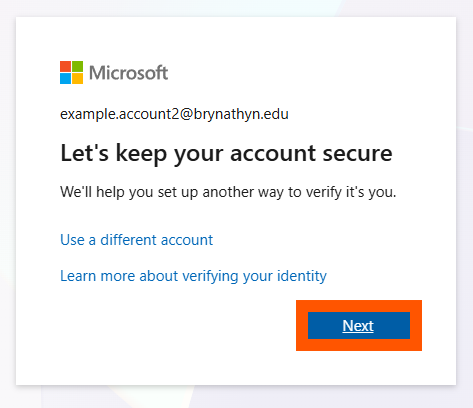
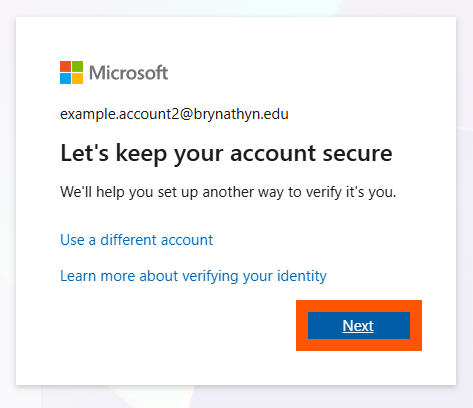
- Click Next on the prompt that appears.
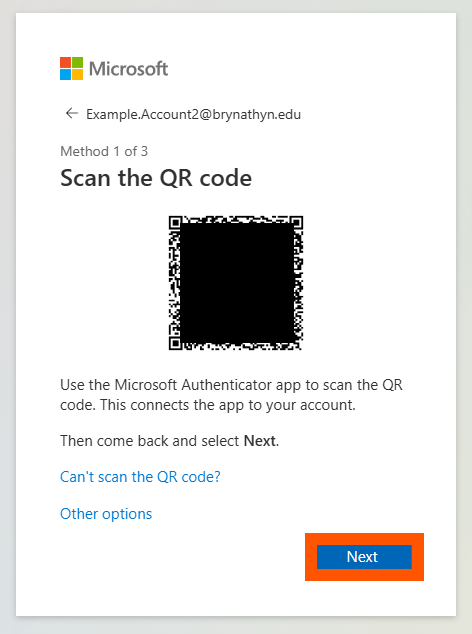
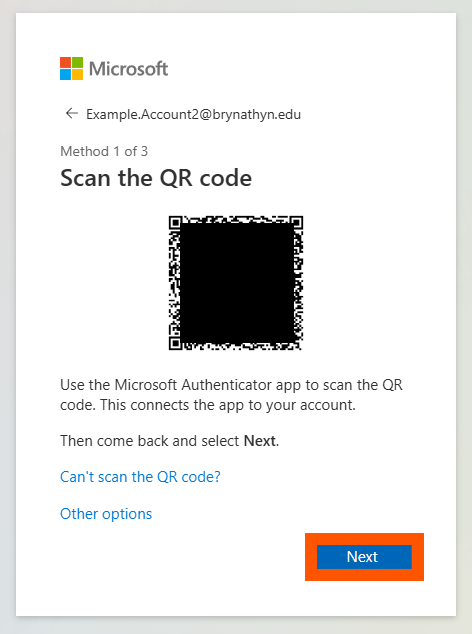
- Install the Microsoft Authenticator app by searching the mobile app store the QR codes below.


- Follow the instructions provided on your computer, which will guide you through adding your account in the Authenticator app.
- Once you have scanned a QR code to add your account, click Next.
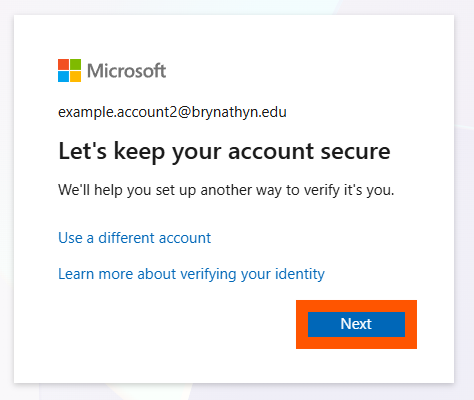
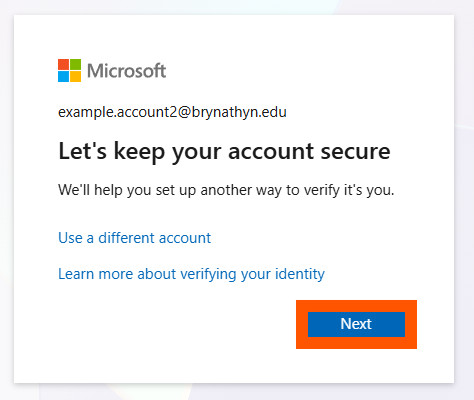
- Begin setting up a second method of verification by clicking Next.
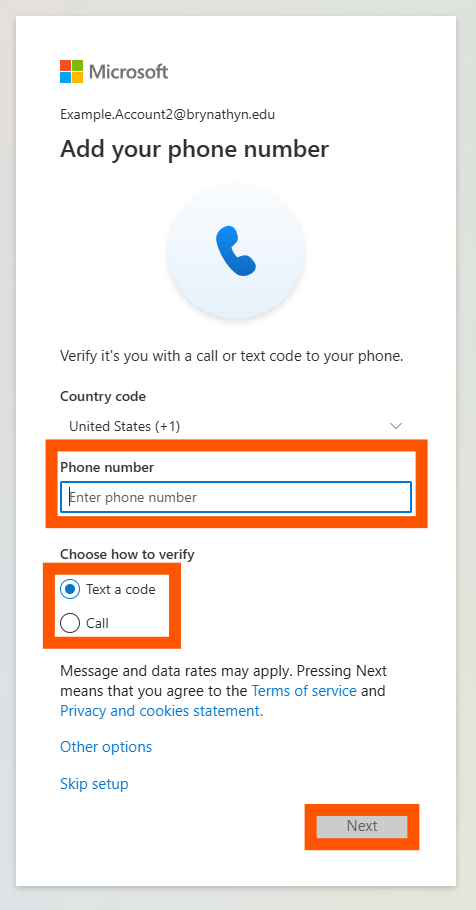
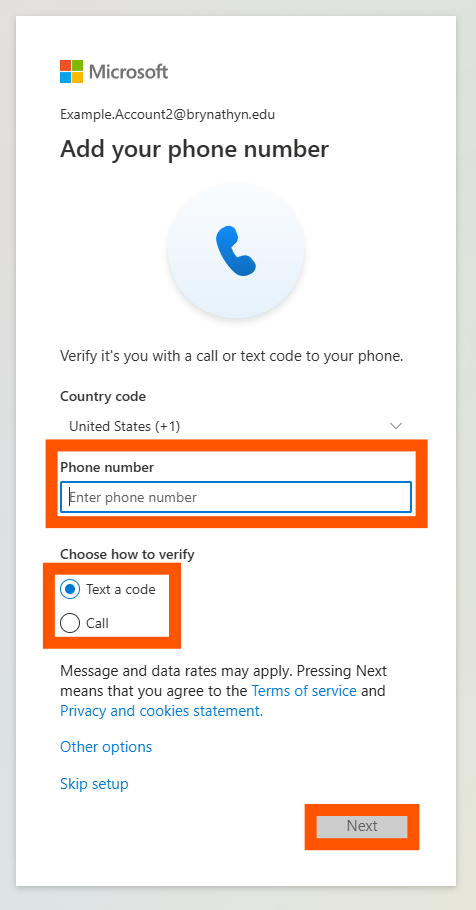
- Enter your phone number and change the Country code if necessary. You can choose either call or text to receive a verification code. Click Next.
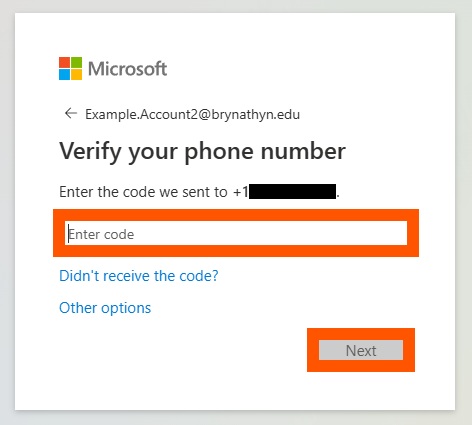
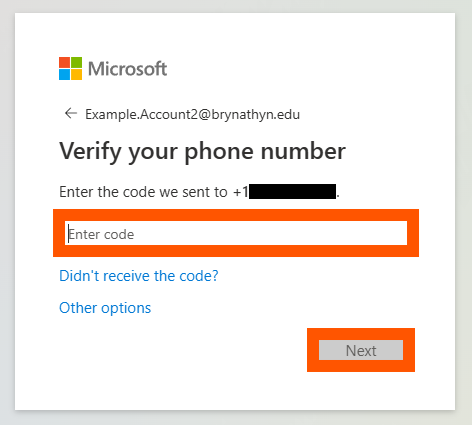
- Enter the code you received, then click Next.
- Click Done, then click Done.
- Change your password from the temporary one to a permanent one of your choice.
- Go to https://mysignins.microsoft.com/security-info/password/change
- Log in with your account using your temporary password.
- Enter your new password, confirm it, and click Submit.
This is absolutely required, as Helpdesk technicians permenantly have access to the temporary password you were sent.
- Optional but helpful: install Microsoft 365 desktop apps such as Outlook, PowerPoint, and Word by following the instructions in Installing Microsoft 365.

Please respond to the New Account email from the Helpdesk to confirm that you have completed this process. After doing so, you're done setting up your Microsoft account!