Setting up Microsoft Authenticator
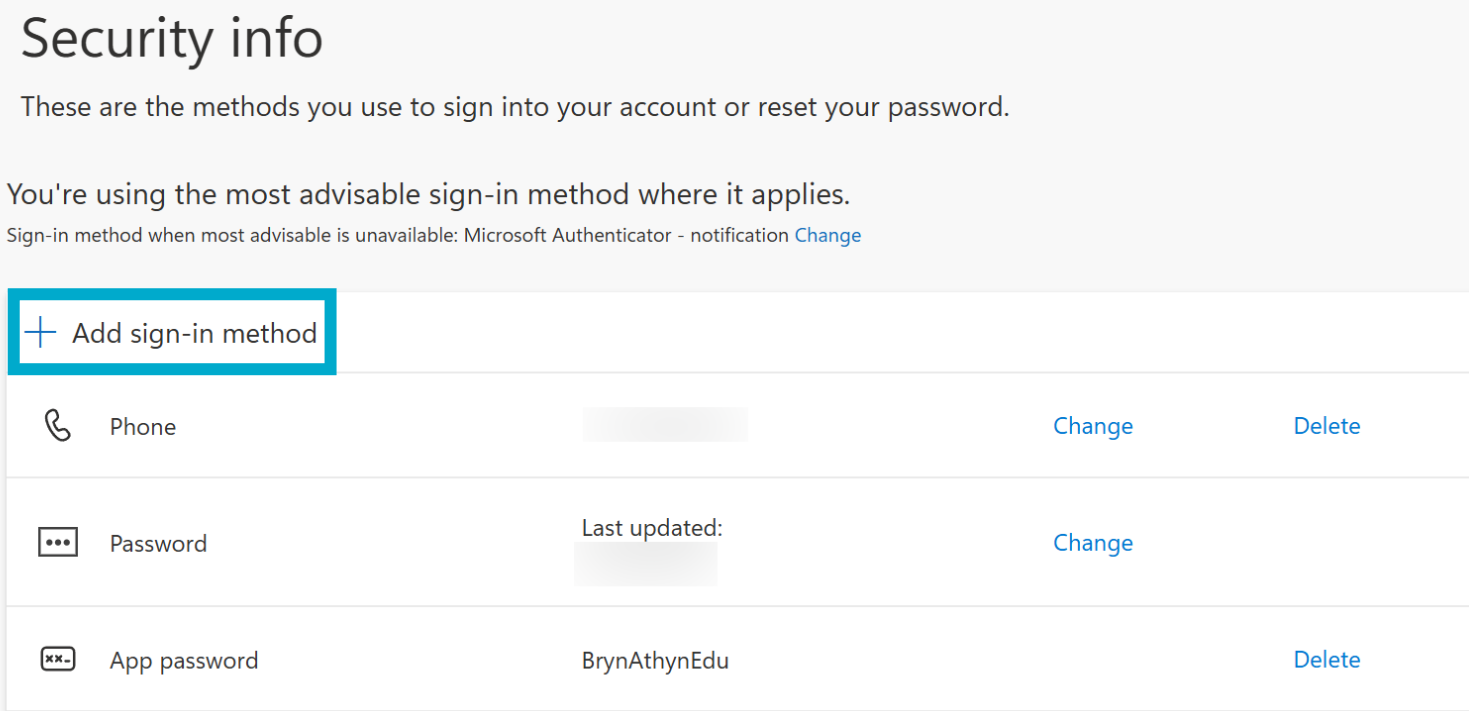
- Head to https://mysignins.microsoft.com/security-info and sign in using your Bryn Athyn College Microsoft 365 account.
- Select Add sign-in method.
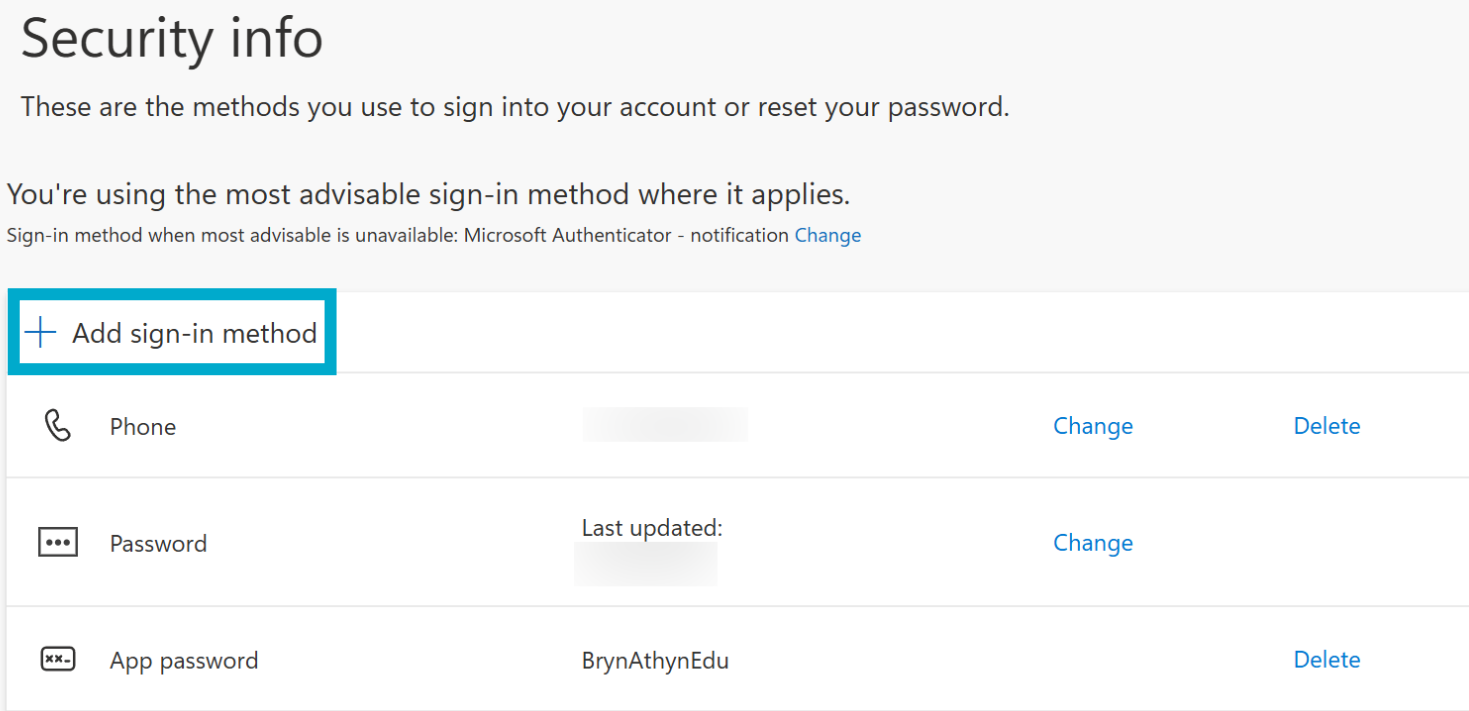
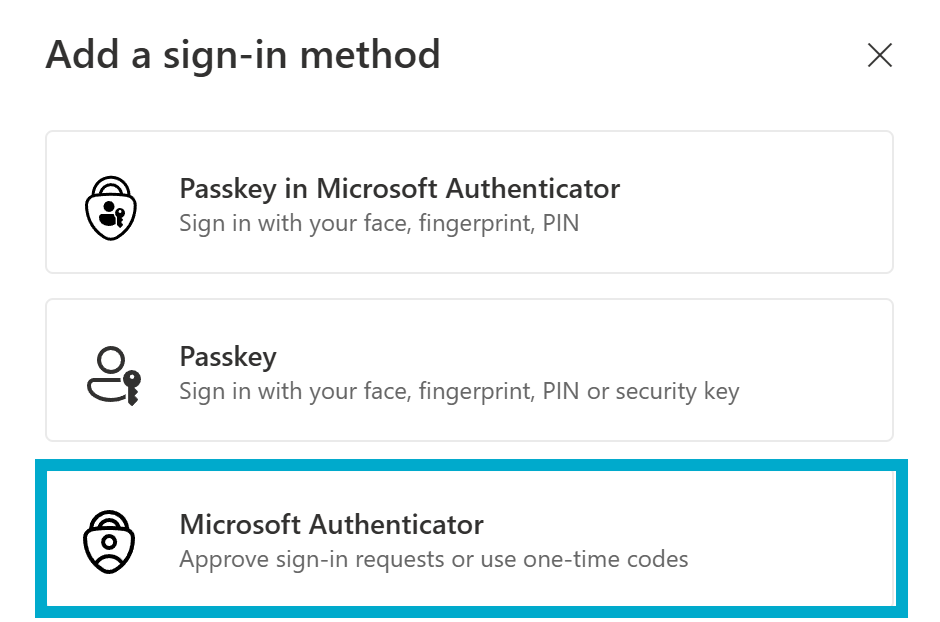
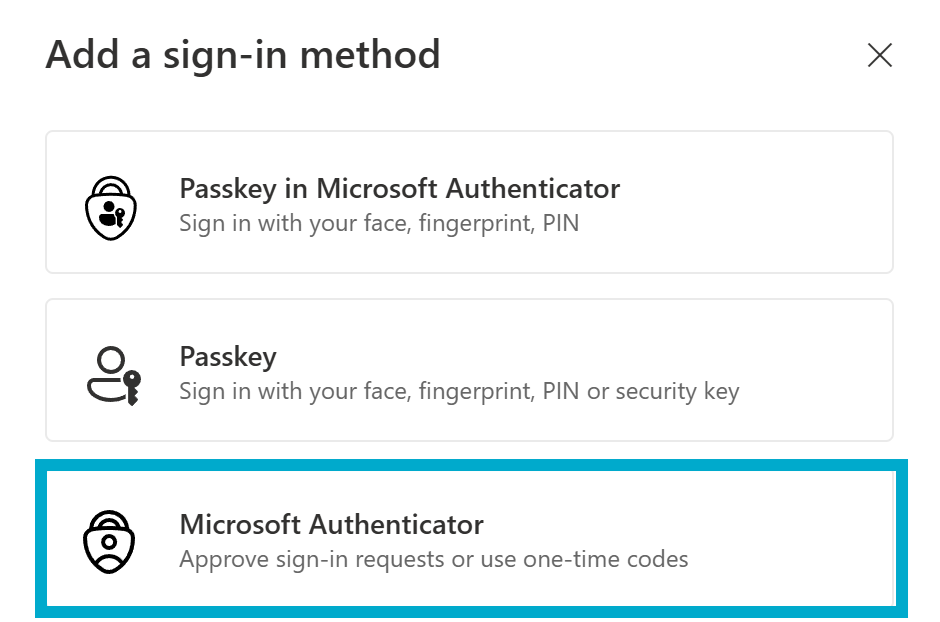
- Select Microsoft Authenticator.
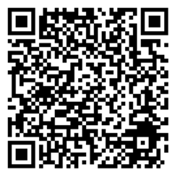
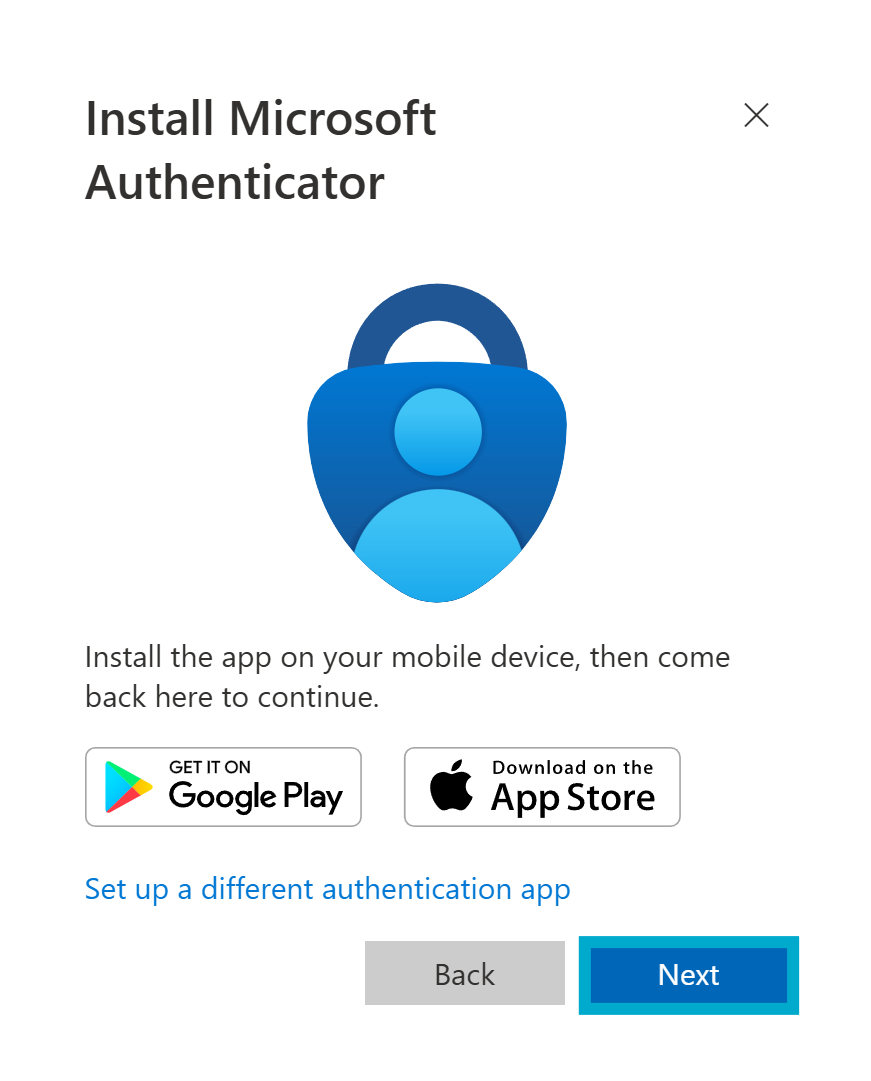
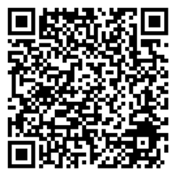
- Download the Microsoft Authenticator app on your phone. It is available via the Apple App Store or the Google Play Store. Scan the QR code with your phone to get to the app store listing for your device.
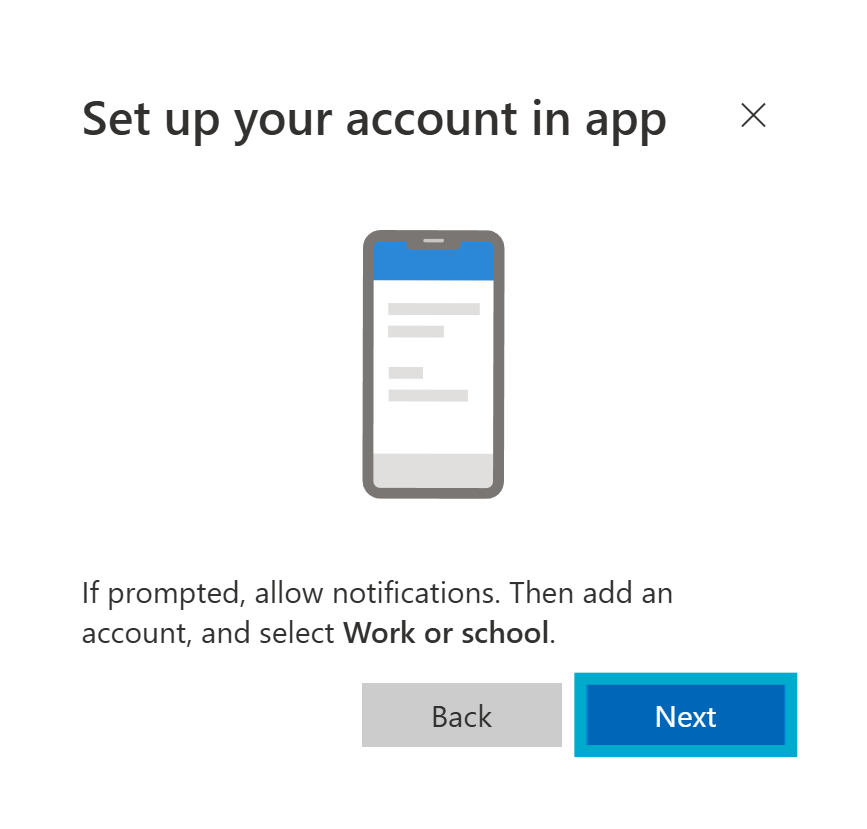
- Back on the Microsoft 365 account page, select Next on the prompt for the Microsoft Authenticator app.
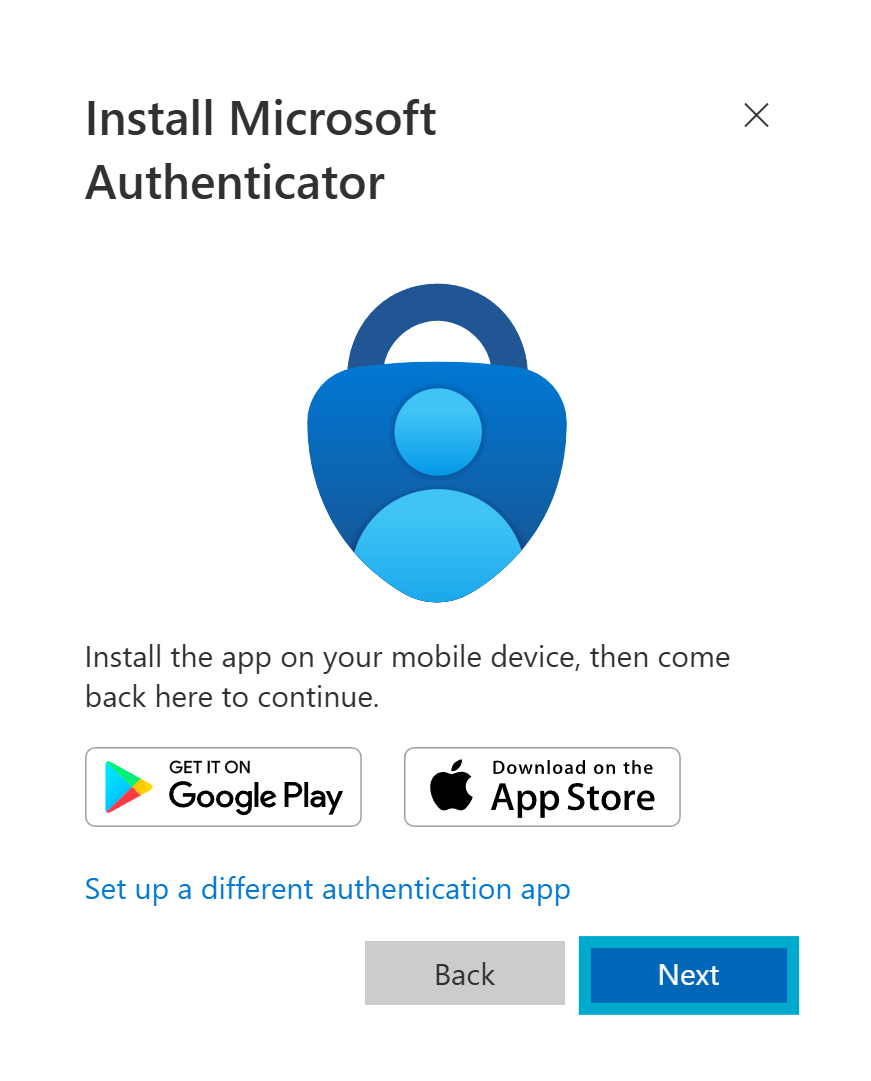
- Remain on the Set up your account page while you set up the Microsoft Authenticator app on your phone.
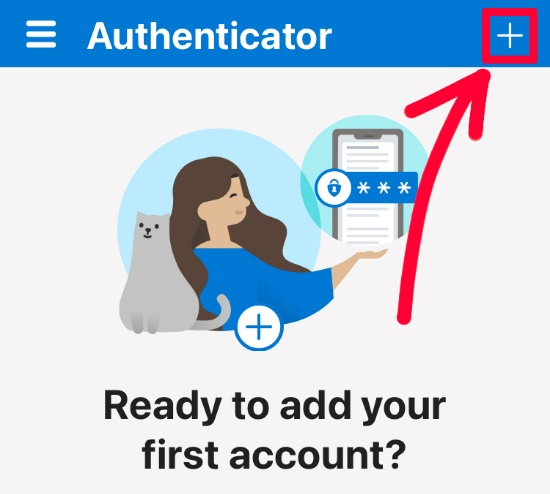
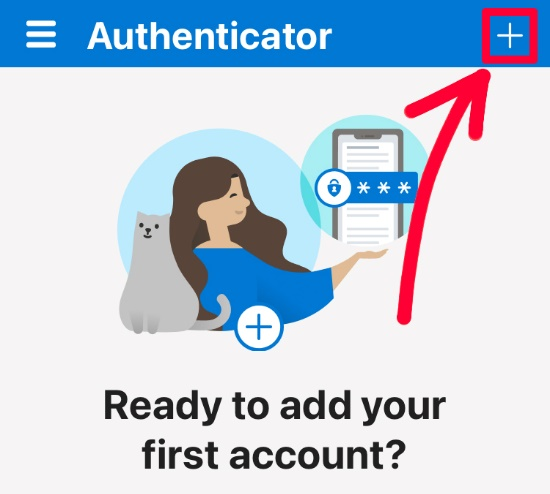
- Open the Microsoft Authenticator app. If prompted, select to allow notifications. Click the + in the top right.
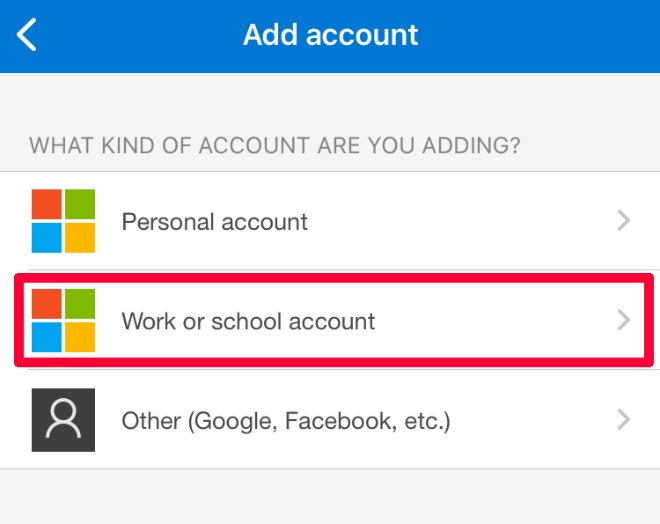
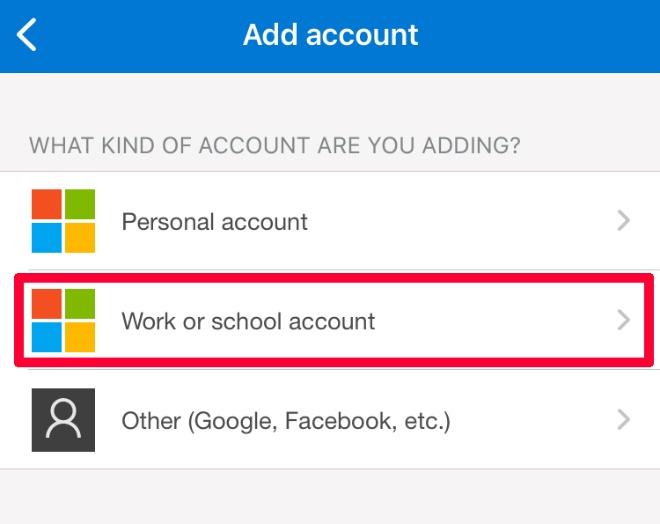
- Select Work or school account.
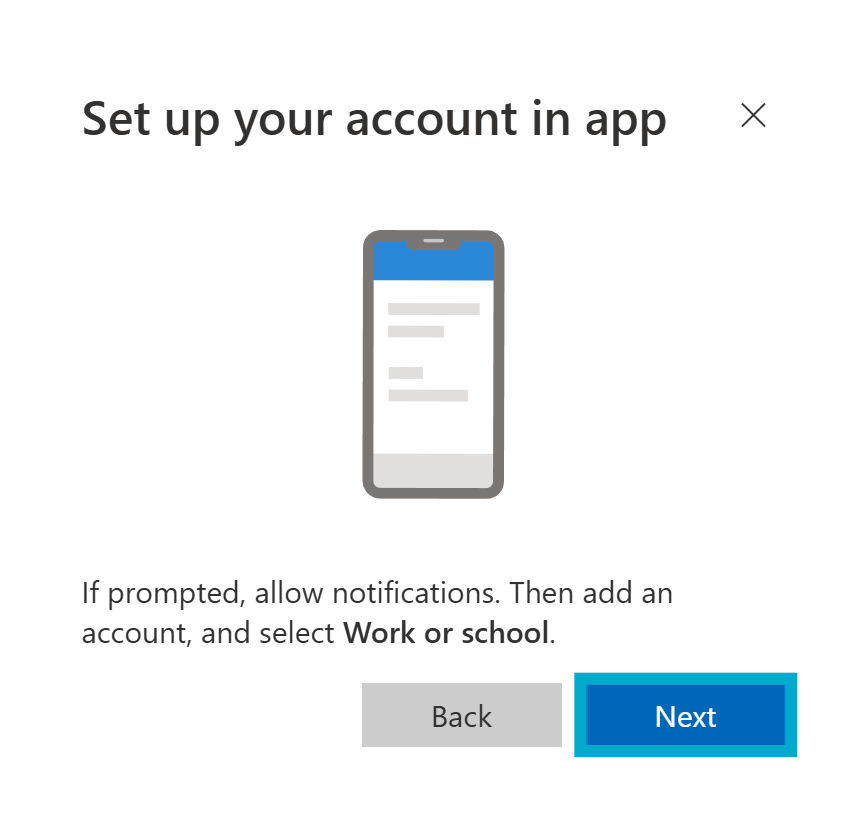
- Go back to your browser page where you are signed into your account and select Next on the current prompt.
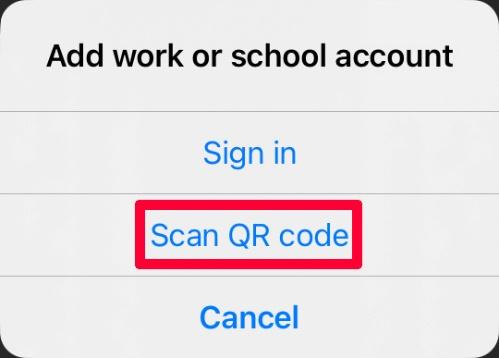
- In Microsoft Authenticator, select Scan QR code, then scan the code on your computer.
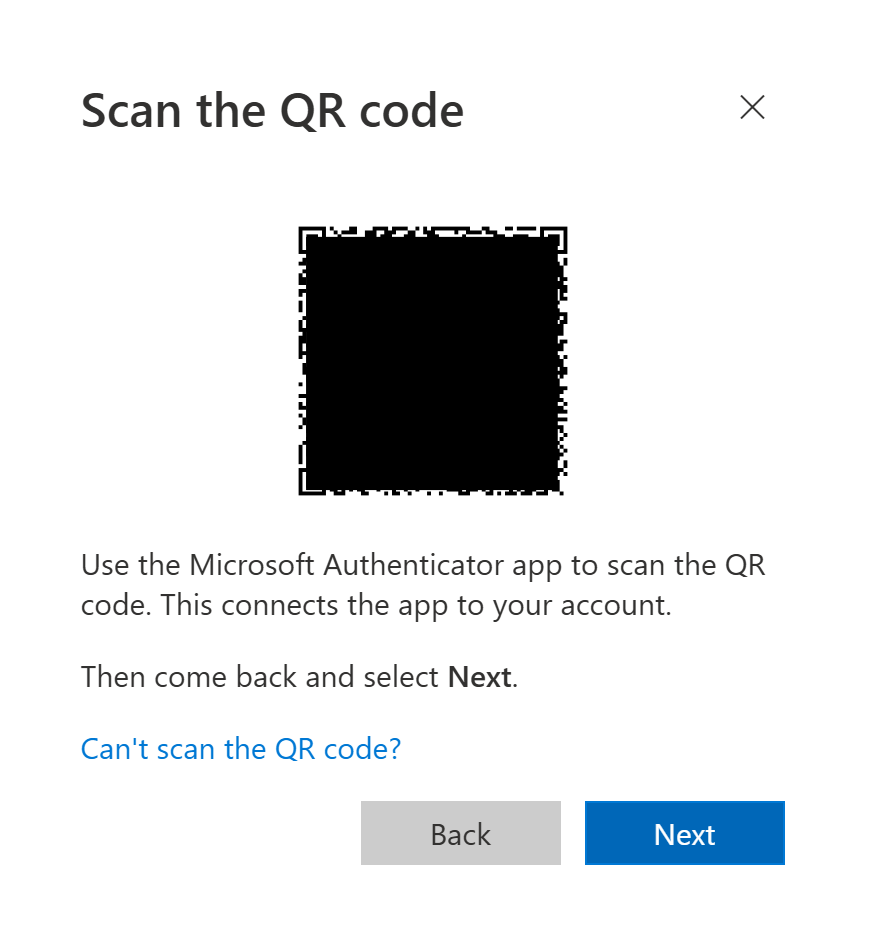
- Your account should now be added to your authenticator app. To make sure everything is working, select Next in the panel with the QR code. This will send out a test MFA notification to confirm you are able to approve alerts for your account. After approving the MFA prompt select Next again to complete the process.
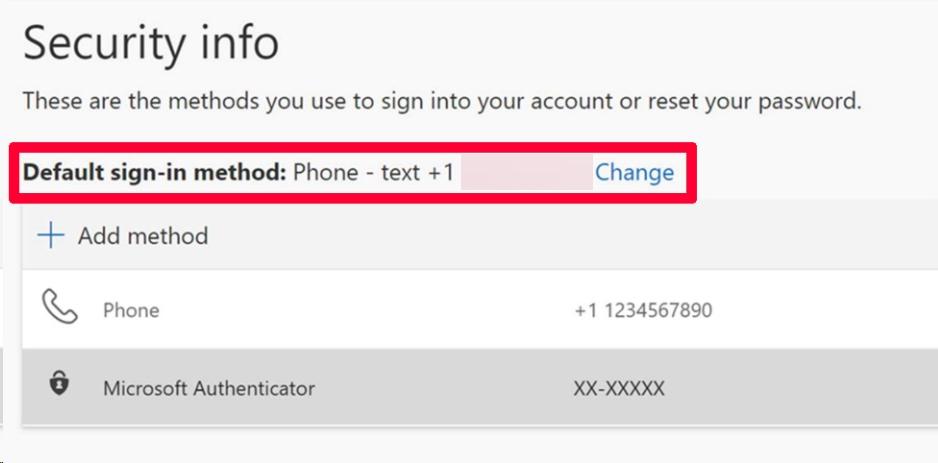
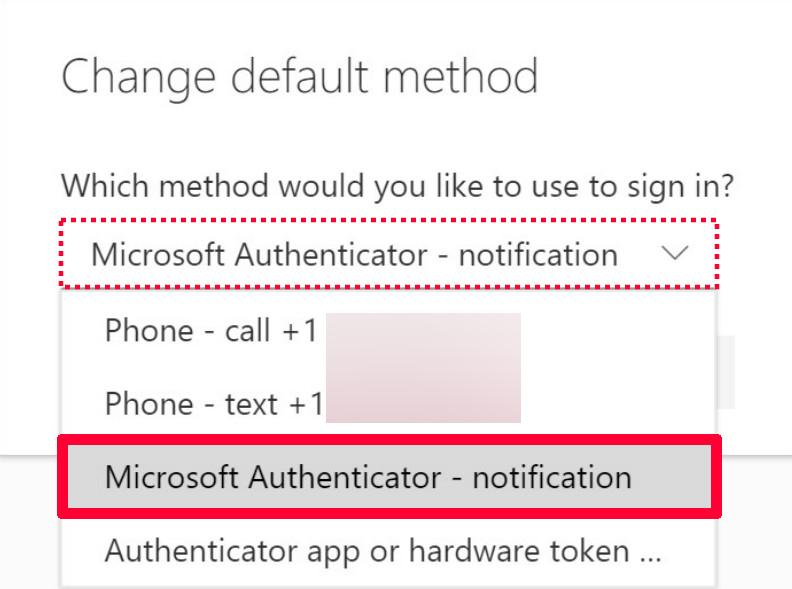
- Set the Authenticator app as your default sign-in method. To do this, select the blue change option next to your current Default sign-in method near the top of the screen. From the drop-down list select Microsoft Authenticator - Notification, and then select confirm.